
1. Introdução
Thank you for choosing the M-Audio Radium 49 MIDI Controller Keyboard. This manual provides essential information for setting up, operating, and maintaining your device. The Radium 49 is a versatile 49-key MIDI controller designed to integrate seamlessly with your digital audio workstation (DAW) and other MIDI-compatible software and hardware.
It features 49 velocity-sensitive keys and 8 assignable controller knobs, offering expressive control over your musical productions.
2. Informações de segurança
- Fonte de energia: Connect the device only to the power source specified in the product documentation or marked on the product.
- Água e Umidade: Do not expose this device to rain or moisture. Do not use near water or in damp localizações.
- Aquecer: Não coloque o aparelho perto de fontes de calor, como radiadores, aquecedores, fogões ou outros aparelhos que produzam calor.
- Ventilação: Garanta uma ventilação adequada. Não obstrua nenhuma abertura de ventilação.
- Limpeza: Clean only with a dry cloth. Avoid liquid cleaners.
- Manutenção: Não tente consertar este produto sozinho. Encaminhe todos os serviços de manutenção para pessoal de serviço qualificado.
3. Conteúdo da embalagem
Por favor, verifique se todos os seguintes itens estão incluídos em seu pacote:
- M-Audio Radium 49 MIDI Controller Keyboard
- Cabo USB
- Manual do usuário (este documento)
4. Produto acabadoview
The M-Audio Radium 49 features a streamlined design with essential controls for MIDI performance and production.
4.1 Painel Frontal
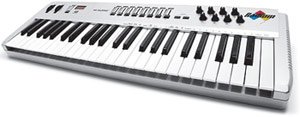
Imagem 1: Frente view of the M-Audio Radium 49 MIDI Controller Keyboard. This image displays the 49 keys, 8 rotary knobs, and various buttons for control and navigation.
- 49 teclas sensíveis à velocidade: Standard piano-style keys for playing notes and controlling MIDI instruments.
- 8 Assignable Controller Knobs: Rotary knobs that can be assigned to control various parameters in your software or hardware, such as volume, pan, filter cutoff, or effects.
- Roda Pitch Bend: Allows for real-time pitch modulation.
- Roda de modulação: Provides real-time control over various parameters, commonly vibrato or tremolo.
- Octave Transpose Buttons: Buttons to shift the keyboard's octave range up or down by up to three octaves.
4.2 Painel traseiro
The rear panel typically houses the connectivity ports.
- Porta USB: For connecting the Radium 49 to your computer, providing both power and MIDI data transmission.
- Porta de saída MIDI: Permite a conexão a dispositivos MIDI externos.
- Entrada do pedal de sustentação: Para conectar um pedal de sustain opcional.
5. Configuração
5.1 Conectando-se ao seu computador
- Certifique-se de que seu computador esteja ligado.
- Connect one end of the supplied USB cable to the USB port on the M-Audio Radium 49.
- Connect the other end of the USB cable to an available USB port on your computer. The Radium 49 will draw power directly from the USB connection.
- Your computer should detect the new hardware.
5.2 Instalação do driver
For optimal performance, it is recommended to install the latest drivers for the M-Audio Radium 49. While many modern operating systems may offer class-compliant drivers, dedicated drivers often provide enhanced stability and features.
- Visit the official M-Audio weblocal (www.m-audio.com) e navegue até a seção de suporte ou downloads.
- Locate the drivers for the Radium 49 (Model: 9900-40825-00).
- Download the appropriate driver for your operating system (e.g., Windows, macOS). Note: This product is considered a legacy device. Compatibility with newer operating systems like Windows 7 and above may require specific drivers or may be limited. Refer to M-Audio's support resources for detailed compatibility information.
- Siga as instruções na tela para instalar o driver. Pode ser necessário reiniciar o computador após a instalação.
5.3 Configuração de Software
After driver installation, configure your Digital Audio Workstation (DAW) or other music software to recognize the Radium 49 as a MIDI input device.
- Open your preferred DAW (e.g., Ableton Live).
- Navigate to the software's preferences or settings menu (often found under "Options," "Preferences," or the software's name).
- Look for a section related to MIDI devices, controllers, or external devices.
- Enable the M-Audio Radium 49 as a MIDI input. You may see it listed by its name or as a generic USB MIDI device.
- Consult your DAW's documentation for specific instructions on setting up MIDI controllers.
6. Instruções de operação
6.1 Notas de execução
Once connected and configured, simply press the keys on the Radium 49 to send MIDI note data to your software instruments. The velocity sensitivity of the keys will translate into dynamic variations in your sound.
6.2 Using Controller Knobs
The 8 assignable controller knobs can be mapped to various parameters within your DAW or software instruments. This allows for real-time control over sound characteristics.
- Atribuição: The method for assigning knobs varies by software. Typically, you will enter a "MIDI Learn" mode in your DAW, select the parameter you wish to control, and then turn the desired knob on the Radium 49.
- Usos comuns: Control volume, pan, filter cutoff, resonance, effect send levels, or any other MIDI-mappable parameter.
6.3 Rodas de Inclinação e Modulação
- Roda Pitch Bend: Move this wheel up or down to temporarily raise or lower the pitch of the notes being played. It typically springs back to the center position.
- Roda de modulação: Move this wheel to add modulation effects, suchs as vibrato, tremolo, or filter sweeps, depending on how your software instrument is configured. This wheel usually stays in its last set position.
6.4 Octave Transposition
Use the dedicated Octave Transpose buttons to shift the entire keyboard's range up or down. This allows you to access a wider range of notes than the 49 physical keys provide.
- Press the "Octave Up" button to shift the keyboard's range higher.
- Press the "Octave Down" button to shift the keyboard's range lower.
- The Radium 49 supports up to +/-3 octave transposition.
7. Manutenção
- Limpeza: Use a soft, dry, lint-free cloth to clean the surface of the Radium 49. Do not use abrasive cleaners, waxes, or solvents.
- Armazenar: Quando não estiver em uso por longos períodos, guarde o dispositivo em um ambiente limpo e seco, longe da luz solar direta e de temperaturas extremas.
- Manuseio: Avoid dropping or subjecting the device to strong impacts. Do not place heavy objects on the keyboard.
8. Solução De Problemas
8.1 Sem saída de som ou MIDI
- Verifique a conexão USB: Ensure the USB cable is securely connected to both the Radium 49 and your computer. Try a different USB port or cable.
- Verificar motoristas: Confirm that the correct drivers are installed and recognized by your operating system. Check Device Manager (Windows) or System Information (macOS) for the device status.
- Configurações de DAW/Software: Ensure the Radium 49 is selected as a MIDI input device in your music software's preferences. Verify that the track you are playing on is armed for recording or monitoring MIDI input.
- Software Instrument Loaded: Make sure a software instrument or sound generator is loaded and active in your DAW.
8.2 Inconsistent Velocity Sensitivity or Key Response
- Limpeza: Dust or debris under the keys can affect performance. Refer to the maintenance section for cleaning guidelines.
- Configurações do software: Check if your DAW or instrument has velocity curve settings that might be affecting the response.
8.3 Compatibility Issues with Newer Operating Systems
The M-Audio Radium 49 is an older model. While it may function with newer operating systems, full compatibility and driver support can be limited. If you encounter issues:
- Check M-Audio Support: Visite a M-Audio website for any legacy driver updates or compatibility statements.
- Fóruns da comunidade: Search online forums for solutions or workarounds from other users who have successfully used the Radium 49 with your operating system.
- Consider a MIDI Interface: In some cases, using a separate, modern USB-to-MIDI interface to connect the Radium 49's MIDI Out port to your computer might resolve driver-related issues, though this would bypass the direct USB MIDI functionality.
9. Especificações
| Marca | M-ÁUDIO |
| Número do modelo | 9900-40825-00 |
| Número de Chaves | 49 |
| Tecnologia de Conectividade | USB |
| Recurso especial | Portátil |
| Componentes incluídos | Cabo USB, Manual do Usuário |
| Dispositivos compatíveis | computador, notebook |
| Software suportado | Ableton Live (e outras DAWs compatíveis com MIDI) |
| Plataforma | Windows, Windows 7 (Note: Compatibility with newer OS may vary) |
| Tipo de controle | Parameter Adjustment, Touch |
| Entrada de Interface Humana | Teclado |
| GTIN / UPC | 612391700706 |
10. Garantia e Suporte
M-Audio products are covered by a limited warranty. For detailed warranty terms and conditions, please refer to the warranty card included with your product or visit the official M-Audio website.
For technical support, driver downloads, FAQs, and other resources, please visit the M-Audio support page:
When contacting support, please have your product model number (9900-40825-00) and serial number ready.