
1. Produto acabadoview
The Nintendo Wii console offers an interactive gaming experience for all ages through intuitive motion controls. This system is designed to provide a unique social activity, encouraging active participation for the entire family. The Wii console bundle typically includes software and accessories to enhance your gaming experience.
Os principais recursos incluem:
- Motion-control technology for interactive gameplay.
- Support for up to four Wii Remote Plus controllers via built-in Bluetooth wireless technology.
- Wii Remote sensor for menu navigation and game activation.
- Standard components: Nintendo Wii System, Nintendo Wii Remote, Nintendo Wii Nunchuk, AC Cable, Standard AV Adapter, and Sensor Bar.
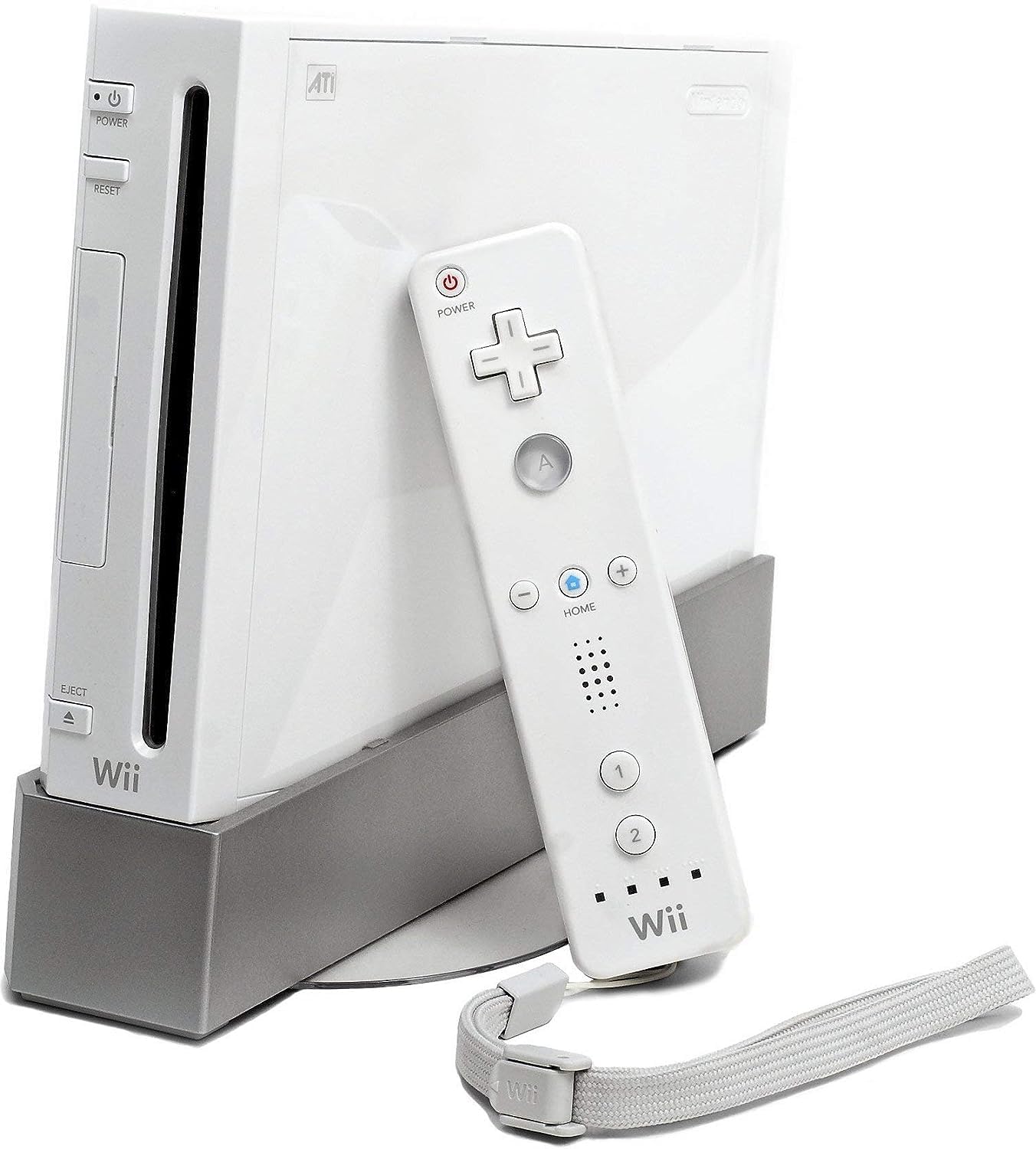
Image: The Nintendo Wii console standing vertically next to a television, with a Wii Remote and Nunchuk held in hands, demonstrating the primary control method.
2. Guia de configuração
Follow these steps to set up your Nintendo Wii console:
- Conecte o adaptador AC: Plug the AC adapter into the Wii console's power input and then into a wall outlet.
- Connect the AV Cable: Connect the Wii AV cable to the AV Multi Out port on the console and the corresponding input ports (usually yellow, white, and red) on your television.
- Position the Sensor Bar: Place the Sensor Bar either above or below your television, ensuring it is centered. Connect the Sensor Bar cable to the Sensor Bar port on the back of the Wii console.
- Insert a Game Disc: Open the disc slot cover and insert a Wii game disc with the label facing up.
- Connect Wii Remote and Nunchuk: Insert two AA batteries into the Wii Remote. Connect the Nunchuk accessory to the expansion port at the bottom of the Wii Remote.
- Ligar: Press the POWER button on the Wii console or the Wii Remote to turn on the system.

Image: A white Nintendo Wii console standing upright next to a white Wii Remote, with a hand pointing towards the remote, illustrating the console and its primary controller.
3. Instruções de operação
The Wii system uses a channel-based menu for navigation. Point the Wii Remote at the screen to select options.
3.1. Wii Menu Navigation
- Use the Wii Remote to point at the desired channel or option on the screen.
- Press the A button to select.
- The HOME button on the Wii Remote provides quick access to system settings and options during gameplay.
3.2. Jogando Jogos
Once a game disc is inserted and the system is powered on, select the Disc Channel from the Wii Menu to start playing. Follow on-screen instructions for specific game controls.
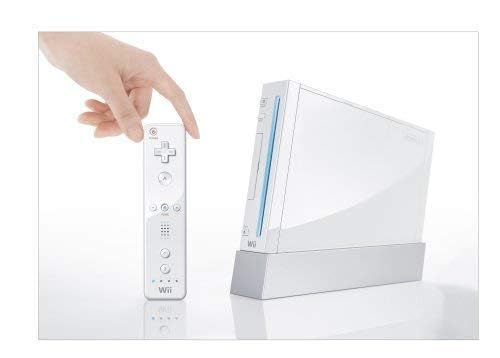
Image: Two hands holding a white Wii Remote and a white Nunchuk controller, connected by a cable, demonstrating how the controllers are held during gameplay.
3.3. Online Connectivity
The Wii console supports internet connectivity for services like WiiWare (downloadable games and applications), Virtual Console (classic arcade games), and the Nintendo Channel (game videos and demos). Some online features may require Wii Points or specific game codes.
Video: An instructional video demonstrating how to connect the Nintendo Wii console to the internet for online features and updates.
Video: An informational video providing an overview of the Nintendo Wii console and its core functionalities.
4. Manutenção
To ensure the longevity and optimal performance of your Wii console, follow these maintenance guidelines:
- Limpeza: Use a soft, dry cloth to clean the console and controllers. Avoid liquid cleaners or abrasive materials.
- Ventilação: Ensure the console is placed in a well-ventilated area to prevent overheating. Do not block the ventilation slots.
- Cuidados com o disco: Handle game discs by the edges. Keep them clean and free of scratches. Store discs in their cases when not in use.
- Atualizações de software: Periodically check for system software updates through the Wii System Settings to ensure compatibility and access to the latest features.
5. Solução De Problemas
If you encounter issues with your Nintendo Wii, refer to the following common troubleshooting tips:
- Sem energia: Check all power connections. Ensure the AC adapter is securely plugged into both the console and a working wall outlet.
- Nenhuma exibição: Verify that the AV cable is correctly connected to both the console and the television. Ensure your TV is set to the correct input channel (e.g., AV1, Component).
- Wii Remote Not Responding: Ensure the Wii Remote has fresh batteries. Resync the remote by opening the battery cover and pressing the SYNC button, then pressing the SYNC button on the console (located behind the SD card slot cover).
- Erros de leitura de disco: Clean the game disc with a soft cloth. Ensure the disc is inserted correctly. If issues persist, try another game disc to determine if the problem is with the console or the disc.
- Problemas de conexão com a internet: Review the 'Wii--How to Connect to the Internet' video in Section 3.3. Check your router and internet service provider for connectivity problems.
For further assistance, please visit the official Nintendo support website ou entre em contato com o atendimento ao cliente.
6. Especificações
| Recurso | Detalhe |
|---|---|
| Plataforma | Nintendo Wii |
| Número do modelo | RVL 001 |
| Marca | Nintendo |
| Capacidade de armazenamento de memória | 512 MB |
| Cor | Branco |
| Dispositivo de entrada | Aux Cord, Motion Sensor, Power Cord |
| Tecnologia de Conectividade | Wireless (Bluetooth for controllers) |
| UPC | 400029027130, 004549688088 |
7. Garantia e Suporte
For information regarding product warranty, repairs, or additional technical support, please visit the official Nintendo customer support website. You can find detailed FAQs, troubleshooting guides, and contact options there.
Official Nintendo Support: www.nintendo.com