
1. Introdução
The Adesso ARC-1100 is an infrared remote control designed to enhance your experience with Windows Media Center on various Windows operating systems, including Windows 8, 7, Vista, and XP. This remote allows for convenient control of your digital media and provides integrated mouse functionality from a distance of up to 10 meters (32.8 feet).
It features 46 media hotkeys and 3 dedicated mouse keys, offering comprehensive control over your media playback and PC functions without needing to be directly at your computer.
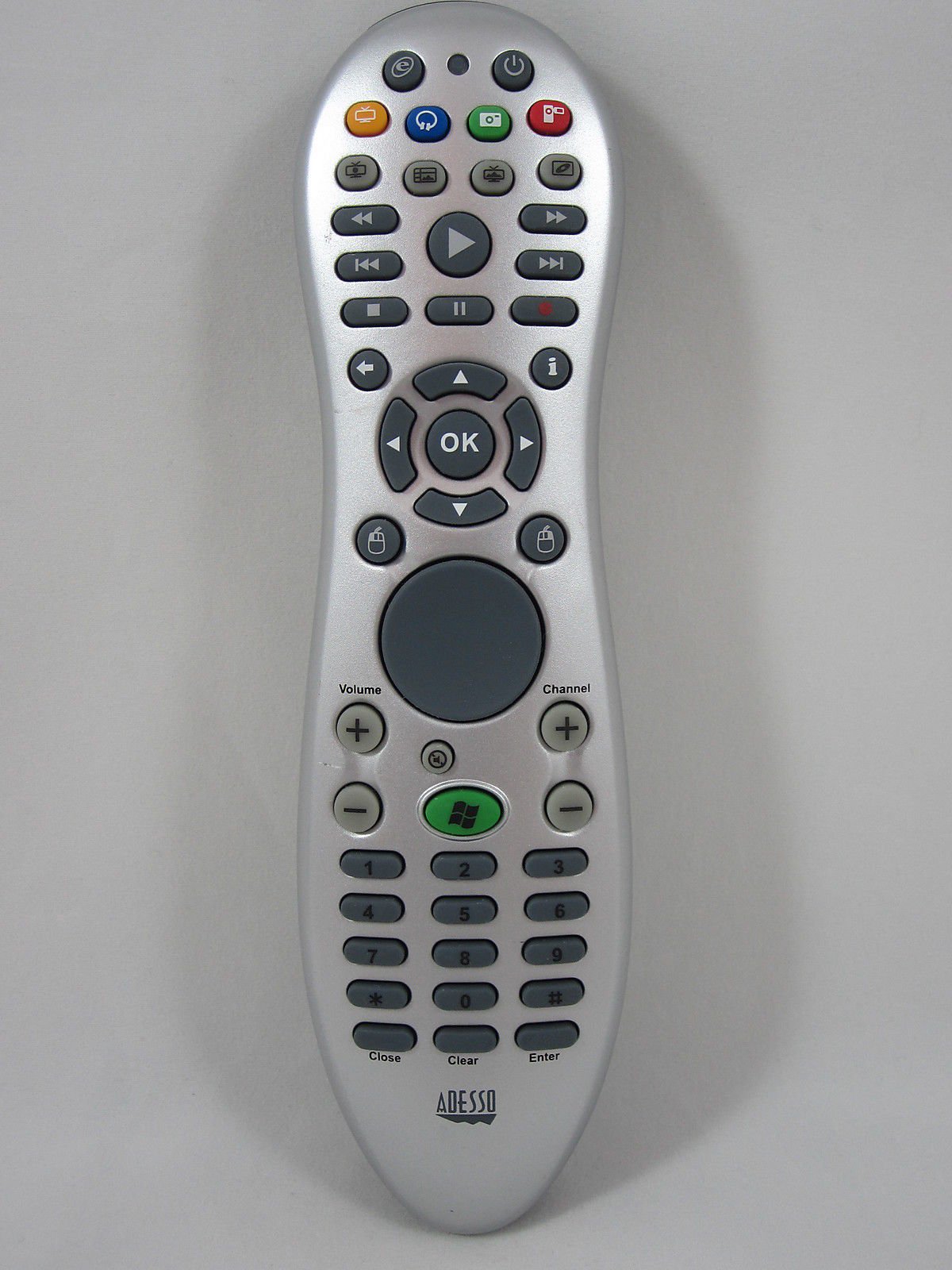
Image of the Adesso ARC-1100 MCE Remote Control, showing its ergonomic design and button layout.
2. Configuração
- Instale as baterias: Open the battery compartment on the back of the remote control. Insert two AAA batteries, ensuring correct polarity (+/-). The remote requires 2 AAA batteries, which are typically included.
- Conecte o receptor USB: Locate the small infrared (IR) USB receiver. Plug this receiver into an available USB port on your computer.
- Instalação automática de drivers: Your Windows operating system should automatically detect the new hardware and install the necessary drivers. This process may take a few moments.
- System Restart (Optional): Windows may prompt you to restart your computer after the driver installation is complete. It is recommended to restart to ensure all features of the remote function correctly.
- Verifique a conexão: Once installed, the dongle on the USB receiver may light up (often red) to indicate it is receiving a signal from the remote.
The remote is designed for plug-and-play functionality, requiring no manual driver installation in most Windows environments.
3. Instruções de operação
3.1 Operação Geral
- The ARC-1100 operates using infrared (IR) technology. Ensure there is a clear line of sight between the remote control and the USB IR receiver for optimal performance.
- The maximum operating distance is approximately 10 meters (32.8 feet).
- The remote features a logical button layout for ease of use, even in low-light conditions.
3.2 Layout e funções dos botões
The remote's buttons are generally grouped into three main zones:
- Seção superior: Contains power and specific Windows Media Center buttons.
- Seção do meio: Includes video playback controls (Play, Pause, FFWD, RWND, Stop, Record), navigation keys (4 arrow keys with an OK button in the center), and additional function buttons like 'Back' and 'Information'.
- Seção inferior: Dedicated to mouse control.
3.3 Controle do mouse
The lower section of the remote features a multi-directional thumb pad for mouse movement, accompanied by left and right mouse click buttons. To move the mouse pointer:
- Use the central thumb pad to navigate the cursor on your screen.
- Press the thumb pad briefly for small movements, or hold it down for longer, faster cursor movement. The longer you hold, the faster the pointer will travel.
- For precise control, you can adjust the mouse speed settings within your Windows Control Panel.
4. Manutenção
- Substituição da bateria: Replace batteries when the remote's responsiveness decreases. Always use fresh AAA batteries and dispose of old batteries responsibly.
- Limpeza: Use a soft, dry cloth to clean the remote control. For stubborn dirt, a slightly damp cloth can be used, but ensure no moisture enters the remote. Avoid harsh chemicals or abrasive cleaners.
- Armazenar: Guarde o controle remoto em local fresco e seco, longe da luz solar direta e de temperaturas extremas, quando não estiver em uso por longos períodos.
5. Solução De Problemas
- O controle remoto não está respondendo:
- Verifique se as pilhas estão inseridas corretamente e se têm carga suficiente. Substitua-as, se necessário.
- Ensure there is a clear line of sight between the remote and the USB IR receiver. Obstructions can block the infrared signal.
- Verify that the USB IR receiver is securely plugged into a functioning USB port on your computer. Try a different USB port if needed.
- Mouse Pointer Too Slow/Fast:
- The mouse pointer speed can be adjusted through your computer's operating system settings. Navigate to the Mouse settings in the Windows Control Panel to customize sensitivity.
- USB Receiver Instability:
- The lightweight nature of the USB receiver might cause it to be easily dislodged or misaligned. Ensure it is placed in a stable position. While pinpoint accuracy is not required for signal reception, a stable orientation is recommended.
6. Especificações
| Marca | Adesso |
| Número do modelo | ARC-1100 |
| Tecnologia de Conectividade | Infravermelho (IV) |
| Dispositivos compatíveis | Windows Media Center PCs (Windows 8/7/Vista/XP) |
| Faixa Máxima de Operação | 10 metros (32.8 pés) |
| Tipo de controlador | Button Control, Multi-directional Thumb Pad |
| Número de Chaves | 46 Media Keys, 3 Mouse Keys |
| Tipo de Bateria | 2 pilhas AAA |
| Peso do item | 0.6 libras |
| Recurso especial | Design ergonômico |
7. Garantia e Suporte
For warranty information and technical support, please refer to the documentation provided with your purchase or visit the official Adesso website. You can also contact Adesso customer service for assistance with product inquiries, troubleshooting, or warranty claims.
Adesso Website: www.adesso.com (Observação: Este é um espaço reservado) URL. Refer to your product packaging for the exact support weblocal.)