
1. Configuração
1.1 Desembalagem e Inspeção Inicial
Carefully remove your ASUS K52F-A2B laptop from its packaging. Inspect the laptop and all accessories for any signs of damage. The package should contain the laptop, AC adapter, power cord, and documentation.
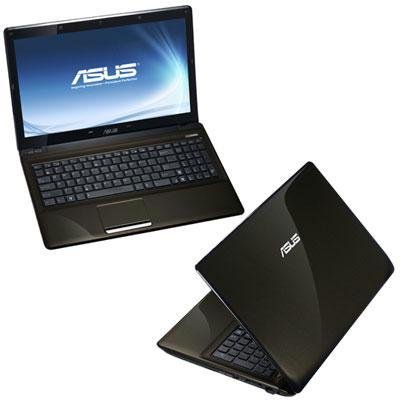
Image 1.1: The ASUS K52F-A2B laptop. This image shows the closed laptop from an angle, highlighting its dark brown finish and sleek design.
1.2 Conectando o adaptador AC
Before initial use, connect the AC adapter to the laptop and a power outlet. This ensures the battery is charged and provides stable power for setup.
- Plug the AC adapter into the power connector on the side of your laptop.
- Conecte o cabo de alimentação ao adaptador CA.
- Conecte a outra extremidade do cabo de alimentação a uma tomada elétrica aterrada.
1.3 Inicialização Inicial
Once the AC adapter is connected, open the laptop lid and press the power button. The laptop will begin its initial boot sequence. Follow the on-screen instructions to complete the operating system setup (Windows 7 Professional 64-bit).
2. Operating Your ASUS K52F-A2B Laptop
2.1 Ligar/Desligar e Modo de Suspensão
- Ligar: Pressione o botão liga/desliga localizado acima do teclado.
- Desligar: Click the Start button, then select 'Shut down'.
- Modo dormir: Close the laptop lid or select 'Sleep' from the Start menu. Press the power button or any key to wake the laptop.
2.2 Utilizando o teclado e o touchpad
The ASUS K52F-A2B features a full-sized keyboard and a multi-touch touchpad.
- Teclado: Standard QWERTY layout with function keys (Fn) for brightness, volume, and other system controls.
- Painel tátil: Supports multi-touch gestures for scrolling, zooming, and navigation. Refer to the operating system's help for detailed gesture information.
2.3 Conectando dispositivos externos
Your laptop provides various ports for connecting external devices:
- Portas USB: For connecting USB devices such as mice, keyboards, and external storage.
- Porta HDMI: Connects to external displays or TVs for high-definition video and audio output.
- Porta VGA: Connects to older external monitors or projectors.
- Conectores de áudio: Para fones de ouvido e microfones.
- Conexão de Rede: Para conexões de rede com fio.
2.4 Using the Optical Disk Drive
The laptop includes a Super Multi Optical Disk Drive for reading and writing CDs and DVDs.
- Press the eject button on the drive to open the tray.
- Coloque um CD ou DVD na bandeja com o lado da etiqueta voltado para cima.
- Empurre a bandeja cuidadosamente de volta para dentro do laptop até ouvir um clique ao fechá-la.
3. Manutenção
3.1 Limpando seu laptop
Regular cleaning helps maintain the laptop's appearance and functionality.
- Tela: Use um pano macio e sem fiapos levemente dampLimpe com água ou um produto de limpeza para telas. Não borrife líquido diretamente na tela.
- Teclado e Casing: Use a soft, dry cloth. For stubborn dirt, a cloth lightly dampened with mild soap and water can be used. Ensure the laptop is powered off and unplugged before cleaning.
- Vents: Use compressed air to clear dust from the cooling vents to prevent overheating.
3.2 Cuidados com a bateria
Para maximizar a duração e o desempenho da bateria:
- Evite descarregar completamente a bateria com frequência.
- Guarde o laptop em local fresco e seco quando não estiver em uso por longos períodos.
- Se for guardar o aparelho por um longo período, carregue a bateria até cerca de 50% antes de armazená-lo.
3.3 Atualizações de Software
Regularly update your operating system and drivers to ensure optimal performance and security. Check the ASUS support website for the latest drivers for your K52F-A2B model.
4. Solução De Problemas
This section addresses common issues you might encounter with your ASUS K52F-A2B laptop.
4.1 Problemas de energia
- O laptop não liga: Ensure the AC adapter is securely connected to both the laptop and a working power outlet. Check if the power outlet is functional. If the battery is completely drained, allow it to charge for a few minutes before attempting to power on.
- O laptop desliga inesperadamente: This could indicate overheating. Ensure cooling vents are clear and the laptop is on a hard, flat surface.
4.2 Problemas de exibição
- Nenhuma imagem exibida na tela: Connect an external monitor to the VGA or HDMI port to check if the issue is with the laptop's internal display. Press Fn+F8 to toggle display output modes.
- Tela com brilho reduzido: Adjust screen brightness using the Fn+F5 (dim) and Fn+F6 (bright) function keys.
4.3 Problemas de conectividade
- A conexão Wi-Fi não está funcionando: Ensure Wi-Fi is enabled (often via a function key, e.g., Fn+F2). Check network settings in Windows.
- Dispositivo USB não reconhecido: Tente conectar o dispositivo a uma porta USB diferente. Certifique-se de que os drivers do dispositivo estejam instalados.
4.4 Operating System Recovery
The ASUS K52F-A2B comes with Windows 7 Professional. For system recovery or reinstallation, it is recommended to use the recovery partition or create recovery media as instructed by ASUS. Note that official support for downgrading to Windows XP Pro may be limited, and recovery media for Windows 7 Pro might need to be created by the user.
5. Especificações técnicas
| Recurso | Especificação |
|---|---|
| Número do modelo | K52F-A2B |
| Processador | Intel Core i3-350M (2.26 GHz) |
| Sistema operacional | Windows 7 Professional 64 bits |
| Mostrar | 15.6-inch HD (1366x768) LED |
| Gráficos | Intel GMA HD (Integrated) |
| Memória RAM | 3 GB DDR3 1066MHz (Max 8GB) |
| Armazenar | 320 GB Hard Drive (5400 RPM) |
| Unidade óptica | DVD SuperMulti |
| Conectividade sem fio | 802.11bgn |
| Portos | HDMI, VGA, USB, Audio Jacks |
| Webcâmera | 0.3 MP |
| Peso | 5.8 libras |
6. Garantia e Suporte
6.1 Informações de garantia
Your ASUS K52F-A2B laptop comes with the following warranty coverage:
- Garantia global de 2 anos
- 1-Year Accidental Damage Warranty
- 30-Day Zero Bright Dot Guarantee
- 2-way FREE shipping for repairs
6.2 Suporte Técnico
Para obter assistência técnica, baixar drivers ou obter mais informações, visite o site oficial de suporte da ASUS. website. 24/7 technical support is available as part of your warranty.
For the most up-to-date support contact information, please refer to the documentation included with your product or visit www.asus.com/support.