BlackBerry BB 9900 Bold Touch Smartphone User Manual
Modelo: BB 9900
1. Introdução
This manual provides essential instructions for setting up, operating, and maintaining your BlackBerry BB 9900 Bold Touch smartphone. Please read this guide thoroughly to ensure proper use and to maximize the device's capabilities. The BlackBerry BB 9900 Bold Touch combines a capacitive touchscreen with a full QWERTY keyboard, running on BlackBerry OS 7.
2. Conteúdo da embalagem
Verifique se seu pacote contém os seguintes itens:
BlackBerry BB 9900 Bold Touch Smartphone
Bateria recarregável
Carregador de parede
Cabo USB
Manual do usuário (este documento)
3. Dispositivo acabadoview
Familiarize yourself with the physical features of your BlackBerry BB 9900 Bold Touch.
3.1 frente View
Imagem: Frente view of the BlackBerry BB 9900 Bold Touch, highlighting the 2.8-inch touchscreen and the physical QWERTY keyboard below it. The device also features a trackpad and call/end buttons.
Tela sensível ao toque: 2.8-inch capacitive display for interactive navigation.
Teclado QWERTY: Full physical keyboard for efficient typing.
Optical Trackpad: For precise navigation and selection.
Botões de chamada/encerramento: Standard telephony controls.
3.2 Traseira View
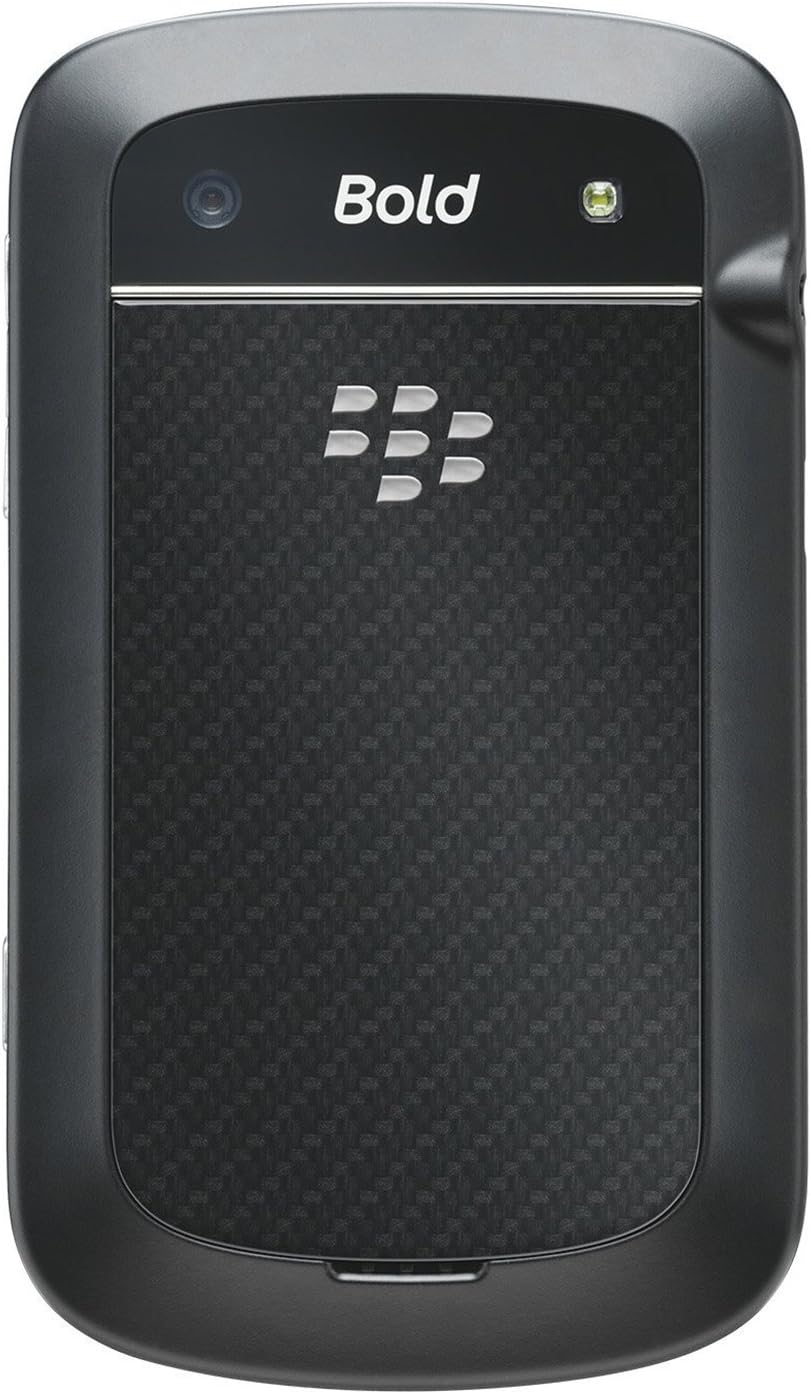
Imagem: Traseira view of the BlackBerry BB 9900 Bold Touch, featuring the 5-megapixel camera lens, LED flash, and the BlackBerry logo.
Câmera 5MP: Primary camera with autofocus and LED flash.
Tampa da bateria: Removable cover for battery and SIM card access.
3.3 Lado View
Imagem: Lado view of the BlackBerry BB 9900 Bold Touch, illustrating the placement of the volume control buttons and a customizable convenience key.
Botões de volume: Ajuste os níveis de áudio.
Convenience Key: Customizable shortcut button.
4. Configuração
4.1 Inserindo o cartão SIM
Remove the battery cover from the back of the device.
Localize o slot do cartão SIM.
Insira o cartão SIM com os contatos dourados voltados para baixo e o canto cortado alinhado com o slot.
Certifique-se de que o cartão SIM esteja inserido com segurança.
4.2 Inserindo a Bateria
After inserting the SIM card, align the battery's gold contacts with the contacts in the battery compartment.
Pressione suavemente a bateria no lugar até ouvir um clique.
Recoloque a tampa da bateria.
4.3 Carregando o dispositivo
Connect the USB cable to the charging port on your device.
Plug the other end of the USB cable into the wall charger, then into a power outlet.
Deixe o dispositivo carregar completamente antes da primeira utilização. O indicador de bateria no visor mostrará o estado do carregamento.
4.4 Ligar/Desligar
Para ligar: Press and hold the Power/Lock button (usually located on the top edge) until the BlackBerry logo appears.
Para desligar: Press and hold the Power/Lock button until the 'Power Off' option appears on the screen. Tap 'Power Off' to confirm.
5. Instruções de operação
5.1 Navegação por tela sensível ao toque
Tocar: Touch the screen briefly to open applications, select items, or activate buttons.
Deslize: Drag your finger across the screen to scroll through lists or switch between home screen panels.
Ampliar com os dedos: Use two fingers to zoom in or out on photos, web páginas ou mapas.
5.2 Using the QWERTY Keyboard
The physical QWERTY keyboard allows for fast and accurate text entry. Each key corresponds to a letter, number, or symbol. Use the 'Alt' key for alternate characters and the 'Shift' key for capitalization.
5.3 Fazer chamadas
From the home screen, tap the Phone icon or press the green Call button.
Enter the phone number using the keyboard.
Pressione o botão verde "Chamar" para iniciar a chamada.
Para encerrar uma chamada, pressione o botão vermelho "Encerrar chamada".
5.4 Envio de Mensagens
Tap the Messages icon from the home screen.
Select 'Compose New' or similar option.
Digite o número do destinatário ou selecione-o em seus contatos.
Type your message using the QWERTY keyboard.
Tap 'Send'.
5.5 Utilizando a câmera
Toque no ícone da câmera para abrir o aplicativo da câmera.
Enquadre sua foto usando a tela como um... viewlocalizador.
Tap the screen or press the convenience key (if configured) to take a photo.
The 5MP camera features autofocus and an LED flash for improved image quality.
5.6 Conectando-se ao Wi-Fi
Go to 'Options' > 'Networks and Connections' > 'Wi-Fi'.
Turn Wi-Fi on. The device will scan for available networks.
Selecione a rede desejada e digite a senha, se solicitado.
Once connected, the Wi-Fi indicator will appear in the status bar.
5.7 Using NFC (Near Field Communication)
The BlackBerry BB 9900 Bold Touch supports NFC for short-range wireless communication. This allows for quick pairing with compatible accessories or sharing data with other NFC-enabled devices by tapping them together.
Certifique-se de que o NFC esteja habilitado nas configurações do seu dispositivo.
Hold your device close to another NFC-enabled device or tag.
Follow on-screen prompts to complete the desired action (e.g., pairing, data transfer).
6. Manutenção
6.1 Limpando seu dispositivo
Use um pano macio e sem fiapos para limpar a tela e a carcaça do dispositivo.
Evite usar produtos químicos agressivos, produtos de limpeza abrasivos ou sprays aerossóis.
Não exponha o aparelho a humidade excessiva.
6.2 Cuidados com a bateria
Evite temperaturas extremas, que podem degradar o desempenho da bateria.
Utilize apenas o carregador original ou o carregador homologado.
Não perfure nem danifique a bateria.
6.3 Atualizações de Software
Periodically check for software updates to ensure your device has the latest features and security enhancements. Updates can typically be found in the device's 'Options' or 'Settings' menu under 'Software Updates'.
7. Solução De Problemas
7.1 O dispositivo não liga
Certifique-se de que a bateria esteja inserida e carregada corretamente.
Connect the device to the charger and wait a few minutes before attempting to power on again.
If the issue persists, try removing and reinserting the battery.
7.2 Problemas de conectividade de rede
Check if your SIM card is correctly inserted and activated with your carrier.
Verify that cellular data or Wi-Fi is enabled in your device settings.
Reinicie o dispositivo.
If using Wi-Fi, ensure your router is working and you have entered the correct password.
Tela sensível ao toque de 7.3 polegadas não responde.
Reinicie o dispositivo.
Certifique-se de que a tela esteja limpa e livre de detritos ou umidade.
If the issue is intermittent, check for any recent software installations that might be causing conflicts.
8. Especificações
Recurso
Detalhe
Nome do modelo
BB9900
Sistema operacional
BlackBerry OS 7
Mostrar
2.8-inch Capacitive Touchscreen, 640 x 480 Resolution
Processador
Not specified (typically 1.2 GHz for this model)
BATER
768 MB
Armazenamento interno
8 GB
Câmera Traseira
5 MP, Autofocus, LED Flash
Conectividade
Wi-Fi 802.11 b/g/n, NFC, Bluetooth, GPS
Suporte de rede
Quad-band GSM/GPRS/EDGE, Tri-band HSPA+
Dimensões
4.53 x 2.6 x 0.41 polegadas (115 x 66 x 10.5 mm)
Peso
4.6 onças (130 gramas)
Conector de áudio
3.5 milímetros
9. Suporte e garantia
9.1 Suporte ao cliente
For technical assistance, troubleshooting beyond this manual, or service inquiries, please visit the official BlackBerry support website or contact your local service provider. Refer to the packaging or official webPara obter detalhes de contato específicos, acesse o site.
9.2 Informações de garantia
Your BlackBerry BB 9900 Bold Touch is covered by a limited warranty. Please refer to the warranty card included in your product packaging or visit the official BlackBerry webConsulte o site para obter os termos e condições detalhados, incluindo o período de garantia e as especificidades da cobertura. Guarde seu comprovante de compra para acionar a garantia.
Ask a question about this manual
Ask about setup, troubleshooting, compatibility, parts, safety, or missing instructions. Manuals+ will review the question and use this page’s manual context to help answer it.