
1. Introdução
The SteelSeries Sensei Laser Gaming Mouse is designed for precision and customization, catering to both casual and competitive gamers. It features an advanced laser sensor, an ambidextrous design, and extensive customization options through its dedicated software. This manual provides detailed instructions for setup, operation, maintenance, and troubleshooting to ensure optimal performance of your device.

Imagem 1: Vista de cima para baixo view of the SteelSeries Sensei Laser Gaming Mouse, showcasing its sleek grey finish and central scroll wheel.
2. Conteúdo da embalagem
Por favor, verifique se todos os itens estão presentes em sua embalagem:
- SteelSeries Sensei Laser Gaming Mouse
- Guia de Início Rápido (se incluído)

Image 2: Retail packaging for the SteelSeries Sensei Laser Gaming Mouse, displaying the product name and brand logo.
3. Configuração
3.1 Conexão de Hardware
- Unpack the SteelSeries Sensei Laser Gaming Mouse from its packaging.
- Connect the USB cable of the mouse to an available USB port on your computer. The mouse is plug-and-play compatible, and your operating system should automatically detect and install the necessary basic drivers.
3.2 Software Installation (SteelSeries Engine)
For full customization and advanced features, it is recommended to install the SteelSeries Engine software:
- Visit the official SteelSeries weblocal (steelseries.com/engine) to download the latest version of the SteelSeries Engine software.
- Siga as instruções na tela para instalar o software.
- Once installed, launch the SteelSeries Engine to configure your mouse settings, including CPI, button assignments, macros, and lighting effects.
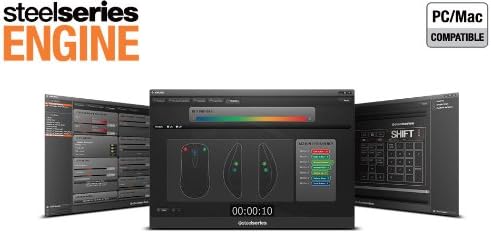
Imagem 3: Parte inferior view of the SteelSeries Sensei Laser Gaming Mouse, showing the laser sensor and product information label.
4. Operando o Mouse
4.1 Ambidextrous Design
The Sensei mouse features an ambidextrous shape, making it comfortable for both left-handed and right-handed users. The side buttons are mirrored on both sides to accommodate different grip styles and preferences.
4.2 botões programáveis
The mouse is equipped with 7 programmable buttons. These buttons can be customized using the SteelSeries Engine software to perform various functions, including:
- Standard mouse clicks (left, right, middle)
- Keyboard key assignments
- Complex macros
- CPI switching

Imagem 4: Lateral view of the SteelSeries Sensei Laser Gaming Mouse, highlighting the two programmable side buttons.
4.3 CPI Adjustment
The Sensei mouse allows for on-the-fly CPI (Counts Per Inch) adjustment. The dedicated CPI indicator button, typically located behind the scroll wheel, allows you to cycle between two user-defined CPI settings. These settings can be configured within the SteelSeries Engine software to match your preferred sensitivity levels for different tasks or games.
4.4 Iluminação
The mouse features three-zone illumination: the scroll wheel, the CPI indicator, and the SteelSeries logo. The color and lighting effects (e.g., steady, pulse) for these zones can be customized through the SteelSeries Engine software.
5. SteelSeries Engine Software
The SteelSeries Engine is a powerful software suite that unlocks the full potential of your Sensei mouse. Key functionalities include:
- Mapeamento de botões: Assign any function, keyboard key, or macro to any of the 7 programmable buttons.
- CPI Settings: Fine-tune and save multiple CPI profilepara diferentes aplicações ou jogos.
- Editor de macro: Create and manage complex macros for in-game actions or productivity tasks.
- Taxa de votação: Ajuste a taxa de atualização do mouse para obter a melhor resposta possível.
- Controle de Iluminação: Customize LED colors and effects for the scroll wheel, CPI indicator, and logo.
- Prófile Gerenciamento: Crie e salve vários perfisfiles, allowing you to switch between different configurations quickly.
- Atualizações de firmware: Keep your mouse's firmware up-to-date for improved performance and new features.

Image 5: Screenshot of the SteelSeries Engine software interface, showing options for button mapping, CPI adjustment, and lighting customization.
6. Manutenção
To ensure the longevity and optimal performance of your SteelSeries Sensei mouse, follow these maintenance guidelines:
- Limpeza: Use um pano macio e seco para limpar a superfície do mouse. Para sujeira mais resistente, use um pano levemente umedecido.amp Pode-se usar um pano, mas certifique-se de que não entre umidade no mouse. Evite produtos químicos agressivos ou produtos de limpeza abrasivos.
- Cuidados com o sensor: Keep the laser sensor on the bottom of the mouse clean and free from dust or debris. Use a cotton swab or compressed air if necessary.
- Gerenciamento de cabos: Evite dobras acentuadas ou puxões excessivos no cabo USB para evitar danos.
7. Solução De Problemas
If you encounter issues with your SteelSeries Sensei mouse, refer to the following common solutions:
- O mouse não responde:
- Certifique-se de que o cabo USB esteja conectado firmemente ao seu computador.
- Tente conectar o mouse a uma porta USB diferente.
- Reinicie o seu computador.
- Rastreamento inconsistente:
- Clean the laser sensor on the bottom of the mouse.
- Certifique-se de estar usando o mouse em uma superfície adequada (por exemplo, um mousepad).
- Check for dust or debris on your mouse pad.
- Botões não funcionam:
- Verify button assignments in the SteelSeries Engine software.
- Ensure the software is running correctly and profiles are loaded.
- Problemas de software:
- Update the SteelSeries Engine software to the latest version.
- Reinstall the SteelSeries Engine software.
- Check for any available firmware updates for your mouse within the software.
8. Especificações
| Recurso | Detalhe |
|---|---|
| Marca | Série Steel |
| Número do modelo | 62150 |
| Tecnologia de detecção de movimento | Laser |
| Tecnologia de Conectividade | USB |
| Cor | Cinza |
| Plataforma de Hardware | PC |
| Compatibilidade do sistema operacional | All Major PC Operating Systems |
| Peso do item | 14.6 onças |
| Dimensões do produto (CxLxA) | 7.9 x 6.8 x 2.3 polegadas |
| Botões programáveis | 7 |
| Illumination Zones | 3 (Scroll Wheel, CPI Indicator, Logo) |
9. Garantia e Suporte
The SteelSeries Sensei Laser Gaming Mouse is covered by a manufacturer's warranty. For detailed information regarding warranty terms, conditions, and duration, please refer to the warranty card included with your product or visit the official SteelSeries website. For technical support, driver downloads, and frequently asked questions, please visit the SteelSeries support page.
SteelSeries Official Website: steelseries. com
SteelSeries Support: support.steelseries.com