
Introdução
Obrigado pela compra.asing the Samsung 34-Inch Curved Screen LED-Lit Monitor S34E790C. This monitor features an ultra WQHD resolution (3440x1440) and a 21:9 curved panel designed to provide an immersive viewing experience. It includes an ergonomic, height-adjustable stand with tilt functionality and a 4-port USB hub for convenient peripheral access. This manual provides essential information for setting up, operating, maintaining, and troubleshooting your monitor.

Figura 1: Frente view of the Samsung S34E790C monitor, showcasing its curved display and sleek design.
Configurar
1. Desembalagem
Retire cuidadosamente todos os componentes da embalagem. Certifique-se de que os seguintes itens estejam presentes:
- Samsung 34-Inch Curved Screen LED-Lit Monitor
- Height Adjustable Stand With Tilt Functionality
- Cabo de energia
- Cabo HDMI (pode variar conforme a região)
- Cabo DisplayPort (pode variar conforme a região)
- Cabo USB 3.0 a montante
2. Montagem do Suporte
Attach the height-adjustable stand to the monitor panel. Ensure the stand is securely fastened according to the instructions provided in the quick setup guide included in the box. Place the assembled monitor on a stable, flat surface.
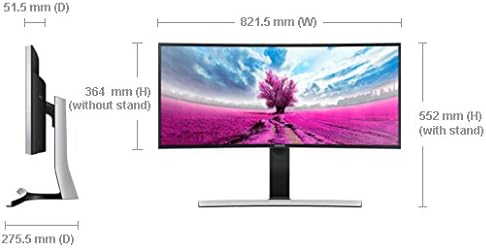
Figure 2: Dimensions of the Samsung S34E790C monitor, illustrating its width, height (with and without stand), and depth.
3. Connecting to a Source Device
Connect your PC, game console, Blu-ray player, or other compatible device to the monitor using the available ports.
- Conexão HDMI: Use an HDMI cable to connect the monitor to your device's HDMI output.
- Conexão DisplayPort: Use a DisplayPort cable to connect the monitor to your device's DisplayPort output.
- Hub USB: Connect the monitor's USB 3.0 upstream port to your computer using the provided USB 3.0 upstream cable to enable the 4-port USB hub for peripherals.
4. Ligar
Connect the power cable to the monitor and then to a power outlet. Press the power button on the monitor to turn it on.
Instruções de operação
1. Controles Básicos
The monitor features an intuitive joystick-style menu button, typically located on the rear or bottom-right of the display. This button allows you to navigate the On-Screen Display (OSD) menu to adjust various settings.
2. Configurações de exibição
Access the OSD menu to configure display settings:
- Resolução: The native resolution is 3440x1440 (WQHD). Ensure your connected device is set to this resolution for optimal clarity.
- Proporção da tela: The monitor features a 21:9 aspect ratio.
- Brilho contraste: Adjust these settings to your preference. Note that in PC mode, some image adjustments might be controlled via your computer's graphics settings.
- Modos de imagem: Select from various preset picture modes (e.g., Standard, Custom, Cinema) to optimize viewing for different content types.
3. Picture-by-Picture (PBP) Functionality
The S34E790C supports Picture-by-Picture (PBP), allowing you to view content from two different sources simultaneously on the screen. This feature is ideal for multitasking or comparing content side-by-side.
- Connect two source devices to the monitor (e.g., one via HDMI, one via DisplayPort).
- Acesse o menu OSD e navegue até as configurações de PBP.
- Select the desired input sources for each side of the screen.
- Adjust the layout as needed.
4. Ajustes ergonômicos
The monitor stand allows for height and tilt adjustments to optimize your viewing comfort and reduce strain.
- Ajuste de altura: Para ajustar a altura do monitor, empurre ou puxe suavemente o painel para cima ou para baixo.
- Ajuste de inclinação: Incline o painel do monitor para a frente ou para trás para encontrar a sua posição preferida. viewângulo de engate.
Manutenção
1. Limpeza da tela
Para limpar a tela, limpe-a suavemente com um pano macio e sem fiapos. Para manchas persistentes, esfregue levemente.ampLimpe o pano com água ou um produto de limpeza específico para telas. Evite usar produtos químicos agressivos, materiais abrasivos ou borrifar líquidos diretamente na tela.
2. Limpeza do Monitor Casing
Limpe o monitor casing with a soft, dry cloth. If necessary, use a slightly damp pano. Não use solventes ou produtos de limpeza abrasivos.
3. Cuidados Gerais
- Evite colocar objetos pesados sobre o monitor ou seus cabos.
- Do not expose the monitor to direct sunlight, high temperatures, or excessive humidity.
- Garanta ventilação adequada ao redor do monitor para evitar superaquecimento.
Solução de problemas
Se você encontrar problemas com seu monitor, consulte as etapas comuns de solução de problemas a seguir:
- Sem energia: Certifique-se de que o cabo de alimentação esteja firmemente conectado tanto ao monitor quanto à tomada. Verifique se a tomada está funcionando.
- Sem Sinal: Verify that the video cable (HDMI or DisplayPort) is correctly connected to both the monitor and the source device. Ensure the correct input source is selected on the monitor via the OSD menu. Check if the source device is powered on and outputting a signal.
- Problemas de exibição (ex.: cintilação, imagem distorcida): Check the video cable for damage. Try a different cable or port. Ensure your computer's graphics drivers are up to date. Adjust the resolution and refresh rate settings on your computer to match the monitor's specifications.
- Problemas de som: If using the monitor's built-in speakers, ensure the volume is not muted and is set to an audible level in both the monitor's OSD and your computer's sound settings.
- Picture-by-Picture (PBP) Not Working: Confirm both source devices are connected and active. Ensure the PBP function is correctly configured in the OSD menu.
For more complex issues or persistent problems, please refer to the full user manual available on the Samsung support webou entre em contato com o serviço de atendimento ao cliente da Samsung.
Especificações
| Recurso | Especificação |
|---|---|
| Número do modelo | S34E790C |
| Tamanho da tela | 34 polegadas |
| Resolução da tela | 3440 x 1440 pixels (WQHD) |
| Proporção da tela | 21:9 |
| Tipo de painel | Curved LED-Lit |
| Conectividade | HDMI, DisplayPort, 4x USB 3.0 Ports |
| Peso do item | 22 libra (aproximadamente 9.98 kg) |
| Dimensões do produto (CxLxA) | 32.37 x 10.84 x 21.73 polegadas (82.22 x 27.53 x 55.19 cm) |
| Cor | Black High Glossy |
| Fabricante | Samsung IT |
| Primeira data disponível | 2 de agosto de 2013 |
Garantia e Suporte
Your Samsung S34E790C monitor is covered by a limited warranty. For detailed information regarding warranty terms, conditions, and duration, please refer to the warranty card included with your product or visit the official Samsung support website.
For technical assistance, product registration, or to download the latest drivers and software, please visit the Suporte Samsung website or contact Samsung customer service directly.