
1. Terminadoview
The AVOCENT MergePoint Unity MPU4032DAC is a high-performance digital KVM (Keyboard, Video, Mouse) switch designed for managing multiple servers and IT devices from a single console. This device supports up to 32 computers, allowing for 1 local user and 4 remote users to access connected systems. It features a maximum resolution of 1280 x 1024, 2 RJ-45 network ports, and 3 USB ports, all within a 1U rack-mountable form factor. This manual provides essential information for the safe and efficient operation of your KVM switch.
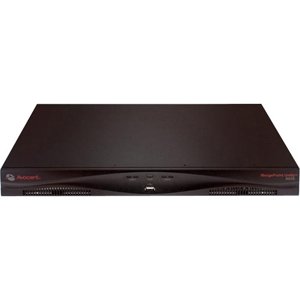
Figure 1.1: AVOCENT MergePoint Unity MPU4032DAC Digital KVM Switch. This image displays the front panel of the KVM switch, featuring the Avocent logo on the left, MergePoint Unity MPU4032DAC branding on the right, and a central USB port for peripheral connections. Ventilation grilles are visible on both sides of the front panel.
2. Informações de segurança
Please read and understand all safety instructions before installing or operating this equipment. Failure to follow these instructions may result in electric shock, fire, or damage to the product.
- Certifique-se de que a fonte de alimentação corresponda ao volumetage os requisitos especificados na etiqueta do dispositivo.
- Não abra o dispositivo casing. Não existem peças que possam ser reparadas pelo usuário no interior. Encaminhe todos os serviços de manutenção para pessoal qualificado.
- Avoid placing the device in areas with excessive heat, humidity, dust, or direct sunlight.
- Garanta ventilação adequada ao redor da unidade para evitar superaquecimento.
- Utilize apenas cabos de alimentação e acessórios aprovados.
3. Conteúdo da embalagem
Verify that all items are present in the package. If any items are missing or damaged, contact your vendor immediately.
- AVOCENT MergePoint Unity MPU4032DAC Digital KVM Switch
- Kit de montagem em rack
- Cabos de energia)
- Documentação (Guia de Início Rápido, Informações de Segurança)
- KVM cables (may be sold separately depending on configuration)
4. Configuração
4.1 Instalação Física
- Montagem em rack: Install the KVM switch into a standard 19-inch equipment rack using the provided rack-mounting kit. Ensure the unit is securely fastened and has adequate space for airflow.
- Conexão de energia: Connect the power cord(s) to the KVM switch and then to a grounded power outlet or PDU.
4.2 Conectando Dispositivos
- Local Console: Connect a monitor, USB keyboard, and USB mouse to the dedicated local console ports on the KVM switch.
- Target Computers: Connect KVM cables (video, USB) from your servers/computers to the KVM ports on the switch. Ensure each connection is secure.
- Conexão de rede: Connect the KVM switch to your network using the RJ-45 network ports. This enables remote access functionality.
4.3 Inicialização
After all connections are made, power on the KVM switch. Observe the indicator lights for proper boot-up sequence. The system is ready for operation once the status indicators show normal operation.
5. Operação
5.1 Acesso ao console local
From the local console (connected monitor, keyboard, mouse), you can directly access and control any connected computer. Use the KVM switch's on-screen display (OSD) or hotkey commands to switch between connected systems.
5.2 Remote Console Access
Remote users can access the KVM switch over the network using a web browser or a dedicated client application. Enter the IP address of the KVM switch into your web navegador para acessar o web interface. Authentication credentials will be required.
5.3 Alternando entre computadores
The KVM switch allows seamless switching between connected computers. Methods include:
- Exibição na tela (OSD): Access the OSD menu by pressing a designated hotkey sequence (e.g., Scroll Lock + Scroll Lock). Navigate the menu to select the desired computer.
- Comandos de teclas de atalho: Specific keyboard hotkey combinations can be used to switch directly to the next/previous port or a specific port number. Refer to the on-screen display or product documentation for default hotkey sequences.
- Botões do painel frontal: If available, use the physical buttons on the front panel to cycle through connected ports.
6. Manutenção
6.1 Limpeza
To maintain optimal performance, periodically clean the exterior of the KVM switch with a soft, dry cloth. Do not use liquid or aerosol cleaners directly on the unit. Ensure ventilation openings are free from dust and obstructions.
6.2 atualizações de firmware
Verifique periodicamente as instruções do fabricante. website for available firmware updates. Firmware updates can provide new features, performance improvements, and bug fixes. Follow the instructions provided with the firmware update package carefully.
6.3 Considerações Ambientais
Operate the KVM switch within its specified environmental ranges for temperature and humidity. Avoid exposing the unit to extreme conditions, which can affect its lifespan and performance.
7. Solução De Problemas
This section addresses common issues you might encounter with your KVM switch.
7.1 Sem exibição de vídeo
- Verifique as conexões dos cabos: Ensure all video cables are securely connected between the KVM switch, monitor, and target computers.
- Ciclo de energia: Power cycle the KVM switch and the connected computer.
- Configurações de resolução: Verify that the video resolution of the target computer is supported by the KVM switch and the monitor (max 1280 x 1024).
7.2 Teclado/Mouse não responde
- Conexões USB: Ensure USB keyboard and mouse are properly connected to the KVM switch's console ports.
- KVM Cables: Verify that the USB portion of the KVM cables connecting to the target computers is secure.
- Experimente portas diferentes: If possible, try connecting the keyboard/mouse to different USB ports on the KVM switch.
7.3 Problemas de acesso remoto
- Conectividade de rede: Confirm that the KVM switch is properly connected to the network and has a valid IP address.
- Configurações de firewall: Check if any firewall settings on your network or computer are blocking access to the KVM switch.
- Autenticação: Ensure correct username and password are being used for remote login.
8. Especificações
| Recurso | Especificação |
|---|---|
| Modelo | MPU4032DAC-G01 |
| Marca | AVOCENT |
| Portas de Computador | 32 |
| Usuários locais | 1 |
| Usuários remotos | 4 |
| Resolução Máxima | 1280 x 1024 |
| Portas de rede | 2 x RJ-45 |
| Portas USB | 3 |
| Tipo de montagem | Montável em rack (1U) |
| Protocolo de conectividade | USB |
| Método de controle | Remoto |
| Fabricante | AVOCENT DIGITAL PRODUCTS |
9. Garantia e Suporte
9.1 Informações de garantia
This AVOCENT product is covered by a limited warranty. The terms and conditions of the warranty are typically provided with the product packaging or can be found on the manufacturer's official website. Guarde o comprovante de compra para solicitações de garantia.
9.2 Suporte Técnico
For technical assistance, troubleshooting beyond this manual, or warranty inquiries, please contact AVOCENT customer support. Support contact information, including phone numbers and online resources, can usually be found on the official AVOCENT website ou na documentação incluída com o seu produto.