
1. Introdução
The Huawei E8372H-927 Wi-Fi Wingle is a portable 4G LTE USB modem that also functions as a Wi-Fi hotspot. This device allows multiple users to connect to the internet via a cellular network, providing connectivity for laptops, tablets, smartphones, and other Wi-Fi enabled devices. It supports various network standards including 4G LTE, 3G, and 2G.
2. Produto acabadoview
The E8372H-927 Wingle offers convenient internet access and Wi-Fi sharing capabilities. It is designed for ease of use, plugging directly into a USB port for power and data transmission.
Principais características:
- LTE+ Wi-Fi Sharing: Connect directly to a laptop's USB port to transmit data and share LTE+ Wi-Fi with up to 10 devices simultaneously.
- Conectividade de alta velocidade: Supports LTE CAT4, offering download speeds up to 150Mbps and upload speeds up to 50Mbps (at 20M BW).
- Conectividade do veículo: Can be powered by a car charger, providing a Wi-Fi environment within your vehicle.
- Huawei HiLink App: Manage device settings and monitor usage via the Huawei HiLink mobile application.
- Compatibilidade do sistema operacional: Compatible with Windows XP SP3, Windows Vista SP1/SP2, Windows 7, Windows 8, Windows 8.1 (excluding Windows RT), and Mac OS X 10.6, 10.7, and 10.8 with the latest upgrades.
Componentes do dispositivo:
The device typically includes a USB connector, a SIM card slot, a microSD card slot, and LED indicators for network status and Wi-Fi activity.
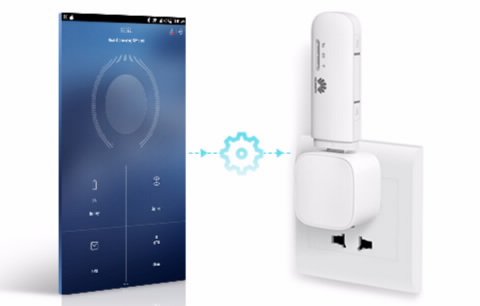
Image: The Huawei E8372H-927 Wi-Fi Wingle shown wirelessly connecting to various devices such as a smartphone, laptop, and desktop computer.
3. Guia de configuração
3.1 Inserindo o cartão SIM
- Locate the SIM card slot on the side or back of the device.
- Carefully insert your 4G/3G/2G SIM card into the slot with the gold contacts facing down and the notched corner aligned correctly. Ensure it clicks into place.
3.2 Ligando o dispositivo
The E8372H-927 Wingle is powered via its USB connector.
- Plug the device into any standard USB port, such as on a laptop, desktop computer, USB wall adapter, or car charger.
- The device will automatically power on. Wait for the LED indicators to show a stable connection (typically a solid blue or green light for network status).
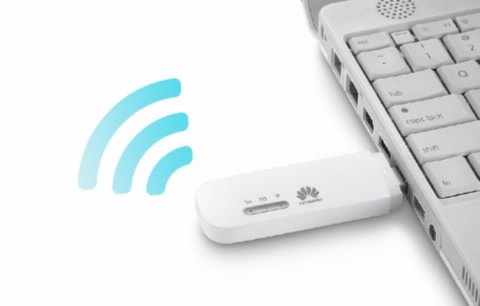
Image: The Huawei E8372H-927 Wi-Fi Wingle is shown plugged into the USB port of a white laptop, indicating its power and data connection method.
3.3 Initial Wi-Fi Connection
- On your Wi-Fi enabled device (laptop, smartphone, tablet), search for available Wi-Fi networks.
- Locate the network name (SSID) of your Huawei Wingle, which is usually printed on a label on the device or its packaging.
- Enter the Wi-Fi password (WPA/WPA2 key) also found on the device label.
- Once connected, you can access the internet.
4. Instruções de operação
4.1 Conectando vários dispositivos
The E8372H-927 supports up to 10 simultaneous Wi-Fi connections. Simply follow the initial Wi-Fi connection steps (Section 3.3) for each device you wish to connect.
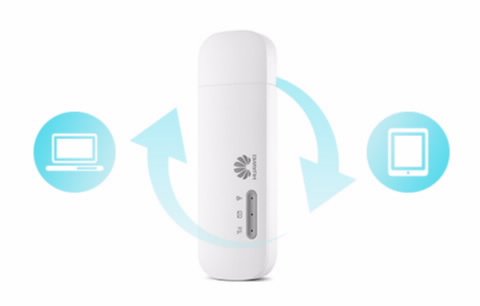
Image: The Huawei E8372H-927 Wi-Fi Wingle is centrally positioned, with arrows indicating data flow and sharing between a laptop and a tablet.
4.2 Managing Settings (Huawei HiLink App / Web interface)
For advanced settings, network monitoring, and SMS management, you can use the Huawei HiLink App or access the device's web interface.
- Huawei HiLink App: Download the app from your device's app store. Connect your smartphone to the Wingle's Wi-Fi, then open the app to manage settings.
- Web Interface: Abra um web browser on a connected device and enter the default IP address (e.g., 192.168.8.1) or URL provided in the device documentation. Log in using the default username and password (also found on the device label).
4.3 Using in a Vehicle
The E8372H-927 can provide Wi-Fi connectivity in your car. Simply plug the Wingle into a compatible USB car charger. Ensure the car charger provides sufficient power for stable operation.
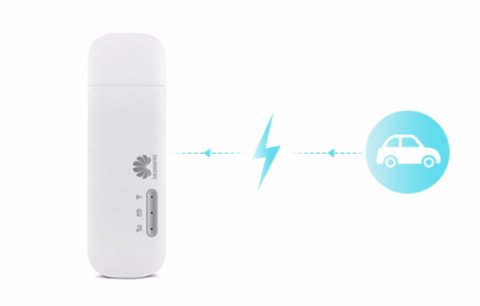
Image: The Huawei E8372H-927 Wi-Fi Wingle is shown with a lightning bolt icon connecting it to a car icon, illustrating its use as an in-car Wi-Fi hotspot.
5. Manutenção
- Limpeza: Use um pano macio e seco para limpar o dispositivo. Evite usar produtos de limpeza líquidos ou solventes.
- Atualizações de software: Periodically check for firmware updates via the Huawei HiLink App or web Interface para garantir desempenho e segurança ideais.
- Armazenar: Quando não estiver em uso, guarde o dispositivo em local fresco e seco, longe da luz solar direta e de temperaturas extremas.
- Evite o superaquecimento: Ensure proper ventilation when the device is in use, especially when connected for extended periods.
6. Solução De Problemas
Problemas e soluções comuns:
| Emitir | Possível causa | Solução |
|---|---|---|
| Sem sinal de rede / Não consigo conectar à internet | SIM card not inserted correctly, no network coverage, incorrect APN settings. | Check SIM card insertion. Move to an area with better network coverage. Verify APN settings via the web interface or HiLink App. |
| Velocidade lenta da internet | Weak signal, network congestion, too many connected devices. | Relocate the device for better signal. Reduce the number of connected devices. |
| Não é possível conectar ao Wi-Fi | Incorrect Wi-Fi password, Wi-Fi disabled, device not powered on. | Ensure the device is powered on. Verify the Wi-Fi password. Check Wi-Fi status via LED indicators or web interface. |
| Dispositivo não reconhecido pelo computador | Driver issue, faulty USB port. | Try a different USB port. Ensure necessary drivers are installed (usually automatic upon first connection). |
Reinicializando o dispositivo:
If issues persist, you may perform a factory reset. Locate the reset button (often a small pinhole) on the device. Use a pin to press and hold the button for approximately 5-10 seconds until the indicators flash, then release. This will restore the device to its factory default settings, including Wi-Fi name and password.
7. Especificações
| Recurso | Detalhe |
|---|---|
| Número do modelo | E8372H-927 |
| Sistema de Comunicação | LTE/DC-HSPA+/HSPA+/HSPA/UMTS/EDGE/GPRS/GSM |
| 4G LTE Speed (FDD LTE Cat4) | 150Mbps (Download) / 50Mbps (Upload) @20M BW |
| HSPA+ Speed | 42/5.76 Mbps, 21/5.76 Mbps |
| HSPA Speed | 14/5.76 Mbps, 7.2/5.76 Mbps |
| Protocolo Wi-Fi | Padrão IEEE 802.11b/g/n |
| Conexões Wi-Fi máximas | Up to 10 simultaneous users/devices |
| Fonte de energia | Fonte de alimentação USB |
| Ranhura para cartão MicroSD | Sim |
| External Antenna Interface | TS-5 |
| Dimensões (C x L x A) | Aproximadamente 94 mm x 30 mm x 14 mm |
| Peso do item | Aproximadamente 150 g |
| Sistemas Operacionais | Windows XP SP3, Vista SP1/SP2, 7, 8, 8.1 (not RT); Mac OS X 10.6, 10.7, 10.8 |
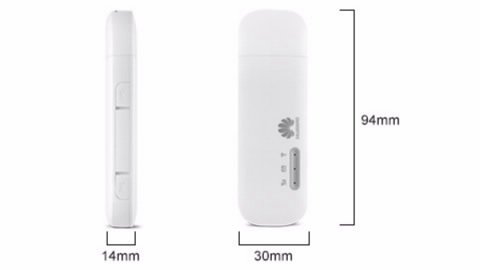
Image: A diagram illustrating the physical dimensions of the Huawei E8372H-927 Wi-Fi Wingle, showing its length (94mm), width (30mm), and thickness (14mm).
8. Garantia e Suporte
Informações sobre garantia:
This Huawei E8372H-927 Wi-Fi Wingle typically comes with a 1-year manufacturer's warranty. Please refer to your purchase documentation or contact your retailer for specific warranty terms and conditions.
Suporte técnico:
For technical assistance, troubleshooting beyond this manual, or warranty claims, please contact Huawei customer support or your authorized service provider. Keep your proof of purchase and device serial number readily available when seeking support.