
1. Introdução
This manual provides instructions for the ROCCAT KONE Aimo Gaming Mouse. The KONE Aimo features an Owl-Eye Optical Sensor, customizable RGB AIMO LED illumination, and 23 programmable keys. It is designed for precision and ergonomic comfort during extended use.
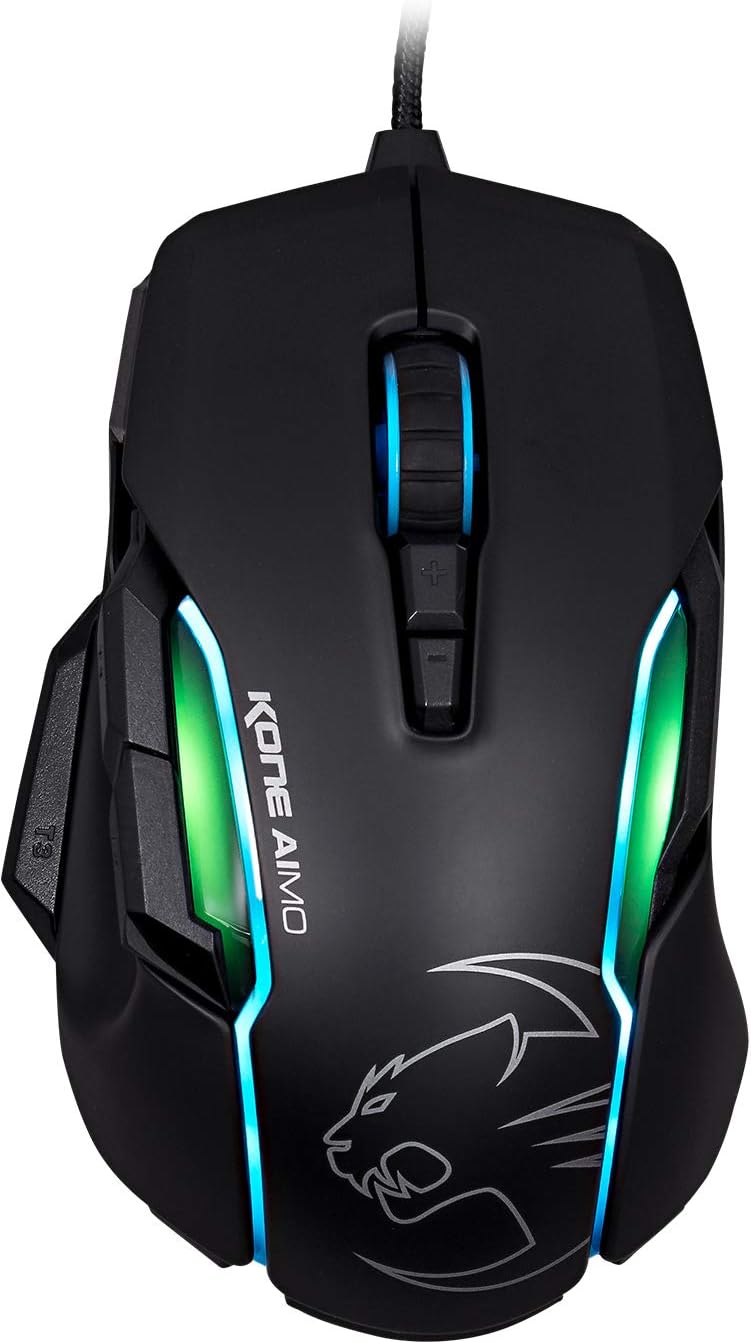
Figura 1: parte superior view of the ROCCAT KONE Aimo Gaming Mouse, showcasing its ergonomic shape and RGB lighting zones.
2. Conteúdo da embalagem
Verifique se todos os itens estão presentes na embalagem:
- KONE AIMO Mouse with Attached Braided USB Cable
- Guia rápido
- ROCCAT Stickers

Figure 2: Retail packaging of the ROCCAT KONE Aimo Gaming Mouse.
3. Configuração
- Conecte o mouse: Plug the USB cable of the ROCCAT KONE Aimo mouse into an available USB port on your computer.
- Instalação do driver: Your operating system (Windows 7, 8, 8.1, 10) should automatically detect and install the necessary drivers.
- Install ROCCAT Swarm Software: For full customization of DPI settings, button assignments, and AIMO lighting, download and install the ROCCAT Swarm software from the official ROCCAT website. This software allows you to create and manage profiles.

Figure 3: The ROCCAT KONE Aimo mouse in use on a mouse pad, connected to a computer.
4. Instruções de operação
4.1. Funções dos botões
The KONE Aimo features 23 programmable keys, including a tri-button thumb zone and a 4D tilting Titan wheel. These can be customized via the ROCCAT Swarm software.
- Clique esquerdo/direito: Funções padrão do mouse.
- Scroll Wheel (4D Titan Wheel): Scrolls vertically and can tilt horizontally for additional functions. Also acts as a clickable button.
- DPI Adjustment Buttons: Located above and below the scroll wheel, these buttons allow for on-the-fly DPI sensitivity changes. Settings are configured in the Swarm software.
- Thumb Buttons (T1, T2, T3): Three buttons located on the left side, easily accessible by the thumb. The bottom-most button (T3) is often defaulted to the Easy-Shift[+] function.
- Easy-Shift[+] Button: This exclusive ROCCAT feature doubles the number of programmable functions for other buttons when held down, effectively expanding the total programmable keys.

Figura 4: Detalhado view of the programmable thumb buttons (T1, T2, T3) on the left side of the mouse.
4.2. AIMO Lighting System
The AIMO lighting system provides intelligent, reactive RGB illumination across four independently configurable LED light zones and the glowing mouse wheel. It can synchronize with other compatible ROCCAT devices and is programmable through the ROCCAT Swarm software.

Figure 5: The KONE Aimo mouse displaying its multi-zone RGB AIMO illumination.
4.3. Owl-Eye Optical Sensor
The mouse is equipped with the ROCCAT Owl-Eye Optical Sensor, a modified PixArt 3361 sensor, offering adjustable DPI from 100 to 12,000. This sensor provides precise tracking and responsiveness. A built-in tracking distance control unit monitors the lift-off distance for enhanced accuracy.

Figure 6: The bottom of the mouse, highlighting the Owl-Eye Optical Sensor.
4.4. Ergonomia
The KONE Aimo features refined ergonomics designed for comfort during extended use. Its shape provides a natural fit for the hand, with a dedicated thumb rest area.

Figure 7: A hand gripping the KONE Aimo mouse, illustrating its ergonomic design.
5. Manutenção
- Limpeza: Use um pano macio e seco para limpar a superfície do mouse. Para sujeira mais resistente, use um pano levemente umedecido.amp Pode-se usar um pano, garantindo que nenhuma umidade entre nos componentes internos.
- Cuidados com o sensor: Keep the optical sensor on the underside of the mouse clean and free of dust or debris to ensure optimal tracking performance.
- Gerenciamento de cabos: Evite dobras acentuadas ou puxões excessivos no cabo USB trançado para evitar danos.
6. Solução De Problemas
- O mouse não responde:
- Certifique-se de que o cabo USB esteja conectado firmemente a uma porta USB em funcionamento.
- Try a different USB port or another computer to rule out port or system issues.
- Reinicie o seu computador.
- Tracking Issues / Inaccurate Movement:
- Limpe o sensor óptico na parte inferior do mouse.
- Ensure you are using the mouse on a clean, suitable mouse pad or surface.
- Check DPI settings in the ROCCAT Swarm software.
- Iluminação RGB não funciona / está incorreta:
- Verifique se o software ROCCAT Swarm está em execução e atualizado.
- Check lighting settings within the Swarm software.
- Certifique-se de que nenhum software conflitante esteja controlando a iluminação RGB.
- Botões não funcionam:
- Check button assignments in the ROCCAT Swarm software.
- Ensure the software is not experiencing issues (try restarting it).
7. Especificações
| Recurso | Detalhe |
|---|---|
| Marca | ROCCAT |
| Número do modelo | ROC-11-815-BK |
| Sensor | Owl-Eye Optical Sensor (modified PixArt 3361) |
| Faixa de DPI | 100 to 12,000 DPI |
| Botões programáveis | 23 (with Easy-Shift[+]) |
| Iluminação | RGBA AIMO LED Illumination (4 independent zones + scroll wheel) |
| Conectividade | USB (com fio) |
| Compatibilidade do sistema operacional | Windows 7, Windows 8, Windows 8.1, Windows 10 (32-bit and 64-bit versions) |
| Peso do item | 11.2 onças (aproximadamente 317.5 gramas) |
| Dimensões do produto (CxLxA) | 5.12 x 2.95 x 1.57 polegadas (aproximadamente 13 x 7.5 x 4 cm) |
8. Garantia e suporte
For warranty information, technical support, and additional resources, please visit the official ROCCAT website or contact ROCCAT customer service. Keep your proof of purchase for warranty claims.
Você também pode visitar o ROCCAT Store on Amazon para obter mais informações sobre o produto.