
BenQ EX3501R
BenQ EX3501R Ultrawide Curved Gaming Monitor User Manual
Model: EX3501R
1. Configuração
1.1 Desembalando o monitor
Retire cuidadosamente todos os componentes da embalagem. Certifique-se de que todos os itens listados abaixo estejam presentes:
- BenQ EX3501R Monitor
- Suporte para monitor (base e braço)
- Adaptador de energia
- Cabo de alimentação
- Cabo HDMI
- Cabo DisplayPort
- Cabo USB-C
- Manual do usuário (este documento)
1.2 Montagem do suporte
Siga estes passos para fixar o suporte ao seu monitor:
- Coloque o monitor com a tela virada para baixo sobre um pano macio e limpo para evitar arranhões.
- Fixe o suporte na parte traseira do monitor. Certifique-se de que ele se encaixe firmemente no lugar.
- Connect the stand base to the neck, tightening any screws as indicated in the quick start guide.

Figura 1: Frente view of the BenQ EX3501R monitor with its stand.
1.3 cabos de conexão
Connect the necessary cables to the monitor and your computer. The monitor supports various input options:
- Poder: Conecte o adaptador de energia ao monitor e, em seguida, a uma tomada elétrica.
- Entrada de vídeo: Use either the HDMI, DisplayPort, or USB-C cable to connect your computer to the monitor.
- USB-C: The USB-C port supports video, data transfer, and power delivery, allowing for a single-cable connection with compatible devices.
- Portas USB 3.0: Utilize the integrated USB 3.0 ports for connecting peripherals.
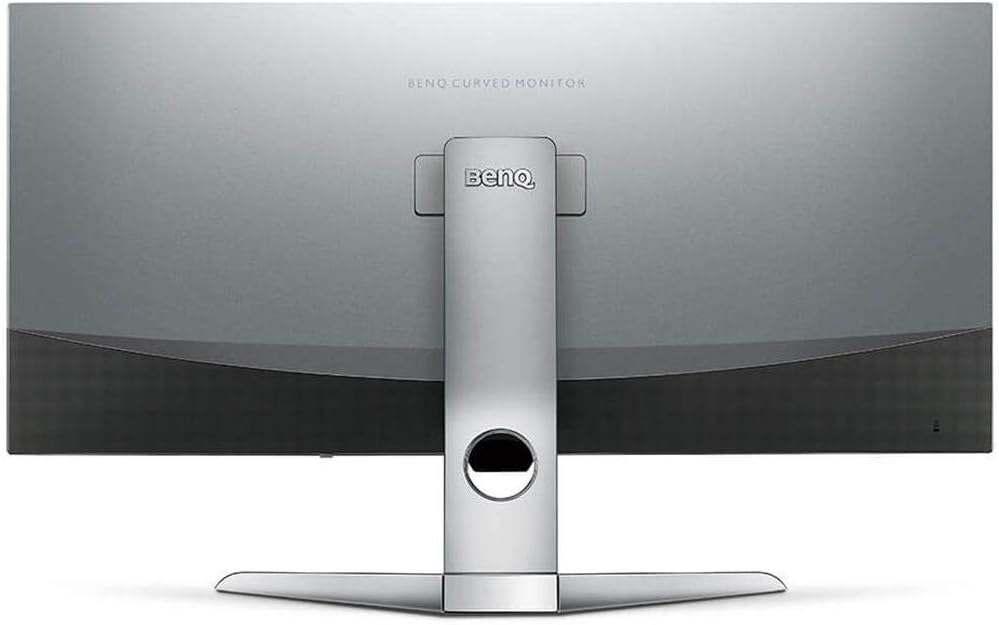
Figura 2: Traseira view of the monitor displaying the connectivity ports.
2. Operando o monitor
2.1 Ligar/Desligar
Press the power button, usually located on the bottom right side of the monitor, to turn it on or off. The power indicator light will illuminate when the monitor is active.
2.2 Navegação no menu OSD (On-Screen Display)
Use the joystick or buttons located on the monitor's underside to navigate the On-Screen Display (OSD) menu. This menu allows you to adjust various settings such as brightness, contrast, color modes, and input sources.
2.3 Display Features and Eye-Care Technology
The BenQ EX3501R incorporates several technologies designed to enhance viewing experience and reduce eye strain:
- Inteligência de brilho Plus (BI+): This patented technology automatically senses ambient lighting conditions and adjusts the screen's brightness and color temperature to provide optimal viewing comfort and protect your eyes during extended use.
- Baixa luz azul: Filters out harmful blue light emissions to reduce eye fatigue. Multiple levels of blue light reduction are available.
- ZeroFlicker™: Eliminates screen flickering at all brightness levels, further reducing eye strain and discomfort.
- HDR (alta faixa dinâmica): Offers enhanced brightness and contrast, bringing greater detail and vibrancy to HDR video content.
Vídeo 1: Um excessoview of BenQ's Eye-Care technology, including Low Blue Light, ZeroFlicker, and Brightness Intelligence Plus, demonstrating how these features work to reduce eye strain and adjust screen settings automatically based on ambient light.
2.4 Resolução e Taxa de Atualização
The monitor features a QHD (3440x1440) resolution and a 100Hz refresh rate, providing a smooth and detailed visual experience. The 21:9 ultrawide aspect ratio offers ample screen space for multitasking, such as viewing multiple documents side-by-side without needing a second monitor.
2.5 AMD FreeSync
For a fluid gaming experience, the monitor supports AMD FreeSync technology, which synchronizes the monitor's refresh rate with your graphics card's frame rate to eliminate screen tearing and stuttering.
3. Manutenção
3.1 Limpando o Monitor
To maintain optimal performance and appearance, regularly clean your monitor:
- Tela: Limpe a tela delicadamente com um pano macio e sem fiapos. Para manchas persistentes, use uma solução de limpeza específica para monitores, aplicando-a no pano, e não diretamente na tela.
- Exterior: Use a soft, dry cloth to wipe dust and debris from the monitor casing and stand.
Avoid using abrasive cleaners, waxes, or solvents as they can damage the monitor's surface.
3.2 Dicas Gerais de Cuidados
- Não bloqueie as aberturas de ventilação do monitor.
- Evite colocar o monitor sob luz solar direta ou perto de fontes de calor.
- Manuseie o monitor com cuidado para evitar danos físicos.
4. Solução De Problemas
If you encounter issues with your BenQ EX3501R monitor, refer to the following common troubleshooting steps:
4.1 No Display or Black Screen
- Certifique-se de que o cabo de alimentação esteja firmemente conectado tanto ao monitor quanto à tomada.
- Verify that the video cable (HDMI, DisplayPort, or USB-C) is firmly connected to both the monitor and your computer.
- Verifique se a fonte de entrada correta está selecionada no menu OSD do monitor.
- Reinicie o seu computador.
4.2 Flickering or Unstable Image
- Ensure the ZeroFlicker™ feature is enabled in the OSD menu.
- Verifique se há conexões soltas nos cabos de vídeo.
- Atualize os drivers da placa gráfica para a versão mais recente.
- If using AMD FreeSync, ensure it is properly configured in your graphics card settings.
4.3 Color or Brightness Issues
- Ajuste as configurações de brilho, contraste e cor através do menu OSD.
- Enable or disable Brightness Intelligence Plus (B.I.+) to see if it resolves the issue.
- Perform a factory reset through the OSD menu.
5. Especificações
Key technical specifications for the BenQ EX3501R monitor:
| Recurso | Especificação |
|---|---|
| Tamanho da tela | 35 polegadas |
| Resolução máxima da tela | 3440 x 1440 Pixels (QHD Ultrawide) |
| Proporção da tela | 21:9 |
| Taxa de atualização | 100 Hz |
| Curvatura | 1800R |
| Tipo de painel | VA (Alinhamento Vertical) |
| Conectividade | USB-C, HDMI, DisplayPort |
| Características especiais | AMD FreeSync, Brightness Intelligence Plus, Low Blue Light, ZeroFlicker |
| Peso do item | 21.3 libras |
| Dimensões do produto | 6.88 x 3.47 x 12.93 polegadas |
6. Garantia e Suporte
6.1 Garantia do Produto
The BenQ EX3501R monitor typically comes with a 3-year manufacturer's warranty. Please refer to the warranty card included in your product packaging for specific terms and conditions, or visit the official BenQ website para obter informações detalhadas sobre a garantia.
6.2 Suporte ao cliente
For further assistance, technical support, or warranty claims, please contact BenQ customer service. You can find contact information and support resources on the official BenQ website: www.benq.com/en-us/support.html
Ask a question about this manual
Ask about setup, troubleshooting, compatibility, parts, safety, or missing instructions. Manuals+ will review the question and use this page’s manual context to help answer it.