
1. Informações importantes de segurança
Please read all safety instructions carefully before using your monitor. Keep this manual for future reference.
- Não coloque o monitor em um carrinho, suporte, tripé, suporte ou mesa instável.
- Assegure-se de que haja ventilação adequada ao redor do monitor. Não obstrua as aberturas de ventilação.
- Utilize apenas o cabo de alimentação e o adaptador fornecidos com o monitor.
- Avoid exposing the monitor to rain or moisture to prevent fire or electric shock.
- Não abra o monitor casing. Encaminhe todos os serviços de manutenção para pessoal qualificado.
- Unplug the monitor from the wall outlet during lightning storms or when unused for long periods.
2. Conteúdo da embalagem
Verifique se todos os itens estão presentes na embalagem do seu produto:
- Samsung LC27F396FHNXZA 27-Inch Curved Monitor
- Base de suporte
- Pescoço de pé
- Power Adapter and Power Cable (1.5 m)
- Cabo HDMI
- Guia de instalação rápida
- Cartão de garantia
3. Configuração
3.1 Montagem do suporte
- Coloque o monitor cuidadosamente com a tela virada para baixo sobre um pano macio e limpo para evitar arranhões.
- Encaixe o suporte na parte traseira do monitor até ouvir um clique.
- Connect the stand base to the stand neck by aligning the tabs and tightening the screw at the bottom of the base.

3.2 cabos de conexão
Ensure the monitor and your computer are powered off before connecting any cables.
- Cabo de energia: Connect the power adapter to the monitor's power input, then plug the power cable into the adapter and a wall outlet.
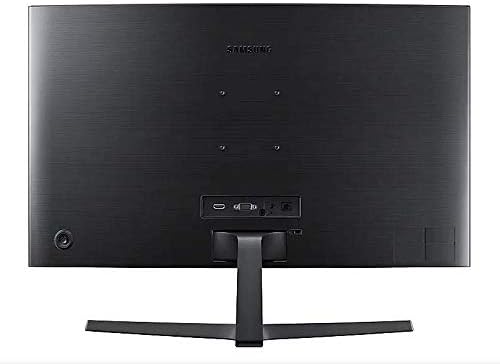
- Video Cable (HDMI or VGA): Connect one end of the HDMI or VGA cable to the corresponding port on your computer's graphics card and the other end to the HDMI or VGA input on the monitor. Ensure cables are tightened securely.
- Audio Cable (Optional): If you wish to use external speakers or headphones, connect a 3.5mm audio cable from your computer's audio output to the monitor's 3.5mm audio input.
3.3 Ligando
After connecting all necessary cables, power on your computer, then press the power button on the monitor. The monitor should automatically detect the input signal.
4. Operando o monitor
4.1 Basic Functions and OSD Menu
The monitor features a single joystick button located on the back for navigating the On-Screen Display (OSD) menu. Press the joystick to open the OSD menu, then move it up/down/left/right to select and adjust settings.
4.2 Configurações de imagem
Adjust picture quality settings via the OSD menu:
- Brilho contraste: Adjust these to your preferred viewníveis de ing.
- Resolução: The optimal resolution for this monitor is 1920 x 1080 (FHD 1080p).
- Proporção da tela: Set to 16:9 for widescreen content.
- MagicBright: Select from various preset modes (e.g., Standard, Cinema, Dynamic Contrast) for optimized viewambientes.
- Active Crystal Color: Enhances color reproduction for a more vibrant display.

4.3 AMD FreeSync and Game Mode
This monitor supports AMD FreeSync technology, which synchronizes the screen refresh rate with your graphics card's frame rate to reduce input latency and minimize image tearing and stutter during gaming. Enable FreeSync through the OSD menu for a smoother gaming experience.

4.4 Curved Display Benefits
The 1800R curvature of this monitor is designed to match the natural curve of the human eye, providing a more immersive viewing experience. This curvature helps to reduce peripheral distractions and enhances depth perception, drawing you deeper into your content.

5. Manutenção
5.1 Limpando o Monitor
- Sempre desconecte o monitor antes de limpá-lo.
- Use um pano macio e sem fiapos levemente dampLimpe com água ou um produto de limpeza específico para telas.
- Não aplique o produto de limpeza diretamente na tela.
- Evite usar produtos de limpeza abrasivos, ceras ou solventes.
5.2 Armazenamento
When storing the monitor for an extended period, ensure it is kept in a cool, dry place, preferably in its original packaging to protect it from dust and physical damage.
6. Solução De Problemas
Se você encontrar problemas com seu monitor, consulte as etapas comuns de solução de problemas a seguir:
| Problema | Solução possível |
|---|---|
| Sem energia | Ensure the power cable is securely connected to the monitor, power adapter, and wall outlet. Check if the wall outlet is functioning. |
| Sem sinal / Tela em branco | Verify that the video cable (HDMI/VGA) is firmly connected to both the monitor and the computer. Try a different video input source on the monitor if available. Ensure the computer is powered on and not in sleep mode. |
| Distorted Image / Incorrect Resolution | Adjust the display resolution on your computer to 1920 x 1080. Check the video cable for damage. |
| Travamentos/oscilações na tela (durante jogos) | Ensure AMD FreeSync is enabled in the monitor's OSD menu and your graphics card settings. |
| Monitor does not wake up from sleep | Try unplugging and replugging the monitor's power cable. Check your computer's power management settings. |
7. Especificações
| Recurso | Detalhe |
|---|---|
| Número do modelo | LC27F396FHNXZA |
| Tamanho da tela | 27 polegadas |
| Resolução | 1920 x 1080 (FHD 1080p) |
| Proporção da tela | 16:9 |
| Curvatura de tela | 1800R |
| Tipo de painel | VA |
| Tempo de resposta | 4 milissegundos |
| Taxa de atualização | 60 Hz |
| Conectividade | 1x HDMI, 1x VGA, 1x 3.5mm Audio Out |
| Tecnologia de sincronização adaptável | AMD FreeSync |
| Consumo de energia | 25 Watts (Typical) |
| Dimensões (com suporte) | 62.28 x 24.26 x 46.61 cm (24.5" x 9.6" x 18.4") |
| Peso (com suporte) | 4.1 kg (9.04 libras) |
| Tipo de montagem | Montável na parede |
8. Garantia e Suporte
8.1 Garantia do Fabricante
This Samsung monitor is covered by a Garantia do fabricante de 1 ano A garantia é válida a partir da data da compra. Guarde o comprovante de compra para eventuais solicitações de garantia. A garantia cobre defeitos de materiais e de fabricação em condições normais de uso.
8.2 Suporte ao cliente
For technical assistance, troubleshooting, or warranty service, please contact Samsung Customer Support. You can find contact information on the official Samsung website da sua região.
Informações de contato do fabricante: Mississauga, ON L5M 9Z9, CA
Para mais informações, visite o site oficial Samsung Canada Support website.


