
1. Introdução
The Zenec Z-E1010 is an advanced 10.1-inch infotainment system designed for vehicle integration. This system provides a wide range of features including digital radio (DAB+), FM radio, Bluetooth connectivity, USB media playback, and smartphone integration capabilities. It is part of the ZENEC E>GO CORE series, offering a large display and intuitive operation for an enhanced in-car experience. This manual provides essential information for the proper installation, operation, and maintenance of your Z-E1010 unit.
2. Informações de segurança
- Leia todas as instruções cuidadosamente antes da instalação e operação.
- Installation should be performed by a qualified professional to prevent damage to the unit or vehicle.
- Não utilize o dispositivo de forma que o distraia da condução. Priorize sempre a segurança rodoviária.
- Evite expor o aparelho a temperaturas extremas, luz solar direta por períodos prolongados ou umidade excessiva.
- Use only approved accessories and parts with the Z-E1010.
3. Conteúdo da embalagem
Verifique se todos os itens estão presentes na embalagem:
- Zenec Z-E1010 Infotainment Unit
- Chicote de Fiação Principal
- USB Extension Cables (2x)
- Antena GPS
- Microfone
- Manual do usuário (este documento)
- Note: Vehicle-specific mounting kits and DAB+ antenna are optional and sold separately.
4. Configuração e instalação
The Z-E1010 is designed for integration into specific vehicle models using dedicated installation kits. These kits typically include mounting frames and necessary components for vehicle connection.
4.1. Verificações de pré-instalação
- Certifique-se de que a ignição do veículo esteja desligada e a bateria desconectada antes de iniciar a instalação.
- Confirm compatibility with your vehicle model and that you have the correct vehicle-specific mounting kit.
4.2. Conexões de fiação
Connect the main wiring harness to the vehicle's electrical system. The Z-E1010 features an integrated CAN BUS adapter for automatic vehicle model detection and simplified connection. Connect the GPS antenna, microphone, and USB extension cables to the designated ports on the unit.
4.3. Montagem da Unidade
Follow the instructions provided with your vehicle-specific mounting kit to securely install the Z-E1010 into the dashboard. Ensure all cables are routed safely and do not interfere with vehicle operation.
5. Instruções de operação
The Zenec Z-E1010 features a 10.1-inch capacitive touchscreen for intuitive control. The main interface provides access to various functions via distinct icons.
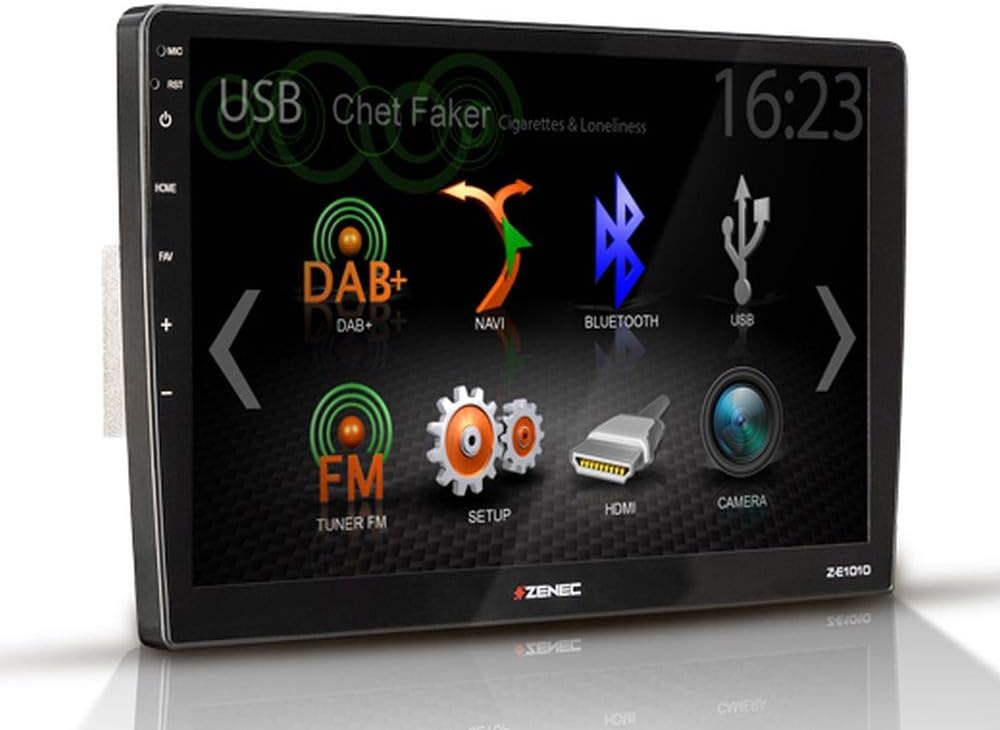
Figura 5.1: Zenec Z-E1010 Infotainment System main screen. This image illustrates the primary user interface of the Zenec Z-E1010 Infotainment System. The screen shows various selectable icons for core functions such as USB media playback, DAB+ digital radio, navigation, Bluetooth connectivity, FM radio, system setup, HDMI input, and camera view. The current time '16:23' is visible in the top right corner, and 'Chet Faker - Cigarettes & Loneliness' is displayed as the currently playing track via USB.
5.1. Operação geral
- Ligar/desligar: Press and hold the power button (usually on the left side) to turn the unit on or off. A short press may mute audio or switch modes.
- Tela sensível ao toque: Navigate through menus and select functions by tapping the corresponding icons on the capacitive touchscreen.
- Controle de volume: Use the physical volume buttons or on-screen controls to adjust audio levels.
5.2. Recursos de áudio
- Sintonizador DAB+: Select the 'DAB+' icon to access digital radio. Features include service following, MOT Slideshow, DLS (Dynamic Label Segment), and DLS text. The tuner provides clear digital radio reception.
- Sintonizador FM: Select the 'FM Tuner' icon for analog radio. It supports RDS (Radio Data System) functions.
- Reprodução USB: Connect USB storage devices to the two USB 2.0 ports for audio and video file reprodução.
- Equalizer: The unit includes a 3-band equalizer for audio customization.
5.3. Conectividade
- Bluetooth 4.1: Access the 'Bluetooth' function for hands-free calling with good voice quality and A2DP music streaming. Pair your smartphone via the Bluetooth settings menu.
- SmartLink: This feature allows direct connection for Apple CarPlay and Android Auto, making smartphone applications available on the infotainment screen.
- WebLink 2.0: Extends integration of online content such as YouTube, ShoutCast, and various audio/video players, controllable via the Z-E1010.
5.4. Navegação
The Z-E1010 can be upgraded to a fully equipped GPS receiver with the optional Z-EMAP-CORE navigation package. Once installed, select the 'NAVI' icon to access navigation functions.
5.5. RealDash Application
The RealDash application provides a virtual dashboard display. This feature requires an optional OBDII dongle to connect to your vehicle's diagnostic port and display various vehicle data on the Z-E1010 screen.
5.6. System Settings ('SETUP')
Access the 'SETUP' menu to configure various system parameters, including audio settings, display preferences, Bluetooth pairing, and general device settings.
5.7. Função da câmera
If a compatible rearview camera is connected, select the 'CAMERA' icon to view the camera feed. This function is typically activated automatically when the vehicle is put into reverse gear.
6. Manutenção
- Limpando a tela: Use um pano macio e sem fiapos para limpar suavemente a tela sensível ao toque. Para manchas persistentes, esfregue levemente.ampLimpe o pano com água ou uma solução de limpeza de telas. Evite produtos químicos agressivos ou materiais abrasivos.
- Limpeza geral: Mantenha o aparelho livre de poeira e detritos. Use uma escova macia ou ar comprimido para limpar frestas.
- Atualizações de software: Periodically check the Zenec official webSite para atualizações de software disponíveis, garantindo desempenho ideal e acesso a novos recursos.
7. Solução De Problemas
This section addresses common issues you might encounter with your Z-E1010 unit.
- Sem energia: Verifique todas as conexões elétricas e os fusíveis do veículo. Certifique-se de que a ignição esteja ligada.
- Sem áudio: Verify volume settings, check speaker connections, and ensure the correct audio source is selected.
- Problemas de emparelhamento Bluetooth: Ensure Bluetooth is enabled on both the Z-E1010 and your smartphone. Delete previous pairings and attempt to pair again.
- Tela sensível ao toque não responde: Try restarting the unit. If the issue persists, a factory reset might be necessary (refer to the 'SETUP' menu).
- Recepção DAB+ ruim: Ensure the DAB+ antenna is correctly installed and positioned. Check for signal strength in your area.
If you experience persistent issues not covered here, please contact Zenec customer support or a qualified service technician.
8. Especificações
| Recurso | Especificação |
|---|---|
| Marca | zenec |
| Número do modelo | Z-E1010 |
| Tamanho da tela | 10.1 polegadas (25.7 cm) |
| Resolução da tela | 1024 x 600 pixels |
| Tipo de exibição | Touchscreen capacitivo |
| Conectividade | USB (2x), Bluetooth 4.1 |
| Características especiais | DAB+, RDS, SmartLink (Apple CarPlay, Android Auto), WebLink 2.0, RealDash App, Integrated CAN BUS Adapter |
| Dispositivos compatíveis | Smartphones |
| Modo de saída de áudio | Estéreo |
| Configuração de som surround | 4.0 |
| Total de portas HDMI | 1 |
| Potência de saída | 4 x 50 W |
9. Garantia e Suporte
For detailed warranty information, please refer to the warranty card included with your product or visit the official Zenec website. For technical support, troubleshooting assistance beyond this manual, or inquiries about spare parts, please contact your authorized Zenec dealer or Zenec customer service directly. Keep your proof of purchase for warranty claims.