
Introdução
This manual provides detailed instructions for the installation, operation, and maintenance of your Foscam D2EP IP Camera. The D2EP is a high-definition 2-megapixel outdoor security camera designed for reliable surveillance with features such as infrared night vision, smart motion detection, and wired connectivity. Please read this manual thoroughly before using the product to ensure correct setup and optimal performance.
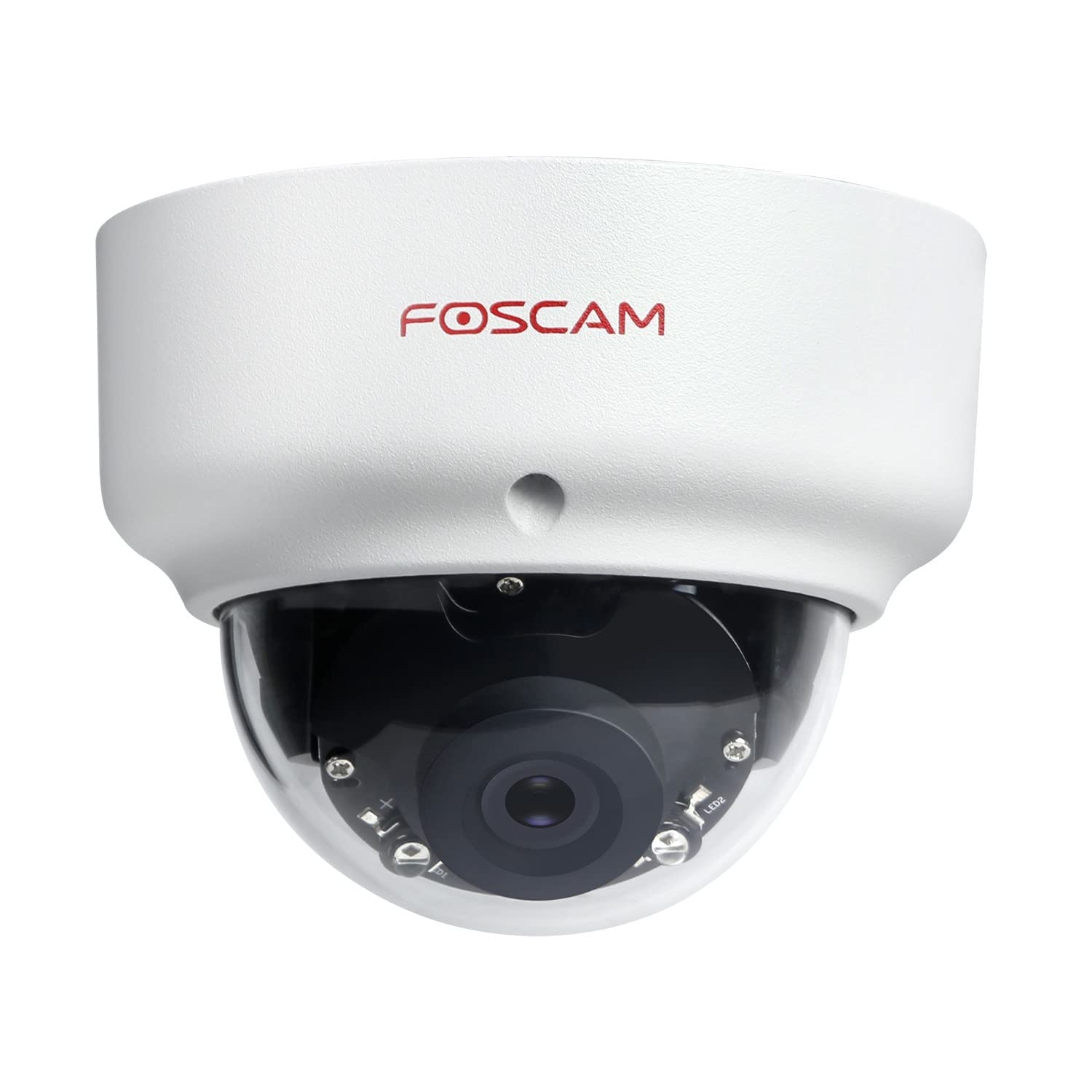
Image: The Foscam D2EP IP Camera, showcasing its compact, dome-shaped design suitable for outdoor environments.
1. Configuração e instalação
1.1 Conteúdo da embalagem
Antes de iniciar a instalação, verifique se todos os componentes estão presentes na embalagem:
- Foscam D2EP IP Camera
- Parafusos de montagem e buchas de parede
- Cabo Ethernet
- Adaptador de energia
- Guia de instalação rápida

Image: Foscam D2EP IP Camera with its power and Ethernet cables, illustrating the main components included in the box.
1.2 Instalação Física
The Foscam D2EP camera is designed for outdoor use with an IP66 waterproof rating. Choose a suitable location that provides the desired viewing angle and is within reach of a power source and network connection.
- Local de montagem: Identify a secure mounting surface, such as a wall or ceiling, that offers a clear view da área que você deseja monitorar.
- Furos de perfuração: Use the provided mounting template (if included) or the camera base to mark and drill pilot holes for the mounting screws. Insert wall plugs if mounting on masonry.
- Câmera segura: Attach the camera base securely to the mounting surface using the provided screws.
- Ajustar ângulo: Loosen the adjustment screws on the camera body to position the lens for the optimal viewÂngulo de inclinação. Aperte os parafusos assim que o ângulo desejado for alcançado.

Image: Foscam D2EP IP Camera mounted under an outdoor patio roof, demonstrating a typical installation scenario for outdoor surveillance.
1.3 Conexão de rede e energia
- Conecte o cabo Ethernet: Connect one end of the Ethernet cable to the camera's network port and the other end to your router or network switch.
- Conecte o adaptador de energia: Plug the power adapter into the camera's power input and then into a suitable electrical outlet.
- Luz indicadora: Wait for the camera's indicator light to show a stable status, indicating it is powered on and connected to the network. Refer to the Quick Installation Guide for specific indicator light behaviors.
1.4 Configuração Inicial
To access and configure your camera, download the Foscam app on your smartphone or use the Foscam client software on your computer.
- Baixar aplicativo/software: Procurar "Foscam" in your app store (iOS/Android) or visit the official Foscam website for desktop software.
- Adicionar câmera: Follow the in-app or software instructions to add your D2EP camera. This typically involves scanning a QR code on the camera or manually entering its UID.
- Configurar senha: For security, change the default password immediately upon first access.
- Configurações de rede: Configure any necessary network settings, such as static IP (if required by your network).
2. Instruções de operação
2.1 Ao vivo View e Gravação
Once configured, you can access the live video feed from your Foscam D2EP camera through the Foscam app or desktop client.
- Ao vivo View: Selecione sua câmera na lista de dispositivos para view the real-time 1080p HD video stream.
- Gravação manual: Most Foscam applications allow you to manually start and stop video recordings directly from the live view interface.
- Instantâneo: Capture imagens estáticas da transmissão ao vivo.
2.2 Detecção de movimento
The D2EP features smart motion detection to alert you to activity in the monitored area.
- Ativar detecção de movimento: Navigate to the camera settings in the Foscam app/software and enable motion detection.
- Configure Detection Area: Defina áreas específicas dentro da câmera. view where motion should be detected, ignoring irrelevant zones.
- Ajuste a sensibilidade: Set the motion detection sensitivity to minimize false alarms while ensuring important events are captured.
- Configurações de alerta: Configure how you receive alerts (e.g., push notifications, email).
2.3 Visão diurna e noturna
The camera automatically switches between day (color) and night (infrared black and white) vision modes based on ambient light conditions. The infrared LEDs provide clear vision up to 20 meters in low-light environments.
2.4 Amazon Alexa Compatibility
The Foscam D2EP camera is compatible with Amazon Alexa, allowing for voice control and integration into your smart home system. Refer to the Foscam website or Alexa app for detailed instructions on linking your Foscam account and controlling your camera via Alexa commands.
3. Manutenção
3.1 Limpeza da Câmera
Regularly clean the camera lens and housing to ensure optimal image quality and prevent debris buildup, especially for outdoor installations.
- Use um pano macio e macioamp cloth to wipe the camera body.
- Para limpar as lentes, utilize um pano e uma solução de limpeza específicos para lentes, a fim de evitar riscos.
- Não use produtos químicos agressivos ou materiais abrasivos.
3.2 atualizações de firmware
Foscam regularly releases firmware updates to improve camera performance, add new features, and enhance security. It is recommended to keep your camera's firmware up to date.
- Check for updates through the Foscam app or desktop client.
- Follow the on-screen instructions carefully during the update process. Do not power off the camera during an update.
4. Solução De Problemas
4.1 A câmera não está se conectando à rede
- Verifique os cabos: Ensure the Ethernet cable is securely connected to both the camera and the router/switch.
- Poder: Verify the camera is powered on and the power adapter is working correctly.
- Status do roteador: Confirm your router is functioning and providing network access.
- Conflito de endereço IP: If using a static IP, ensure it does not conflict with other devices on your network. Try DHCP first.
- Redefinir câmera: If issues persist, perform a factory reset (refer to the Quick Installation Guide for reset button location and procedure).
4.2 Qualidade de imagem ruim
- Lente limpa: Certifique-se de que a lente da câmera esteja limpa e livre de sujeira ou manchas.
- Iluminação: Verify adequate lighting in the monitored area during the day.
- Visão noturna: In night mode, ensure there are no obstructions blocking the infrared LEDs.
- Configurações de resolução: Check that the camera's resolution is set to 1080p (2MP) in the app/software settings.
4.3 Motion Detection Not Working or Too Many False Alarms
- Enable Feature: Confirm motion detection is enabled in the camera settings.
- Área de detecção: Adjust the detection zone to cover only relevant areas.
- Sensibilidade: Increase sensitivity if events are missed; decrease if there are too many false alarms (e.g., from moving trees, shadows).
- Agendar: Check if motion detection is scheduled to be active during the desired times.
5. Especificações
| Nome do modelo | D2EP |
| Marca | Foscam |
| Resolução | 2 Megapixels (1080p) |
| Tecnologia de Conectividade | Com fio |
| Uso recomendado | Câmera de segurança ao ar livre |
| Resistência às intempéries | IP66 à prova d'água |
| Alcance de visão noturna | Até 20 metros (infravermelho) |
| Principais características | Motion Sensor, Day/Night Vision, Amazon Alexa Compatible |
6. Informações de garantia
The Foscam D2EP IP Camera comes with a Garantia de 2 ano from the date of purchase. This warranty covers manufacturing defects and ensures the product functions as described under normal use. Please retain your proof of purchase for warranty claims. For detailed warranty terms and conditions, please visit the official Foscam website.
7. Suporte ao cliente
If you encounter any issues or have questions regarding your Foscam D2EP IP Camera that are not covered in this manual, please refer to the following resources:
- Foscam Oficial Website: Visita www.foscam.com for FAQs, support articles, and the latest firmware.
- Suporte técnico: Contact Foscam technical support directly via their website ou as informações de contato fornecidas na embalagem do seu produto.