
ROCCAT ROC-12-940-BN
Roccat Vulcan 122 Mechanical Gaming Keyboard User Manual
Modelo: ROC-12-940-BN
1. Introdução
The Roccat Vulcan 122 is a high-performance mechanical gaming keyboard designed for precision and durability. It features Roccat's unique Titan switches, advanced AIMO RGB lighting, and a robust aluminum construction. This manual provides detailed instructions for setting up, operating, maintaining, and troubleshooting your keyboard.

Image: The Roccat Vulcan 122 keyboard shown with a Roccat mouse and headset, demonstrating its vivid, dynamic lighting synergy with AIMO.
Principais características:
- Unique design with lowered keycaps and reduced reaction time.
- RGB lighting with configurable LED effects and adjustable AIMO effects.
- High-quality and resistant design with robust materials and an anodized aluminum surface.
- Advanced anti-ghosting with N-Key Rollover (NKRO).
- Programmable macro keys and ROCCAT Easy-Shift[+].
2. Configuração
2.1 Conectando o teclado
To connect your Roccat Vulcan 122 keyboard:
- Unpack the keyboard and its accessories.
- Conecte o conector USB do teclado a uma porta USB disponível no seu computador.
- O sistema operacional detectará e instalará automaticamente os drivers necessários.
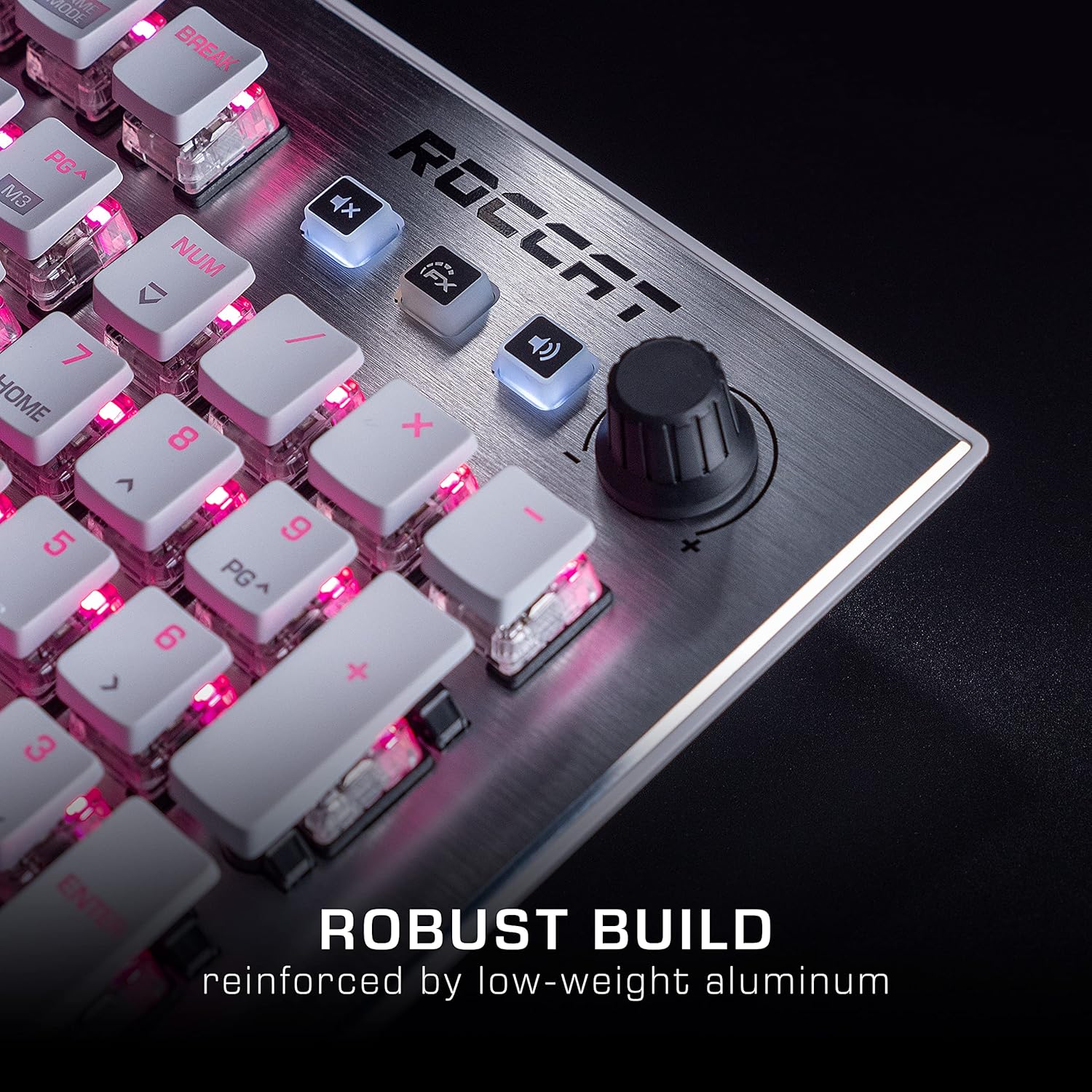
Image: The Roccat Vulcan 122 keyboard shown with its detachable wrist rest, ready for connection.
2.2 Software Installation (ROCCAT Swarm)
For full functionality and customization, install the ROCCAT Swarm software:
- Visit the official ROCCAT weblocal (www.roccat.com) and navigate to the support section.
- Download the latest version of the ROCCAT Swarm software for your operating system.
- Execute o instalador e siga as instruções na tela.
- After installation, launch ROCCAT Swarm to configure your keyboard settings, lighting, and macros.
3. Operando o teclado
3.1 Funções principais padrão
The Vulcan 122 functions as a standard QWERTY keyboard. All alphanumeric keys, function keys (F1-F12), navigation keys, and the numeric keypad operate as expected.
3.2 Controles de mídia
The keyboard features dedicated media controls for convenient audio management.
- Botão de volume: Located in the upper right corner, rotate to adjust system volume.
- Botão Mudo: Press to mute/unmute audio.
- Botão FX: Cycles through lighting effects or other programmable functions.

Imagem: Um close-up view of the mixer-style media controls on the Roccat Vulcan 122, including the volume knob and dedicated function keys.
3.3 RGB Lighting Customization (AIMO)
The Vulcan 122 features advanced RGB lighting with Roccat's AIMO intelligent lighting system. Use the ROCCAT Swarm software to:
- Select from various pre-set lighting effects.
- Customize individual key illumination.
- Ajuste o brilho e a velocidade dos efeitos.
- Synchronize lighting with other AIMO-compatible devices.
3.4 Programmable Macro Keys and Easy-Shift[+]
The keyboard includes programmable macro keys and the Easy-Shift[+] function, allowing you to assign secondary functions to keys.
- Use the ROCCAT Swarm software to record and assign macros to designated keys.
- Easy-Shift[+] allows you to double the number of assignable functions by holding down the Easy-Shift[+] key (usually Caps Lock by default, configurable in Swarm) and pressing another key.
3.5 Anti-Ghosting with NKRO
The Vulcan 122 features advanced anti-ghosting technology with N-Key Rollover (NKRO), ensuring that every key press is registered accurately, even when multiple keys are pressed simultaneously.

Image: A hand demonstrating typing on the Roccat Vulcan 122 keyboard, emphasizing the ergonomic design of the keys for comfortable use.
4. Manutenção
4.1 Limpeza do teclado
To ensure the longevity and optimal performance of your Vulcan 122 keyboard, regular cleaning is recommended.
- Desconecte o teclado do computador antes de limpá-lo.
- Use um pano macio e sem fiapos levementeampened with water or a mild cleaning solution to wipe the keycaps and surface. Avoid harsh chemicals.
- For dust and debris between keys, use compressed air. The raised keycap design makes cleaning easier.
- Certifique-se de que o teclado esteja completamente seco antes de reconectá-lo.

Image: A close-up of the Roccat Vulcan 122 keyboard keys, illustrating their design which facilitates easy cleaning and resistance to dust and liquids.
5. Solução De Problemas
If you encounter issues with your Roccat Vulcan 122 keyboard, refer to the following common problems and solutions:
- Teclado não responde:
- Certifique-se de que o cabo USB esteja firmemente conectado tanto ao teclado quanto ao computador.
- Tente conectar o teclado a uma porta USB diferente.
- Reinicie o seu computador.
- Verifique se o teclado está desativado no gerenciador de dispositivos do seu sistema operacional.
- Iluminação RGB não funciona ou está incorreta:
- Ensure the ROCCAT Swarm software is installed and up to date.
- Check lighting settings within the Swarm software.
- Perform a firmware update for the keyboard via Swarm.
- Teclas não registradas ou que desaparecem sem deixar rastro:
- Clean the affected keys as described in the Maintenance section.
- Certifique-se de que o firmware do teclado esteja atualizado.
- Teste o teclado em outro computador para descartar problemas específicos do sistema.
- ROCCAT Swarm software not detecting keyboard:
- Verifique se o teclado está conectado corretamente.
- Restart the Swarm software and your computer.
- Reinstale o software ROCCAT Swarm.
- Check for any conflicting software or drivers.
6. Especificações
| Recurso | Detalhe |
|---|---|
| Marca | ROCCAT |
| Nome do modelo | Vulcan 122 |
| Número do modelo | ROC-12-940-BN |
| Descrição do teclado | Mecânico |
| Tipo de interruptor | Tátil |
| Material | Alumínio |
| Características especiais | Iluminação de fundo |
| Dispositivos compatíveis | Laptop (PC) |
| Suporte ao sistema operacional | Windows 10, Windows 7, Windows 8 |
| Dimensões do produto | 46.2 x 23.5 x 3.2 cm |
| Peso do item | 1.15 kg |

Imagem: Uma explosão view diagram illustrating the components of a Roccat Titan Tactile mechanical switch, highlighting its design for swift and precise response.
7. Garantia e Suporte
7.1 Informações de garantia
Your Roccat Vulcan 122 keyboard is covered by a manufacturer's warranty. The specific terms and duration of the warranty may vary by region and retailer. Please retain your proof of purchase for warranty claims. For detailed warranty information, refer to the warranty card included with your product or visit the official ROCCAT website.
7.2 Suporte Técnico
For technical assistance, driver updates, or further inquiries, please visit the official ROCCAT support page:
You can find FAQs, troubleshooting guides, and contact information for customer service on their website.
Ask a question about this manual
Ask about setup, troubleshooting, compatibility, parts, safety, or missing instructions. Manuals+ will review the question and use this page’s manual context to help answer it.