
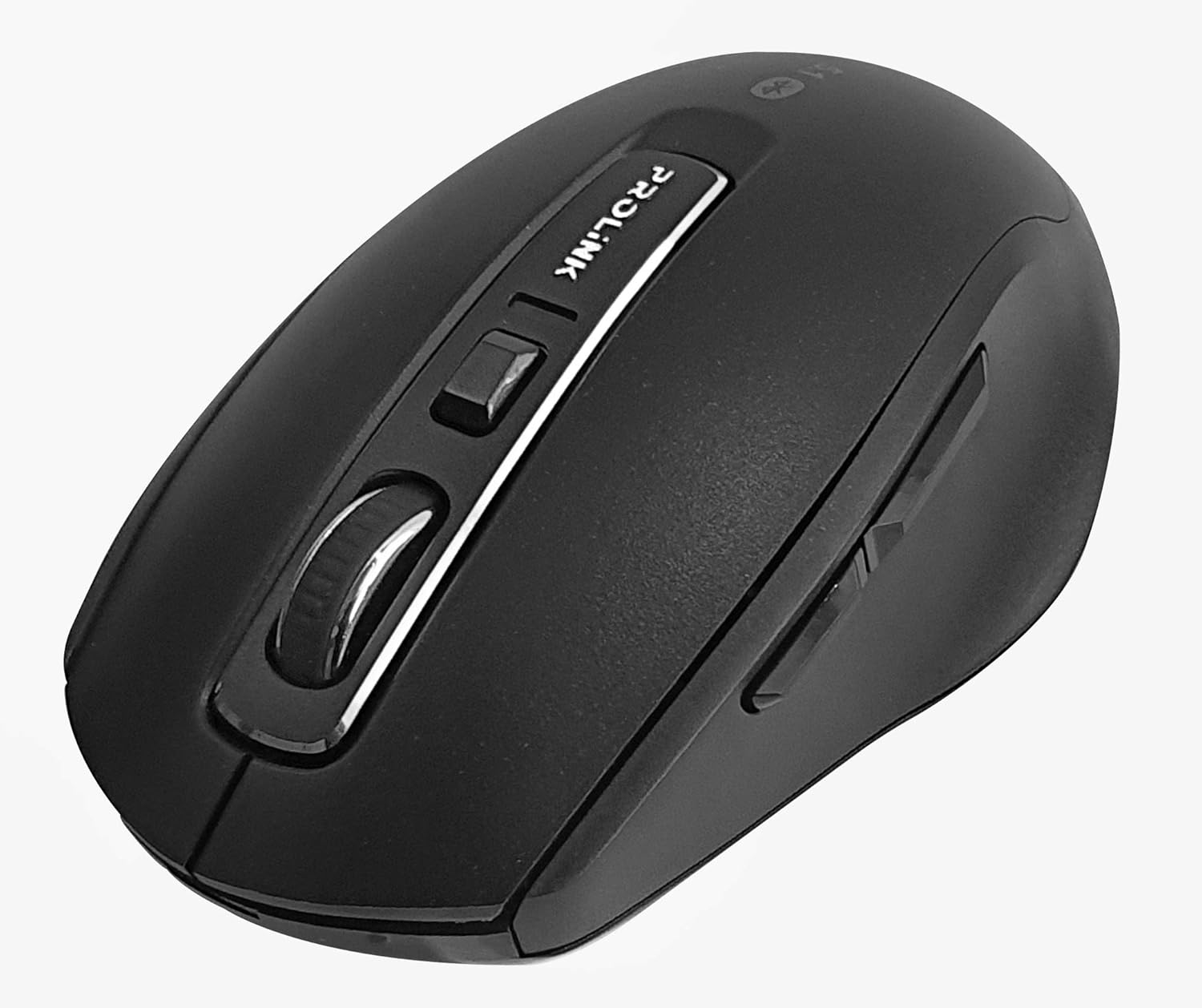
Imagem: Vista de cima para baixo view of the Prolink PMB8502 Bluetooth Wireless Optical Mouse.
1. Introdução e maisview
The Prolink PMB8502 Bluetooth Mouse is designed for seamless wireless control of your desktop, laptop, or tablet. It features Bluetooth 5.2 connectivity, an ergonomic design, and adjustable DPI settings for personalized comfort and precision. This manual provides detailed instructions for setup, operation, maintenance, and troubleshooting.
Principais características:
- Bluetooth 5.2 connectivity (backward compatible with 5.1/5.0/4.2/4.1/4.0)
- Up to 27 months battery life (based on supplied batteries)
- DPI ajustável: 800/1200/1600
- 6-button design including back and forward buttons
- Design ergonômico para uso confortável
- Operating range of up to 10 meters

Image: Prolink PMB8502 mouse highlighting its Bluetooth 5.2, battery life, DPI, and range features.
2. Conteúdo da embalagem
- Prolink PMB8502 Bluetooth Wireless Optical Mouse
- 1 pilha AA (pré-instalada ou incluída separadamente)
- Manual do usuário (este documento)
3. Instruções de configuração
3.1. Instalação da bateria
- Localize a tampa do compartimento da bateria na parte inferior do mouse.
- Deslize ou levante a tampa com cuidado para abrir o compartimento.
- Insira uma pilha AA, certificando-se de que os terminais positivo (+) e negativo (-) estejam alinhados corretamente com as marcações dentro do compartimento.
- Recoloque a tampa do compartimento da bateria até que ela se encaixe firmemente no lugar.
3.2. Emparelhamento Bluetooth
Before pairing, ensure your device (computer, laptop, tablet) has Bluetooth enabled.
- Ligue o mouse usando o botão liga/desliga localizado na parte inferior.
- Press and hold the Bluetooth 'Connect' button (usually located near the On/Off switch or within the battery compartment) for 3-5 seconds until the LED indicator on the mouse begins to flash, indicating it is in pairing mode.
- No seu dispositivo, navegue até as configurações de Bluetooth.
- Procurar new devices. The mouse should appear as "Prolink PMB8502" or similar.
- Select the mouse from the list to complete the pairing process. The LED indicator on the mouse will stop flashing and remain solid for a few seconds, then turn off, indicating a successful connection.

Imagem: Frente view of the Prolink PMB8502 mouse, showing its ergonomic shape.
4. Instruções de operação
4.1. Funções dos botões
- Botão esquerdo do mouse: Seleção e ativação padrão.
- Botão direito do mouse: Acessa os menus contextuais.
- Rodinha do mouse: Pergaminhos e documentos web páginas verticalmente. Também pode ser pressionado para a funcionalidade de clique do meio.
- Botão de ajuste de DPI: Located below the scroll wheel. Press to cycle through DPI settings (800/1200/1600).
- Botão Avançar: Navega para a frente em web navegadores ou file exploradores.
- Botão Voltar: Navega para trás em web navegadores ou file exploradores.

Imagem: Lado view of the Prolink PMB8502 mouse, illustrating the placement of the back and forward navigation buttons.
4.2. Ajuste de DPI
The mouse offers three DPI (Dots Per Inch) settings: 800, 1200, and 1600. Press the DPI button located below the scroll wheel to switch between these sensitivities. A higher DPI setting results in faster cursor movement across the screen.
4.3. Gerenciamento de energia
- Interruptor liga/desliga: To conserve battery life, turn off the mouse using the switch on its underside when not in use for extended periods.
- Modo de suspensão automático: The mouse automatically enters a sleep mode after more than 10 minutes of inactivity. To wake it up, simply move the mouse or click any button.
5. Manutenção
5.1. Limpeza
To clean the mouse, use a soft, dry, lint-free cloth. For stubborn dirt, slightly dampen the cloth with water or a mild cleaning solution. Avoid using harsh chemicals, abrasive cleaners, or spraying liquids directly onto the mouse.
5.2. Substituição da bateria
When the mouse performance degrades or the LED indicator suggests low battery, replace the AA battery following the steps in Section 3.1. Dispose of used batteries responsibly according to local regulations.
6. Solução De Problemas
- Mouse not connecting or erratic movement:
- Certifique-se de que o mouse esteja ligado.
- Verifique o nível da bateria e substitua-a se necessário.
- Certifique-se de que o Bluetooth esteja habilitado no seu dispositivo.
- Try re-pairing the mouse with your device (refer to Section 3.2).
- Aproxime o mouse do seu dispositivo para descartar problemas de alcance.
- Certifique-se de que não haja outros sinais sem fio fortes interferindo na conexão Bluetooth.
- Cursor not moving smoothly:
- Limpe o sensor óptico na parte inferior do mouse.
- Utilize o mouse em uma superfície limpa e não refletora.
- Adjust the DPI setting to a level that suits your preference.
- Botões não respondem:
- Verifique o nível da bateria.
- Ensure the mouse is properly connected via Bluetooth.
- Reinicie o computador ou dispositivo.
7. Especificações
| Recurso | Detalhe |
|---|---|
| Botões | 6 |
| Sensor | Óptico |
| Resolução de DPI | 800 / 1200 / 1600 DPI |
| Interface | Bluetooth 5.2 (backward compatible with Bluetooth 5.1/5.0/4.2/4.1/4.0) |
| Taxa de relatório USB | 125Hz |
| FPS | 2400 vezes/seg |
| Umidade operacional | 30%RH - 95%RH |
| Temperatura de operação | -20°C - +60°C |
| Sistema operacional | Windows 7 / 10 / 11, Mac OS 10.2 above |
| Dimensões (C x L x A) | 108 mm x 66.7 mm x 40.2 mm |
| Peso | 69.2g (product only) |
| Tipo de Bateria | 1 x pilha AA |

Image: Graphic displaying the technical specifications of the Prolink PMB8502 mouse.
8. Garantia e Suporte
The Prolink PMB8502 Bluetooth Wireless Optical Mouse typically comes with a Garantia de 3 ano from the date of purchase. Please refer to your purchase receipt or the official Prolink website for specific warranty terms and conditions applicable in your region.
For technical support, troubleshooting assistance, or warranty claims, please visit the official Prolink website or contact their customer service department. Contact information can usually be found on the product packaging or the Prolink official website.
Recursos on-line:

Image: Prolink PMB8502 mouse with a "3 Year Warranty" label, indicating product assurance.