
Introdução
The Hyper Drive GEN2 12-in-1 USB-C Docking Station is designed to expand the connectivity of your USB-C enabled laptop or tablet. This docking station provides a comprehensive solution for connecting multiple peripherals, external displays, and power delivery through a single USB-C port. It supports high-speed data transfer, multiple 4K video outputs, and efficient power charging for enhanced productivity.
Características do produto
The Hyper Drive GEN2 12-in-1 USB-C Docking Station offers a wide array of ports and capabilities:
- Dual HDMI 4K60Hz HDR: Connect up to two external displays with stunning 4K resolution at 60Hz, supporting High Dynamic Range (HDR) for vibrant visuals.
- DisplayPort 4K60Hz: Connect an additional external display via DisplayPort, also supporting 4K resolution at 60Hz.
- USB-C Power Delivery (PD) 100W: Charge your host laptop or tablet with up to 100W of power through the dedicated USB-C PD port.
- 2x USB-A 10Gbps (USB 3.1 Gen 2): Experience ultra-fast data transfer speeds for compatible USB-A devices.
- 2x USB-A 2.0: Connect standard USB peripherals such as keyboards, mice, or printers.
- Gigabit Ethernet: Enjoy stable and high-speed wired network connectivity.
- MicroSD UHS-II (300MB/s): Fast data transfer for MicroSD cards, ideal for photographers and videographers.
- SD UHS-II (300MB/s): Fast data transfer for standard SD cards.
- Conector de áudio de 3.5 mm: Connect headphones or speakers for audio output.

Figura 1: Frente view of the Hyper Drive GEN2 12-in-1 USB-C Hub, highlighting MicroSD, SD, 3.5mm Audio, and two USB-A 10Gbps ports.
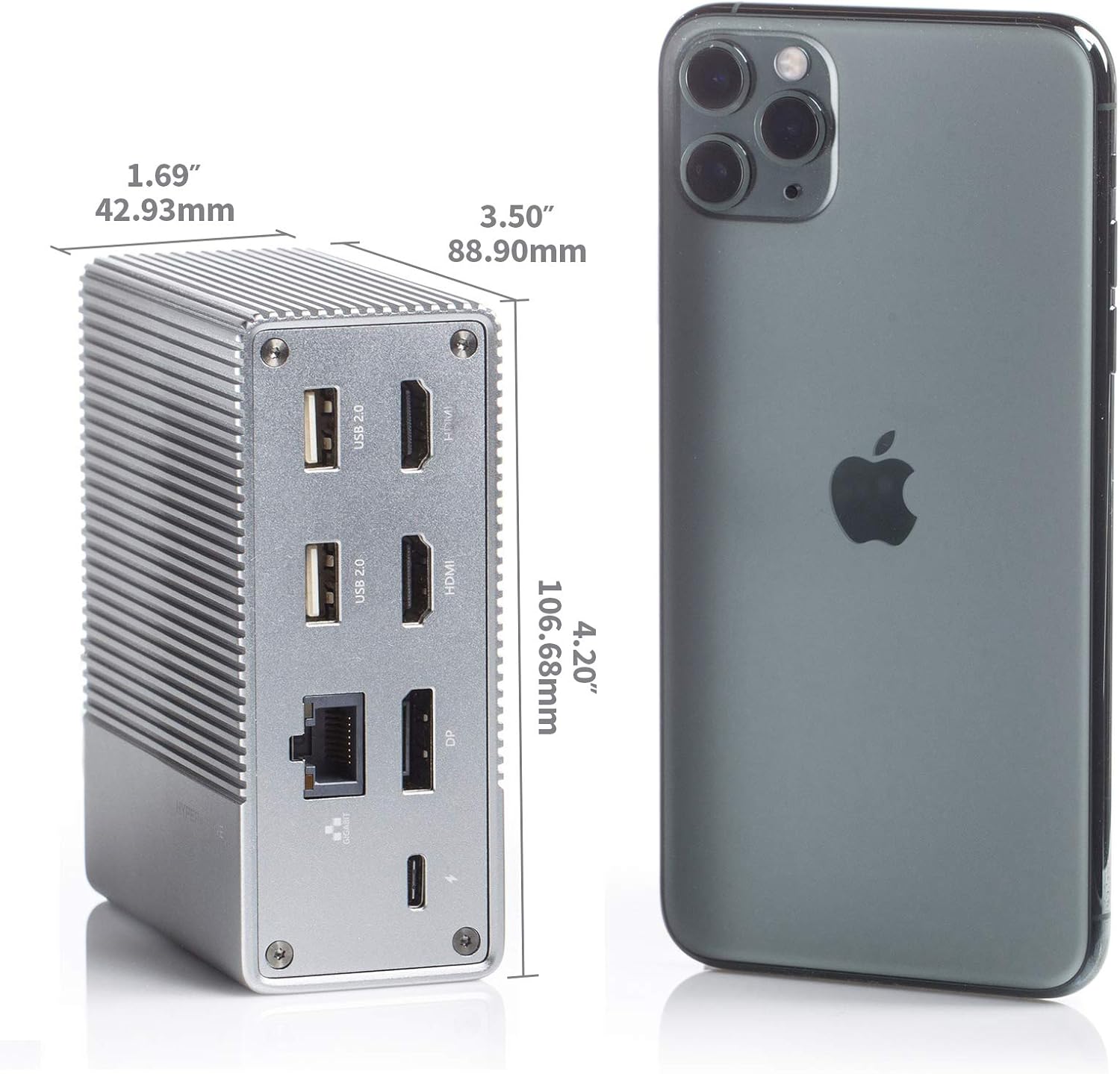
Figura 2: Traseira view of the Hyper Drive GEN2 12-in-1 USB-C Hub, highlighting USB-C Power Delivery, Gigabit Ethernet, DisplayPort, two HDMI, and two USB-A 2.0 ports.
Guia de configuração
- Conectar ao dispositivo host: Plug the integrated USB-C cable from the docking station into an available USB-C port on your laptop or tablet. Ensure the USB-C port on your host device supports DisplayPort Alternate Mode (Alt Mode) and Power Delivery for full functionality.
- Conexão elétrica (opcional, mas recomendada): For optimal performance and to charge your host device, connect your laptop's USB-C power adapter to the USB-C PD port on the docking station. The docking station supports up to 100W power delivery.
- Conectar monitores externos:
- Connect your HDMI monitors to the HDMI ports on the docking station.
- Connect your DisplayPort monitor to the DisplayPort on the docking station.
Observação: For macOS, only one extended display is supported with the same image on all external displays at 4K60Hz. Windows/Chrome OS supports Multi-Stream Transport (MST) for up to three extended displays.
- Conecte periféricos: Plug your USB devices (keyboard, mouse, external drives), Ethernet cable, and audio devices into the corresponding ports on the docking station.
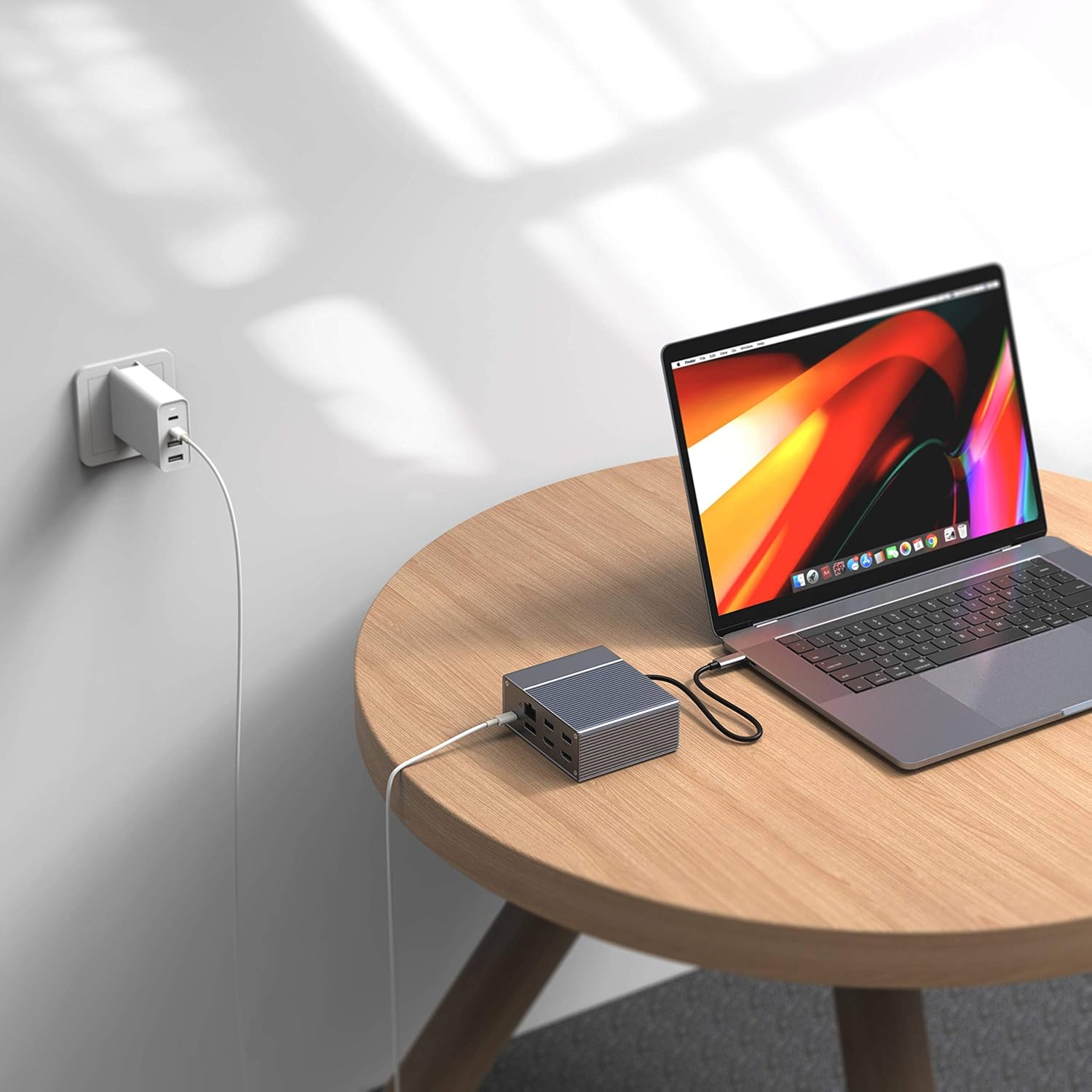
Figure 3: Laptop connected to the docking station and a power adapter for charging.
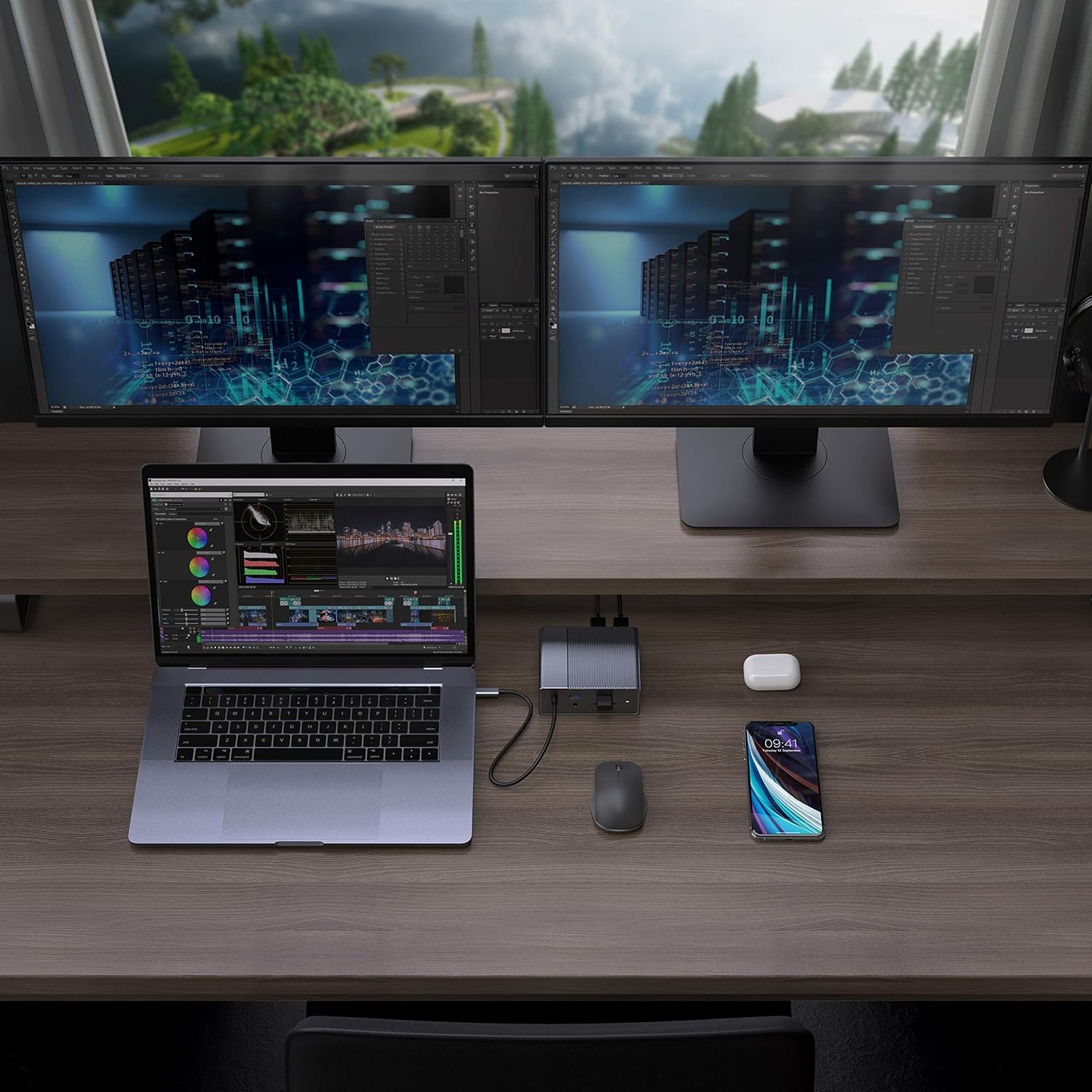
Figure 4: A typical setup showing a laptop connected to the docking station with multiple peripherals and external displays.
Instruções de operação
Modos de exibição
The docking station supports various display configurations depending on your operating system:
- MacOS: Supports one extended display with the same image mirrored across all external displays at 4K60Hz. macOS does not support Multi-Stream Transport (MST) for independent extended displays.
- Windows/Chrome OS: Supports Multi-Stream Transport (MST), allowing for up to three extended displays with independent content at 4K60Hz.

Figure 5: Illustration of display modes for macOS (mirror mode) and Windows (mirror and extended modes) using the docking station.
Data Transfer and Power Delivery
- USB-A 10Gbps Ports: Use these ports for high-speed data transfer with compatible external hard drives, SSDs, or other USB 3.1 Gen 2 devices.
- Portas USB A 2.0: Ideal for connecting standard peripherals like keyboards, mice, or USB flash drives where high-speed data transfer is not critical.
- SD/MicroSD Card Slots: Insert your memory cards for quick access and transfer of photos and videos at up to 300MB/s (UHS-II speeds).
- Porta USB-C PD: Connect your laptop's power adapter to this port to charge your laptop while using the docking station. This port also supports data transfer.
Vídeo 1: Oficial sobreview of the HyperDrive GEN2 USB-C Hub, demonstrating its speed, power, and various port functionalities.
Manutenção
- Mantenha a estação de acoplamento em um ambiente limpo e seco.
- Evite expor o dispositivo a temperaturas extremas ou luz solar direta.
- Limpe a parte externa com um pano macio e seco. Não use produtos de limpeza líquidos ou aerossóis.
- Garanta ventilação adequada ao redor do dispositivo para evitar superaquecimento.
Solução de problemas
- No display output or flickering screen:
- Certifique-se de que a porta USB-C do seu dispositivo host seja compatível com o Modo Alternativo DisplayPort.
- Verifique todas as conexões de cabos (USB-C para o computador, HDMI/DP para os monitores).
- Try a different HDMI or DisplayPort cable.
- Verify your monitor input settings are correct.
- For macOS, remember that only one extended display is supported, with other external displays mirroring the extended one.
- Dispositivos USB não reconhecidos:
- Reconnect the USB device to the docking station.
- Experimente uma porta USB diferente na estação de acoplamento.
- Certifique-se de que a estação de acoplamento esteja devidamente conectada ao seu dispositivo host.
- If using high-power USB devices, ensure the docking station is connected to a power source via its USB-C PD port.
- Meu laptop não está carregando:
- Ensure your laptop's original USB-C power adapter is connected to the USB-C PD port on the docking station.
- Verify that your laptop supports USB-C Power Delivery.
- Verifique se o adaptador de energia e o cabo apresentam algum dano.
Especificações
| Recurso | Especificação |
|---|---|
| Modelo | GEN2 12-in-1 USB-C Hub |
| Marca | Hiper |
| Portas HDMI | 2x HDMI 4K60Hz HDR |
| Porta de exibição | 1x DisplayPort 4K60Hz |
| Porta USB-C PD | 1x entrega de energia USB-C 100W |
| Portas de dados USB-A | 2x USB-A 10Gbps (USB 3.1 Gen 2), 2x USB-A 2.0 |
| Ethernet | 1x Gigabit Ethernet |
| Leitores de cartão | 1x MicroSD UHS-II (300MB/s), 1x SD UHS-II (300MB/s) |
| Conector de áudio | 1x conector de áudio de 3.5 mm |
| SO compatível | macOS, Windows, Chrome OS |
| Peso do item | 480.8 gramas |
| UPC | 817110014519 |
Garantia e Suporte
For warranty information and technical support, please refer to the official Hyper webou entre em contato com o serviço de atendimento ao cliente. Guarde o comprovante de compra para eventuais solicitações de garantia.
Suporte online: www.hyper.com/support