
Introdução
This manual provides detailed instructions for the installation, operation, maintenance, and troubleshooting of your 360 G500H Dash Cam. Please read this guide thoroughly to ensure proper use and optimal performance of your device.

Image: The 360 G500H Dash Cam, showing both the front and rear camera units.
1. Configuração e instalação
1.1 Conteúdo da embalagem
- 360 G500H Front Dash Cam
- Câmera Traseira
- Cabo de alimentação (USB)
- Carregador de carro (adaptador para isqueiro)
- Adesivo de montagem
- Manual do usuário
1.2 Instalação da câmera frontal
- Limpar o para-brisa: Wipe the front windshield thoroughly to ensure the surface is dry and clean before mounting the dash cam.
- Instale a câmera veicular: Mount the front camera directly onto the proper location of the windshield using the provided 3M adhesive. Ensure it does not obstruct your view.
- Conecte a energia: Remove the protective film from the mounting location, then plug the power cable into the dash cam.
- Cabo de Rota: Walk the power wire up to the headliner and tuck the cable into the headliner's edge. Continue tucking the wire behind the A-pillar down to the glove compartment area.
- Conecte à tomada elétrica: Run the cable down from the glove compartment area and connect it to the car's cigarette lighter power outlet using the car charger adapter.

Image: The front dash cam mounted on the vehicle's windshield.
1.3 Instalação da Câmera Traseira
- Roteamento do cabo da câmera traseira: Walk the rear camera wire along the headliner from the front camera, continuing past the B-pillar and C-pillar.
- Extend to Trunk: Push the wire into the crevice of the rear seat and extend it to the trunk area.
- Connect to License Plate: Get the wire through the license plate area. Connect the rear camera to its line.
- Instalar câmera traseira: Remove the protective film from the 3M adhesive on the rear camera and stick the camera securely on the top of the license plate or a suitable location on the rear of the vehicle.

Image: Diagram illustrating the routing of the rear camera cable from the front of the car to the trunk.
Video: A detailed guide on how to install the 360 G500H Dash Cam, covering both front and rear camera setup.
2. Operating Your Dash Cam
2.1 Ligar/Desligar
When connected to your vehicle's power outlet, the camera will automatically power on and begin recording when the vehicle is started. It will power off when the vehicle is turned off.
2.2 Incident Detection and G-Sensor
The 360 G500H automatically saves video footage when it detects an incident, such as a sudden impact or collision, using its built-in G-Sensor. These videos are locked to prevent overwriting.

Image: Visual representation of the G-Sensor feature, showing how it detects and records incidents like collisions.
2.3 Funcionalidade GPS
With built-in GPS, the dash cam records location and speed data, providing proof of exactly when and where events occurred. This data can be accessed via the companion app.

Image: A smartphone displaying a map with recorded driving details, highlighting the GPS tracking feature.
2.4 Modo de vigilância de estacionamento
The 24-hour parking monitor feature records motion in front of and behind your vehicle when it is parked and turned off. If a shock or vibration is detected, the camera automatically starts recording.

Imagem: Vista aérea view of cars in a parking lot, illustrating the 24-hour parking surveillance motion detection area.
2.5 Gravação de Loop
The dash cam records continuously. When the memory card is full, the oldest videos are automatically overwritten by new ones. Important clips saved by the G-Sensor are protected from overwriting.
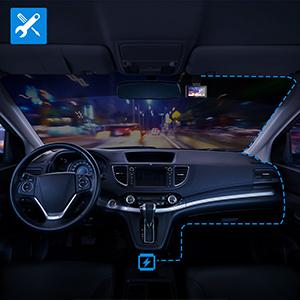
Image: A circular graphic depicting the continuous loop recording process, where older footage is replaced by new recordings.
2.6 Visão noturna
The 360 G500H features color night vision, allowing for clear, full-color footage in low-light conditions, unlike traditional black and white recordings.

Image: A night driving scene showcasing the dash cam's HD Night Vision capability, capturing details in low light.
3. Manutenção
3.1 Gerenciamento de cartão de memória
Regularly format the memory card to ensure optimal performance and prevent data corruption. Back up important footage antes da formatação.
3.2 Limpeza das lentes
Gently clean the front and rear camera lenses with a soft, lint-free cloth to maintain clear video quality. Avoid abrasive materials.
3.3 atualizações de firmware
Check the official 360 website or app for available firmware updates to ensure your dash cam has the latest features and improvements.
4. Solução De Problemas
4.1 A câmera não liga
- Ensure the power cable is securely connected to both the dash cam and the car's cigarette lighter outlet.
- Verify the vehicle's power outlet is functional.
4.2 Poor Video Quality at Night
- While the G500H features color night vision, extreme low-light conditions or glare from oncoming headlights can affect clarity.
- Ensure the windshield and camera lens are clean.
4.3 Problemas de conectividade do aplicativo
- If experiencing issues connecting to the dash cam via the app, try restarting both the dash cam and your mobile device.
- Reinstalling the app may also resolve the issue.
- Ensure Wi-Fi is enabled on your phone and connected to the dash cam's Wi-Fi network.
4.4 Footage Not Saving
- Check if the memory card is properly inserted and not full.
- Format the memory card if necessary (after backing up important filee).
- Ensure the G-Sensor sensitivity is set appropriately for incident detection.
5. Especificações
| Nome do modelo | G500H |
| Marca | 360 |
| Resolução da câmera frontal | 2K (1440p) |
| Resolução da câmera traseira | 1080p |
| Campo frontal de View | Ângulo amplo de 160° |
| Campo traseiro de View | 130° |
| Características especiais | G-Sensor, Loop Recording, Color Night Vision, 24H Parking Monitor, Built-in GPS |
| Tecnologia de Conectividade | USB, Wireless (App Control) |
| Tipo de montagem | Suporte Adesivo |
| Peso do item | 1.17 libras |
| Dimensões da embalagem | 5.87 x 5.39 x 3.62 polegadas |
6. Garantia e Suporte
6.1 Informações de garantia
360 Smart Life provides a 12-month warranty for the G500H Dash Cam. Please retain your proof of purchase for warranty claims.
6.2 Suporte ao cliente
For technical assistance or warranty inquiries, please contact 360 Smart Life customer support. Refer to the product packaging or official website para detalhes de contato.


