
SteelSeries 62535
Manual do Usuário do Mouse Gamer SteelSeries Prime FPS Neo Noir Edition
Model: 62535 | Brand: SteelSeries
Produto acimaview
The SteelSeries Prime FPS Gaming Mouse Neo Noir Edition is a limited edition, lightweight gaming mouse designed for competitive FPS gameplay. It features a battle-tested shape, hyper-durable design, and a textured matte finish for optimal grip and comfort during extended use. This mouse is equipped with advanced optical switches and a high-performance sensor to deliver precise and responsive control.
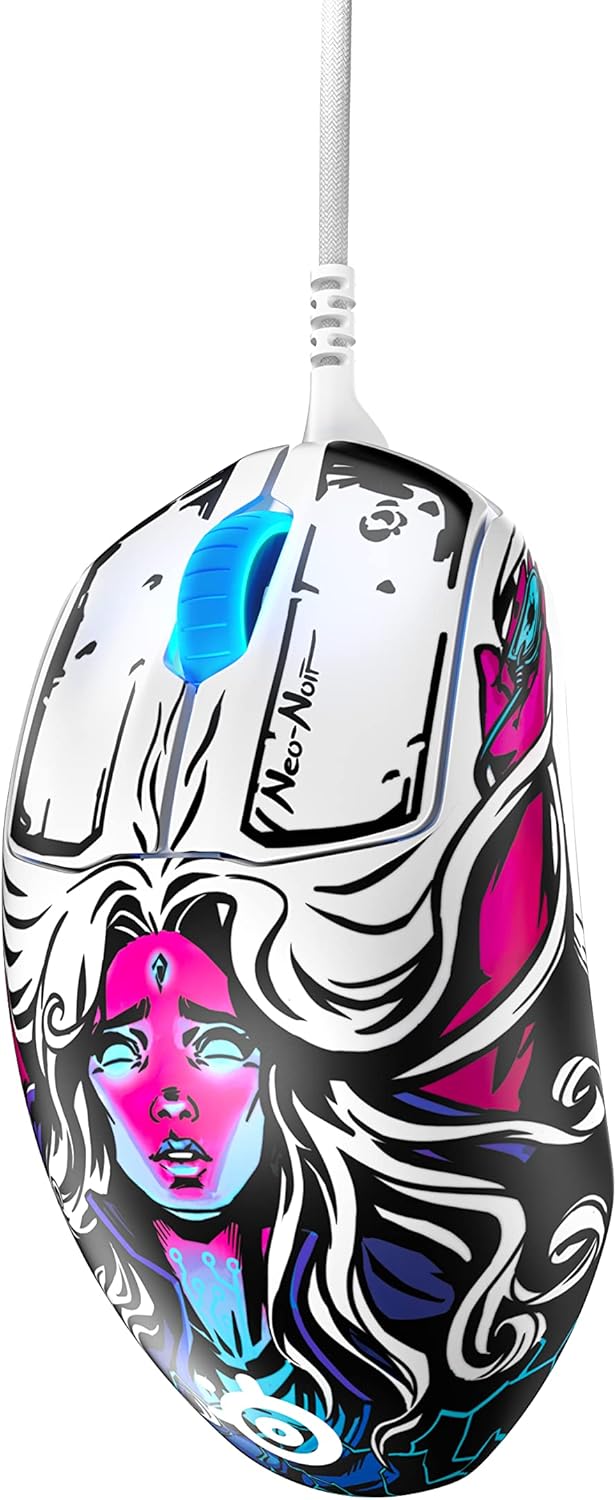
Os principais recursos incluem:
- Prestige Optical Magnetic Switches: Revolutionary switches that actuate lightning fast using infrared beams, rated for an industry-best 100 million clicks using neodymium magnets, ensuring durability and consistent performance.
- TrueMove Pro Optical Sensor: A top-of-the-line sensor delivering 18,000 CPI (Counts Per Inch), 450 IPS (Inches Per Second), and 50G acceleration with advanced tilt tracking for unparalleled precision.
- Design leve: Weighing only 69g, developed with input from esports professionals for sustained comfort and battle-tested durability.
- On-board Customization: Allows for direct adjustment of 4 polling rates and up to 5 pre-set or customized CPIs without software.
- Brilliant Prism RGB Lighting: Customizable RGB lighting integrated into the scroll wheel.
Configurar
Requisitos do sistema
Before connecting your SteelSeries Prime FPS Gaming Mouse, ensure your system meets the following requirements:
- Operating System: Windows, macOS, Xbox, or Linux.
- Porta USB disponível.
Conectando o Mouse
- Localize uma porta USB disponível em seu computador ou console de jogos.
- Insert the USB connector of the SteelSeries Prime FPS Gaming Mouse into the USB port.
- Seu sistema operacional deve detectar e instalar automaticamente os drivers necessários.

Software Installation (SteelSeries GG)
For full customization and advanced features, it is recommended to install the SteelSeries GG software:
- Visit the official SteelSeries website: steelseries. com/gg
- Download the SteelSeries GG software compatible with your operating system.
- Siga as instruções na tela para concluir a instalação.
- Once installed, launch SteelSeries GG to access mouse settings, including CPI, button remapping, and RGB lighting customization.
Operating Your SteelSeries Prime FPS Gaming Mouse
Funções básicas
- Clique esquerdo: Botão de ação principal.
- Clique com o botão direito: Secondary action button, often used for context menus or alternate actions.
- Rodinha do mouse: Usado para percorrer documentos ou web pages. Can also be clicked for a middle-mouse button function.
- Botões laterais: Two programmable buttons located on the left side of the mouse, typically used for forward/back navigation or in-game actions.
- CPI Button: Located on the bottom of the mouse, this button allows for on-the-fly cycling through pre-set or customized CPI profiles.

Customization with SteelSeries GG
The SteelSeries GG software unlocks the full potential of your Prime FPS Gaming Mouse:
- Ajuste do IPC: Fine-tune your mouse sensitivity from 100 to 18,000 CPI. You can set up to 5 distinct CPI profiles and switch between them using the on-board CPI button.
- Programação de botões: Remap any of the 5 programmable buttons to perform specific keyboard functions, macros, or media controls.
- Iluminação RGB: Customize the Brilliant Prism RGB lighting on the scroll wheel with various effects, colors, and brightness levels.
- Taxa de votação: Adjust the polling rate (125Hz, 250Hz, 500Hz, 1000Hz) to control how frequently the mouse reports its position to your computer. A higher polling rate generally provides smoother tracking.
- Aceleração/Desaceleração: Adjust mouse acceleration and deceleration settings to suit your preference.
Manutenção
Limpando o seu mouse
Regular cleaning helps maintain the performance and longevity of your mouse:
- Exterior: Use um pano macio e sem fiapos levemente dampLimpe com água ou uma solução de limpeza suave. Evite produtos químicos agressivos ou materiais abrasivos.
- Sensor: Gently clean the optical sensor on the bottom of the mouse with a cotton swab or compressed air to remove dust and debris. Ensure the mouse is disconnected before cleaning.
- Pés de rato: Periodically check the PTFE feet on the bottom of the mouse for wear or debris. Clean gently if needed.

Armazenar
When not in use, store your mouse in a clean, dry environment away from extreme temperatures and direct sunlight. Avoid coiling the cable too tightly to prevent damage.
Solução de problemas
If you encounter issues with your SteelSeries Prime FPS Gaming Mouse, refer to the following common solutions:
O mouse não responde.
- Verifique a conexão USB: Certifique-se de que o cabo USB esteja firmemente conectado a uma porta USB funcional do seu computador. Tente usar uma porta USB diferente.
- Reinicialização do computador: Uma simples reinicialização geralmente resolve problemas de conectividade.
- Teste em outro dispositivo: Se possível, teste o mouse em outro computador para determinar se o problema está no mouse ou no seu sistema.
- Verifique o Gerenciador de Dispositivos (Windows): Verify that the mouse is recognized in Device Manager and that there are no driver conflicts.
Inconsistent Tracking or Cursor Lag
- Sensor limpo: Dust or debris on the optical sensor can cause tracking issues. Refer to the Maintenance section for cleaning instructions.
- Superfície do mouse pad: Ensure you are using the mouse on a clean, uniform surface. Highly reflective or uneven surfaces can interfere with optical tracking.
- Adjust CPI: Experiment with different CPI settings in the SteelSeries GG software to find the optimal sensitivity for your usage.
- Taxa de votação: Ensure the polling rate is set appropriately. While higher is generally better, very high polling rates on older systems might cause issues.
Buttons Not Registering or Double-Clicking
- Verificação de software: Open SteelSeries GG and ensure button assignments are correct and there are no conflicting profiles.
- Atualização de Firmware: Check for and install any available firmware updates for your mouse via the SteelSeries GG software.
- Obstrução física: Inspect the buttons for any physical debris that might be preventing proper actuation.
Especificações técnicas
| Recurso | Detalhe |
|---|---|
| Marca | Série Steel |
| Número do modelo | 62535 |
| Sensor | TrueMove Pro Optical Sensor |
| CPI (Counts Per Inch) | Up to 18,000 CPI |
| IPS (polegadas por segundo) | 450 IPS |
| Aceleração | 50G |
| Interruptores | Prestige Optical Magnetic Switches (100M Click Rating) |
| Botões | 5 botões programáveis |
| Peso | 69g (2.43 onças) |
| Dimensões (CxLxA) | 7.32 x 4.96 x 2.17 polegadas |
| Conectividade | USB com fio |
| Compatibilidade do sistema operacional | Windows, macOS, Xbox, Linux |
| Cor | Neo Noir |
Garantia e Suporte
Informações de garantia
SteelSeries products are manufactured to the highest quality standards. This product is covered by a limited manufacturer's warranty. For specific warranty terms and conditions, including duration and coverage details, please refer to the warranty card included with your product or visit the official SteelSeries website.
Suporte ao cliente
For technical assistance, troubleshooting, or general inquiries, please visit the SteelSeries support page:
Você também pode encontrar recursos úteis, perguntas frequentes e fóruns da comunidade em seus respectivos sites. website.
Ask a question about this manual
Ask about setup, troubleshooting, compatibility, parts, safety, or missing instructions. Manuals+ will review the question and use this page’s manual context to help answer it.