
Introdução
This manual provides detailed instructions for the setup, operation, maintenance, and features of your SteelSeries Apex 9 Mini keyboard. Please read this guide thoroughly to ensure optimal performance and longevity of your device.
O que está na caixa
- SteelSeries Apex 9 Mini Keyboard
- Cabo USB
- Extrator de Keycap
Configurar
- Conecte o teclado: Plug the provided USB cable into the USB-C port on the keyboard and the other end into an available USB-A port on your computer.
- Instalação do driver: Your operating system (Windows 10 or later, macOS) should automatically detect and install the necessary drivers. For advanced customization, download and install the SteelSeries GG software from the official SteelSeries website.
- Ajustar ângulo do teclado: The keyboard features adjustable feet on the underside. Flip out the feet to achieve your preferred typing angle.
Para um desempenho ideal, certifique-se de que seu sistema operacional esteja atualizado.
Principais características
OptiPoint Optical Switches
The Apex 9 Mini utilizes custom OptiPoint optical switches, designed for rapid actuation and durability. These switches actuate 33% faster than leading optical keyboards, offering a lightning-fast 0.2ms response time with zero debounce.

Imagem: Detalhada view of the custom OptiPoint optical switch mechanism.
2-Point Actuation
Customize your keystroke sensitivity with 2-point actuation. You can adjust the registration depth between a fast 1mm for gaming and a more deliberate 1.5mm for typing, adapting to various tasks and preferences.
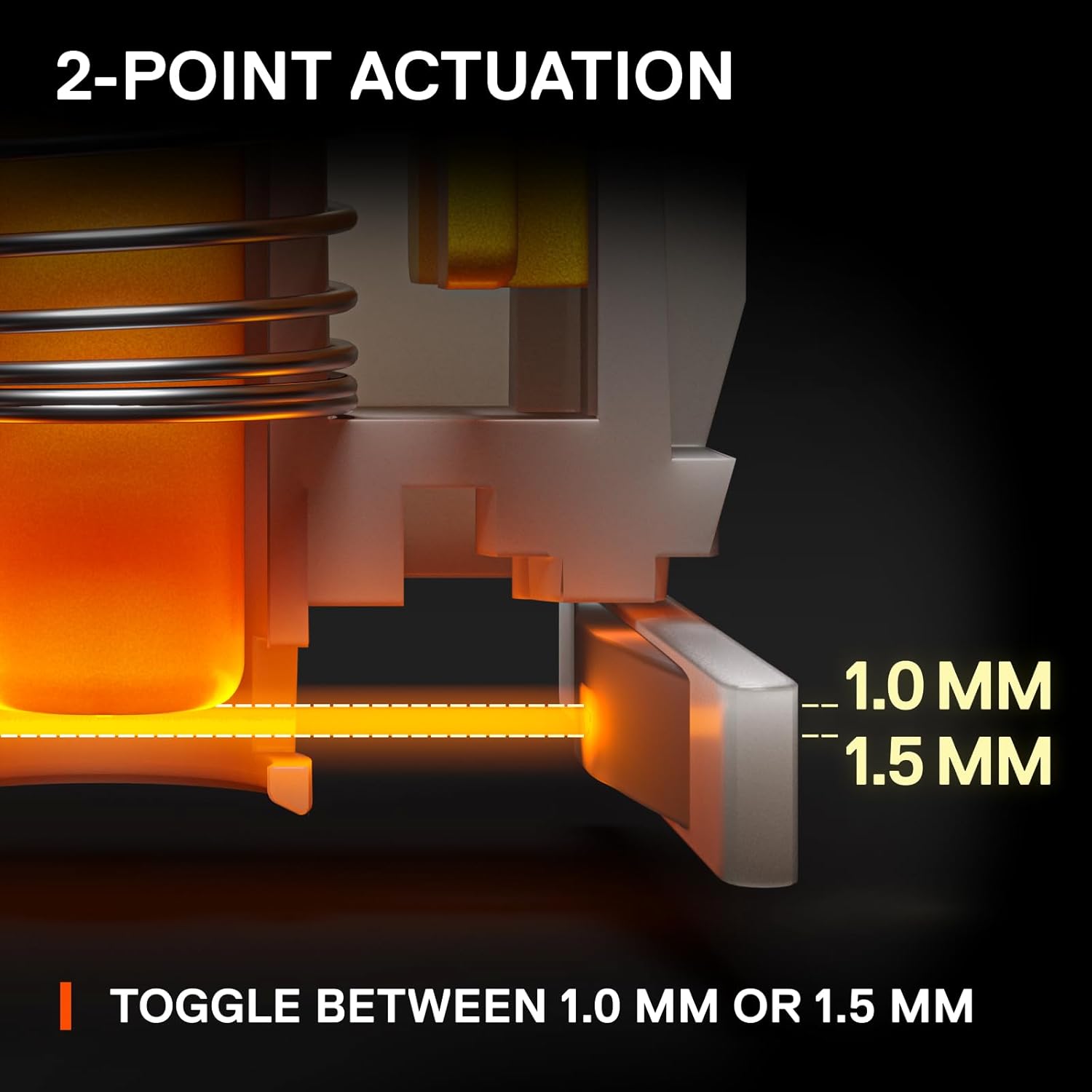
Image: Visual representation of adjustable 1.0mm and 1.5mm actuation points.
Swappable Switches
The OptiPoint switches are swappable, allowing for customization, upgrades, and easy repairs. You can replace switches with your preferred type of OptiPoint switch.

Image: Keyboard with keycaps removed, highlighting the swappable optical switches.
Fator de forma compacto de 60%
The streamlined 60% compact design saves desk space, providing more room for mouse movement. Despite its size, it retains full-size keyboard capabilities through side-printed functions on keycaps.

Image: Comparison showing the compact 60% form factor saving desk space.
Teclas PBT duráveis
The keyboard features long-lasting and fade-proof double shot PBT keycaps. These provide a high-quality texture for enhanced keystroke feel and improved typing accuracy.

Imagem: Detalhada view of a double shot PBT keycap construction.
Instruções de operação
Actuation Point Adjustment
The actuation point of the OptiPoint switches can be adjusted via the SteelSeries GG software. This allows you to fine-tune the sensitivity of each key to your preference, switching between 1mm for quick responses and 1.5mm for more deliberate presses.
Personalização RGB
The keyboard features per-key RGB illumination. Customize lighting effects, colors, and patterns using the SteelSeries GG software. You can choose from various presets, create custom animations, or set static colors to match your setup.
Media Controls and Function Keys
Due to the 60% form factor, many functions are accessed via secondary key presses. Refer to the side-printed legends on the keycaps for these functions. The SteelSeries GG software allows for remapping and creating custom macros for enhanced control.
Manutenção
Limpando o teclado
- Desconecte o teclado do computador antes de limpá-lo.
- Use um pano macio e sem fiapos levemente dampFinalize com água ou uma solução de limpeza suave para limpar as teclas e a estrutura.
- Para uma limpeza mais profunda, use ar comprimido para remover poeira e detritos entre as teclas.
Keycap and Switch Removal
The included keycap puller can be found in a hidden compartment on the underside of the keyboard. Use it to carefully remove keycaps for cleaning or to access the swappable switches. When removing switches, use a switch puller (not included unless specified) to gently dislodge them.
Video: A closer look at the SteelSeries Apex 9 Mini, demonstrating its features and components.
Solução de problemas
- Teclado não responde: Ensure the USB cable is securely connected to both the keyboard and the computer. Try a different USB port or restart your computer.
- Problemas de iluminação: Check the SteelSeries GG software for lighting settings. Ensure no conflicting profiles are active. Update the keyboard firmware if available.
- Key Actuation Problems: Verify actuation point settings in the SteelSeries GG software. If a specific switch is faulty, it can be replaced due to the hot-swappable design.
- O software não detecta o teclado: Reinstall the SteelSeries GG software. Ensure your operating system is fully updated.
For further assistance, visit the official SteelSeries support website.
Especificações
| Recurso | Detalhe |
|---|---|
| Marca | Série Steel |
| Número do modelo | 64837 |
| Compatibilidade do sistema operacional | Windows 10, PC |
| Peso do item | 1.9 libras |
| Dimensões do produto | 4.02 x 11.53 x 1.58 polegadas |
| Cor | RGB |
| Fonte de energia | Elétrico com fio |
| Tecnologia de Conectividade | Com fio |
| Descrição do teclado | Jogos |
| Usos recomendados | Jogos |
| Recurso especial | Jogos |
| Retroiluminação do Teclado | RGB |
| Estilo | Esports Mini |
Garantia e Suporte
For warranty information and detailed support resources, please visit the official SteelSeries webGuarde seu comprovante de compra para eventuais solicitações de garantia.
Online resources often include FAQs, driver downloads, and community forums for additional assistance.