
1. Introdução
This user manual provides detailed instructions for the MMK iPad A16 Case with Wireless Detachable Keyboard. It covers compatibility, setup, operation, maintenance, and specifications to ensure optimal use of your product.
1.1 Compatibilidade
This keyboard case is designed for the following iPad models:
- iPad 11th Gen 11 inch (A16, 2025 models: A3354/A3355/A3356)
- iPad 10.9 inch (2022 models: A2757/A2777/A2696/A3162)
To verify your iPad model number, check the back of your device.

Image 1.1: MMK iPad Case with Wireless Detachable Keyboard and iPad.
2. Conteúdo da embalagem
Por favor, verifique se a embalagem contém os seguintes itens:
- 1 x Keyboard Case for iPad 10/11
- 1 x teclado sem fio Bluetooth
- 1 x cabo de carregamento USB
- 1 x Transparent Keyboard Cover
- 1 x Guia do usuário
3. Instruções de configuração
3.1 Instalando o iPad na capa
- Gently align your iPad with the case's edges.
- Press the iPad firmly into the case, ensuring all corners are securely fitted.
- Verifique se todas as portas, botões e o recorte da câmera estão alinhados corretamente e acessíveis.

Imagem 3.1: Terminadoview of the case features including magnetic design and pencil holder.
3.2 Charging the Wireless Keyboard
Before first use, fully charge the keyboard. Use the provided USB charging cable.
- Connect the small end of the USB charging cable to the Type-C charging port on the keyboard.
- Connect the other end of the USB charging cable to a USB power adapter (not included) or a computer's USB port.
- A luz indicadora de carregamento acenderá durante o carregamento e apagará quando a carga estiver completa.
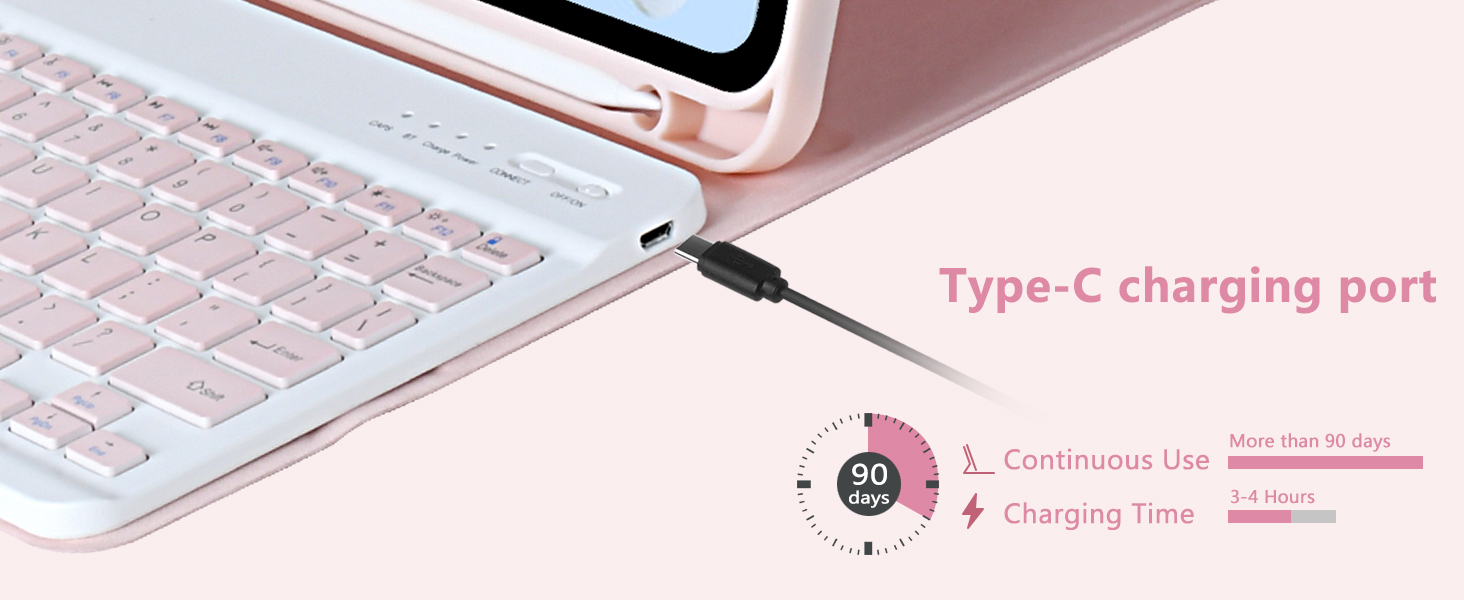
Image 3.2: Keyboard Type-C charging port and estimated charging duration.
3.3 Emparelhando o teclado Bluetooth
Follow these steps to connect your wireless keyboard to your iPad via Bluetooth:
- Certifique-se de que o teclado esteja carregado.
- Slide the power switch on the keyboard to the 'ON' position. The power indicator light will turn on.
- Press the 'CONNECT' button on the keyboard. The Bluetooth indicator light will start blinking, indicating it is in pairing mode.
- No seu iPad, acesse Configurações > Bluetooth.
- Ative o Bluetooth. Seu iPad buscará dispositivos disponíveis.
- Selecione 'Teclado Bluetooth' na lista de dispositivos.
- Once connected, the Bluetooth indicator light on the keyboard will stop blinking.
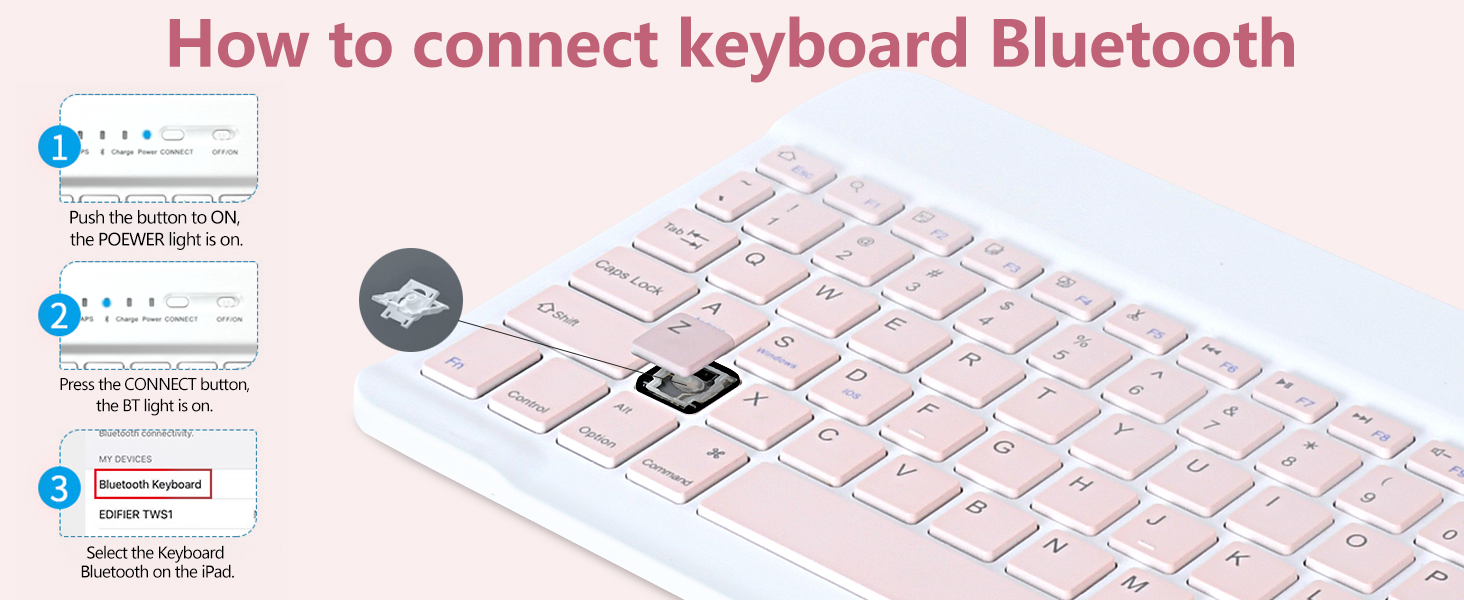
Image 3.3: Visual guide for Bluetooth keyboard connection.
4. Instruções de operação
4.1 Ajustável Viewposições
The case features multiple grooves to provide adjustable viewing angles for your iPad. Simply position the iPad in the desired groove to achieve angles of 100°, 110°, or 120°.
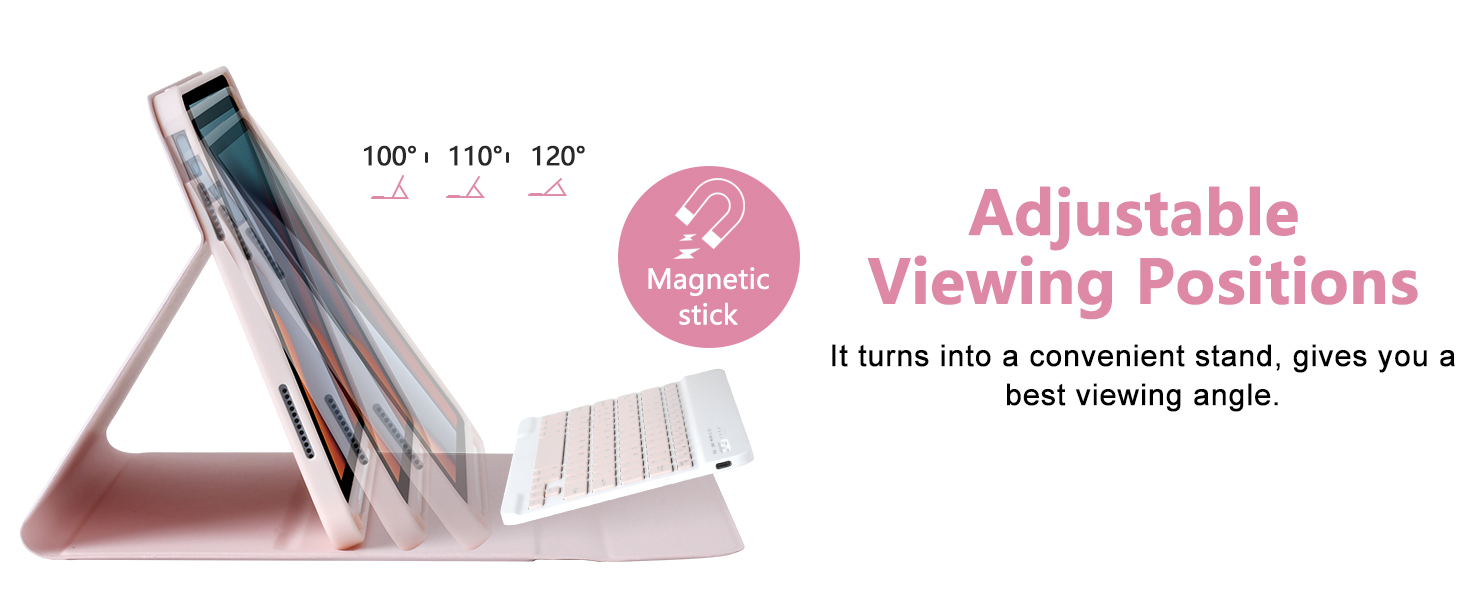
Image 4.1: Illustration of the adjustable viewângulos de inclinação.
4.2 Keyboard Functions and Shortcuts
The keyboard includes a full set of function keys and is compatible with various operating systems. Use the 'Fn' key in combination with other keys for specific shortcuts.
- Fn+D: Apple iOS compatibility
- Fn+S: Compatibilidade com Windows
- Fn+A: Compatibilidade com Android
Refer to the keyboard layout for specific multimedia and system control keys (e.g., volume, brightness, search).
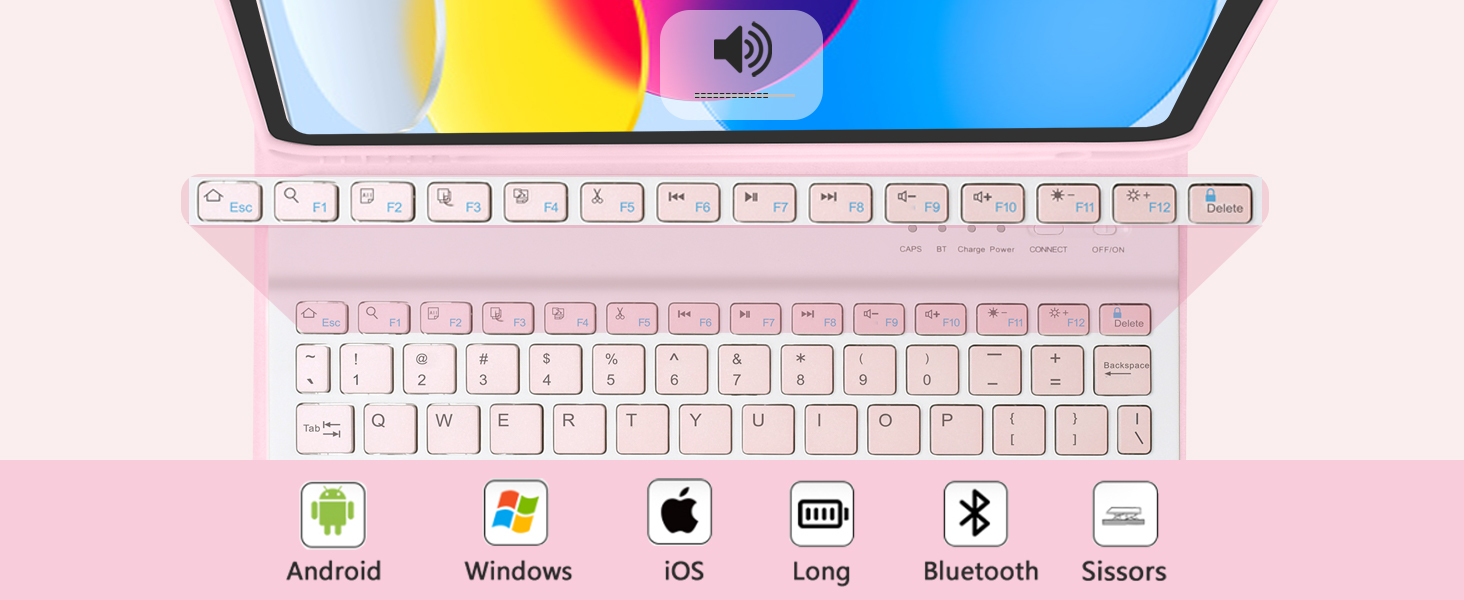
Image 4.2: Keyboard function keys and operating system compatibility.
4.3 Porta-lápis
The case features an integrated pencil holder to securely store your stylus. This ensures your pencil is always accessible and protected.
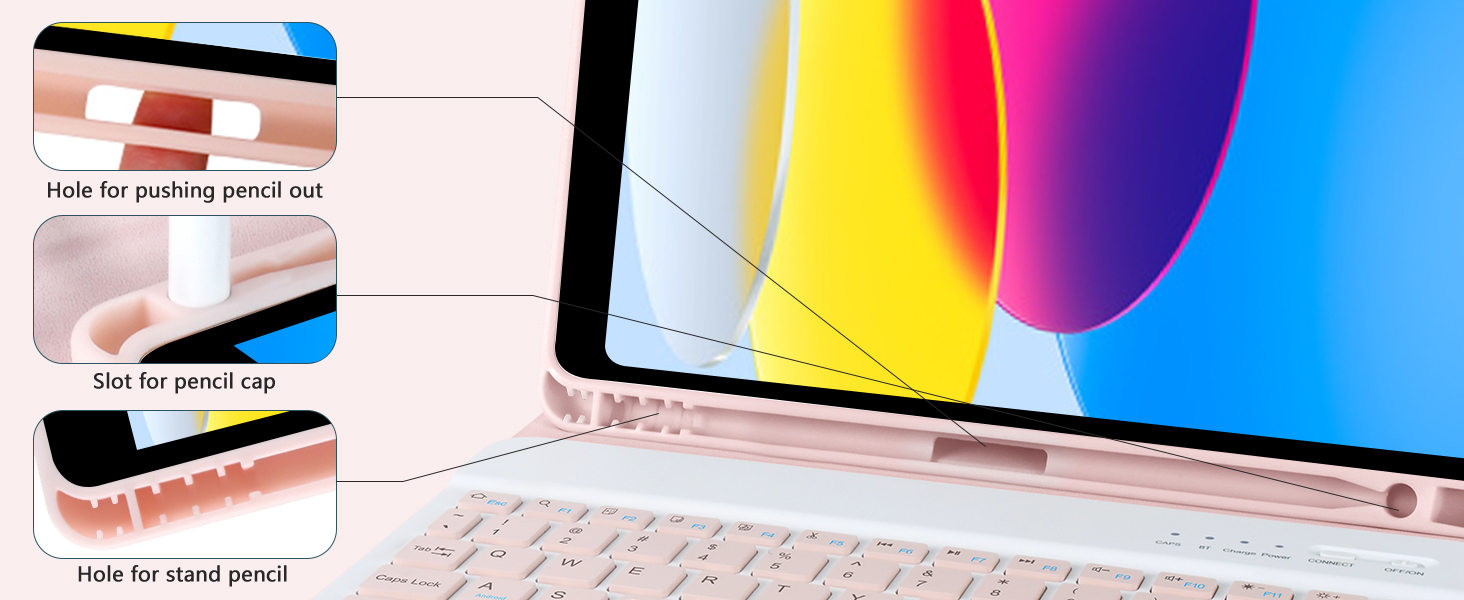
Image 4.3: Details of the integrated pencil holder.
4.4 Modos de uso
The case supports various modes for different activities:
- Type Mode: Position the iPad in the stand with the keyboard attached for comfortable typing.
- Modo de espera: Detach the keyboard and use the case as a stand for viewconteúdo.
- Modo de leitura: Fold the case back to hold the iPad comfortably for reading.
- Protect Mode: Close the case to fully protect your iPad during transport.
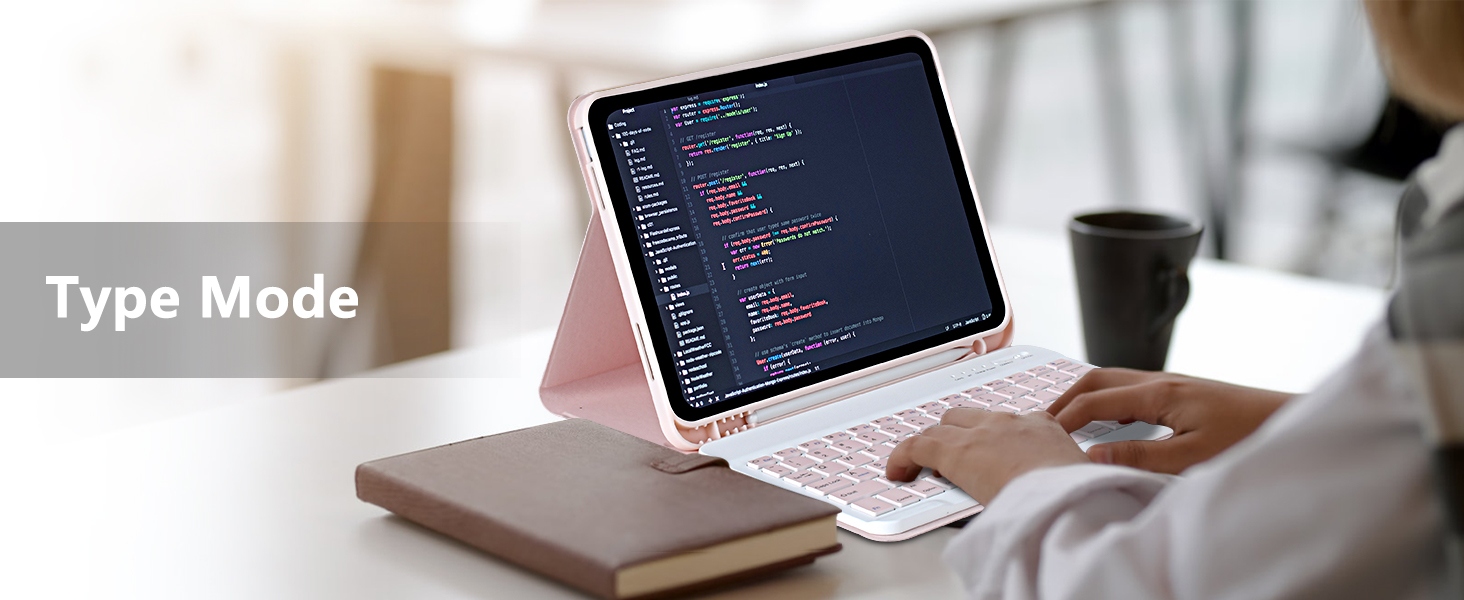
Image 4.4: iPad in Type Mode for productivity.

Image 4.5: iPad in Stand Mode for viewindo.

Image 4.6: iPad in Read Mode for comfortable reading.

Image 4.7: iPad in Protect Mode for secure transport.
5. Manutenção
5.1 Limpeza da carcaça e do teclado
To maintain the appearance and functionality of your MMK iPad case and keyboard:
- Limpe a capa com um pano macio e seco.amp pano. Evite produtos químicos agressivos ou produtos de limpeza abrasivos.
- For the keyboard, use a dry, soft cloth. Do not spray cleaners directly onto the keyboard.
- Certifique-se de que o teclado esteja desligado antes de limpá-lo.
5.2 Recursos de proteção
The case is designed with features to protect your iPad:
- Full 360° Protection: Provides comprehensive coverage for your device.
- Proteção contra quedas: Designed to absorb impacts from accidental drops.
- Proteção da câmera: Raised edges around the camera cutout help prevent scratches.


Image 5.1: Visual representation of drop and camera protection features.
6. Solução De Problemas
6.1 Teclado não conecta
- Verifique a potência: Ensure the keyboard is powered on and has sufficient battery charge.
- Reparar: Turn off Bluetooth on your iPad, then turn it back on. Put the keyboard back into pairing mode by pressing the 'CONNECT' button and try pairing again.
- Reiniciar dispositivos: Reinicie o iPad e o teclado.
6.2 Keyboard Not Charging
- Verificar cabo: Ensure the USB charging cable is securely connected to both the keyboard and the power source.
- Fonte de energia: Try a different USB power adapter or computer USB port.
- Integridade do cabo: Inspect the charging cable for any damage. Try a different compatible USB-C cable if available.
6.3 Teclas não respondem
- Nível da bateria: The keyboard battery might be low. Charge the keyboard fully.
- Conexão Bluetooth: Ensure the keyboard is properly connected via Bluetooth. If not, follow the re-pairing steps.
- Reiniciar: Power off and then power on the keyboard.
7. Especificações
| Recurso | Detalhe |
|---|---|
| Marca | MMK |
| Número do modelo do item | A2757 |
| Dispositivos compatíveis | iPad 11th Gen 11 inch (A16, 2025), iPad 10.9 inch (2022) |
| Cor | Rosa |
| Fator de forma | Caso |
| Tipo de concha | Macio |
| Peso do item | 1.96 libras |
| Dimensões da embalagem | 11.22 x 8.23 x 1.14 polegadas |
| Baterias | 1 bateria de íon de lítio (incluída) |
8. Garantia e Suporte
For warranty information or technical support, please refer to the contact details provided with your purchase or visit the official MMK website. Guarde o recibo de compra para reclamações de garantia.