
1. Introdução
Thank you for choosing the Meetion C4120 2.4G Wireless Mouse and Keyboard Combo. This manual provides essential information for setting up, operating, and maintaining your new wireless peripheral set. Please read it thoroughly before use to ensure optimal performance and longevity.
This combo includes a full-size wireless keyboard and a wireless optical mouse, designed for efficient and comfortable use across various operating systems.
2. Conteúdo da embalagem
- Meetion 2.4G Wireless Keyboard
- Meetion 2.4G Wireless Mouse
- USB Nano Receiver (typically stored inside the mouse battery compartment)
- Manual do usuário (este documento)
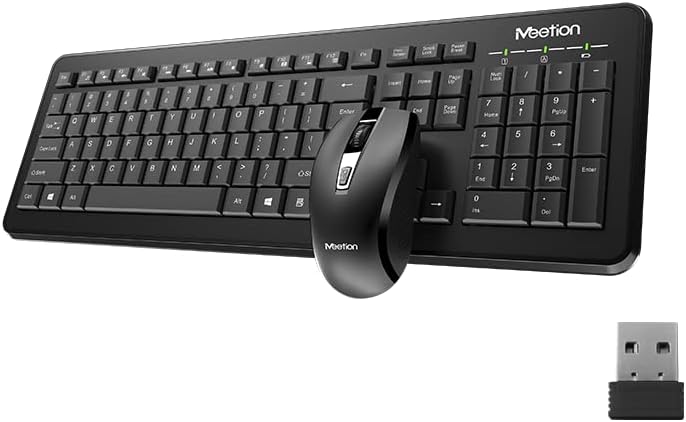
Image Description: This image displays the Meetion C4120 wireless keyboard, the wireless mouse, and the compact USB nano receiver, which is essential for connecting both devices to your computer.
3. Guia de configuração
3.1. Instalando baterias
Instalação da bateria do teclado
- Localize o compartimento da bateria na parte inferior do teclado.
- Abra a tampa do compartimento da bateria.
- Insert the required batteries (e.g., 2 x AAA alkaline batteries), ensuring correct polarity (+/-).
- Feche bem a tampa do compartimento da bateria.
Instalação da bateria do mouse
- Localize o compartimento da bateria na parte inferior do mouse.
- Abra a tampa do compartimento da bateria.
- Remove the USB Nano Receiver from its storage slot.
- Insert the required battery (e.g., 1 x AA alkaline battery), ensuring correct polarity (+/-).
- Feche bem a tampa do compartimento da bateria.
3.2. Conectando ao seu computador
- Ensure batteries are correctly installed in both the keyboard and mouse.
- Turn on the power switch on the underside of the mouse (if present).
- Conecte o Nano Receptor USB a uma porta USB disponível no seu computador.
- Seu computador deverá detectar e instalar automaticamente os drivers necessários. Esse processo pode levar alguns instantes.
- Once drivers are installed, the keyboard and mouse should be ready for use.

Image Description: This image shows the top view of the wireless keyboard and mouse, along with the USB receiver, illustrating their compact design and how they appear together.
4. Instruções de operação
4.1. Funções do teclado
The Meetion C4120 keyboard features a standard layout with a numeric keypad for efficient data entry.
Luzes indicadoras:
- Indicador Num Lock: Acende quando o teclado numérico está ativo.
- Indicador de Caps Lock: Illuminates when Caps Lock is engaged.
- Indicador de Scroll Lock: Acende quando a tecla Scroll Lock está ativa.
- Indicador de bateria: May flash or illuminate to indicate low battery power. Replace batteries when this occurs.
4.2. Funções do Mouse
The Meetion C4120 wireless mouse is equipped with a 1200 DPI optical sensor for precise tracking and smooth cursor movement.
Botões:
- Botão esquerdo do mouse: Seleção e ativação padrão.
- Botão direito do mouse: Acessa os menus contextuais.
- Rodinha do mouse: Pergaminhos e documentos web páginas. Também pode funcionar como um botão de clique do meio.
- Botão de ajuste de DPI: Located below the scroll wheel, this button allows you to cycle through different DPI settings for varying cursor speeds.
DPI (pontos por polegada): The mouse operates at 1200 DPI, providing accurate and smooth cursor movement suitable for general computing tasks.

Descrição da imagem: Esta imagem fornece detalhes view of the Meetion C4120 wireless mouse, highlighting its ergonomic design and the USB nano receiver.
5. Solução De Problemas
5.1. Keyboard or Mouse Not Responding
- Verifique as baterias: Verifique se as pilhas estão inseridas corretamente e se têm carga suficiente. Substitua-as, se necessário.
- Verifique o receptor USB: Make sure the USB Nano Receiver is securely plugged into a working USB port on your computer. Try a different USB port.
- Interruptor de alimentação: Ensure the mouse's power switch (if applicable) is in the "ON" position.
- Restabelecer a conexão: Unplug the USB receiver, wait a few seconds, and plug it back in.
- Interferência: Move the keyboard and mouse closer to the USB receiver. Avoid placing the receiver near other wireless devices or large metal objects that could cause interference.
- Reinicialização do computador: Às vezes, uma simples reinicialização do computador pode resolver problemas de conectividade.
5.2. Lagging or Intermittent Connection
This can often be caused by wireless interference. Try the suggestions above regarding proximity and interference sources.
5.3. Mouse Cursor Jumps or is Inaccurate
Ensure the mouse optical sensor is clean and free from dust or debris. Use the mouse on a clean, non-reflective surface.
6. Manutenção
To ensure the longevity and optimal performance of your Meetion C4120 wireless combo, follow these maintenance guidelines:
- Limpeza:
- Keyboard: Use a soft, dry cloth to wipe the surface. For deeper cleaning, use compressed air to remove debris from between keys. Avoid liquid cleaners directly on the keys.
- Mouse: Use a soft, dry cloth to clean the exterior. Ensure the optical sensor on the underside is free of dust and lint.
- Substituição da bateria: Replace batteries promptly when the low battery indicator appears or performance degrades. Dispose of old batteries responsibly according to local regulations.
- Armazenar: When not in use for extended periods, remove batteries and store the devices in a cool, dry place away from direct sunlight and extreme temperatures.
- Evite líquidos: Keep the keyboard and mouse away from liquids to prevent damage.
7. Especificações do produto
| Recurso | Detalhe |
|---|---|
| Modelo | C4120 (MT-C4120) |
| Marca | REUNIÃO |
| Conectividade | 2.4G sem fio |
| DPI do mouse | 1200 DPI Optical |
| Compatibilidade | Windows, Mac, Linux |
| Tipo de teclado | Tamanho normal com teclado numérico |
| Battery Type (Keyboard) | Alkaline (e.g., 2x AAA*) |
| Battery Type (Mouse) | Alkaline (e.g., 1x AA*) |
| Cor | Preto |
*Note: Battery types are typical for such devices; please refer to the product packaging for exact requirements.
8. Garantia e Suporte
8.1. Garantia do Fabricante
The Meetion C4120 Wireless Mouse and Keyboard Combo comes with a Garantia do fabricante de 1 ano a partir da data da compra. Esta garantia cobre defeitos em materiais e mão de obra sob uso normal.
The warranty does not cover damage caused by misuse, accident, unauthorized modification, or external causes such as liquid damage.
8.2. Suporte ao cliente
For technical assistance, warranty claims, or further inquiries, please contact Meetion customer support through their official website ou o varejista onde o produto foi comprado.
Please have your product model number (C4120 or MT-C4120) and proof of purchase ready when contacting support.