
1. Introdução
This manual provides essential information for the proper installation, configuration, and operation of your Teltonika RUT951 4G LTE Router. The RUT951 is a robust industrial cellular router designed for professional applications, offering reliable internet connectivity via 4G LTE, Wi-Fi, and Ethernet. It features dual-SIM support for network redundancy and is powered by RutOS, providing advanced customization and security features.
2. Produto acabadoview
2.1 Principais Características
- Dual-SIM 4G LTE cellular connectivity for reliable network access.
- Integrated Wi-Fi (802.11b/g/n) for local wireless networking.
- Four Ethernet interfaces (3x LAN, 1x WAN) for wired connections.
- Powered by RutOS for advanced customization, automation, and security.
- Robust design suitable for various IoT and industrial scenarios.
2.2 Conteúdo da embalagem
The standard package for the Teltonika RUT951 router typically includes:
- Teltonika RUT951 Router Unit
- Adaptador de energia
- 2 x Mobile Antennas (SMA)
- 2 x Wi-Fi Antennas (RP-SMA)
- Cabo Ethernet
- Guia de início rápido
2.3 Router Layout
Familiarize yourself with the router's ports, indicators, and slots.
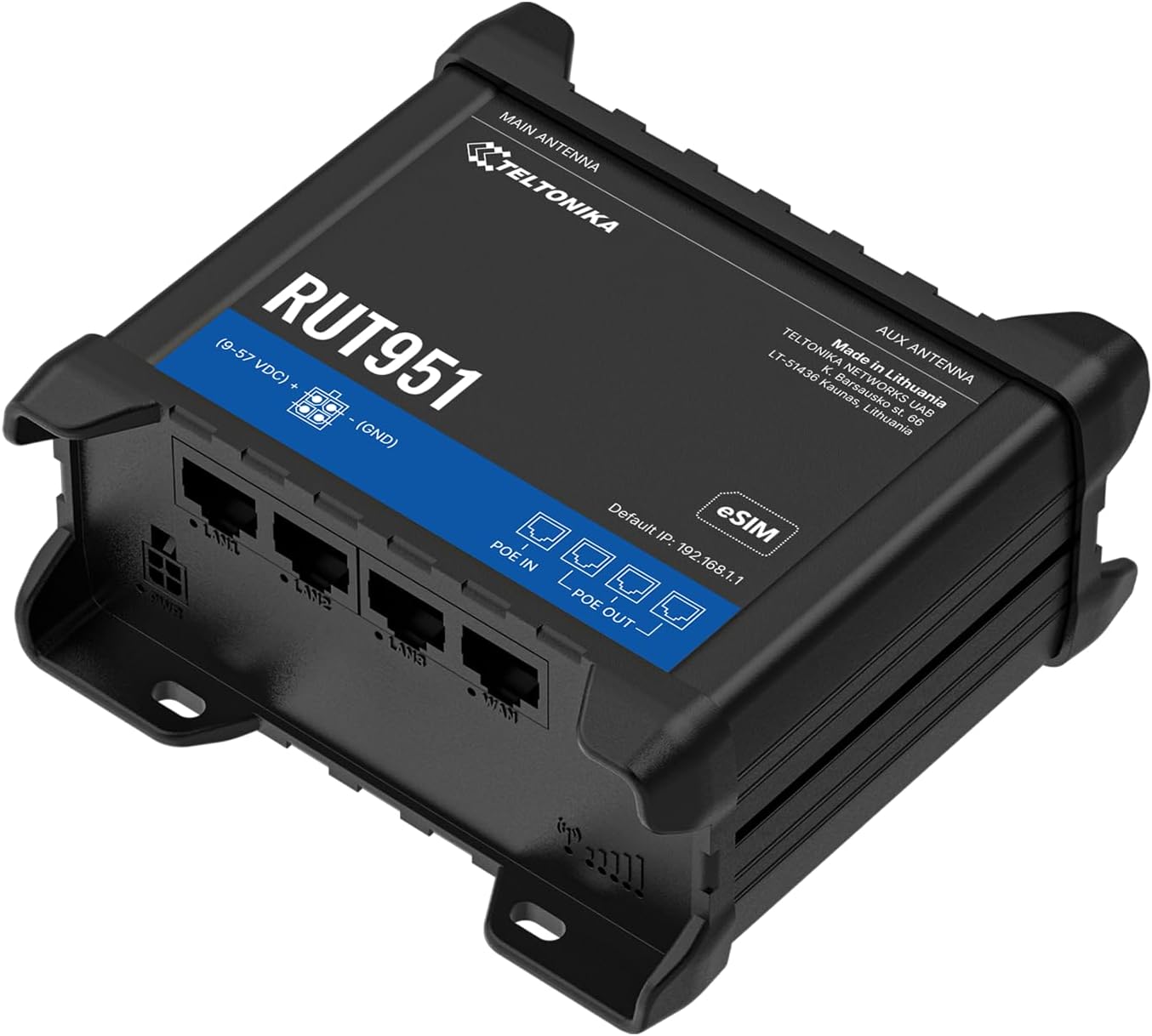
Figura 1: Frente view of the Teltonika RUT951 router, showing the model name and general design.

Figura 2: Detailed diagram illustrating the various ports and indicators on the Teltonika RUT951 router, including mobile and Wi-Fi antenna connectors, SIM slots, Ethernet ports, power socket, and LED indicators.
- Mobile AUX Antenna Connector (SMA female): For secondary mobile antenna.
- Mobile MAIN Antenna Connector (SMA female): For primary mobile antenna.
- SIM1 / SIM2 Slots: Para inserir cartões SIM de celular.
- Botão de reset: To restore factory settings or reboot.
- Wi-Fi Antenna Connectors (RP-SMA female): For Wi-Fi antennas.
- Tomada de energia: Para conectar o adaptador de energia.
- Portas LAN Ethernet: Para conectar dispositivos de rede local.
- Porta Ethernet WAN: For connecting to an external network (e.g., fiber modem).
- LEDs indicadores de intensidade do sinal de celular: Indica a intensidade do sinal celular.
- LED indicador de status da conexão móvel: Indicates cellular connection status.
- LEDs LAN: Indicate activity on LAN ports.
- LED WAN: Indicates activity on the WAN port.
3. Instruções de configuração
3.1 Instalação do cartão SIM
- Locate the SIM card slots (SIM1 and SIM2) on the top panel of the router.
- Using a SIM ejector tool or a paperclip, gently press the small button next to the SIM slot to open it.
- Insert your activated Mini-SIM card(s) into the slot(s) with the gold contacts facing down and the notched corner oriented correctly.
- Push the SIM tray back into the router until it clicks into place.

Figura 3: Principal view of the RUT951, highlighting the SIM card slots and antenna connectors.
3.2 conexão de antena
- Screw the two mobile antennas onto the SMA connectors labeled 'MOBILE' (MAIN and AUX) on the top panel.
- Screw the two Wi-Fi antennas onto the RP-SMA connectors labeled 'WIFI' on the top panel.
- Ensure all antennas are securely tightened for optimal signal reception.
3.3 Conexão de Energia
- Connect the provided power adapter to the power socket on the router.
- Conecte a outra extremidade do adaptador de energia em uma tomada elétrica adequada.
- The router will power on automatically. Observe the power LED indicator.

Figura 4: Fundo view of the RUT951, showing the Ethernet ports and power input.
3.4 Conexão Ethernet
To connect a device directly to the router:
- Connect one end of an Ethernet cable to any of the LAN ports (LAN1, LAN2, LAN3) on the router.
- Connect the other end of the Ethernet cable to your computer or network device.
- If you are using the router as a WAN gateway, connect your external modem (e.g., fiber modem) to the WAN port.
4. Instruções de operação
4.1 Acesso inicial a WebUI
- Ensure your computer is connected to the router via Ethernet or Wi-Fi. The default Wi-Fi SSID and password can be found on the router's label.
- Abra um web No navegador, digite o endereço IP padrão: 192.168.1.1
- Você será solicitado a inserir suas credenciais de login. O nome de usuário padrão é administrador. The default password is also administrador (or as specified on the router's label).
- Upon first login, you will be guided through a setup wizard to change the default password and configure basic settings.
4.2 Configuração de Rede
After initial login, you can configure various network settings through the WebInterface do usuário:
- Configurações de WAN: Configure your cellular (4G LTE) connection, including APN settings, or set up the Ethernet WAN port.
- Configurações de lan: Manage the local network IP address range and DHCP server.
- Configurações de wifi: Change Wi-Fi SSID, password, security protocols, and channel settings.
- Dual SIM: Configure failover or load balancing between the two SIM cards for continuous connectivity.
- VPN: Set up various VPN protocols for secure remote access.
5. Manutenção
5.1 atualizações de firmware
Regularly updating the router's firmware is crucial for security, performance, and new features. Firmware updates can be performed via the WebUI under the 'System' or 'Firmware' section. Always download firmware from the official Teltonika Networks website.
5.2 Redefinição de fábrica
Se você continuar enfrentando problemas ou esquecer suas credenciais de login, poderá realizar uma restauração de fábrica:
- With the router powered on, locate the RESET button (refer to Figure 2).
- Press and hold the RESET button for approximately 10 seconds until all LEDs flash.
- Release the button. The router will reboot with factory default settings.
6. Solução De Problemas
- Sem conexão com a Internet:
- Check SIM card insertion and activation.
- Verifique as configurações de APN em WebUI.
- Ensure mobile antennas are securely connected.
- Verifique os LEDs indicadores de intensidade do sinal celular.
- Wi-Fi não funciona:
- Certifique-se de que o Wi-Fi esteja ativado no WebUI.
- Verifique as conexões da antena Wi-Fi.
- Verify Wi-Fi SSID and password.
- Não é possível acessar WebInterface do usuário:
- Ensure your device is connected to the router (Ethernet or Wi-Fi).
- Verifique as configurações de IP do seu computador (devem estar configuradas para obter o IP automaticamente).
- Tente limpar o cache do seu navegador ou usar um navegador diferente.
- Perform a factory reset if you suspect incorrect IP configuration or forgotten password.
7. Especificações
| Recurso | Especificação |
|---|---|
| Marca | Teltônica |
| Nome do modelo | RUT951 |
| Tecnologia de Conectividade | Wi-Fi, 4G LTE, 3G, 2G |
| Padrão de comunicação sem fio | 802.11b, 802.11g, 802.11n |
| Classe de Banda de Frequência | Banda dupla |
| Número de portas | 4 (3x LAN, 1x WAN) |
| Largura de banda da porta LAN | 100 Mbps |
| Taxa de transferência de dados | 150 Megabits Per Second (Max Upstream) |
| Sistema operacional | RutOS |
| Peso do item | 287 gramas |
| Volumetage | 30 Volts |
| Protocolo de Segurança | WPS (and others via RutOS) |
| Cobertura | Dual SIM network redundancy |
8. Informações de segurança
- Use apenas o adaptador de energia fornecido com o dispositivo.
- Não exponha o dispositivo à água, umidade ou temperaturas extremas.
- Evite colocar o dispositivo perto de fontes de calor ou sob luz solar direta.
- Garanta ventilação adequada para evitar superaquecimento.
- Não tente abrir ou modificar o dispositivo. Isso anulará a garantia.
- Dispose of the device and its accessories responsibly according to local regulations.
9. Garantia e Suporte
The Teltonika RUT951 router comes with a standard manufacturer's warranty. For detailed warranty terms and conditions, please refer to the documentation included with your product or visit the official Teltonika Networks website. For technical support, firmware downloads, and additional resources, please visit the Teltonika Networks support portal or contact your vendor.