
1. Introdução
Thank you for choosing the KINGTIME Backlit Surface Pro Keyboard. This manual provides detailed instructions on how to set up, operate, and maintain your new keyboard. Please read this manual thoroughly before use to ensure optimal performance and longevity of your device.
2. Produto acabadoview
The KINGTIME Backlit Surface Pro Keyboard is designed to enhance your productivity with its responsive keys, multi-touch touchpad, and vibrant 7-color backlighting. It connects wirelessly via Bluetooth 5.0, offering a stable and fast connection, and features a long-lasting rechargeable battery.

Imagem: Vista de cima para baixo view of the KINGTIME Backlit Surface Pro Keyboard, showcasing its full QWERTY layout and integrated touchpad.
Principais características:
- 7-Color Backlighting: Customize your typing experience with various backlight colors and brightness levels.
- Bateria recarregável: Built-in 750mAh battery provides extended standby time.
- Conectividade Bluetooth 5.0: Ensures a fast, stable, and no-delay wireless connection up to 33 feet (10 meters).
- Touchpad integrado: Features a larger touchpad with multi-touch gesture support and anti-mis-touch technology.
- Scissor Switch Keys: Offers a comfortable and quiet typing experience.
- Auto Sleep/Awake: Automatically enters sleep mode when closed and wakes up when opened, conserving battery.

Image: Depicts the keyboard in both attached and detached configurations with a Microsoft Surface Pro, illustrating its wireless connectivity.

Image: A user operating the keyboard with a Surface Pro, highlighting the 365-day standby time and 750mAh battery capacity.
3. Guia de configuração
3.1 Carregando o teclado
Before first use, fully charge the keyboard. Use the provided USB Type-C cable to connect the keyboard to a USB power source (e.g., computer USB port, wall adapter). The charging indicator light will show the charging status and turn off when fully charged.

Image: Close-up of the keyboard's USB Type-C charging port with a charging cable connected.
3.2 Emparelhamento Bluetooth
- Certifique-se de que o teclado esteja carregado e ligado.
- Pressione o Fn+C keys simultaneously to enter Bluetooth pairing mode. The Bluetooth indicator light will blink.
- No seu Surface Pro, acesse Configurações > Dispositivos > Bluetooth e outros dispositivos.
- Ative o Bluetooth e clique Adicionar Bluetooth ou outro dispositivo.
- Selecione Bluetooth and choose "KINGTIME Keyboard" (or similar name) from the list of available devices.
- Follow any on-screen prompts to complete the pairing process. The indicator light on the keyboard will stop blinking once successfully paired.
4. Instruções de operação
Controle de luz de fundo 4.1
The keyboard features 7 different backlight colors and adjustable brightness levels to suit your preference and environment.
- Pressione o Lâmpada elétrica key (usually F10 or a dedicated key) to cycle through the 7 backlight colors.
- Imprensa Fn + Lâmpada key to adjust the backlight brightness (usually three levels: low, medium, high, and off).
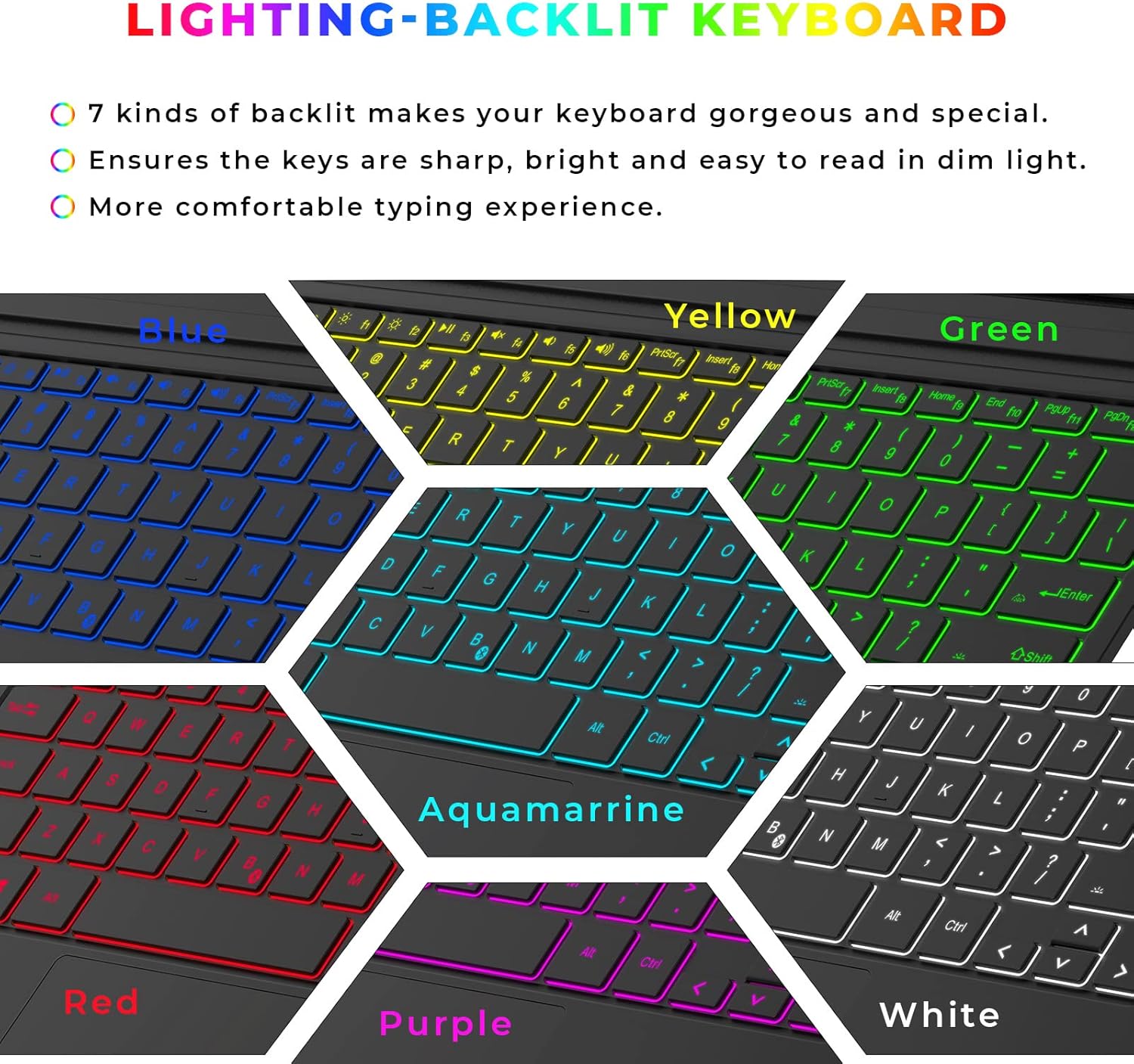
Image: Illustrates the keyboard with various backlight colors (Blue, Yellow, Green, Red, Aquamarine, Purple, White), emphasizing the 7-color backlighting feature.
4.2 Funções do touchpad
The integrated touchpad supports various gestures for intuitive navigation and control.
- Larger Touchpad: Fornece ample space for comfortable navigation.
- Prevent Mis-touch: Designed to minimize accidental inputs while typing.
- Controle de gestos: Supports multi-finger gestures for enhanced productivity.

Image: Demonstrates the touchpad's features, including its larger size, mis-touch prevention, and gesture control capabilities with hand illustrations.

Image: Diagram illustrating common touchpad gestures: Multitasking View (three fingers up), Show Desktop (three fingers down), Switch Desktop (three fingers left/right).
5. Compatibilidade
This keyboard is specifically designed for Microsoft Surface Pro models. Please refer to the list below for compatible and incompatible devices.
Dispositivos compatíveis:
- Surface Pro 7+ (2021)
- Surface Pro 7 (2019)
- Surface Pro 6 (2018)
- Surface Pro 5 (2017)
- Surface Pro 4 (2015)
Dispositivos incompatíveis:
- Superfície Pro 8
- Superfície Pro X
- Superfície Ir

Image: Visual representation of compatible Surface Pro models (7+, 7, 6, 5, 4) and incompatible models (Pro 8, Pro X, Go).
6. Manutenção
Para garantir a longevidade e o desempenho ideal do seu teclado, siga estas orientações de manutenção:
- Limpeza: Use um pano macio e sem fiapos levementeampLimpe a superfície do teclado com água ou uma solução de limpeza suave. Evite o excesso de umidade.
- Remoção de poeira: Use ar comprimido para remover poeira e detritos entre as teclas.
- Armazenar: Quando não estiver em uso por longos períodos, guarde o teclado em local fresco e seco, longe da luz solar direta e de temperaturas extremas.
- Evite líquidos: Do not expose the keyboard to liquids. In case of spills, immediately disconnect and power off the keyboard, then allow it to dry completely before reuse.
7. Solução De Problemas
If you encounter any issues with your KINGTIME keyboard, please refer to the following common solutions:
| Problema | Possível causa | Solução |
|---|---|---|
| Teclado não conecta via Bluetooth | Low battery; Bluetooth not enabled on Surface Pro; Keyboard not in pairing mode; Interference. | Charge the keyboard; Ensure Bluetooth is on; Re-enter pairing mode (Fn + C); Move closer to Surface Pro; Remove other Bluetooth devices. |
| A luz de fundo não funciona | Luz de fundo desligada; Bateria fraca. | Press the Light Bulb key to turn on/adjust brightness; Charge the keyboard. |
| Touchpad sem resposta | Touchpad disabled; Software glitch. | Ensure touchpad is enabled (check Fn key combinations); Restart Surface Pro and keyboard. |
| Teclas não respondem | Connection issue; Low battery. | Reconnect Bluetooth; Charge the keyboard. |
Se o problema persistir após tentar essas soluções, entre em contato com o suporte ao cliente para obter mais assistência.
8. Especificações
| Recurso | Especificação |
|---|---|
| Número do modelo | KT-0004 |
| Tecnologia de Conectividade | Bluetooth 5.0 |
| Dispositivos compatíveis | Surface Pro 7/7+/6/5/4 |
| Características especiais | Backlit (7-color), Rechargeable, Touchpad |
| Capacidade da bateria | 750mAh |
| Tempo de espera | Até 365 dias |
| Distância operacional | Até 33 pés (10 metros) |
| Material | Estireno de acrilonitrila-butadieno |
| Peso do item | 1.19 libras |
| Dimensões da embalagem | 13.39 x 9.33 x 0.79 polegadas |
| Número de botões | 78 |
9. Garantia e Suporte
KINGTIME products are manufactured to the highest quality standards. This product comes with a standard manufacturer's warranty. For specific warranty terms and conditions, please refer to the product packaging or contact our customer support.
Suporte ao cliente:
If you have any questions, require technical assistance, or need to claim warranty service, please contact us through the retailer's platform where you purchased the product or visit the official KINGTIME website para informações de contato.