
1. Introdução
The IHSENO ZigBee3.0 Smart Remote Button is a wireless control device designed to integrate with your smart home system. It allows for convenient control of various Zigbee-compatible devices and scene modes through single press, double press, and long press actions. This device requires a Zigbee hub (such as a Tuya Gateway) for functionality and can be managed via the Tuya Smart Life application.
2. Produto acabadoview
The Smart Remote Button provides a simple, tactile interface for controlling your smart home devices without needing to access your phone or use voice commands. Its compact, circular design allows for flexible placement.

Figure 2.1: IHSENO ZigBee3.0 Smart Remote Button with its associated mobile application interface.
3. Conteúdo da embalagem
- Scene Remote X1
- Manual do usuário X1
4. Especificações
| Fabricante | IHSENO |
| Número do modelo do item | Remote2 |
| Protocolo de Comunicação | Zigbee 3.0 |
| Distância de controle | 25m (área aberta) |
| Dimensões | 1.96 x 0.55 x 1.96 polegadas (50 mm x 50 mm) |
| Peso do item | 0.634 onças |
| Cor | Branco |
| Tipo de Bateria | 1 bateria de íon de lítio (incluída) |
| Temperatura de operação | -10°C a 45°C |
| Umidade de trabalho | <90% UR |
| Vida estimada da bateria | 1 ano (uso geral) |

Figure 4.1: Detailed product parameters and instructions for adhesive application.
5. Configuração
5.1. Instalação da bateria
The Smart Remote Button comes with a pre-installed Lithium Ion battery. Before first use, you may need to remove a protective tab to activate the battery. To access the battery compartment, gently twist the back cover of the button counter-clockwise and remove it. Insert the battery, ensuring correct polarity, then replace the cover by twisting clockwise until secure.
5.2. Pairing with a Zigbee Hub (Tuya Smart Life App)
This device requires a Zigbee hub (e.g., Tuya Gateway) to function. Ensure your Zigbee hub is powered on and connected to your network.
- Open the Tuya Smart Life application on your smartphone.
- Ensure your Zigbee hub is already added to the app.
- In the app, navigate to your Zigbee hub's interface and select the option to 'Add device' or 'Procurar new devices'.
- On the Smart Remote Button, press and hold the main button for approximately 10 seconds until the indicator light flashes, indicating it is in pairing mode.
- The app should detect the new device. Follow the on-screen prompts to complete the pairing process.
- Once paired, you can rename the device and assign it to a specific room or group within the app.
The following video demonstrates the battery installation and pairing process:
Video 5.1: Demonstration of battery installation and pairing the Zigbee Smart Remote Button with a Tuya hub via the Smart Life app.

Figure 5.2: Diagram illustrating the connection of the Smart Remote Button to a Zigbee Gateway (Hub) for app and voice control.
6. Operação
The Smart Remote Button supports three distinct actions: single press, double press, and long press. Each action can be configured within the Tuya Smart Life app to trigger specific smart scenes or control individual devices.
6.1. Customizing Button Actions
After pairing, use the Tuya Smart Life app to define the functions for each button action:
- Open the Tuya Smart Life app and select your Smart Remote Button.
- Access the settings or automation section for the button.
- You will find options to configure 'Single Press', 'Double Press', and 'Long Press'.
- Select an action and choose the desired smart scene or device control (e.g., turn on/off lights, activate 'Away Mode', adjust smart plugs).
- Salve suas configurações.

Figure 6.1: Configuring single, double, and long press actions within the Smart Life app to create various scene modes.
6.2. Ex.ampos Cenários
- Pressione uma vez: Turn on/off a specific Zigbee light bulb. For example, a single press can illuminate your bedroom light to a predefined setting.

Figure 6.2: A single press can be configured to power on a Zigbee bulb in a remote mode.
- Pressione duas vezes: Activate an 'Away Mode' scene. This can be configured to turn off all lights, air conditioners, fans, and other electronic devices when you leave your home.
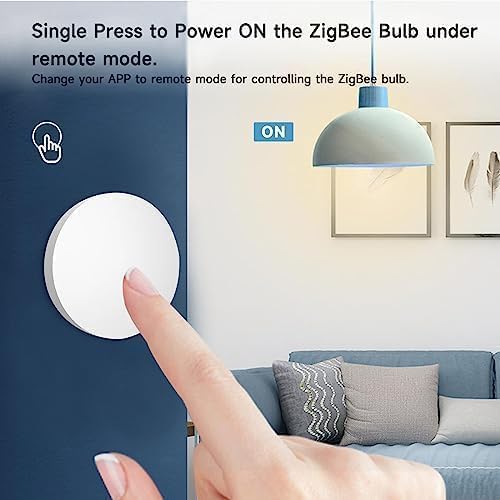
Figure 6.3: A double press can activate an 'away mode' to power off multiple devices.
- Pressão longa: Trigger a custom scene, such as 'Movie Night' (dimming lights, closing smart curtains) or 'Reading Mode' (adjusting specific lights to a comfortable brightness).
7. Colocação e instalação
The Smart Remote Button is designed for flexible placement. It can be placed on any flat surface or mounted to a wall using its adhesive backing.
- Identify a suitable location for the button. Consider accessibility and proximity to frequently used areas.
- Ensure the surface is clean and dry for optimal adhesive performance.
- Peel off the protective film from the adhesive backing on the button.
- Firmly press the button onto the desired surface for a few seconds to secure it.

Figura 7.1: Examples of flexible placement options for the wireless Smart Remote Button.
8. Manutenção
8.1. Substituição da bateria
The Smart Remote Button uses one Lithium Ion battery. When the battery level is low, the device's performance may degrade, or it may stop responding. To replace the battery:
- Gently twist the back cover of the button counter-clockwise to open the battery compartment.
- Remova a bateria antiga.
- Insert a new Lithium Ion battery, ensuring the correct polarity (+/-).
- Replace the back cover by twisting clockwise until it clicks securely into place.
8.2. Limpeza
To clean the device, use a soft, dry cloth. Do not use liquid cleaners or abrasive materials, as these can damage the device.
9. Solução De Problemas
- O dispositivo não está respondendo:
- Verifique o nível da bateria e substitua-a se necessário.
- Ensure the device is within range of your Zigbee hub.
- Verify that the Zigbee hub is powered on and connected to your network.
- Check the device status in the Tuya Smart Life app.
- Unable to pair the device:
- Ensure the device is in pairing mode (indicator light flashing after a long press).
- Confirm your Zigbee hub is in pairing mode within the Tuya Smart Life app.
- Durante o processo de emparelhamento, aproxime o dispositivo do hub Zigbee.
- Reset the device by removing and reinserting the battery, then attempt pairing again.
- Actions not triggering scenes:
- Verify that the scenes or device controls are correctly configured for each button action in the Tuya Smart Life app.
- Ensure the target smart devices (lights, plugs, etc.) are online and responsive.
10. Informações de garantia
Specific warranty details for the IHSENO ZigBee3.0 Smart Remote Button are not provided in the product information. Please refer to the retailer or manufacturer's official webConsulte o site para obter os termos e condições da garantia.
11. Suporte
For technical assistance or further inquiries regarding your IHSENO ZigBee3.0 Smart Remote Button, please contact the seller or refer to the support section on the manufacturer's official website. Contact information is not provided in this manual.