
CHUWI GemiBook Plus
Manual do Usuário do Notebook CHUWI GemiBook Plus
Model: GemiBook Plus
Produto acimaview
The CHUWI GemiBook Plus is a 15.6-inch business laptop designed for efficient daily computing. It features an Intel N100 CPU, 8GB of LPDDR5 RAM, and a 256GB SSD, running on Windows 11. This laptop is built for portability and performance, suitable for both work and entertainment.

Imagem: Frente view of the CHUWI GemiBook Plus laptop displaying the Windows 11 logo on its screen, highlighting its operating system.
O que está na caixa
- CHUWI GemiBook Plus Laptop
- 38Wh Li-ion Battery (integrated)
- Adaptador de energia
- Documentação (Manual do Usuário, Cartão de Garantia)
Guia de configuração
1. Carregamento inicial
Before first use, connect the power adapter to the laptop's charging port and a power outlet. Charge the laptop until the battery indicator shows a full charge. This ensures optimal battery performance.
2. Ligando
Press the power button located on the keyboard to turn on the laptop. The power button is typically found in the top right corner of the keyboard area.

Imagem: Vista de cima para baixo view of the CHUWI GemiBook Plus laptop, showing the full keyboard layout and touchpad, indicating the power button location.
3. Configuração do Windows 11
Follow the on-screen prompts to complete the Windows 11 initial setup. This includes selecting your region, language, connecting to a Wi-Fi network, and creating a user account. Ensure you have an active internet connection for this process.
Instruções de operação
Teclado e Touchpad
The laptop features a full-sized keyboard and a responsive touchpad for navigation. The touchpad supports multi-touch gestures for enhanced control.

Image: A hand demonstrating the use of the touchpad on the CHUWI GemiBook Plus laptop, highlighting its multi-touch capabilities.
Conectando Periféricos
O laptop está equipado com diversas portas para conectar dispositivos externos:
- Portas USB: Connect USB devices such as mice, keyboards, or external storage drives. The laptop has 1 USB 2.0 port.
- Porta HDMI: Conecte a um monitor externo ou TV para obter uma tela maior.
- Jack de áudio: Conecte fones de ouvido ou alto-falantes externos.
Conectividade sem fio
The CHUWI GemiBook Plus supports Wi-Fi 6 (802.11ax) for high-speed internet access and Bluetooth 5.2 for connecting wireless accessories like headphones or speakers.
Webcam Privacy Switch
For enhanced privacy, the laptop includes a physical switch to block the webcam lens. Slide the switch to cover or uncover the camera as needed.
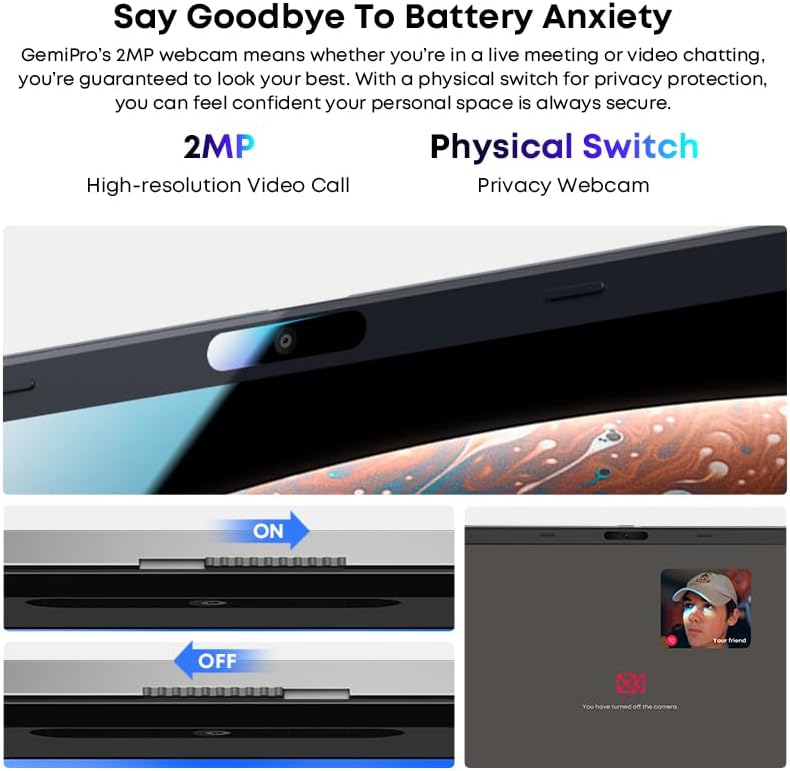
Imagem: Close-up view of the laptop's webcam, illustrating the physical privacy switch in both open and closed positions.
Manutenção
Limpando o laptop
Use um pano macio e sem fiapos para limpar a tela e as superfícies externas. Para manchas persistentes, esfregue levemente.ampLimpe o pano com água ou uma solução de limpeza de telas. Evite produtos químicos agressivos ou materiais abrasivos.
Cuidados com a bateria
The laptop is equipped with a 38Wh Li-ion battery. To prolong battery life, avoid extreme temperatures and fully discharging the battery frequently. It takes approximately 3 hours for a full recharge.
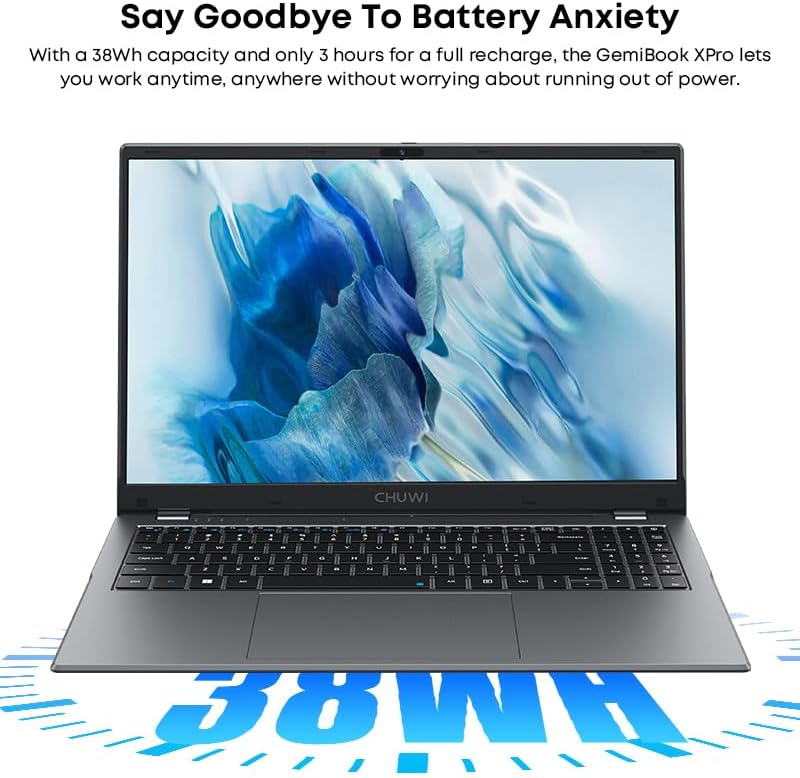
Image: The CHUWI GemiBook Plus laptop with an overlay indicating its 38Wh battery capacity, emphasizing its power endurance.
Atualizações de software
Verifique e instale regularmente as atualizações do Windows e dos drivers para garantir o melhor desempenho e segurança.
Solução de problemas
Laptop Not Powering On
- Certifique-se de que o adaptador de energia esteja conectado firmemente tanto ao laptop quanto a uma tomada elétrica em funcionamento.
- Verifique se a tomada está funcionando conectando outro aparelho.
- Se a bateria estiver completamente descarregada, pode levar alguns minutos para que o laptop ligue.
Sem conexão Wi-Fi
- Verifique se o Wi-Fi está ativado nas configurações do Windows.
- Reinicie o roteador Wi-Fi e o laptop.
- Ensure you are within range of a Wi-Fi network and have entered the correct password.
Desempenho lento
- Feche os aplicativos desnecessários que estão sendo executados em segundo plano.
- Verifique e instale quaisquer atualizações pendentes do Windows.
- Run a disk cleanup and defragmentation (for HDD) or optimize drives (for SSD).
- Certifique-se de ter espaço livre suficiente no SSD.
Especificações
| Recurso | Detalhe |
|---|---|
| Marca | Chuwi |
| Nome do modelo | GemiBook Plus |
| Tamanho da tela | 15.6 polegadas |
| Resolução da tela | 1920 x 1080 pixels (FHD) |
| Processador | Intel N100 CPU (up to 3.4GHz) |
| BATER | 8 GB LPDDR5 |
| Disco rígido | 256 GB SSD (M.2 2280 SSD expansion up to 1TB supported) |
| Sistema operacional | Windows 11 |
| Placa gráfica | Integrated Intel UHD Graphics for 12th Gen Intel Processors |
| Tipo sem fio | Wi-Fi 6 (802.11ax) |
| Bluetooth | Bluetooth 5.2 |
| Portos | 1x USB 2.0, HDMI, Audio Jack |
| Peso do item | 3.85 libras (1.74 kg) |
| Dimensões do produto | 14.1 x 9.5 x 0.78 polegadas (35.8 x 24.1 x 1.98 cm) |
| Bateria | Bateria de íons de lítio de 38 Wh |
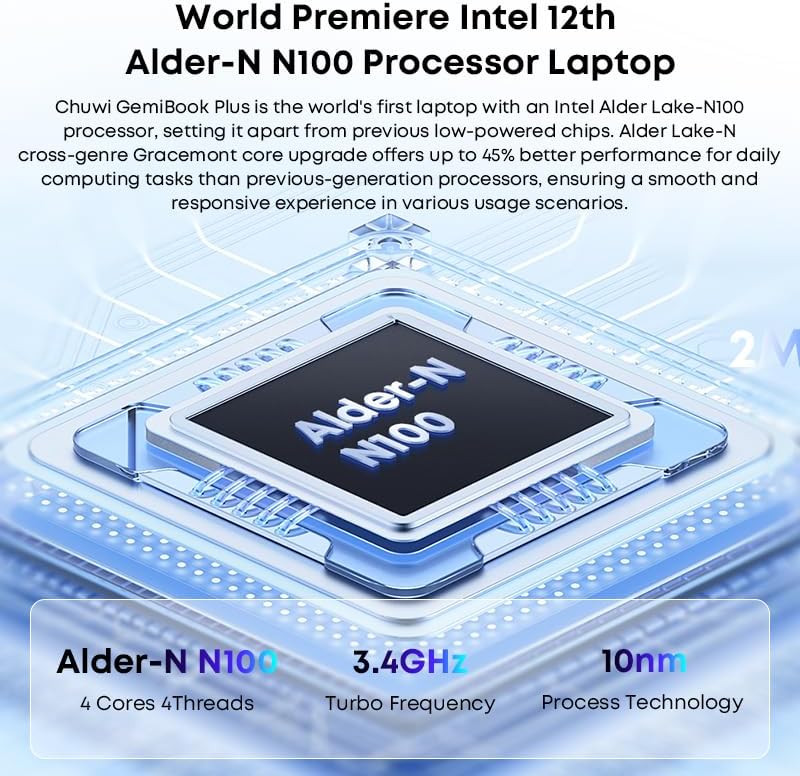
Image: Diagram illustrating the Intel Alder-N N100 processor with details on its 4 Cores 4 Threads, 3.4GHz Turbo Frequency, and 10nm Process Technology.
Garantia e Suporte
Informações de garantia
The CHUWI GemiBook Plus laptop comes with a Garantia de 1 anos valid immediately after purchase. This warranty covers manufacturing defects and ensures product reliability.
Suporte ao cliente
CHUWI offers lifetime factory professional support and 24 hours of online support to assist with any issues or questions you may have. For support, please refer to the contact information provided in your product documentation or visit the official CHUWI website.
Você também pode visitar o CHUWI Store on Amazon para mais informações e recursos.