
1. Introdução
Thank you for choosing the BOTSLAB 2.5K Front Dash Cam. This device is designed to provide superior video quality and enhanced safety features for your vehicle. With its 2.5K HD resolution, 170° ultra-wide angle lens, and advanced functionalities like 24/7 parking mode, built-in GPS, and driver alerts, it ensures comprehensive coverage and peace of mind on the road. This manual will guide you through the setup, operation, and maintenance of your dash cam.
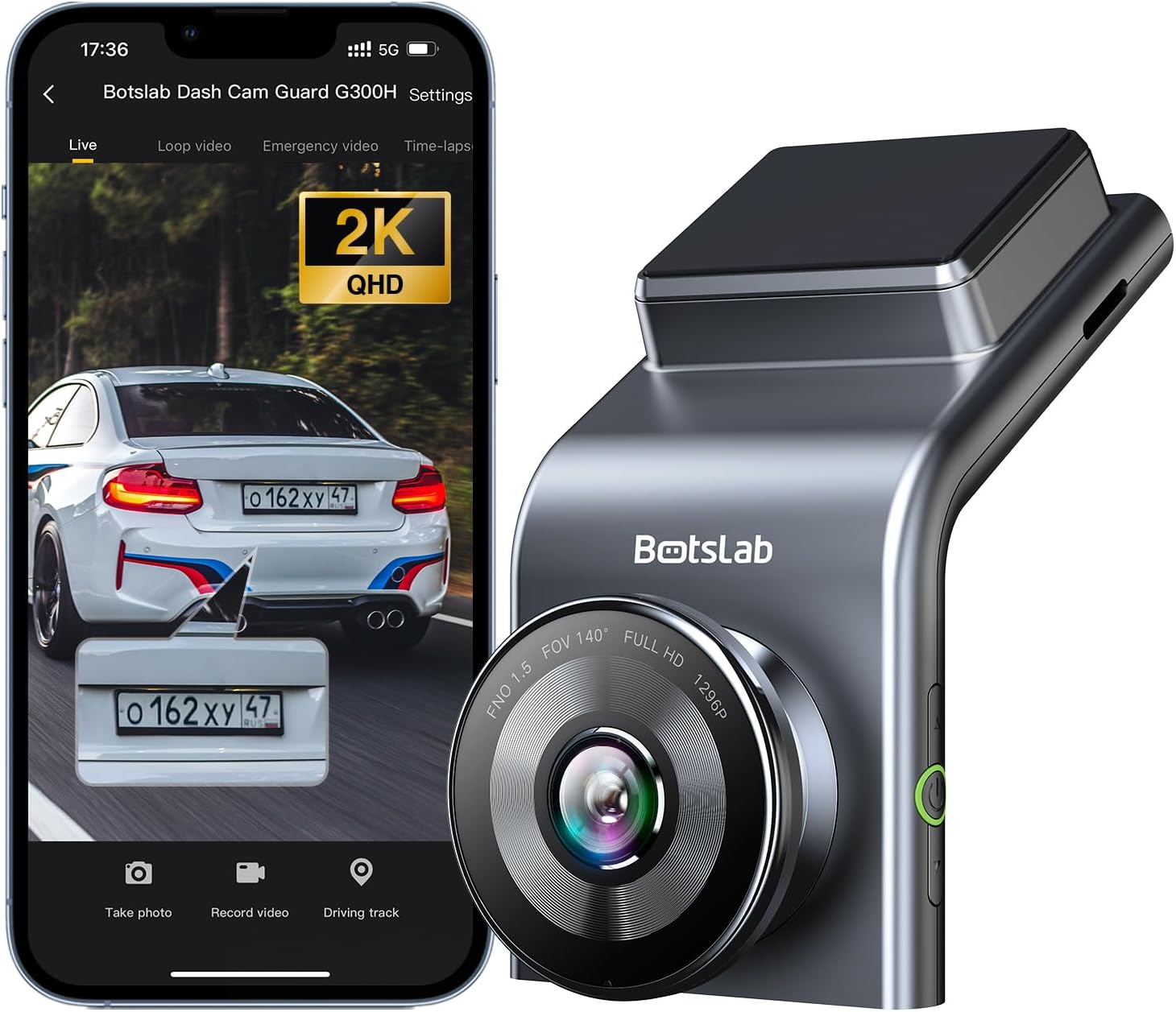
Figure 1: BOTSLAB 2.5K Front Dash Cam Overview
2. O que está na caixa
Por favor, verifique o conteúdo da embalagem para garantir que todos os itens estejam presentes:
- Front Camera (x1)
- Carregador de carro (x1)
- USB Power Cord (x1)
- Installation Pry Bar (x1)
- Manual do usuário (x1)
- Electrostatic Film (x1)

Figura 2: Conteúdo da embalagem
3. Configuração e instalação
The BOTSLAB Dash Cam is designed for easy installation with invisible wiring, ensuring a clean and integrated look in your vehicle. Follow these steps for proper setup:
- Escolha o local de montagem: Selecione um local no seu para-brisa que não obstrua a sua visão. view da estrada. Normalmente, isso fica atrás da traseira.view espelho.
- Limpar o para-brisa: Certifique-se de que a área escolhida no para-brisa esteja limpa e seca.
- Aplicar película eletrostática: Peel off the protective layer from the electrostatic film and apply it to the cleaned area on your windshield. Smooth out any air bubbles. This film allows for easy removal of the dash cam mount without leaving residue.
- Attach Dash Cam Mount: Secure the dash cam mount to the electrostatic film. Ensure it is firmly attached.
- Instale a câmera veicular: Slide the dash cam onto its mount until it clicks into place.
- Conecte a energia: Connect the USB power cord to the dash cam and route the cable along the edge of the windshield and dashboard to the car charger. Use the installation pry bar to tuck the cable neatly into the gaps for an invisible wiring setup.
- Conecte ao carregador do carro: Insira o carregador veicular na tomada do acendedor de cigarros do seu veículo.
- Ajustar ângulo: Power on the dash cam and adjust its angle to ensure the camera captures the road ahead clearly, covering the desired field of view (170° ultra-wide angle).

Figure 3: Easy Installation and Cable Management
4. Instruções de operação
4.1. Ligar/Desligar e Gravação Básica
The dash cam will automatically power on and begin recording when your vehicle starts. It will power off automatically when the vehicle is turned off. Ensure a microSD card (not included, supports up to 256GB) is inserted for recording.

Figure 4: MicroSD Card Slot for Storage
4.2. 2.5K HD Video Quality and Night Vision
Experience 2.5K superior HD video quality with a 170° ultra-wide view angle that fully covers all lanes without blind spots. Coupled with clear Night Vision, you'll have full-color, high-quality videos in any lighting condition.

Figure 5: Enhanced Clarity with 2.5K Resolution
4.3. 24/7 Parking Mode
When used with the G300H dedicated hard-wired kit (ASIN: B0D3QK86TQ, sold separately), the G300H front dash cam can achieve 24/7 uninterrupted recording. Video is recorded any time there is a collision or accident. Benefit from Time-lapse Recording for uninterrupted 24-hour parking monitoring, utilizing minimal memory space. The Loop Recording feature ensures continuous recording, preserving vital clips while overwriting older videos.

Figure 6: 24/7 Parking Monitoring
4.4. Enhanced Awareness and Safety Features
Stay in sync with traffic through the Front Vehicle Start Reminder and enhance safety with Pedestrian Collision Alert. These features keep you alert to movement around you, automatically triggering notifications for a seamless and vigilant driving experience.
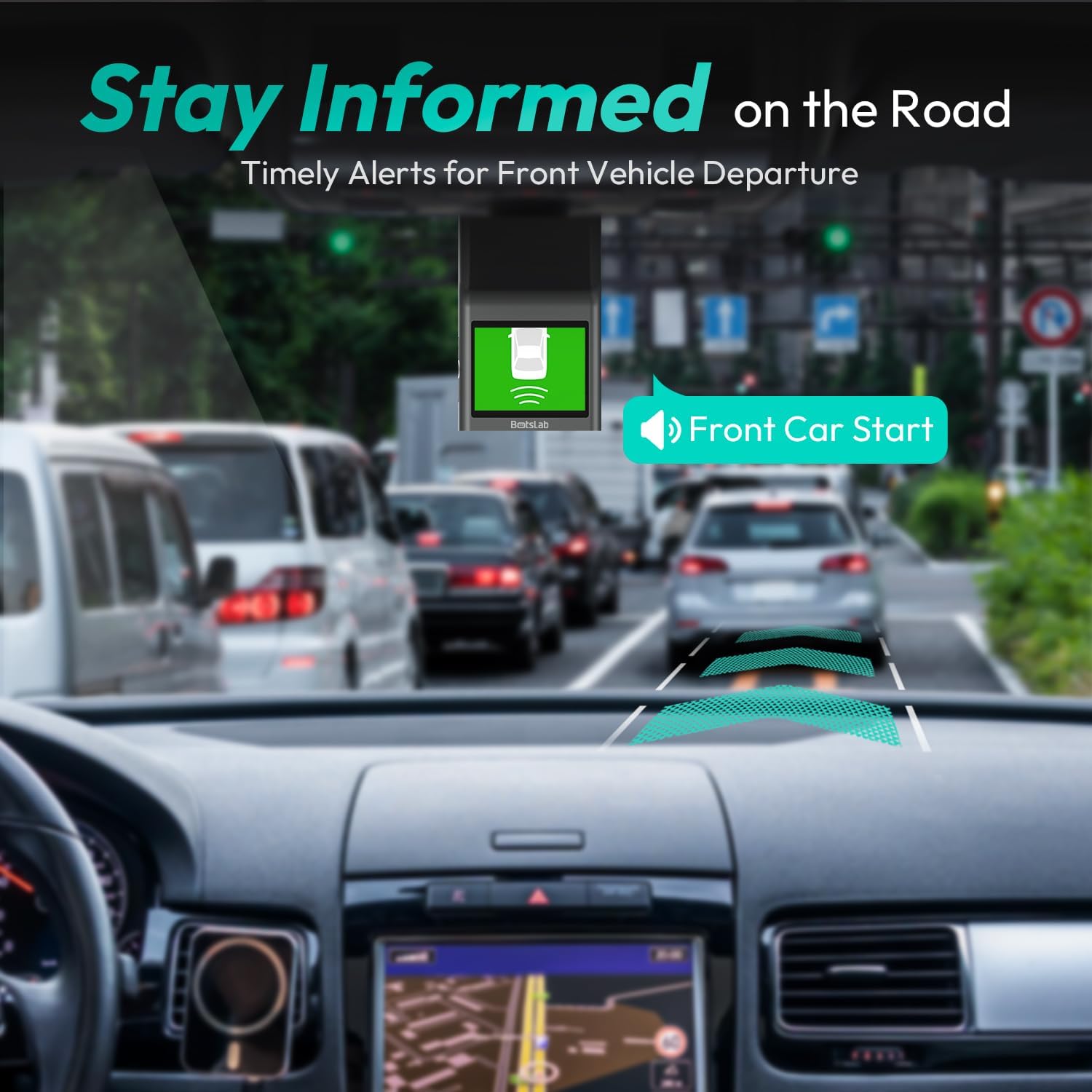
Figure 7: Front Vehicle Start Reminder

Figure 8: Pedestrian Collision Alert
4.5. GPS Integration
Built-in GPS functionality records every detail of your journey, from speed to location. View your personalized routes on Google Maps, right from your phone. It's not just about convenience; it's about keeping your travel data private and secure.

Figure 9: Precise Location Tracking with GPS
4.6. G-Sensor and Emergency Video Protection
In the event of a collision or sudden movement, the G-Sensor automatically locks videos, preventing overwriting. This feature provides the detailed evidence you need for insurance claims or traffic disputes.

Figure 10: Emergency Video Protection
5. Manutenção
To ensure the longevity and optimal performance of your BOTSLAB Dash Cam, follow these maintenance guidelines:
- Limpe a lente: Regularly wipe the camera lens with a soft, lint-free cloth to ensure clear recordings. Avoid using abrasive cleaners.
- Verifique o cartão microSD: Periodically check the microSD card for errors or corruption. Format the card monthly to maintain optimal performance and prevent data loss. Back up any important footage antes da formatação.
- Atualizações de firmware: Check the BOTSLAB app or website for available firmware updates. Keeping your dash cam's firmware up-to-date ensures you have the latest features and bug fixes.
- Controle de temperatura: Avoid exposing the dash cam to extreme temperatures for prolonged periods. If parked in direct sunlight, consider removing the dash cam or using a sunshade.
- Montagem segura: Ensure the dash cam remains securely mounted to prevent vibrations that could affect video quality or cause the device to fall.
6. Solução De Problemas
Se você encontrar problemas com sua câmera veicular, consulte os problemas e soluções comuns a seguir:
| Problema | Possível causa | Solução |
|---|---|---|
| A câmera veicular não liga. | No power supply; faulty car charger/cable. | Check car charger connection and vehicle's power outlet. Try a different USB cable or car charger. |
| A gravação para ou footage está corrompido. | MicroSD card full, corrupted, or incompatible. | Format the microSD card regularly. Use a high-quality Class 10 or U3 microSD card. Replace the card if issues persist. |
| Problemas de conexão Wi-Fi. | Interference; incorrect app settings. | Ensure you are within range. Restart the dash cam and your smartphone. Reinstall the BOTSLAB app. |
| O GPS não está rastreando a localização. | Poor satellite signal; dash cam not receiving GPS data. | Certifique-se de que a câmera veicular tenha uma imagem nítida. view of the sky. Move away from tall buildings or tunnels. |
| A qualidade do vídeo é ruim. | Lente suja; película protetora ainda na lente; condições de pouca luz. | Clean the camera lens. Remove any protective film. Ensure proper lighting for optimal recording. |
Para obter mais assistência, consulte a seção de suporte ou entre em contato com o serviço de atendimento ao cliente.
7. Especificações
| Recurso | Detalhe |
|---|---|
| Dimensões do produto | 0.59 x 0.98 x 2.17 polegadas |
| Peso do item | 14.9 onças |
| Número do modelo | G300H |
| Tecnologia de Conectividade | 2.4GHz WiFi |
| Características especiais | Pedestrian Collision Alert, Built-In GPS, 24/7 Parking Monitoring |
| Resolução de captura de vídeo | 2.5 mil |
| Cor | azul claro |
| Fabricante | 360 Smart Network |
| Data da primeira disponibilidade | 23 de novembro de 2023 |
| Orientação | Frente |
| Tipo de serviço do veículo | Bus, Car, Truck |
| Tipo de montagem | Suporte para pára-brisa |
8. Garantia e Suporte
BOTSLAB is committed to providing high-quality AI-Vision security products and excellent customer service. Your dash cam comes with comprehensive support to ensure your satisfaction.
8.1. Informações de garantia
The BOTSLAB Dash Cam G300H includes a 365-Day Quality Guarantee. For detailed terms and conditions, please refer to the official warranty documentation or contact customer support.
8.2. Suporte Técnico
Nós oferecemos Suporte técnico vitalício for your product. If you encounter any issues or have questions, please utilize the following support channels:
- Chat ao vivo: Download the Botslab APP, register and sign in, then navigate to 'Me' > 'Support' > 'Live Chat' for 24-hour assistance.
- Oficial Website: Visita global.botslab.com Para informações sobre o produto, perguntas frequentes e recursos de suporte.
- Suporte por e-mail: Envie suas perguntas para Service@botslab.com. We aim for 48 Hours Fast Support.
- Comunidade de usuários: Join the Botslab Users Group for peer support and discussions.


Figure 11: BOTSLAB Support and Care Information
For a complete digital version of this manual, you can access the Manual do usuário (PDF).