
Introdução
This manual provides detailed instructions for setting up and operating your blurams 3MP 2.4/5GHz WiFi Indoor PTZ Security Camera (Model A31). This camera is designed for versatile indoor monitoring, offering features such as high-resolution video, pan-tilt-zoom functionality, two-way audio, and intelligent detection capabilities. Please read this manual thoroughly before use to ensure proper installation and optimal performance.
Conteúdo da embalagem
Verifique se todos os itens listados abaixo estão incluídos em seu pacote:
- Unidade de câmera
- Adaptador de energia
- Cabo USB
- Screw Set (for mounting)
- Folha de montagem
- Manual de instruções em japonês

Image: All components included in the blurams A31 package, including the camera, power adapter, USB cable, mounting accessories, and manual.
Produto acimaview
Familiarize yourself with the main components of your blurams A31 camera:
- Lente: Captura vídeos e imagens.
- Slot para cartão MicroSD: Para armazenamento local de vídeos (suporta até 256 GB, vendido separadamente).
- Porta de alimentação: Conecta-se ao adaptador de energia.
- Botão de reinicialização: Utilizado para restaurar as configurações de fábrica da câmera.
- Luz indicadora: Displays the camera's status (e.g., red/blue flashing for pairing, solid blue for connected).
- Alto-falante/microfone: Para comunicação de áudio bidirecional.

Imagem: Frente e traseira views of the blurams A31 camera, highlighting the lens, microSD card slot, power port, reset button, and indicator light.
Configurar
1. Instalação do aplicativo
Download the "blurams" app from the App Store (iOS) or Google Play Store (Android). The app is compatible with iOS 10+ and Android 5+.

Image: Screenshots illustrating the process of downloading and installing the blurams app from an app store.
2. Conexão de energia
Connect the camera to a power source using the provided USB cable and power adapter. The indicator light will illuminate.
3. Conexão wifi
- Open the blurams app and create an account or log in.
- Toque no ícone "+" para adicionar um novo dispositivo.
- Select your camera model (A31) and choose "Bluetooth Wi-Fi Connection".
- Follow the on-screen prompts to connect the camera to your 2.4GHz or 5GHz Wi-Fi network. The camera supports both frequencies for stable connection.
- Após a conexão, a luz indicadora ficará azul fixa.
Video: A step-by-step guide on how to connect the blurams camera to Wi-Fi using Bluetooth pairing via the app.
4. Instalação do cartão microSD
To enable 24-hour continuous recording, insert a microSD card (up to 256GB, sold separately) into the camera's card slot. Gently push the lens upwards to reveal the slot.

Image: A hand inserting a microSD card into the designated slot on the camera.
Instruções de operação
1. Viver View
Após a configuração bem-sucedida, você poderá view the live feed from your camera anytime, anywhere through the blurams app.
2. Pan/Tilt/Zoom (PTZ) Control
The camera features 360° horizontal and 110° vertical rotation. Use the app to remotely control the lens direction and digitally zoom up to 4x to view detalhes.

Image: The blurams A31 camera rotating horizontally and vertically, showcasing its PTZ capabilities within a room setting.
3. Áudio bidirecional
Engage in real-time two-way conversations through the app. This feature is ideal for communicating with family members or pets.
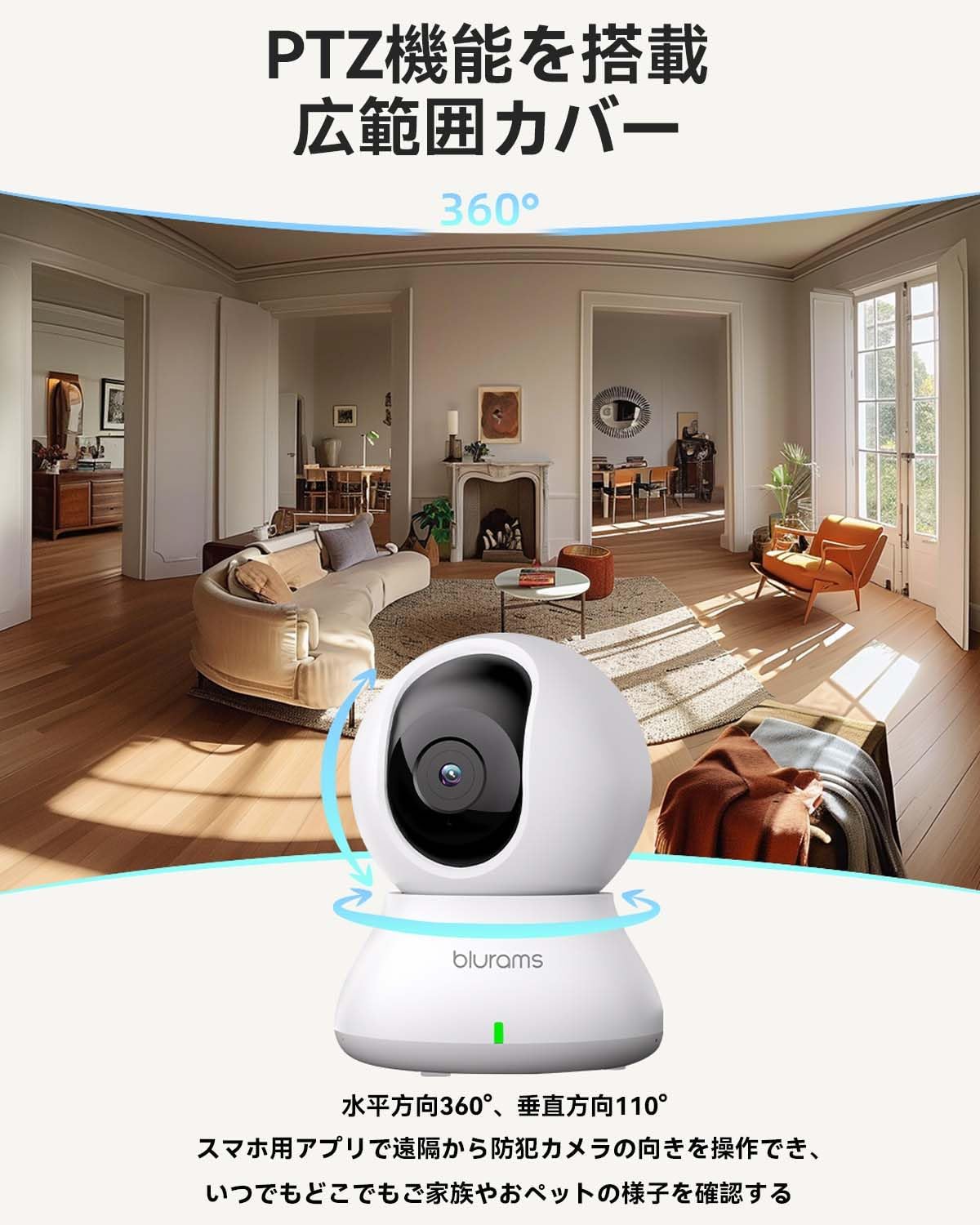
Image: A dog looking at the blurams A31 camera, with a speech bubble indicating two-way audio communication.
4. Motion, Sound, and Human Detection & Alerts
The camera is equipped with AI detection systems for motion, sound, and human recognition. Enable notifications in the app to receive real-time alerts on your smartphone when activity is detected.
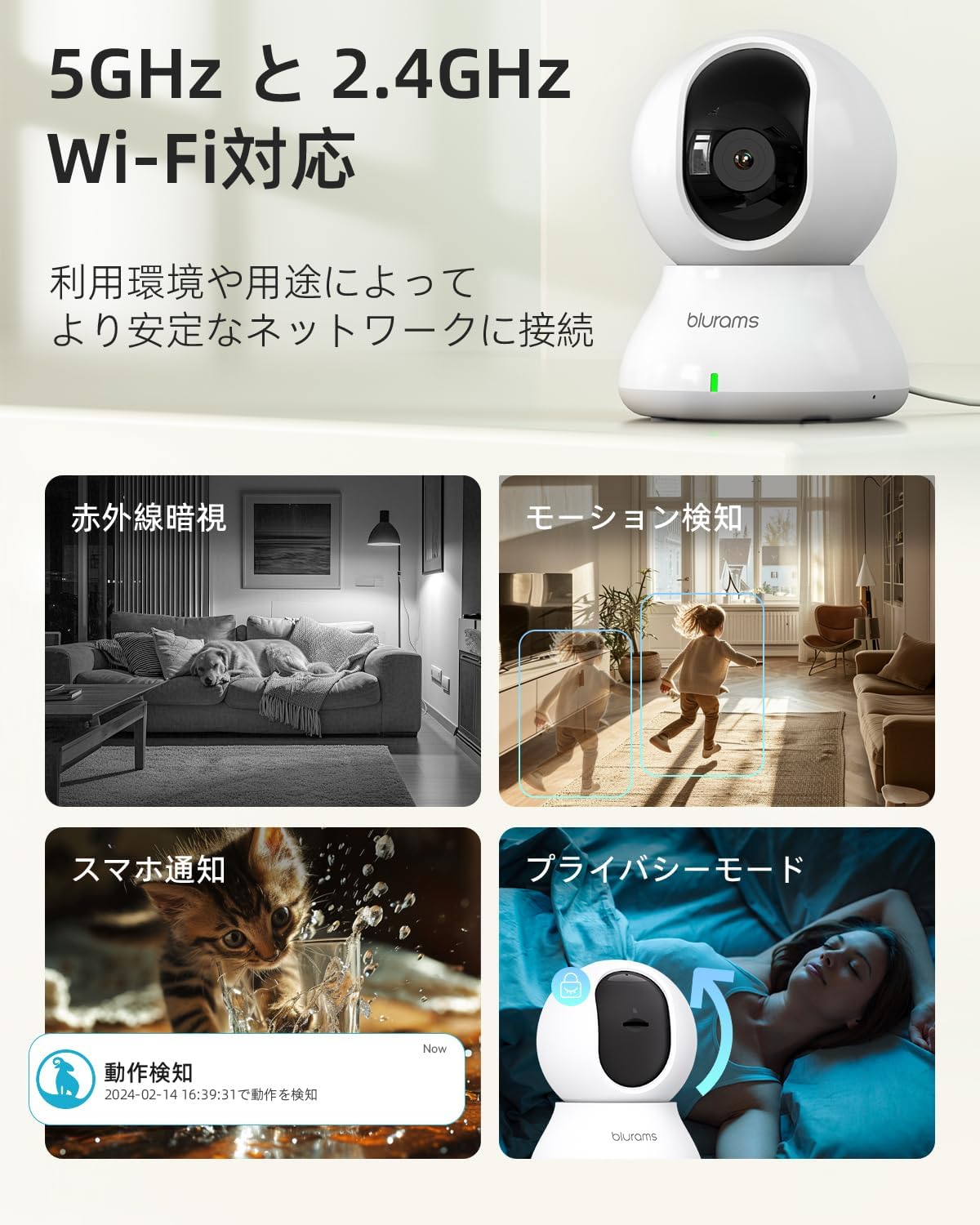
Image: Visual representation of the camera's features including 2.4/5GHz WiFi, motion detection, night vision, and privacy mode.
5. Modos de visão noturna
The camera features 6*850nm infrared LEDs for night vision up to 10 meters. It automatically switches between color images in bright conditions and monochrome images in dark conditions. You can also manually select different night vision modes via the app.
6. Modo de privacidade
For privacy, you can manually turn off the camera lens via the app, physically blocking the view and stopping recording.
7. Gravação e Armazenamento
Recordings can be saved to a microSD card (up to 256GB, sold separately) for 24-hour continuous recording, or to the optional paid cloud storage service. The product also records past 24-hour motion events (approx. 12 seconds) without a microSD card or cloud service.

Image: Comparison of H.265 and H.264 compression, and a close-up of the microSD card slot on the camera.
8. Compartilhamento de acesso
You can share camera access with multiple users through the app, allowing family members to monitor simultaneously.

