
Introdução
Thank you for choosing the NEWWAY A8BK Wireless Vertical Mouse. This manual provides detailed instructions to help you set up, operate, and maintain your new ergonomic mouse. Designed for comfort and efficiency, the A8BK offers dual connectivity options (2.4 GHz wireless and Bluetooth), adjustable DPI settings, and silent clicks for a seamless user experience across various operating systems.
Produto acimaview
Familiarize yourself with the components of your NEWWAY A8BK mouse.
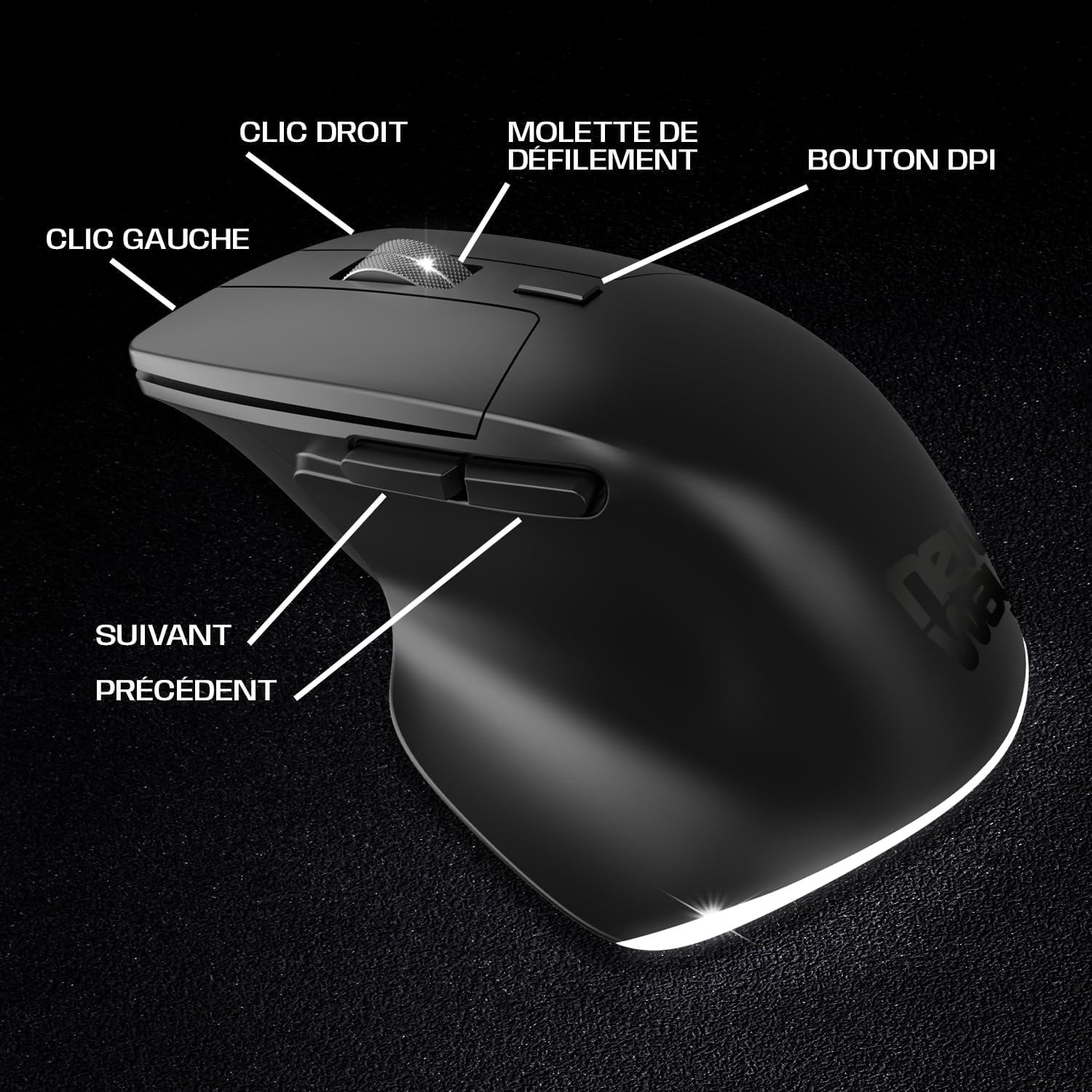
Image 1: Mouse Button Layout. This diagram illustrates the functions of each button on the NEWWAY A8BK vertical mouse, including left and right click, scroll wheel, DPI adjustment button, and side buttons for navigation.
- Botão esquerdo do mouse: Função padrão de clique primário.
- Botão direito do mouse: Função padrão de clique secundário.
- Rodinha do mouse: Para rolagem vertical. Também funciona como botão de clique do meio.
- Botão DPI: Ajusta a sensibilidade do mouse (DPI).
- Botão Avançar: Navega para a frente em web navegadores ou file exploradores.
- Botão Voltar: Navega para trás em web navegadores ou file exploradores.

Image 2: Underside of the Mouse. The bottom of the NEWWAY A8BK vertical mouse, displaying the power switch, connectivity mode switch (Bluetooth/2.4GHz), and the magnetic storage slot for the USB receiver.
- Interruptor de energia (LIGADO/DESLIGADO): Liga ou desliga o mouse.
- Connectivity Mode Switch (2.4G/BT1/BT2): Selects between 2.4 GHz wireless mode and two Bluetooth channels.
- Armazenamento do receptor USB: A magnetic compartment to store the 2.4 GHz USB receiver when not in use.
- Porta de carregamento USB-C: Located at the front of the mouse for charging.
Instruções de configuração
1. Carregando o mouse
Before first use, it is recommended to fully charge the mouse. The NEWWAY A8BK mouse features a built-in rechargeable lithium-polymer battery.
- Locate the USB-C charging port at the front of the mouse.
- Connect the included USB-C cable to the mouse and the other end to a USB power source (e.g., computer USB port, USB wall adapter).
- A luz indicadora do mouse mostrará o status de carregamento (consulte a seção do indicador LED para obter detalhes).
- Depois de totalmente carregado, desconecte o cabo.

Image 3: USB-C Charging Port. A close-up of the USB-C port on the front of the NEWWAY A8BK vertical mouse, used for charging the internal battery.
2. Conexão via Wi-Fi de 2.4 GHz
- Remove the USB receiver from its magnetic storage slot on the underside of the mouse.
- Conecte o receptor USB a uma porta USB disponível em seu computador.
- Slide the connectivity mode switch on the underside of the mouse to the "2.4G" position.
- Ligue o mouse usando o botão liga/desliga.
- Seu computador deverá detectar e instalar automaticamente os drivers necessários. O mouse está pronto para uso.

Image 4: 2.4 GHz Wireless Range. This diagram illustrates the wireless connection between the mouse and a computer via the 2.4 GHz USB receiver, indicating a range of up to 10 meters.
3. Conectando via Bluetooth
The NEWWAY A8BK supports two Bluetooth channels (BT1 and BT2).
- Ligue o mouse usando o botão liga/desliga.
- Slide the connectivity mode switch on the underside of the mouse to either "BT1" or "BT2" position.
- Press and hold the connectivity mode switch button (usually a small button next to the switch) for 3-5 seconds until the indicator light starts flashing rapidly, indicating pairing mode.
- No seu computador ou dispositivo, abra as configurações de Bluetooth.
- Procurar new devices and select "NEWWAY A8BK" (or similar name) from the list.
- Once paired, the indicator light will stop flashing. The mouse is ready for use.
- To connect to a second device, repeat steps 2-6 using the other Bluetooth channel (BT2).
Instruções de operação
1. Ajustando a sensibilidade do DPI
The DPI (Dots Per Inch) button allows you to adjust the mouse cursor speed and sensitivity. The NEWWAY A8BK offers three DPI settings: 1200, 2400, and 3200 DPI.
- Pressione o Botão DPI (located behind the scroll wheel) to cycle through the available DPI settings.
- Each press will change the sensitivity, allowing you to find the optimal speed for your tasks.
2. Ergonomic Design and Silent Clicks
The vertical design of the NEWWAY A8BK mouse promotes a natural handshake position, reducing wrist strain and discomfort during prolonged use. The mouse also features silent click buttons, minimizing noise in quiet environments.

Image 5: Ergonomic Grip. A hand demonstrating the natural, comfortable grip on the NEWWAY A8BK ergonomic vertical mouse, designed to reduce wrist strain.
3. Retroiluminação
The mouse features a subtle white LED backlight that enhances its aesthetic appeal. This backlighting is typically active when the mouse is in use and can be turned off via a switch on the underside if desired (refer to Image 2).

Image 6: White LED Backlighting. The NEWWAY A8BK vertical mouse illuminated by its subtle white LED backlighting, adding a stylish touch to the device.
Manutenção
1. Limpando seu mouse
- Desligue o mouse antes de limpar.
- Use um pano macio e sem fiapos levemente dampcom água ou uma solução de limpeza suave.
- Evite usar produtos químicos agressivos, abrasivos ou solventes.
- Não permita a entrada de umidade em nenhuma abertura.
2. Cuidados com a bateria
- Para prolongar a vida útil da bateria, evite descarregar completamente o mouse com frequência.
- Recarregue o mouse quando o indicador de bateria fraca aparecer.
- Se for guardar o mouse por um longo período, carregue-o até cerca de 50% e guarde-o em local fresco e seco.
Solução de problemas
| Problema | Possível causa | Solução |
|---|---|---|
| Rato não responde | Low battery; Mouse is off; Incorrect connection mode; USB receiver not connected (2.4G); Bluetooth not paired. | Charge the mouse; Turn on the mouse; Ensure the connectivity switch is in the correct position (2.4G or BT); Re-insert USB receiver; Re-pair Bluetooth. |
| O movimento do cursor é errático ou lento. | Low DPI setting; Dirty optical sensor; Uneven surface; Interference. | Press the DPI button to increase sensitivity; Clean the optical sensor; Use on a smooth, opaque surface; Move closer to the receiver/device or reduce interference sources. |
| A conexão Bluetooth cai com frequência | Distance from device; Interference; Low battery. | Move the mouse closer to the device; Reduce other wireless interference; Charge the mouse. |
| O mouse não está carregando. | Faulty cable; Faulty USB port; Mouse not properly connected. | Try a different USB-C cable; Use a different USB port; Ensure the cable is securely connected to both the mouse and the power source. |
Especificações
| Recurso | Detalhe |
|---|---|
| Marca | NEWWAY |
| Número do modelo | ON-MO-A8BK |
| Tecnologia de Conectividade | Conexão sem fio de 2.4 GHz, Bluetooth |
| Detecção de Movimento | Óptico |
| Configurações de DPI | 1200 / 2400 / 3200 DPI |
| Número de botões | 6 (Esquerda, Direita, Roda de rolagem, DPI, Avançar, Retroceder) |
| Orientação das mãos | Destro |
| Características especiais | Ergonomic Design, Silent Clicks, Rechargeable, White LED Backlighting |
| Sistemas operacionais compatíveis | Windows, Mac, Linux |
| Tipo de Bateria | Polímero de lítio recarregável |
| Porta de carregamento | USB-C |
| Cor | Preto |
| Código UPC/EAN | 3701281111979 |
Garantia e Suporte
Informações de garantia
The NEWWAY A8BK Wireless Vertical Mouse comes with a Garantia do fabricante de 2 anosEsta garantia cobre defeitos de materiais e de fabricação sob uso normal. Não cobre danos causados por uso indevido, acidentes, modificações não autorizadas ou desgaste normal.
Guarde o comprovante de compra para reclamações de garantia.
Suporte ao cliente
For technical assistance, troubleshooting, or warranty inquiries, please contact NEWWAY customer support through the retailer where you purchased the product or visit the official NEWWAY website para detalhes de contato.
Note: Availability of spare parts is currently unavailable. Software updates are not guaranteed.