
1. Introdução
Welcome to the instruction manual for your new Xiaomi Curved Gaming Monitor G34WQi. This guide provides essential information for the safe and optimal setup, operation, and maintenance of your monitor. Please read this manual thoroughly before use to ensure you get the best experience from your device.
The Xiaomi G34WQi features a 34-inch UWQHD (3440x1440) ultrawide curved display with a 1500R curvature, designed to provide an immersive viewing experience. It boasts a high 180Hz refresh rate and a rapid 1ms response time (MPRT) for smooth, fluid gameplay. With FreeSync Premium technology, it minimizes screen tearing and stuttering. The monitor also offers a wide color gamut (95% DCI-P3, 100% sRGB) and a low blue light mode for eye comfort.
2. Configuração
2.1 Conteúdo da embalagem
Antes da montagem, verifique se todos os componentes estão presentes:
- Xiaomi Curved Gaming Monitor G34WQi
- Suporte para monitor (base e braço)
- Adaptador de energia e cabo
- Cabo DisplayPort
- Cabo HDMI
- Manual do usuário
2.2 Montagem do suporte
- Coloque o monitor cuidadosamente com a tela virada para baixo sobre uma superfície macia e limpa para evitar arranhões.
- Attach the stand arm to the back of the monitor using the provided screws. Ensure it is securely fastened.
- Connect the stand base to the arm and tighten the thumb screw at the bottom of the base.
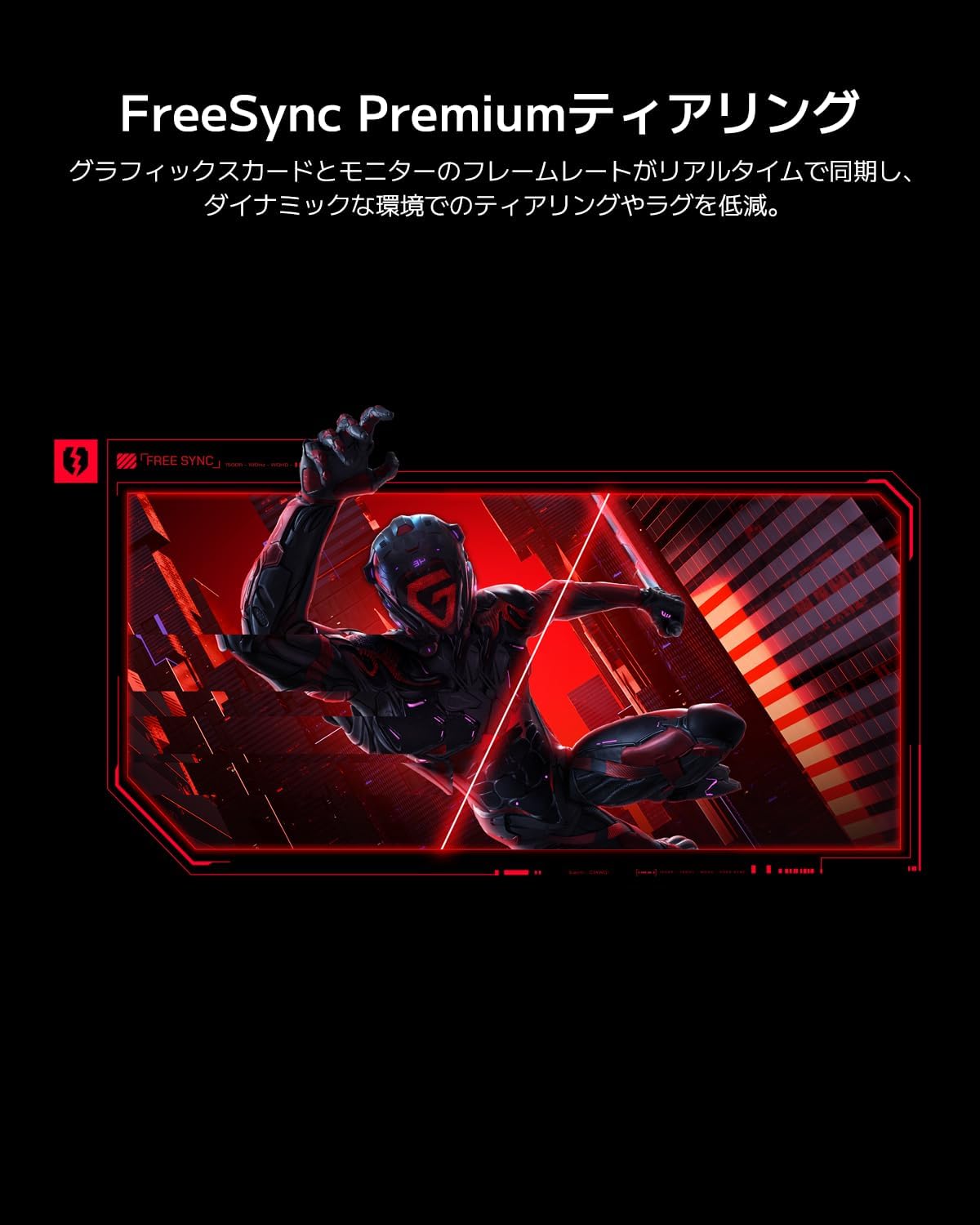
Image: The Xiaomi G34WQi monitor securely mounted on its adjustable stand.
2.3 cabos de conexão
Conecte os cabos necessários às portas traseiras do monitor:
- Cabo de energia: Conecte o adaptador de energia à entrada de energia do monitor e, em seguida, ligue o cabo de alimentação a uma tomada de parede.
- DisplayPort (Recommended for Gaming): For optimal performance, including 180Hz refresh rate and FreeSync Premium, connect the DisplayPort cable from your computer's graphics card to the monitor's DisplayPort input.
- HDMI: Alternatively, connect an HDMI cable from your computer to one of the monitor's HDMI inputs. Note that HDMI may have limitations on refresh rate at UWQHD resolution compared to DisplayPort.
- Saída de áudio: Se desejar, conecte alto-falantes externos ou fones de ouvido à saída de áudio de 3.5 mm.

Imagem: Traseira view of the monitor highlighting the input ports for connectivity.
2.4 Inicialização Inicial
After connecting all cables, press the power button, usually located on the back or bottom of the monitor, to turn it on. The monitor should automatically detect the input signal. If not, you may need to manually select the input source using the OSD menu.
3. Instruções de operação
3.1 Ligar/Desligar
Press the power button to turn the monitor on or off. A status indicator light will show the monitor's power state.
3.2 Menu de exibição na tela (OSD)
The OSD menu allows you to adjust various monitor settings. It is typically controlled by a joystick or a set of buttons located on the back or bottom of the monitor.
Navegação:
- Pressione o joystick/botão central para abrir o menu OSD.
- Move the joystick (up/down/left/right) or use the directional buttons to navigate through menu options.
- Press the joystick/center button again to select an option or confirm a setting.
- Move the joystick left or press a dedicated 'Back' button to exit a sub-menu or the OSD.
3.3 Configurações principais
- Brilho contraste: Ajuste essas configurações de acordo com suas necessidades. viewambiente de trabalho.
- Configurações de cores: Fine-tune color temperature, gamma, and saturation. The monitor supports 95% DCI-P3 and 100% sRGB for accurate color reproduction.
- Taxa de atualização: Ensure your refresh rate is set to 180Hz in both the monitor's OSD and your computer's display settings for the smoothest experience.
- Tempo de resposta: The monitor offers a 1ms MPRT (Moving Picture Response Time). This can often be adjusted in the OSD, sometimes referred to as 'Overdrive' or 'Response Speed'.
- FreeSync Premium: Enable FreeSync Premium in the OSD menu and in your AMD graphics card settings to synchronize the monitor's refresh rate with your GPU's frame rate, eliminating screen tearing and stuttering.

Image: Visual representation of FreeSync Premium preventing screen tearing.
- Modo de luz azul baixa: Activate this mode to reduce blue light emissions, which can help reduce eye strain during prolonged use.

Image: The monitor displaying content with low blue light mode enabled for eye protection.
4. Manutenção
4.1 Limpeza da tela
Para limpar a tela, limpe-a suavemente com um pano macio e sem fiapos. Para manchas persistentes, esfregue levemente.ampLimpe o pano com água ou um produto de limpeza específico para telas. Nunca borrife líquido diretamente na tela.
4.2 Cleaning the Monitor Body
Use a soft, dry cloth to wipe the monitor's body. Avoid using abrasive cleaners or solvents, as they can damage the surface.
4.3 Cuidados Gerais
- Evite colocar objetos pesados sobre o monitor ou seus cabos.
- Mantenha o monitor longe da luz solar direta, fontes de calor e umidade excessiva.
- Garanta ventilação adequada ao redor do monitor para evitar superaquecimento.
5. Solução De Problemas
Se você encontrar problemas com seu monitor, consulte os problemas e soluções comuns a seguir:
5.1 No Power / No Display
- Verifique se o cabo de alimentação está conectado firmemente ao monitor e à tomada elétrica.
- Verifique se o adaptador de energia está funcionando corretamente.
- Pressione o botão liga/desliga do monitor para garantir que ele esteja ligado.
5.2 Sem sinal
- Ensure the video cable (DisplayPort or HDMI) is securely connected to both the monitor and your computer's graphics card.
- Verifique se o seu computador está ligado e não em modo de suspensão.
- Use the OSD menu to manually select the correct input source (e.g., DisplayPort 1, HDMI 1).
- Try a different video cable or port on your graphics card/monitor to rule out a faulty connection.
5.3 Flickering or Tearing Screen
- Ensure FreeSync Premium is enabled in both the monitor's OSD and your graphics card settings.
- Verifique se os drivers da sua placa de vídeo estão atualizados.
- Check the video cable. Some users have reported better stability with DisplayPort cables for high resolutions and refresh rates compared to HDMI.
- If using multiple monitors, ensure your system can handle the combined load, as some configurations might cause instability.
5.4 Incorrect Resolution or Refresh Rate
- Go to your computer's display settings (e.g., Windows Display Settings, NVIDIA Control Panel, AMD Radeon Software) and set the resolution to 3440x1440 and the refresh rate to 180Hz.
- Ensure you are using a DisplayPort cable, as some HDMI versions may not support UWQHD at 180Hz.
5.5 Image Reflection
- The monitor has a non-glare (VA) panel, but reflections can still occur in brightly lit environments. Adjust the monitor's position or room lighting to minimize reflections.
6. Especificações
| Recurso | Especificação |
|---|---|
| Marca | Xiaomi |
| Número do modelo | G34WQi |
| Tamanho da tela | 34 polegadas |
| Resolução | UWQHD (3440 x 1440 pixels) |
| Proporção da tela | 21:9 |
| Curvatura | 1500R |
| Tipo de painel | VA (Non-glare) |
| Taxa de atualização | 180 Hz |
| Tempo de resposta | 1 ms (MPRT) |
| Gama de cores | 95% DCI-P3, 100% sRGB |
| Conectividade | HDMI, DisplayPort, 3.5mm Audio Out |
| Potência Voltage | 12 Volts |
| Dimensões do produto (P x L x A) | 99.1 x 18.8 x 46 cm (aprox.) |
| Peso do produto | 6.9 kg |
| Tipo de montagem | Suporte de parede (compatível com VESA) |
7. Informações de garantia
This Xiaomi Curved Gaming Monitor G34WQi comes with a Garantia do fabricante de 1 anos. Please retain your proof of purchase for warranty claims. For detailed terms and conditions, refer to the warranty card included in your product packaging or visit the official Xiaomi support website.
8. Suporte
For further assistance, technical support, or service inquiries, please contact Xiaomi customer service:
- Suporte por telefone: 0120-767-378 (Reception hours: 9:00-18:00, excluding year-end and New Year holidays)
- Suporte por e-mail: service.jp@support.mi.com
You can also visit a Xiaomi Service Center for in-person support:
Xiaomi Service Center Akihabara Store
Address: 4-6-7 Kanda Sakumacho, Chiyoda-ku, Tokyo
Business Hours: 10:00-19:00
Closed: Wednesdays
(Last reception is at 18:00)

Image: A collection of Xiaomi products, showcasing the brand's commitment to smart living.