
1. Introdução
Thank you for choosing the virtavo Indoor WiFi Security Camera. This manual provides essential information for setting up, operating, and maintaining your camera to ensure optimal performance and home security. Please read this manual thoroughly before using the product and keep it for future reference.
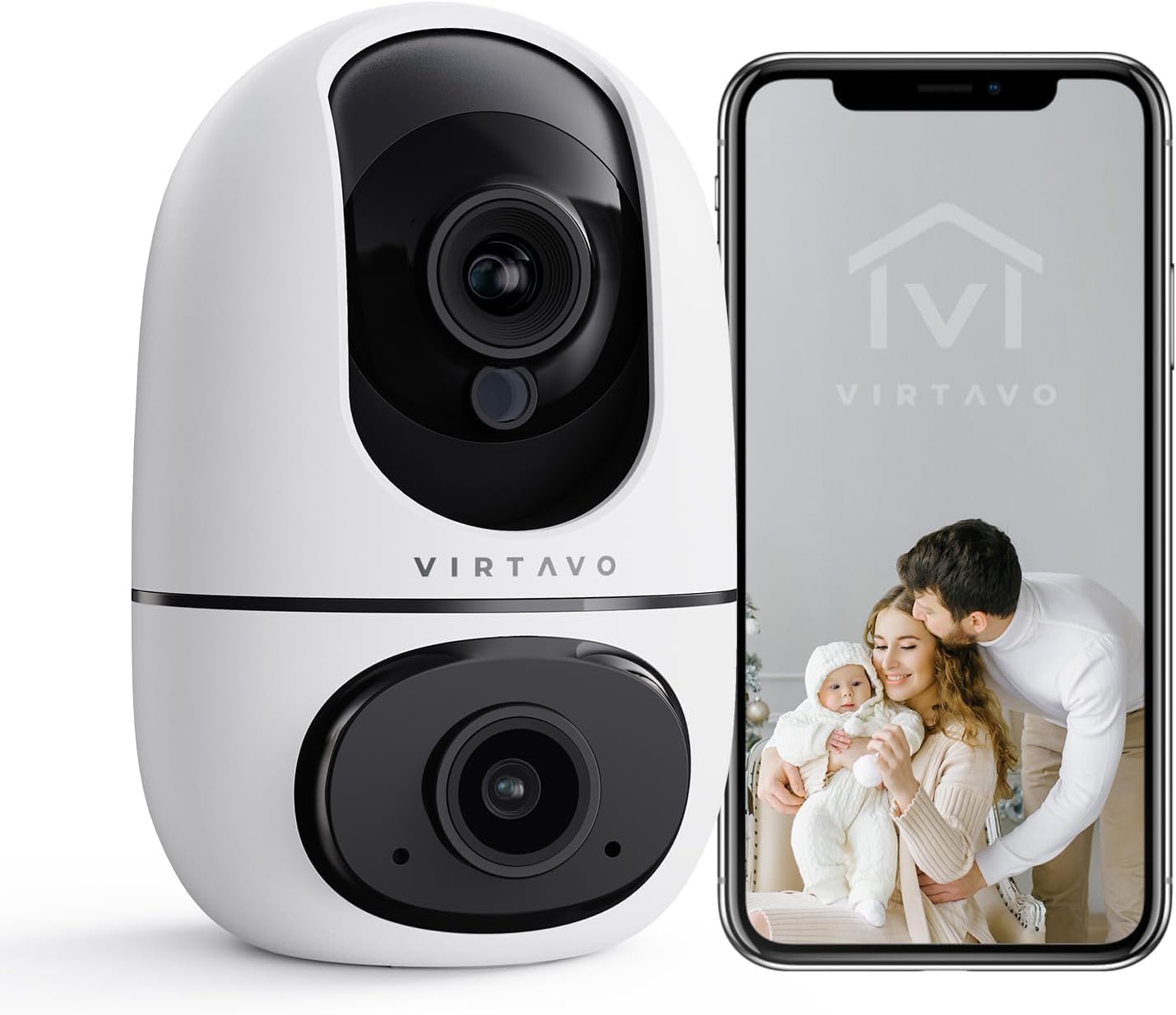
The virtavo Indoor WiFi Security Camera, shown alongside a smartphone displaying its live view, is designed for comprehensive indoor surveillance, offering peace of mind for your home, baby, or pets.
2. Conteúdo da embalagem
Por favor, verifique o conteúdo da embalagem ao desembalar. Se algum item estiver faltando ou danificado, entre em contato com o suporte ao cliente.
- virtavo Indoor WiFi Security Camera (Model XD1-V124)
- Adaptador de energia
- Cabo de alimentação USB
- Acessórios de montagem (parafusos, buchas)
- Manual do usuário (este documento)
3. Produto acabadoview
The virtavo Indoor WiFi Security Camera features a dual-lens design, providing enhanced monitoring capabilities. It supports 1080p resolution, pan and tilt functionality for 360-degree coverage, two-way audio, and advanced detection features.

This image highlights the key features of the virtavo camera, including its dual-lens design, 2.4GHz WiFi connectivity, 1080p resolution, extensive pan and tilt range, two-way audio, AI detection, motion tracking, night vision, and video storage capabilities.
Principais características:
- Design de lente dupla: For comprehensive monitoring.
- 1080p Full HD Resolução: Fornece vídeos claros e detalhados.
- Rotação panorâmica e inclinação de 360°: Oferece uma ampla variedade viewing angle for complete room coverage.
- Áudio bidirecional: Communicate with family or pets remotely.
- AI Detection & Motion Tracking: Intelligently identifies and follows movement.
- Visão noturna: Clear visibility even in low light or complete darkness.
- Conectividade Wi-Fi de 2.4 GHz: Stable wireless connection.
- Armazenamento local e em nuvem: Options for video recording.
4. Configuração
4.1 Ligando
- Conecte o cabo de alimentação USB à porta de alimentação da câmera.
- Conecte o adaptador de alimentação a uma tomada elétrica padrão.
- The camera will power on and initiate its self-check sequence. Wait for the indicator light to flash, indicating it's ready for connection.
4.2 Instalação do aplicativo e criação de conta
- Download the official virtavo app from your smartphone's app store (iOS App Store or Google Play Store).
- Abra o aplicativo e siga as instruções na tela para criar uma nova conta ou fazer login, caso já possua uma.
4.3 Conectando a câmera ao Wi-Fi
- In the virtavo app, tap the "+" icon to add a new device.
- Select "Security Camera" or the specific model if prompted.
- Follow the in-app instructions to connect the camera to your 2.4GHz WiFi network. This typically involves scanning a QR code generated by the app with the camera's lens or entering your WiFi password.
- Once connected, the camera's indicator light will turn solid, and you will hear a confirmation sound.
4.4 Montagem da câmera (opcional)
The camera can be placed on a flat surface (tabletop mounting) or mounted to a wall or ceiling using the provided accessories.
- Colocação na mesa: Simply place the camera on a stable, flat surface within range of your WiFi network and a power outlet.
- Montagem na parede/teto:
- Choose a suitable location, ensuring a clear view e acesso à energia.
- Use the mounting template (if provided) or mark the screw holes on the desired surface.
- Drill pilot holes and insert wall plugs if mounting on drywall or masonry.
- Secure the mounting bracket (if applicable) with screws.
- Attach the camera to the mounting bracket, ensuring it is securely locked in place.
5. Operando a câmera
5.1 Ao vivo View e controle de pan/tilt
Open the virtavo app and select your camera to access the live view. Use the on-screen controls to pan (horizontal) and tilt (vertical) the camera lens to adjust the viewângulo de engate.

The virtavo camera supports dual-view monitoring, allowing you to see multiple camera feeds or different perspectives from the dual-lens on a single screen for an enhanced split-screen experience.
Áudio bidirecional 5.2
Toque no ícone do microfone na transmissão ao vivo. view to speak through the camera's speaker. Tap the speaker icon to listen to audio from the camera's surroundings.
5.3 Detecção de Movimento e Alertas
Enable motion detection in the app settings to receive instant alerts on your smartphone when movement is detected. You can adjust sensitivity levels and set specific activity zones to reduce false alarms.

This feature allows users to define specific activity zones within the camera's view, ensuring that alerts are only triggered by motion in designated areas, reducing unnecessary notifications.
5.4 Visão noturna
The camera automatically switches to night vision mode in low-light conditions. It features powerful starlight color night vision for clear images even in complete darkness.

The image demonstrates the superior clarity of the virtavo camera's Starlight Color Night Vision, providing detailed and visible footage even in very low light or complete darkness, compared to a traditional camera.
5.5 Zoom Digital
Use o gesto de pinça para ampliar a transmissão ao vivo. view to digitally magnify the image up to 8 times, allowing for closer inspection of details.

This visual illustrates the 8X digital zoom capability of the camera, allowing users to zoom in on specific areas of interest within the live feed for clearer and more detailed viewindo.
5.6 Compartilhamento multiusuário
Share access to your camera's live feed and recordings with family members or trusted individuals through the app. Each user can have their own account and access permissions.

The multi-user sharing feature enables you to securely share your camera's feed with family members, allowing everyone to monitor the home together for enhanced safety and convenience.
5.7 Posições predefinidas
Save specific camera angles as preset positions for quick navigation. This allows you to instantly move the camera to a predefined view com um único toque.

This image illustrates the "My Collections" feature, which allows users to save and quickly recall specific camera positions (presets) within the app, making it easy to monitor different areas of a room.
6. Manutenção
- Limpeza: Limpe delicadamente a lente e o corpo da câmera com um pano macio e seco. Não use produtos químicos agressivos ou abrasivos.
- Atualizações de firmware: Regularly check the virtavo app for available firmware updates. Keeping your camera's firmware up-to-date ensures optimal performance, security, and access to new features.
- Estabilidade da rede: Ensure your WiFi network is stable and strong where the camera is located to prevent connectivity issues.
7. Solução De Problemas
| Problema | Possível causa | Solução |
|---|---|---|
| Câmera offline/Não é possível conectar ao Wi-Fi | Weak WiFi signal, incorrect WiFi password, camera too far from router, 5GHz WiFi network. | Ensure camera is within 2.4GHz WiFi range. Verify WiFi password. Restart camera and router. Re-add camera in the app. |
| Sem alertas de detecção de movimento | Motion detection disabled, sensitivity too low, activity zones not set correctly, app notifications off. | Enable motion detection in app. Adjust sensitivity. Configure activity zones. Check phone notification settings for the app. |
| Má qualidade de vídeo | Largura de banda insuficiente, lente suja, condições de pouca luz. | Ensure stable internet connection. Clean the camera lens. Verify night vision is active in low light. |
| Áudio bidirecional não funciona | Microphone/speaker muted in app, app permissions not granted. | Check audio settings in the app. Grant microphone permissions to the app in your phone settings. |
8. Especificações
| Recurso | Detalhe |
|---|---|
| Número do modelo | XD1-V124 |
| Resolução de vídeo | 1080p Full HD |
| Conectividade | Wi-Fi de 2.4 GHz |
| Faixa de Pan/Tilt | 350° Horizontal, 70° Vertical (approx.) |
| Áudio | Áudio bidirecional |
| Visão noturna | Infrared, Starlight Color Night Vision |
| Características especiais | AI Detection, Motion Tracking, Digital Zoom (8X), Multi-User Sharing, Preset Positions, Activity Zones |
| Fonte de energia | Cabo elétrico (10 watts) |
| Dimensões (C x L x A) | 14.3 x 6.6 x 11.91 cm (aprox.) |
| Peso | 158.76 gramas (aprox.) |
| Material | Plástico |
| Uso interno/externo | Interior |
| Dispositivos compatíveis | Smartphone, Tablet (Android) |
9. Garantia e Suporte
9.1 Informações de garantia
The virtavo Indoor WiFi Security Camera comes with a standard manufacturer's warranty. Please refer to the product packaging or the official virtavo webConsulte o site para obter os termos e condições específicos da garantia. Guarde o comprovante de compra como prova de aquisição para eventuais solicitações de garantia.
9.2 Suporte ao cliente
For technical assistance, troubleshooting, or warranty inquiries, please contact virtavo customer support through the following channels:
- E-mail: Refer to the virtavo official website for support email address.
- Website: Visit the official virtavo webSite com perguntas frequentes, artigos de suporte e formulários de contato.
- Suporte no aplicativo: Some issues can be resolved directly through the support section within the virtavo mobile application.
Please have your model number (XD1-V124) and purchase details ready when contacting support.