
VGN N75BLUE
Manual do Usuário do Teclado Gamer VGN N75
Model: N75BLUE | Brand: VGN
1. Introdução
Welcome to the user manual for your VGN N75 Gaming Keyboard. This manual provides essential information on setting up, operating, maintaining, and troubleshooting your new keyboard. The VGN N75 is a compact, numeric keyless mechanical keyboard designed for an optimal gaming and typing experience.

Figure 1.1: VGN N75 Gaming Keyboard with RGB lighting enabled.

Figura 1.2: Angulado view of the VGN N75 keyboard, highlighting its compact form factor.
2. Informações de segurança
Please read the following safety guidelines carefully before using your VGN N75 keyboard:
- Mantenha o teclado longe de líquidos e umidade excessiva para evitar danos.
- Avoid exposing the keyboard to extreme temperatures (hot or cold).
- Do not attempt to disassemble or modify the keyboard. This may void your warranty and cause damage.
- Use only the provided USB-C cable for connection.
- Handle with care to prevent physical damage from drops or impacts.
3. Recursos do Produto
The VGN N75 keyboard is engineered with several features to enhance your typing and gaming experience:
- Layout compacto de 75%: The US82 key numeric keyless design offers a space-saving solution compared to full-size keyboards, providing more desk space for mouse movement.
- Advanced Internal Construction: Features multiple buffer layers and specially tuned stabilizers for a smooth, quiet, and consistent typing experience.
- VGN "Dynamic Silver" Mechanical Switches: Equipped with VGN's original linear mechanical switches, offering a responsive feel and vibrant RGB illumination.
- Design diferenciado: The "Caribbean Blue" model features striking keycap colors, adding a unique aesthetic to your setup.
- Integrated Metal Volume Knob: A conveniently located metal rotary knob allows for quick and precise volume adjustments, useful for both work and gaming.
- Iluminação RGB personalizável: Enjoy dynamic and customizable RGB backlight options to personalize your keyboard's appearance.

Figure 3.1: The compact 75% layout of the VGN N75, demonstrating its space-saving advantage over a traditional full-size keyboard.

Figure 3.2: Detail of the VGN N75's unique "Dynamic Silver" mechanical switches, known for their linear feel and RGB compatibility.

Figure 3.3: An exploded diagram illustrating the multiple buffer layers and components within the VGN N75 keyboard, contributing to its smooth and quiet operation.

Figure 3.4: Close-up of the metal volume knob, providing convenient audio control.
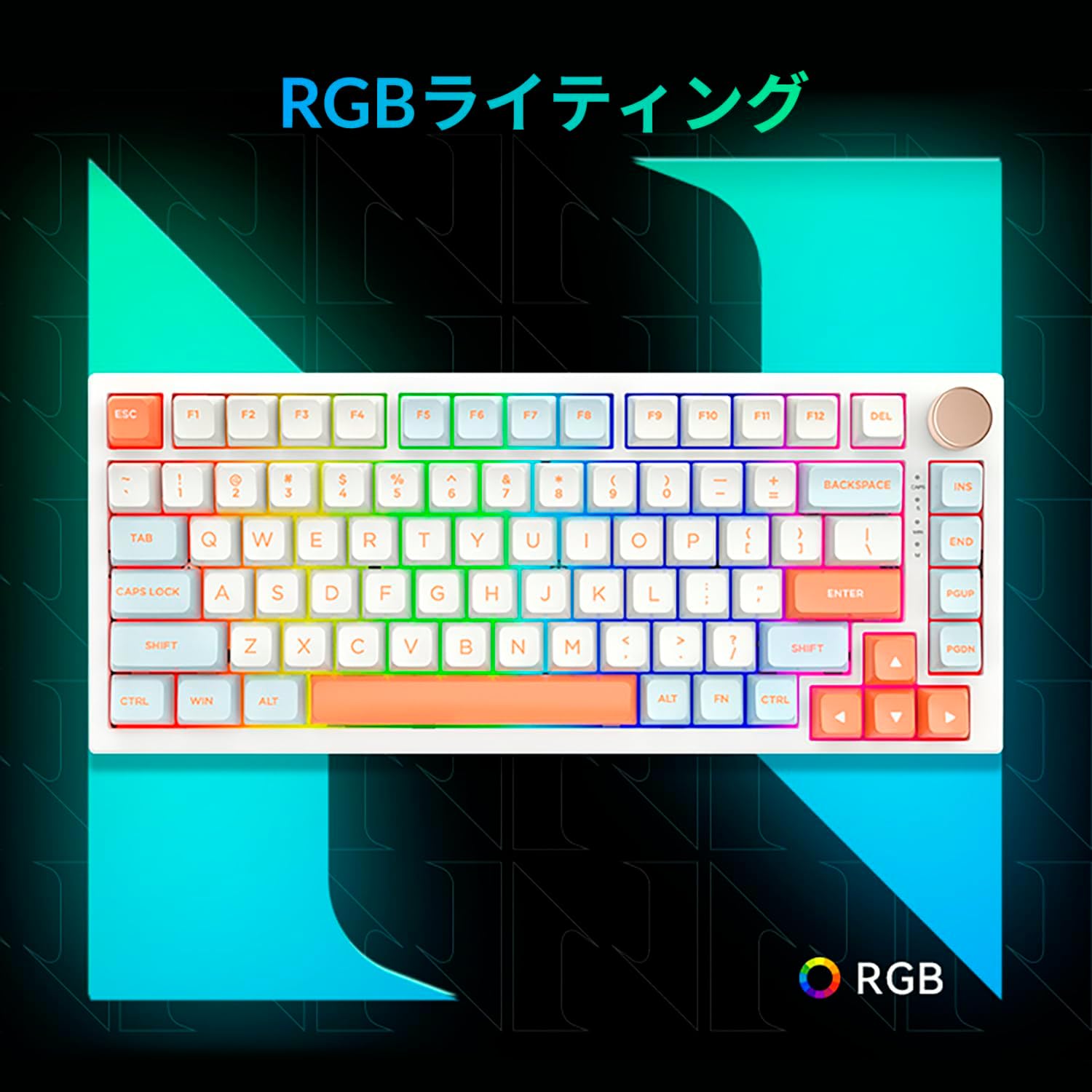
Figure 3.5: The VGN N75 keyboard displaying its customizable RGB lighting, enhancing the visual appeal.
4. Guia de configuração
Follow these steps to set up your VGN N75 keyboard:
- Desembale o teclado: Carefully remove the keyboard and all included accessories (USB cable, keycap puller, replacement key) from the packaging.
- Conecte o cabo USB-C: Insert one end of the provided USB-C cable into the USB-C port on the keyboard.
- Conecte-se ao seu dispositivo: Plug the other end of the USB-C cable into an available USB port on your computer or laptop.
- Instalação automática do driver: The keyboard is plug-and-play. Your operating system should automatically detect and install the necessary drivers. No manual driver installation is typically required.
- Teste inicial: Open a text editor or any application to test the keys and ensure all functions are working correctly.
5. Instruções de operação
This section details the basic operation of your VGN N75 keyboard:
5.1. Funções básicas das teclas
The VGN N75 features a standard US82 key layout. All keys function as labeled. For specific key combinations or software-defined macros, refer to any accompanying software documentation (if applicable, not included in this manual).
5.2. Using the Rotary Knob
- Controle de volume: Gire o botão no sentido horário para aumentar o volume e no sentido anti-horário para diminuir o volume.
- Silenciar/Ativar som: Pressione o botão para ativar ou desativar o áudio.
5.3. Controle de iluminação RGB
The VGN N75 supports RGB lighting. While specific key combinations for lighting modes are not provided in the product description, most RGB keyboards allow cycling through effects using function key combinations (e.g., Fn + F-keys or dedicated lighting keys). Experiment with the 'Fn' key in combination with other keys (like arrow keys or Ins/Del/Home/End/PgUp/PgDn) to discover lighting controls.
6. Manutenção
A manutenção adequada prolongará a vida útil do seu teclado:
- Limpeza:
- Desconecte o teclado do computador antes de limpá-lo.
- Use um pano macio e sem fiapos levementeampened with water or a mild cleaning solution to wipe the keycaps and frame.
- Para remover poeira e detritos entre as teclas, use ar comprimido.
- Do not spray liquid directly onto the keyboard.
- Substituição de teclas e interruptores:
- The keyboard comes with a keycap puller and a replacement key.
- To remove a keycap, gently use the keycap puller to grip the keycap and pull upwards.
- Para substituir uma tecla, alinhe-a com a haste do interruptor e pressione firmemente até ouvir um clique ao encaixá-la no lugar.
- Observação: The VGN N75 features hot-swappable switches, allowing for easy replacement without soldering. To remove a switch, use a switch puller (not explicitly listed as included, but implied by "hot-swappable") to gently pry it out. Align the new switch's pins with the sockets and press firmly until it seats correctly.
7. Solução De Problemas
If you encounter issues with your VGN N75 keyboard, try the following solutions:
- Teclado não responde:
- Certifique-se de que o cabo USB-C esteja firmemente conectado tanto ao teclado quanto ao computador.
- Tente conectar o teclado a uma porta USB diferente do seu computador.
- Reinicie o seu computador.
- Teste o teclado em outro computador para descartar um problema específico do sistema.
- Teclas não registradas:
- Verifique se há alguma obstrução física sob a tecla.
- If a specific key is not working, consider replacing its switch if you have a switch puller and replacement switches.
- Problemas com iluminação RGB:
- Certifique-se de que o teclado esteja devidamente ligado à energia.
- Try cycling through lighting modes using the keyboard's function key combinations.
- Rotary Knob Not Working:
- Check for any physical obstructions around the knob.
- Verifique se o teclado está conectado corretamente.
8. Especificações
| Atributo | Detalhe |
|---|---|
| Marca | VGN |
| Número do modelo | N75BLUE |
| Série | N75 |
| Cor | Azul |
| Descrição do teclado | Mecânico |
| Número de Chaves | 82 |
| Tecnologia de Conectividade | USB-C |
| Tipo de fonte de alimentação | Alimentação USB |
| Dispositivos compatíveis | Computador portátil |
| Usos recomendados do produto | Jogos |
| Keyboard Backlight Colour Support | RGB |
| Material | Plástico |
| Componentes incluídos | Keycap Puller, Replacement Key, USB Cable |
| Dimensões da embalagem | 42.1 x 18.8 x 6.5 cm; 1.1 kg |
| Data da primeira disponibilidade | 22 de março de 2024 |
9. Garantia e Suporte
The VGN N75 Gaming Keyboard comes with a 1-year warranty from the date of purchase, as indicated in the product listing. This warranty covers manufacturing defects under normal use.
For warranty claims, technical support, or further inquiries, please contact your point of purchase or the official VGN support channels. Keep your proof of purchase for warranty validation.
Observação: A desmontagem ou modificação não autorizada do produto pode anular a garantia.