
AVIDEONE B0CZP485D6
AVIDEONE 7-inch 1920x1200 IPS Full HD Field Monitor User Manual
Model: B0CZP485D6
Introdução
This manual provides comprehensive instructions for the setup, operation, and maintenance of your AVIDEONE 7-inch 1920x1200 IPS Full HD Field Monitor. Designed for professional videographers and photographers, this monitor offers exceptional brightness, versatile connectivity, and advanced monitoring features to enhance your shooting experience. Please read this manual thoroughly before using the product to ensure proper operation and to maximize its lifespan.
Informações de segurança
Para evitar danos ao produto ou ferimentos a você ou a outras pessoas, observe as seguintes precauções de segurança:
- Não exponha o monitor à chuva, umidade ou temperaturas extremas.
- Avoid dropping the monitor or subjecting it to strong impacts.
- Do not attempt to disassemble or modify the monitor. Refer all servicing to qualified personnel.
- Use only the specified power adapter or compatible batteries (NP-F series) to power the device.
- Mantenha o monitor longe de campos magnéticos fortes.
- Clean the screen and body with a soft, dry cloth. Do not use liquid cleaners or aerosols.
- Ensure proper ventilation around the monitor during operation to prevent overheating.
O que está na caixa
Ao abrir a embalagem, verifique se todos os itens estão presentes:
- AVIDEONE 7-inch Field Monitor
- Adaptador de energia x 1
- Cabo HDMI
- Cabo USB
- Montagem de sapata
- Guia do usuário (este manual)
- Bolsa de transporte

Image: The AVIDEONE 7-inch Field Monitor displayed with its full set of accessories, including the power adapter, various cables, hot shoe mount, user guide, and carrying pouch.
Produto acimaview
Principais características
- 7-inch IPS Full HD Display: 1920x1200 resolution for crisp and clear images.
- 1800nits Ultra Brightness: Ensures excellent visibility even in bright outdoor sunlight.
- Entrada/Saída HDMI 4K: Supports up to 4096x2160 24p and 3840x2160 30p, with loop-out functionality.
- Dual Battery Plate Design: Compatible with F-series batteries for extended power.
- Suporte HDR: Compatible with ST2084 300/1000/10000 and HLG for enhanced dynamic range.
- 3D-LUT Functionality: Built-in 8 default logs and 6 user logs, supporting .Cube file loading via USB.
- Professional Monitoring Tools: Includes Gamma adjustments, Color Temperature, Markers, Scan functions, Check Field, Peaking, False Color, Exposure, Histogram, Level Meter, and Image Flip.
- User-definable Function Buttons: F1 and F2 buttons for quick access to frequently used features.
Monitor Components and Ports

Imagem: Uma imagem detalhada view of the monitor's rear panel, highlighting the HDMI IN, HDMI OUT, USB 3.0, DC 7-24V power input, and the 1/4 inch hot shoe mounting port.
- ENTRADA HDMI: Connect your camera or video source.
- SAÍDA HDMI: Loop-out signal to another monitor or device.
- USB 3.0: For loading 3D-LUT files e atualizações de firmware.
- CC 7-24V: Power input for external power adapter.
- 1/4 inch Hot Shoe Port: For mounting the monitor to a camera or rig.
- Dual Battery Plates: Located on the rear, compatible with NP-F series batteries.
- Botões de controle: MENU, EXIT, and function buttons (F1, F2) on the top/side.

Imagem: Um close-up view of the monitor's rear, illustrating the dual battery plate design which accepts NP-F series batteries for power.
Configurar
- Montagem do monitor:
- Attach the included hot shoe mount to your camera's hot shoe or a compatible rig.
- Securely screw the monitor onto the hot shoe mount using the 1/4 inch screw thread.
- Alimentando o monitor:
- Usando o adaptador de energia: Connect the power adapter to the DC 7-24V port on the monitor and plug it into a power outlet.
- Usando baterias: Insert one or two charged NP-F series batteries into the dual battery plates on the rear of the monitor. Ensure they click into place.
- Connecting to a Camera/Video Source:
- Using an HDMI cable, connect the HDMI output port of your camera to the HDMI IN port on the monitor.
- If desired, connect another display or device to the HDMI OUT port for loop-through functionality.
- Inicialização: Press the power button (if available, otherwise it powers on automatically when power is supplied) to turn on the monitor. The AVIDEONE logo will appear, followed by the video feed.
Instruções de operação
Operação básica
- Navegação no menu: Use the MENU button to enter the main menu. Use the directional buttons (often integrated with a scroll wheel or separate up/down/left/right buttons) to navigate through options. Press the MENU button again or a dedicated OK/Enter button to confirm selections. Use the EXIT button to go back or exit the menu.
- Ajuste de brilho: The monitor features 1800nits ultra-brightness. Adjust brightness via the menu settings to suit your viewambiente de trabalho.
- Seleção da fonte de entrada: The monitor typically auto-detects the HDMI input. If multiple inputs were available, you would select them via the menu.
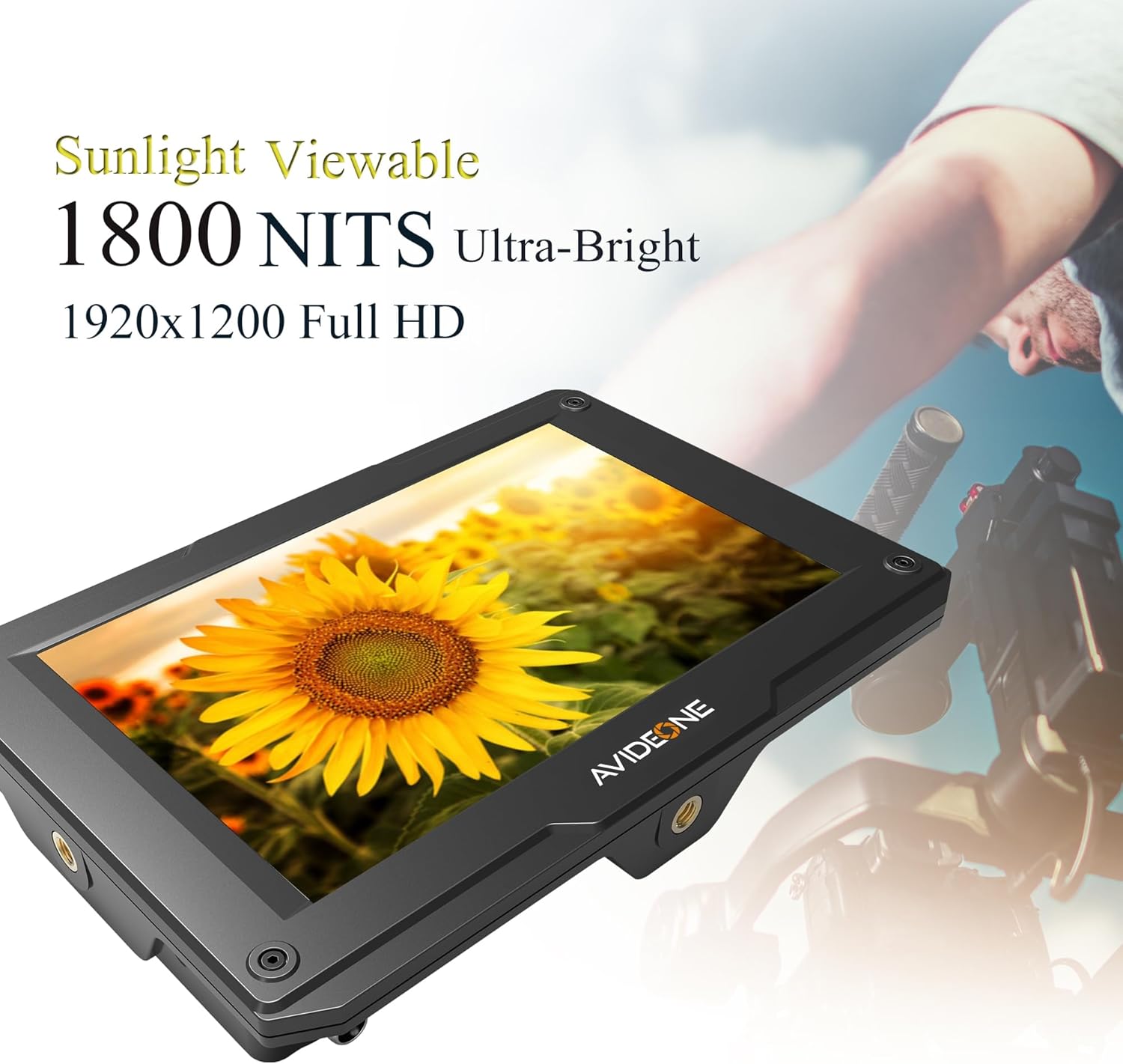
Imagem: A tela do monitor mostrandoasing its ultra-bright display, emphasizing its 1800 nits brightness and sunlight viewability, ideal for outdoor use.
Recursos avançados
- HDR (alta faixa dinâmica):
The monitor supports various HDR standards including ST2084 300, ST2084 1000, ST2084 10000, and HLG. Enable HDR in the menu to display content with a wider range of luminance, revealing more detail in both highlights and shadows.

Image: A side-by-side comparison demonstrating the visual difference between HDR OFF and HDR ON, showing improved detail and dynamic range with HDR enabled.
- 3D-LUT (Tabela de Consulta):
Utilize 3D-LUTs for accurate color representation and to preview how footage will look after color grading. The monitor includes 8 default logs and allows loading up to 6 user-defined .Cube files via a USB flash disk. Insert the USB flash disk into the USB port, navigate to the LUT menu, and select "Load User LUT".
- Ferramentas de monitoramento: Access these tools from the main menu under "Assistant" or similar categories.
- Pico: Highlights sharp edges to assist with focus.
- Cor Falsa: Displays exposure levels using a spectrum of colors.
- Exposição (Zebras): Indicates overexposed areas with zebra patterns.
- Histograma: Graphical representation of the tonal distribution of your image.
- Medidor de nível: Displays audio levels.
- Check Field (Red, Green, Blue, Mono): Isolates color channels for calibration.
- Markers & Aspect Mat (Center, Aspect, Safety, User): Overlay guides for framing and composition.
- Scan (Underscan, Overscan, Zoom, Freeze): Adjusts how the image fits the screen or allows for magnification.
- Image Flip (H, V, H/V): Flips the image horizontally, vertically, or both, useful for various mounting orientations.
- Gamma Adjustments: (1.8, 2.0, 2.2, 2.35, 2.4, 2.6) Adjust the gamma curve for different viewing preferences or production needs.
- Temperatura de cor: (6500K, 7500K, 9300K, User) Adjust the white balance of the display.
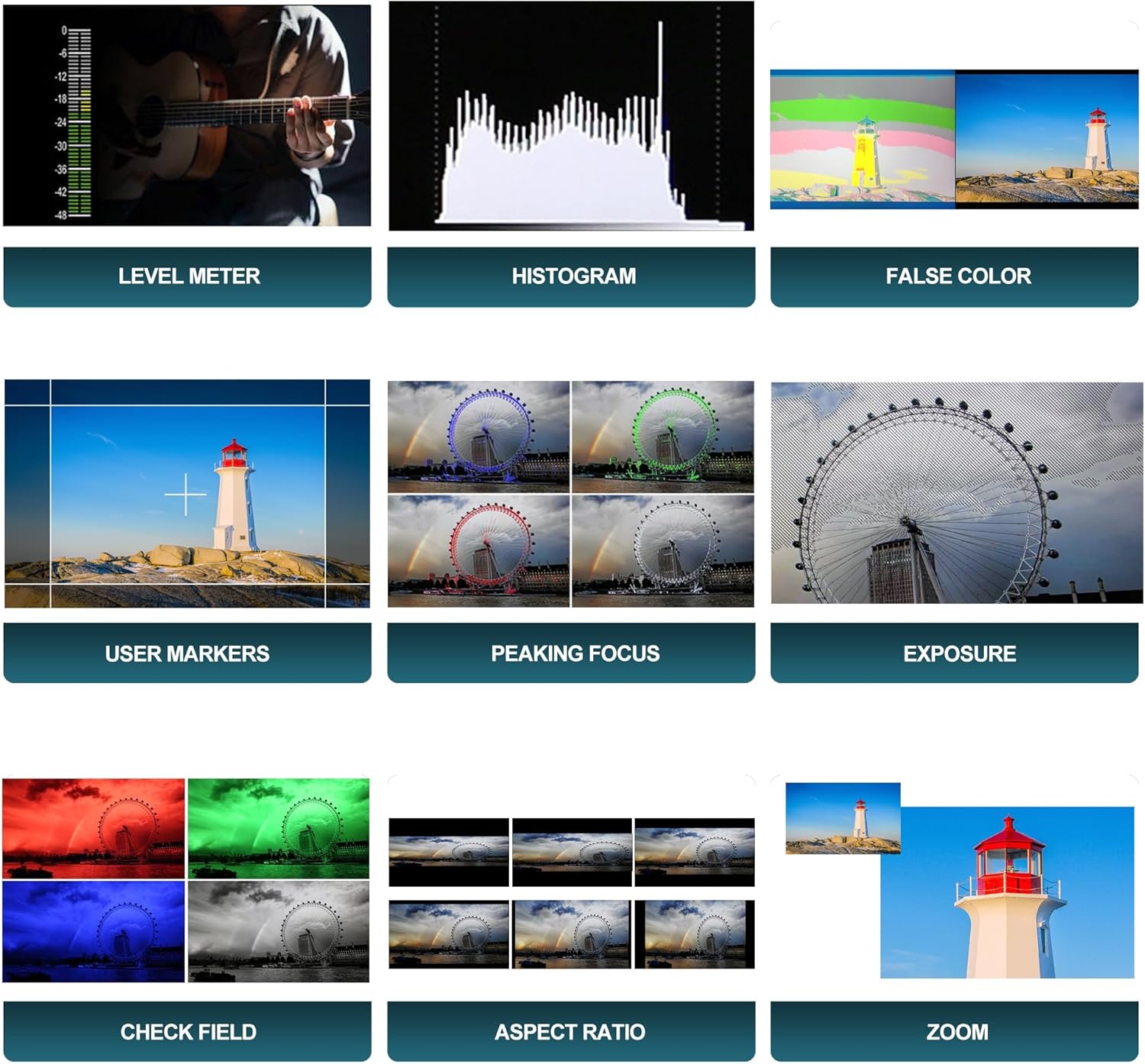
Imagem: Uma imagem composta mostrandoasing the various professional monitoring tools available on the AVIDEONE monitor, including Level Meter, Histogram, False Color, User Markers, Peaking Focus, Exposure, Check Field, Aspect Ratio, and Zoom functions.
- User-definable Function Buttons (F1 & F2):
Assign frequently used functions (e.g., Peaking, False Color, Histogram) to the F1 and F2 buttons for quick access without navigating through the menu. To assign, go to the "Function Key Settings" in the menu, select F1 or F2, and choose the desired function.
Manutenção
- Limpando a tela: Use a soft, lint-free microfiber cloth specifically designed for electronics. Gently wipe the screen to remove dust and fingerprints. For stubborn smudges, slightly dampen the cloth with distilled water or a screen-cleaning solution (ensure it's safe for LCDs) and wipe gently. Do not spray liquid directly onto the screen.
- Limpando o Corpo: Wipe the monitor's body with a soft, dry cloth. Avoid abrasive materials or harsh chemicals.
- Armazenar: When not in use, store the monitor in its carrying pouch or a protective case to prevent scratches and dust accumulation. Store in a cool, dry place away from direct sunlight.
- Cuidados com a bateria: If using batteries, ensure they are properly charged and stored according to the battery manufacturer's guidelines. Remove batteries if the monitor will not be used for an extended period.
Solução de problemas
| Problema | Possível causa | Solução |
|---|---|---|
| O monitor não liga. | No power supply; low battery; faulty power adapter/cable. | Ensure power adapter is securely connected and plugged in. Check battery charge level and replace/recharge if necessary. Try a different power source if available. |
| Sem sinal de vídeo. | Incorrect HDMI connection; camera not outputting signal; incorrect input selected. | Verify HDMI cable is securely connected to both camera and monitor. Ensure camera is powered on and set to output video. Check monitor's input source setting. Try a different HDMI cable. |
| Image is too dark/bright. | As configurações de brilho/contraste estão incorretas. | Adjust the brightness and contrast settings in the monitor's menu. |
| Colors appear incorrect. | Color temperature or color settings are off; LUT applied incorrectly. | Adjust color temperature and other color settings in the menu. Check if a 3D-LUT is active and if it's the correct one for your footage. |
| Monitor freezes or behaves erratically. | Falha temporária no software; superaquecimento. | Power off the monitor, disconnect power, wait a few seconds, then reconnect and power on. Ensure adequate ventilation to prevent overheating. |
Especificações
| Recurso | Detalhe |
|---|---|
| Tamanho da tela | 7 polegadas |
| Resolução | 1920x1200 (FHD 1080p, UXGA Wide) |
| Brilho | 1800 lêndeas |
| Proporção da tela | 16:10 |
| Superfície da tela | Lustroso |
| Entrada/Saída HDMI | HDMI 1.4 (Supports up to 4096x2160 24p and 3840x2160 30p) |
| Entrada de energia | DC 7-24V |
| Compatibilidade da bateria | NP-F series batteries (Dual plate design) |
| Suporte HDR | ST2084 300/1000/10000, HLG |
| 3D-LUT Support | 8 default logs, 6 user logs (.Cube file via USB) |
| Conectividade | USB 3.0 |
| Montagem | 1/4 inch Hot Shoe Port |
| Dimensões da embalagem | 10.2 x 7.7 x 3.2 polegadas |
| Peso do item | 2.2 libras |
| Fabricante | AVIDEONE |
| Data da primeira disponibilidade | 2 de abril de 2024 |
Garantia e Suporte
The AVIDEONE 7-inch Field Monitor comes with a one-year warranty from the date of purchase. This warranty covers manufacturing defects and malfunctions under normal use.
A garantia não cobre:
- Danos causados por uso indevido, abuso, acidente ou negligência.
- Danos causados por reparo ou modificação não autorizados.
- Desgaste normal.
- Danos causados por desastres naturais ou casos fortuitos.
For warranty claims, technical support, or any inquiries, please contact AVIDEONE customer service through the retailer where you purchased the product or visit the official AVIDEONE store on Amazon: AVIDEONE Store.