
1. Introdução
The Novation Launchkey 61 MK4 is a 61-key semi-weighted USB MIDI keyboard controller designed for comprehensive digital audio workstation (DAW) integration and music production. It features a suite of onboard creation tools, including Chord & Scale Modes, 16 velocity-sensitive drum pads with polyphonic aftertouch, and an editable Arpeggiator. The controller is engineered for musical expression and an efficient creative workflow.
Os principais recursos incluem:
- Premium Semi-Weighted Keybed: Offers a responsive playing experience.
- 16 FSR Drum Pads: With polyphonic aftertouch for dynamic drumming, clip launching, and chord triggering.
- Integração com DAW: Seamless control with major DAWs like Ableton Live, Logic Pro, Cubase, Reason, Reaper, FL Studio, and Ardour.
- Ferramentas criativas: Includes Scale Mode to prevent wrong notes, Chord Modes for quick progressions, and a powerful Arpeggiator.
- Display OLED: Provides clear visual feedback for settings and parameters, including a Chord Detector.
- NKS-Ready: Integrates with Native Instruments software for enhanced control.

2. Guia de configuração
This section outlines the steps to set up your Novation Launchkey 61 MK4 controller.
2.1. Desembalagem e Conteúdo
Retire cuidadosamente todos os componentes da embalagem. Certifique-se de que os seguintes itens estejam presentes:
- Novation Launchkey 61 MK4 Controller
- Cabo USB
- Ficha de Informações de Segurança
2.2. Conectando ao seu computador
- Place the Launchkey 61 MK4 on a stable, flat surface.
- Connect one end of the supplied USB cable to the USB port on the Launchkey 61 MK4.
- Connect the other end of the USB cable to an available USB port on your computer (PC or Mac). The Launchkey is USB-powered and does not require an external power supply.
- Your computer should automatically detect the device. For specific driver installations or software bundles, refer to the Novation website or the included safety information sheet.
2.3. Software Installation and DAW Integration
The Launchkey 61 MK4 is designed for seamless integration with various DAWs. Follow these general steps:
- Visit the official Novation weblocal (novationmusic. com) and register your product. This will grant access to included software bundles (e.g., Ableton Live Lite, Cubase LE) and any necessary drivers or firmware updates.
- Install any required drivers as instructed by Novation.
- Open your preferred DAW (e.g., Ableton Live, Logic Pro, FL Studio).
- Navigate to the DAW's preferences or settings menu, typically under 'MIDI' or 'Control Surfaces'.
- Select the Novation Launchkey 61 MK4 as a control surface and/or MIDI input device. Specific setup instructions for each DAW can be found in the Novation online documentation.

3. Instruções de operação
The Launchkey 61 MK4 offers a range of controls and features for music creation and performance.
3.1. Terminadoview de Controles
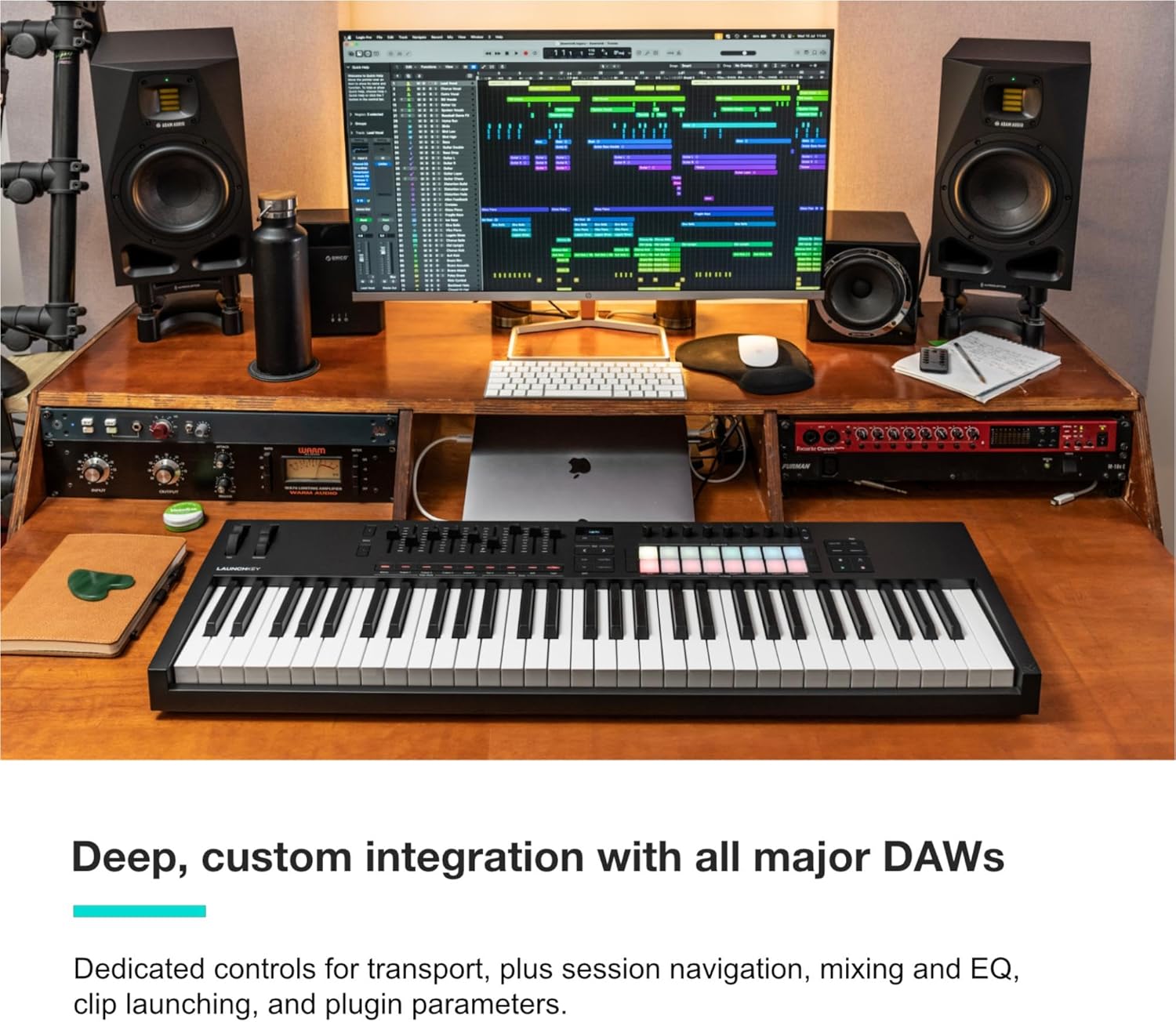
The controller features a semi-weighted keyboard, 16 velocity-sensitive pads, 8 rotary encoders, 9 faders, transport controls, and an OLED display.
3.2. DAW Control
Once integrated with your DAW, the Launchkey provides hands-on control over various functions:
- Controles de transporte: Play, Stop, Record, Loop, and other navigation functions.
- Controle do Mixer: Faders can control track volumes, while rotary encoders can adjust pan or send levels.
- Device and Effect Control: Encoders and faders can be mapped to control parameters of virtual instruments and effects within your DAW.
- Clip Launching: The 16 pads can be used to launch clips and scenes in compatible DAWs like Ableton Live.
3.3. FSR Drum Pads
The 16 FSR (Force Sensing Resistor) pads are highly responsive and offer polyphonic aftertouch, allowing for expressive performances. They can be used for:
- Drum programming and finger drumming.
- Triggering samples and loops.
- Launching clips and scenes in Ableton Live.
- Acting as step sequencers or chord triggers.

3.4. Modos Criativos: Acorde, Escala e Arpejador
The Launchkey 61 MK4 includes powerful tools to enhance your musical creativity:
- Modo de escala: This mode ensures that any note you play will be in the selected scale, preventing incorrect notes and facilitating melodic exploration.
- Modos de acordes: Three distinct Chord Modes allow you to trigger complex musical progressions from a single key or pad. The OLED display can show the currently played chord.
- Arpejador: The unique and editable Arpeggiator can generate rhythmic and melodic patterns from held notes. Parameters such as rate, direction, and octave range can be adjusted.

3.5. Software Bundle
Your Launchkey 61 MK4 includes a comprehensive software bundle to get you started with music production. This typically includes:
- Ableton Live Lite
- Cubase LE
- Sounds and instruments from GForce, Klevgrand, Orchestral Tools, and Native Instruments.
- Melodics lessons for learning to play.
Access to these resources is usually provided upon product registration on the Novation website.

4. Manutenção
Proper care and maintenance will ensure the longevity and optimal performance of your Launchkey 61 MK4.
4.1. Limpeza
- Desconecte sempre o cabo USB antes de limpar.
- Use a soft, dry, lint-free cloth to wipe the surface of the controller.
- Para sujeira persistente, levementeampMolhe o pano com água. Evite usar produtos químicos agressivos, produtos de limpeza abrasivos ou solventes, pois podem danificar o acabamento e os componentes eletrônicos.
- Não permita que líquidos entrem em nenhuma abertura.
4.2. Armazenamento e Manuseio
- Guarde o controlador em local fresco e seco, longe da luz solar direta, temperaturas extremas e alta umidade.
- Evite colocar objetos pesados sobre o controle.
- When transporting the device, use a protective case to prevent damage from impacts or dust.
- Do not attempt to disassemble the unit. Refer to qualified service personnel for any repairs.
5. Solução De Problemas
This section addresses common issues you might encounter with your Launchkey 61 MK4.
5.1. No Power/Device Not Recognized
- Verifique a conexão USB: Ensure the USB cable is securely connected to both the Launchkey and your computer. Try a different USB port or cable.
- Potência do computador: Certifique-se de que seu computador esteja ligado e não em modo de suspensão.
- Motoristas: Verify that the necessary drivers are installed. Check the Novation website para os drivers mais recentes.
- Reiniciar: Try restarting your computer and the Launchkey (by unplugging and replugging the USB cable).
5.2. No Sound or MIDI Output
- DAW Settings: In your DAW's preferences, ensure the Launchkey 61 MK4 is selected as a MIDI input device and that the correct track is armed for recording or receiving MIDI.
- Instrument Loaded: Verify that a virtual instrument or sound is loaded and active in your DAW.
- Níveis de volume: Check the volume levels on your DAW, computer, and audio interface.
- Canal MIDI: Ensure the Launchkey and your DAW/instrument are communicating on the same MIDI channel.
5.3. Controls Not Responding Correctly
- DAW Mapping: Confirm that the controls (faders, knobs, pads) are correctly mapped within your DAW. Some DAWs require manual mapping for certain functions.
- Firmware: Check the Novation website for any available firmware updates for your Launchkey. Updating firmware can resolve performance issues.
- Restauração de fábrica: As a last resort, performing a factory reset on the Launchkey may resolve persistent issues. Refer to the Novation documentation for instructions on how to perform a factory reset.
6. Especificações
| Recurso | Detalhe |
|---|---|
| Nome do modelo | Launchkey 61 [MK4] |
| Marca | Novação |
| Número de teclas do teclado | 61 |
| Tipo de chave | Semi-ponderado |
| Tecnologia de Conectividade | USB |
| interface de hardware | USB, MIDI |
| Dispositivos compatíveis | PC, sintetizador, groovebox |
| Sistema operacional | Mac OS, Windows OS |
| Nome da cor | Preto |
| Material do corpo | Plástico |
| Peso do item | 10.5 libras (4.76 kg) |
| Dimensões do produto | 35.2 x 10.3 x 3.6 polegadas (89.4 x 26.2 x 9.1 cm) |
| Características especiais | Scale and Chord modes, Arpeggiator, FSR Drum Pads with Polyphonic Aftertouch |
7. Garantia e Suporte
7.1. Informações de garantia
Novation products typically come with a manufacturer's warranty. For detailed information regarding the warranty period and terms for your Launchkey 61 MK4, please refer to the warranty card included with your product or visit the official Novation website.
7.2. Suporte ao cliente
For technical assistance, product registration, driver downloads, firmware updates, or further documentation, please visit the official Novation support page:
You can also explore the Novation brand store on Amazon for additional product information and accessories: