
Dopesplay DR1451
Dopesplay 14" FHD 1200P IPS Laptop Screen Extender User Manual
Modelo: DR1451
Marca: Dopesplay
Introdução
The Dopesplay 14" FHD 1200P IPS Laptop Screen Extender is designed to enhance your productivity by providing an additional display for your laptop. Featuring a 1920x1200 FHD IPS screen with a 16:10 aspect ratio and 1000:1 contrast ratio, it delivers crisp, clear, and vibrant visuals. Its detachable and foldable design makes it highly portable, ideal for professionals on the go. This manual provides comprehensive instructions for setup, operation, and troubleshooting to ensure optimal use of your new screen extender.
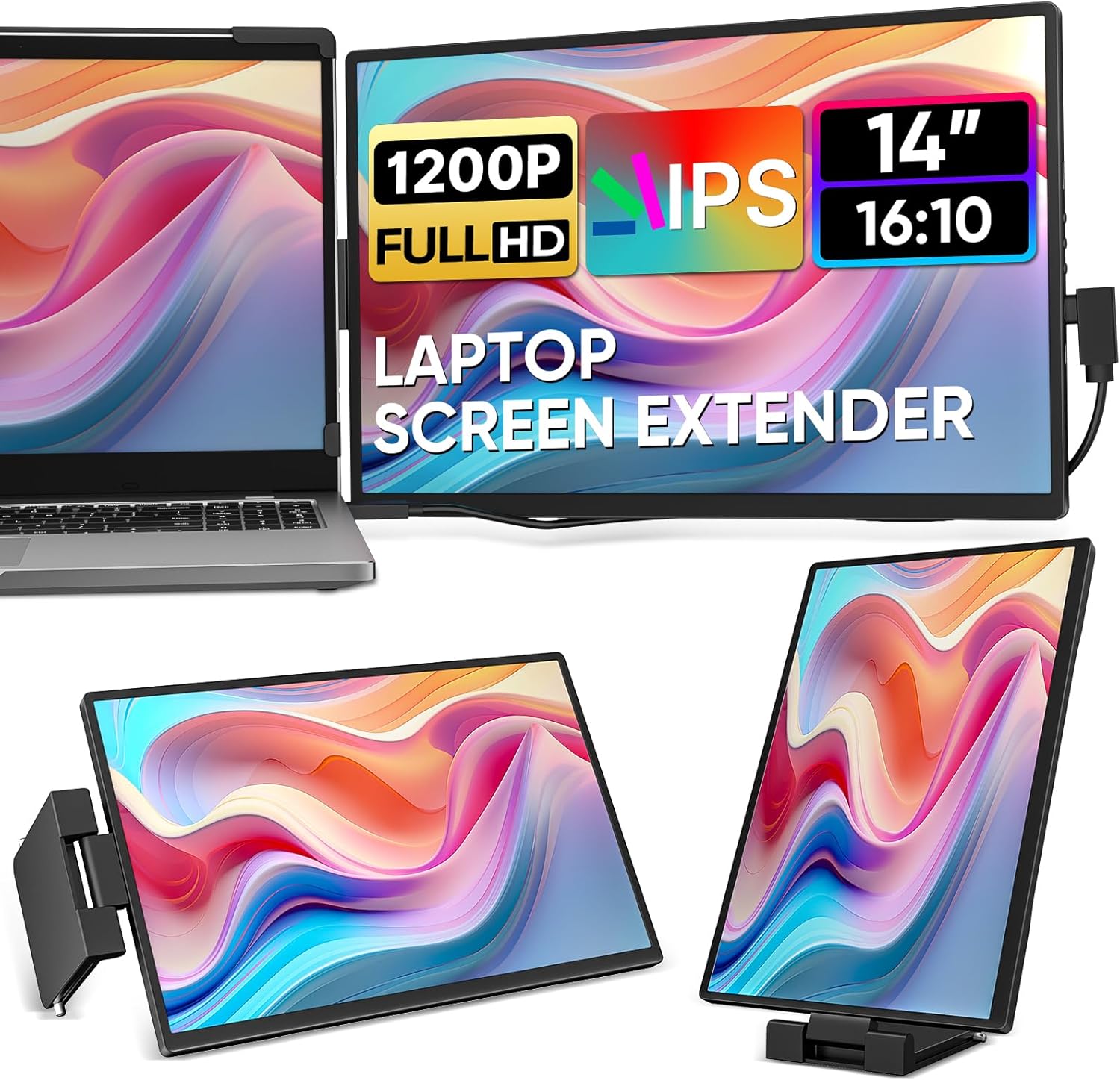
Figure 1: Dopesplay 14" FHD 1200P IPS Laptop Screen Extender in use with a laptop, demonstrating its dual-screen capability and compact design.
O que está na caixa
Please ensure all components are present in your package:
- 1 x 14.1" Portable Monitor
- 1 x Support with Kickstand
- 1 x cabo USB-C para USB-C
- 1 x cabo USB-A para USB-C
- 1 x Mini HDMI para cabo HDMI

Figure 2: All items included in the Dopesplay Laptop Screen Extender package.
Guia de configuração
Compatibilidade
The Dopesplay laptop screen extender is compatible with 14"-17.3" laptops. It supports a wide range of full-featured Type-C or Thunderbolt 3/4 devices, including Windows, Mac, Chrome, Android, Dell, HP, PS4/5, Xbox, and Switch. Ensure your laptop's Type-C port supports video signal transmission and power delivery for full functionality.

Figure 3: The screen extender offers broad compatibility with various operating systems and devices.

Figure 4: Important information regarding Type-C port features for compatibility verification.
Instalação
Setting up the monitor is straightforward and requires no additional software or drivers. It's ready to use in seconds.
Vídeo 1: Uma rápida revisãoview of the 14" FHD 1200P IPS External Portable Monitor for Laptop, demonstrating its features and ease of setup. (Duration: 0:23)
Video 2: Demonstrates the Laptop Screen Extender's physical setup and connection. (Duration: 0:43)
Opções de conexão:
- Single Type-C Connection: If your laptop has a full-featured Type-C port, you can connect the second monitor with one single USB-C to USB-C cable.
- Conexão HDMI e USB-A: If your laptop does not have a full-featured Type-C port, you can connect the second monitor using the Mini HDMI to HDMI cable and the USB-A to USB-C cable for power and data.

Figure 5: Visual guide for connecting the screen extender to your laptop.

Figure 6: Single Type-C connection for simplified setup.

Figure 7: HDMI and USB-A connection for laptops without full-featured Type-C ports.
Instruções de operação
Modos de exibição
The Dopesplay screen extender supports multiple display modes to suit your workflow:
- Duplicated Display: Mirrors your laptop's screen.
- Tela estendida: Extends your desktop, allowing for more screen real estate for multitasking.
- Exibição em modo retrato: Rotates the extended screen vertically, ideal for viewing documents or code.

Figure 8: Various display modes available for Mac OS and Windows users.
Ajustando as configurações de exibição
The monitor offers customization options for brightness, contrast, and backlight. Use the physical buttons on the side of the monitor to access the OSD (On-Screen Display) menu and adjust settings to your preferences.

Figure 9: Key display specifications and features of the screen extender.
The screen extender also features flexible adjustment options, including vertical/horizontal screen positions, free rotation (360°), and an adjustable kickstand for optimal viewconforto.

Figure 10: Explore the various ways to position your screen extender for maximum comfort and utility.
Recursos de produtividade
This dual screen monitor is designed to boost your productivity significantly. Its decent size, detachable, and foldable design allows it to fit easily into your travel backpack, making it a must-have for work travel if you are used to multiple screens.

Figure 11: The screen extender transforms your laptop into a powerful multitasking workstation.
Especificações do produto
| Recurso | Especificação |
|---|---|
| Dimensões do produto | 1.18 x 12.6 x 8.27 polegadas |
| Peso do item | 3.85 libras |
| Fabricante | Dopesplay |
| ASIN | B0D7V6FGCD |
| Número do modelo do item | DR1451 |
| Data da primeira disponibilidade | 24 de junho de 2024 |
| Tamanho de exibição de tela em pé | 14.1 |
| Proporção da tela | 16:10 |
| Volumetage | 5 Volts |
| Resolução | 1920 x 1200 pixels |
| Brilho da imagem | 250 vela |
| Total de portas USB | 2 |
| Tamanho da tela | 14.1 |
| Resolução | Resolução máxima de 1200p |
| Descrição da superfície da tela | Fosco |
Solução de problemas
If you encounter any issues, please refer to the common problems and solutions below:
- Q1: Why is the screen flickering or going black?
A1: Check USB-C, USB-A, and HDMI Port Connection. Poor contact can easily lead to screen flickering.
A2: Insufficient Power Supply. Some devices may have a weaker power supply capacity for the screen extender, which can lead to insufficient power and screen flickering. Therefore, it is necessary to connect the charger for power supply when using it. - Q2: The screen displays "No Signal"
A1: Check USB-C or HDMI Port Connection. Poor contact can easily lead to screen flickering.
A2: Display Compatibility Issues. You can try replacing the laptop to see if the "No Signal" issue persists. - Q3: Do I need to install any drivers to use the monitor?
R: Não.

Figure 12: Common troubleshooting steps for the Dopesplay screen extender.
Garantia e Suporte
Dopesplay provides a 1-year quality guarantee for this product. If any accessories are missing or you receive a broken item in the package, please do not hesitate to contact Dopesplay customer-centric support for assistance. They offer 24-hour support to address your concerns.
Ask a question about this manual
Ask about setup, troubleshooting, compatibility, parts, safety, or missing instructions. Manuals+ will review the question and use this page’s manual context to help answer it.