
Logitech 920-012670
Logitech G915 X Lightspeed Wireless Mechanical Gaming Keyboard User Manual
Modelo: 920-012670 | Marca: Logitech
Introdução
This manual provides comprehensive instructions for the setup, operation, maintenance, and troubleshooting of your Logitech G915 X Lightspeed Wireless Mechanical Gaming Keyboard. Designed for high-performance gaming and versatile connectivity, this keyboard features LIGHTSPEED wireless technology, GL mechanical switches, customizable G-keys, and LIGHTSYNC RGB lighting. Please read this manual thoroughly to ensure optimal use and longevity of your device.

Imagem: Vista de cima para baixo view of the Logitech G915 X Lightspeed Wireless Mechanical Gaming Keyboard, showcasing seu layout completo e retroiluminação RGB.
O que está na caixa
Upon unboxing your Logitech G915 X Lightspeed keyboard, verify that all the following components are present:
- Logitech G915 X Lightspeed Wireless Mechanical Gaming Keyboard
- LIGHTSPEED USB Receiver
- Extensor USB
- USB-C Data/Charging Cable
- Documentação do usuário (este manual)

Image: All components included in the Logitech G915 X keyboard packaging, including the keyboard, USB-A to USB-C cable, USB extender, and USB wireless receiver.
Configurar
Carregamento inicial
Antes da primeira utilização, recomenda-se carregar totalmente o teclado.
- Connect the supplied USB-C data/charging cable to the USB-C port on the keyboard (located on the top edge).
- Connect the other end of the cable (USB-A) to a powered USB port on your computer or a USB wall adapter.
- The battery indicator light on the keyboard will show charging status. A full charge typically takes approximately 4 hours.
Conectando o teclado
The G915 X offers three connectivity options: LIGHTSPEED Wireless, Bluetooth, and Wired USB.

Image: Close-up of the Logitech G915 X keyboard's connectivity buttons (LIGHTSPEED, Bluetooth, Wired) located above the F5-F8 keys.
LIGHTSPEED Wireless (Recommended for Gaming)
- Locate the LIGHTSPEED USB receiver. For optimal signal, use the USB extender to position the receiver closer to the keyboard.
- Plug the LIGHTSPEED USB receiver into an available USB-A port on your computer.
- On the keyboard, slide the power switch to the ON position (located on the top right).
- Press the LIGHTSPEED button (indicated by a wireless signal icon) on the keyboard. The indicator light above the button will turn solid cyan when connected.
Conectividade Bluetooth
- Certifique-se de que o teclado esteja ligado.
- Press and hold the Bluetooth button (indicated by a Bluetooth icon) on the keyboard until the indicator light above it starts blinking blue rapidly. This indicates pairing mode.
- On your computer or device, navigate to Bluetooth settings and select "G915 X" from the list of available devices.
- The indicator light will turn solid blue when successfully paired.
Modo USB com fio
- Connect the USB-C data/charging cable to the keyboard and the USB-A end to your computer.
- O teclado mudará automaticamente para o modo com fio e começará a carregar.
Instruções de operação
Principais recursos acimaview
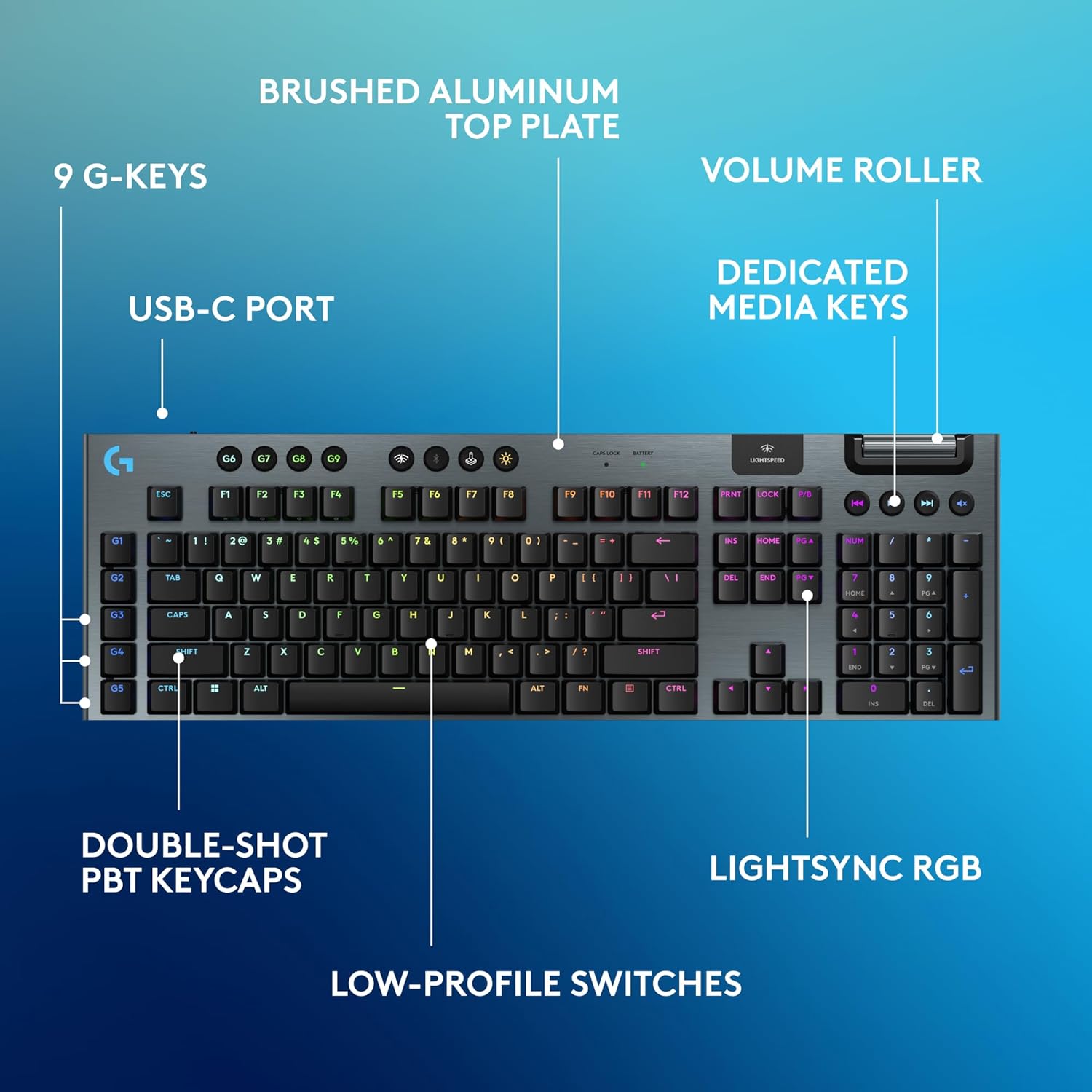
Image: Diagram highlighting key features of the Logitech G915 X keyboard, including G-keys, USB-C port, double-shot PBT keycaps, low-profile switches, brushed aluminum top plate, volume roller, dedicated media keys, and LIGHTSYNC RGB.
- GL Mechanical Switches: Low-Profile switches designed for speed, precision, and comfort with a 1.3mm actuation point.
- LIGHTSPEED Wireless: Pro-grade wireless technology for ultra-fast and reliable connection.
- Bluetooth: For connecting to other devices that support Bluetooth.
- Teclas de mídia dedicadas: Control audio and video playback with ease.
- Rolo de Volume: Smoothly adjust audio volume.
- LIGHTSYNC RGB: Customizable per-key RGB lighting with approximately 16.8 million colors.
- G-Keys (G1-G5): Five dedicated programmable macro keys on the left side of the keyboard.
- Teclas PBT de dupla injeção: Durable keycaps resistant to wear and shine.
Customizing with G HUB Software
To unlock the full potential of your G915 X keyboard, download and install the Logitech G HUB software from the official Logitech website. G HUB allows for extensive customization.
- G-Key Programming: Assign custom macros, commands, or system functions to the G1-G5 keys. You can create multiple profilepara diferentes jogos ou aplicações.
- LIGHTSYNC RGB Customization: Personalize lighting effects, colors, and animations. Sync lighting with other Logitech G devices.
- Modo de jogo: Disable specific keys (e.g., Windows key) during gaming to prevent accidental interruptions.
- KEYCONTROL: Set up to 15 functions per key for advanced control.

Image: Screenshot of the Logitech G HUB software interface showing options for customizing commands and assigning functions to G-keys on the G915 X keyboard.
Media Controls and Volume
Dedicated media controls and a volume roller are located on the top right of the keyboard for quick access.
- Rolo de Volume: Roll up to increase volume, roll down to decrease.
- Media Buttons:
- Faixa anterior
- Reproduzir/Pausar
- Próxima faixa
- Mudo
Gerenciamento de bateria
The Logitech G915 X keyboard provides up to 36 hours of continuous battery life with lighting enabled. Battery life may vary based on usage and lighting intensity.
- Indicador de bateria: A dedicated battery indicator light is located near the LIGHTSPEED logo on the top right. It changes color to indicate battery level.
- Carregamento: Connect the USB-C cable to the keyboard and a powered USB port. You can continue to use the keyboard in wired mode while it charges.
- Economia de energia: The keyboard will enter a low-power state after a period of inactivity to conserve battery.
Manutenção
A manutenção adequada garante a longevidade e o bom desempenho do seu teclado.
- Limpeza das teclas: Use um pano macio e sem fiapos levementeampLimpe com água ou uma solução de limpeza suave. Evite produtos químicos agressivos.
- Removing Dust/Debris: Use compressed air to clear dust and debris from between the keycaps and switches.
- Limpeza de superfícies: Wipe the aluminum top plate with a soft, dry cloth.
- Armazenar: Quando não estiver em uso por longos períodos, guarde o teclado em local seco e fresco, longe da luz solar direta.
Solução de problemas
If you encounter issues with your Logitech G915 X keyboard, refer to the following common troubleshooting steps.
| Problema | Solução possível |
|---|---|
| Teclado não responde (sem fio) |
|
| Problemas de conexão Bluetooth |
|
| Teclas não registram ou digitam duas vezes. |
|
| A iluminação RGB não está funcionando ou está incorreta. |
|
| G-keys or macros not working |
|
Especificações
| Recurso | Detalhe |
|---|---|
| Número do modelo | 920-012670 |
| Conectividade | LIGHTSPEED Wireless (2.4 GHz RF), Bluetooth, Wired USB-C |
| Tipo de interruptor | GL Tactile Mechanical Switches (Low-Profile) |
| Ponto de atuação | 1.3 milímetros |
| Distância total de viagem | 3.2 milímetros |
| Keycaps | PBT de dose dupla |
| Iluminação | LIGHTSYNC RGB (Per-key customizable) |
| Teclas programáveis | 5 dedicated G-keys, up to 15 functions per key via KEYCONTROL |
| Duração da bateria | Up to 36 hours (with lighting) |
| Tempo de carregamento | Aproximadamente 4 horas |
| Dimensões (CxLxA) | 18.7 x 5.91 x 0.87 polegadas (47.5 x 15 x 2.2 cm) |
| Peso | 2.38 libras (1.08 kg) |
| Material | Aluminum top plate |
| Compatibilidade do sistema operacional | PC, Mac OS |
Garantia e Suporte
Logitech products are designed for durability and performance. For information regarding warranty coverage, technical support, and frequently asked questions, please visit the official Logitech support website.
Suporte Logitech Website: https://support.logi.com/
Para proteção adicional, considere a compra deasing an extended protection plan available at the time of purchase.
Ask a question about this manual
Ask about setup, troubleshooting, compatibility, parts, safety, or missing instructions. Manuals+ will review the question and use this page’s manual context to help answer it.