
1. Introdução
This manual provides detailed instructions for the ZJchao A80 Portable Thermal Printer. This compact, inkless printer utilizes thermal technology to produce clear prints from various devices, making it suitable for office, travel, and personal use. Please read this manual thoroughly before operating the device to ensure proper usage and longevity.
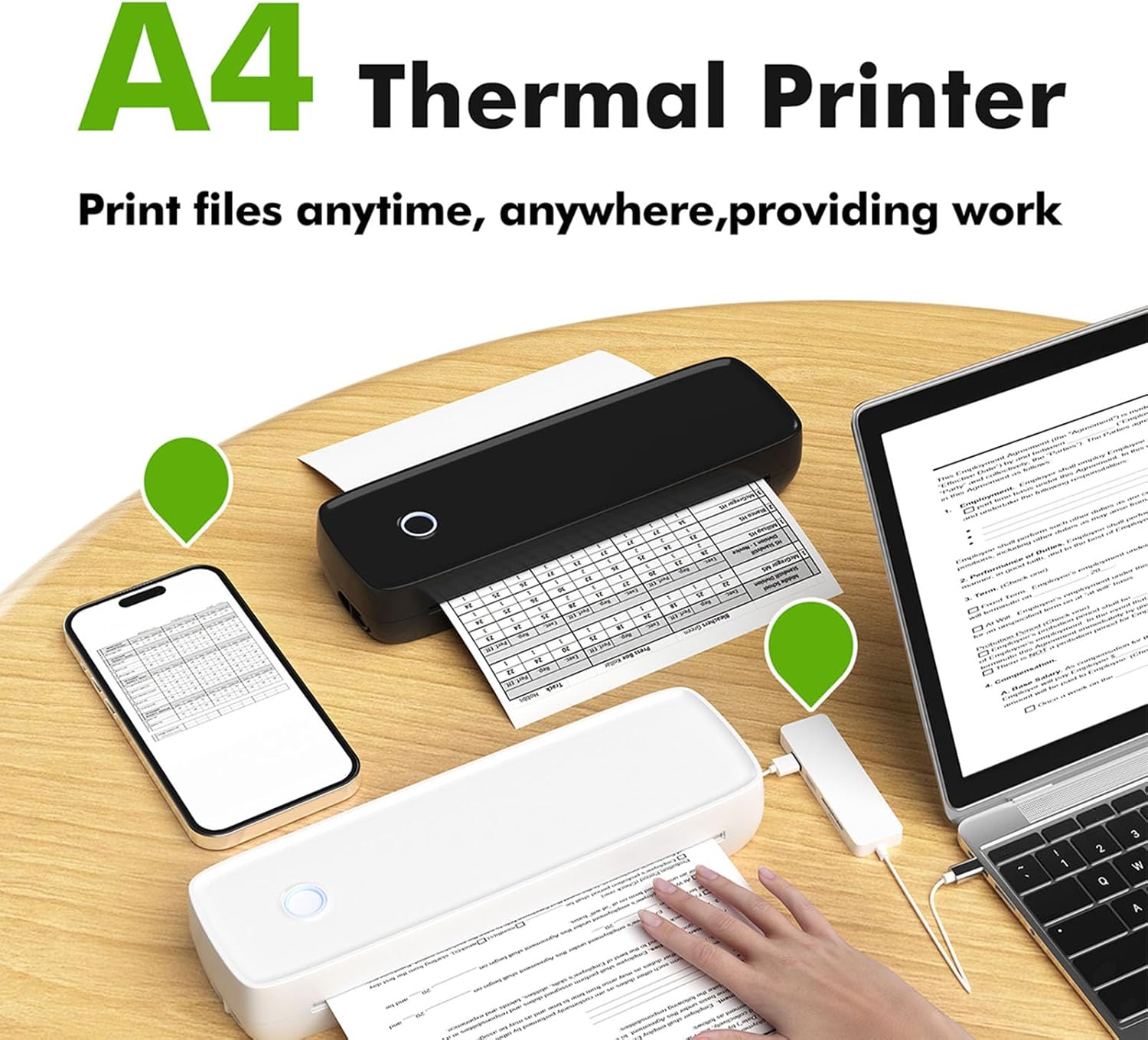
Image: The ZJchao A80 Portable Thermal Printer connected to a smartphone and laptop, demonstrating its versatility for printing documents on the go.
2. Recursos do Produto
- Impressão térmica sem tinta: Utilizes advanced thermal technology, eliminating the need for ink cartridges or toners. This ensures faster operation, reduced environmental impact, and requires only thermal printing paper.
- Conectividade móvel perfeita: Easily connects to smartphones (iOS and Android) and PCs via Bluetooth 2.0/4.0 or USB. Supports printing of various file types including PDF, Word, Excel, Txt, and Jpg with high resolution.
- Design compacto e portátil: With dimensions of approximately 290 x 90 x 60mm (11.4 x 3.5 x 2.4 inches) and a durable ABS shell, this mini printer is lightweight and designed for portability, fitting easily into bags for business trips, travel, or mobile learning.
- Operação sem fio: Equipped with a built-in 2600mAh battery, allowing for printing anytime, anywhere without being tethered to a power outlet.
- Aplicação versátil: Ideal for a wide range of users including professionals, students, teachers, and shop staff, providing convenience and efficiency for various printing needs.

Image: A visual comparison highlighting the clear and detailed print quality achieved by the ZJchao A80 Thermal Printer compared to another printer.
3. Conteúdo da embalagem
Ao desembalar, verifique se todos os seguintes itens estão incluídos na sua embalagem:
- 1 x ZJchao A80 Cordless Thermal Printer
- 1 x cabo de carregamento USB (tipo-C)
- 1 x Thermal Printing Paper Roll
- 1 x Manual do Usuário

Image: The ZJchao A80 Portable Thermal Printer, a USB charging cable, and a roll of thermal paper, representing the standard package contents.
4. Especificações
| Tipo de item | Impressora térmica Bluetooth |
| Material | ABS + Componentes Eletrônicos |
| Entrada | 5 V, 2 A |
| Porta de carregamento | Tipo C |
| Tamanho da impressora | Aproximadamente 290 x 90 x 60 mm / 11.4 x 3.5 x 2.4 polegadas |
| Velocidade de impressão | Up to 10mm/s (maximum) |
| Resolução | 203 dpi |
| Tipo de impressão | Impressão térmica |
| Applicable Printing Paper | Papel para impressora térmica |
| Largura de impressão | Up to 211.2mm (maximum) |
| Interface de conexão | USB/BT2.0 & BT4.0 |
| Temperatura de operação | 0°C a +40°C |
| Tempo de espera | Aproximadamente 30 dias |
| Tempo de carregamento | Aproximadamente 1.5 horas |
| Dispositivos suportados | Mobile devices (iOS and Android), PC (Windows, iOS tablet) |
| Supported Printing Scenes | Office, Travel, Learning, Meetings, Labels, etc. |

Image: A diagram illustrating the physical dimensions (length, width, height) of the ZJchao A80 Portable Thermal Printer.
5. Guia de configuração
5.1 Carregamento Inicial
Before first use, ensure the printer is fully charged. Connect the provided USB Type-C charging cable to the printer's charging port and a compatible power adapter (not included). The charging indicator light will typically show charging status and turn off or change color when fully charged. Charging time is approximately 1.5 hours.
5.2 Ligar/Desligar
To power on the printer, long press the power button located on the top surface until the indicator light illuminates. To power off, long press the power button again until the indicator light turns off.

Imagem: Um close-up view of the circular power button on the top of the ZJchao A80 Portable Thermal Printer.
5.3 Installing the Application
For mobile device printing, you need to install the dedicated application. Scan the QR code provided in the physical user manual or on the product packaging with your smartphone. The app is compatible with both iOS and Android devices.
5.4 Carregando papel térmico
- Gently open the printer's paper compartment cover.
- Insert a roll of thermal printing paper into the compartment, ensuring the printing surface of the paper faces the print head.
- Puxe um pequeno pedaço de papel para além da borda de corte.
- Feche bem a tampa do compartimento de papel até ouvir um clique.
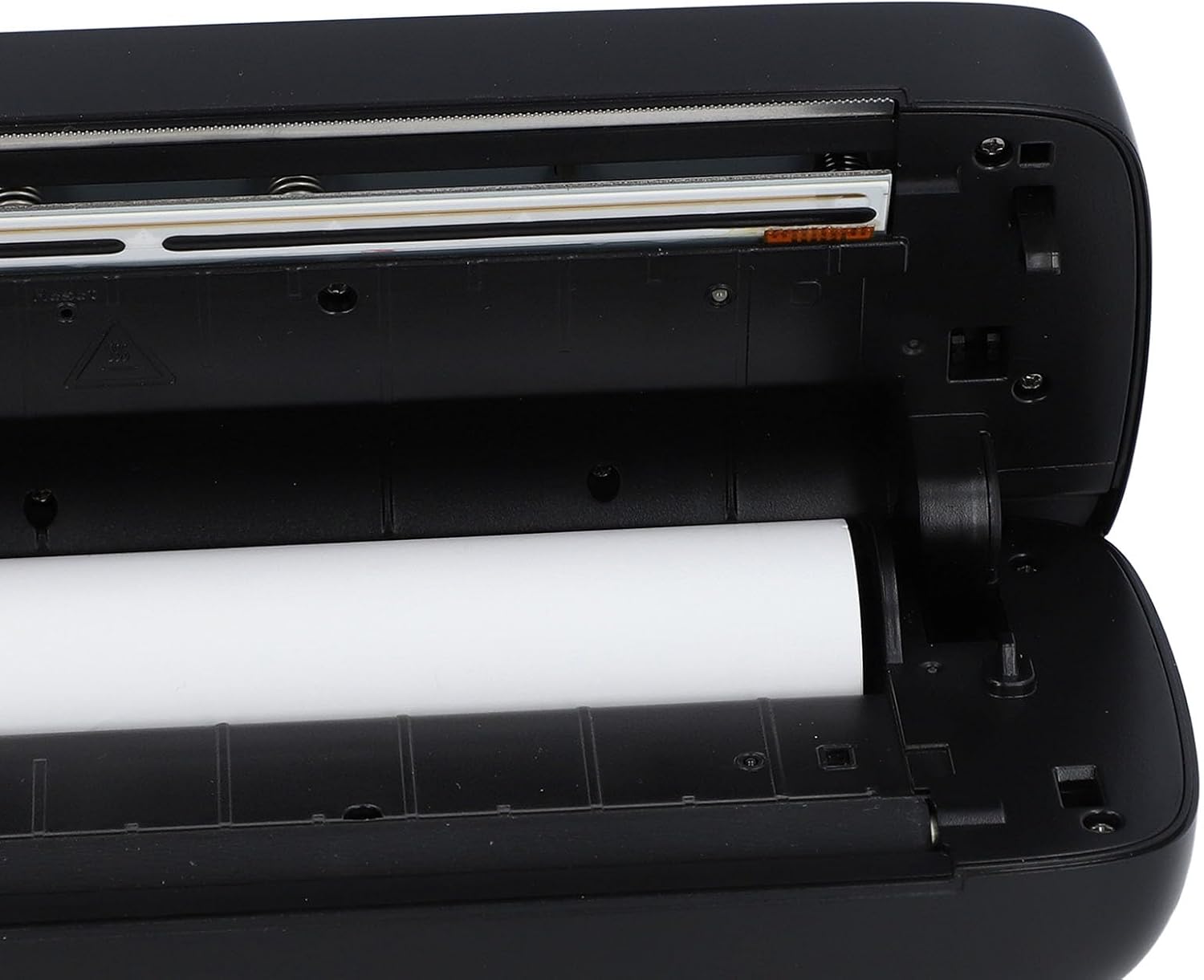
Imagem: Um espaço aberto view of the ZJchao A80 Portable Thermal Printer's interior, showing the correct placement of a thermal paper roll.

Image: The ZJchao A80 Portable Thermal Printer with its cover open, illustrating the process of loading thermal paper into the device.
6. Instruções de operação
6.1 Conectando via Bluetooth
- Certifique-se de que a impressora esteja ligada e dentro do alcance do Bluetooth do seu dispositivo móvel.
- Open the installed ZJchao printer application on your smartphone.
- Within the app, navigate to the device connection settings (usually indicated by a Bluetooth icon or 'Connect Printer').
- Select your printer from the list of available Bluetooth devices. The printer's name typically includes 'A80' or 'ZJchao'.
- Após a conexão, o aplicativo indicará que a conexão foi bem-sucedida.
6.2 Impressão de Documentos
- After connecting the printer, open the document or image you wish to print within the ZJchao app. The app supports various formats like PDF, Word, Excel, Txt, and Jpg.
- Adjust print settings such as print density, number of copies, or paper size if available within the app.
- Initiate the print command. The printer will begin feeding the thermal paper and printing your document.
- Once printing is complete, tear off the printed document using the serrated edge on the printer.
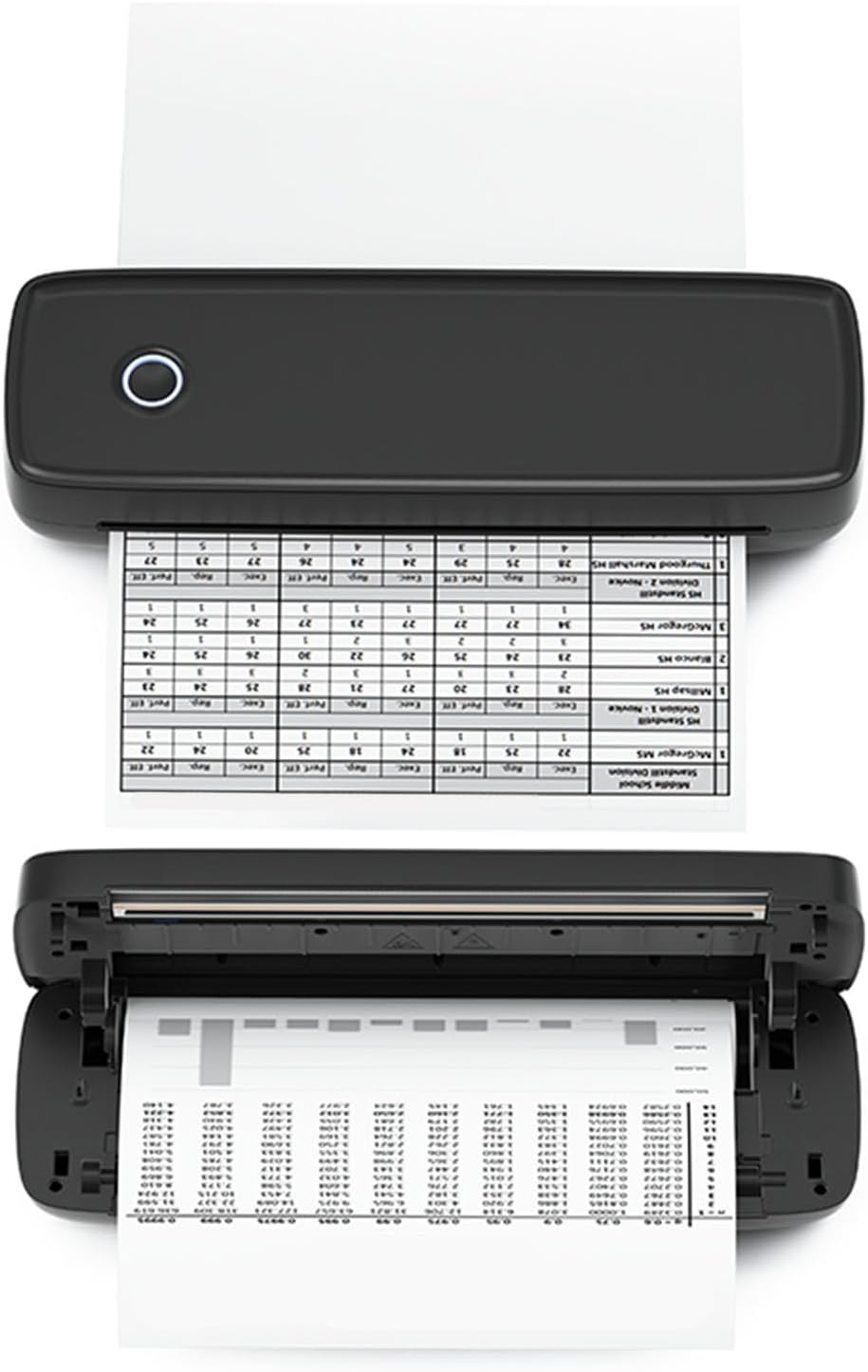
Image: The ZJchao A80 Portable Thermal Printer actively printing a document, with the paper emerging from the output slot.
7. Manutenção
7.1 Limpeza da cabeça de impressão
To maintain optimal print quality, periodically clean the print head. Ensure the printer is turned off and cooled down before cleaning. Use a soft, lint-free cloth lightly dampLimpe delicadamente a cabeça de impressão com álcool isopropílico. Evite tocar na cabeça de impressão com as mãos desprotegidas.
7.2 Thermal Paper Storage
Store thermal paper in a cool, dry place away from direct sunlight, heat, and humidity. Exposure to these elements can degrade the paper's thermal coating, leading to faded or unreadable prints.
7.3 Cuidados com a bateria
To prolong battery life, avoid fully discharging the printer frequently. If the printer will not be used for an extended period, charge it to approximately 50% before storage and recharge it every few months.
8. Solução De Problemas
8.1 Impressora não responde
- Verifique a potência: Ensure the printer is turned on and has sufficient battery charge. Connect it to a power source if the battery is low.
- Reiniciar: Desligue a impressora e ligue-a novamente.
8.2 Qualidade de impressão ruim
- Confira o documento: Ensure you are using thermal paper and it is loaded correctly with the printing side facing the print head.
- Cabeça de impressão limpa: A dirty print head can cause streaks or faded prints. Refer to Section 7.1 for cleaning instructions.
- Ajustar densidade: If available in the app, try increasing the print density setting.
8.3 Problemas de conexão Bluetooth
- Printer On: Confirm the printer is powered on and its Bluetooth indicator is active.
- Bluetooth do dispositivo: Ensure Bluetooth is enabled on your mobile device or PC.
- Esqueça o dispositivo: If previously paired, try 'forgetting' the printer in your device's Bluetooth settings and re-pairing.
- Conexão do aplicativo: Ensure you are connecting through the ZJchao application, not directly through your device's Bluetooth settings.
9. Garantia e Suporte
The ZJchao A80 Portable Thermal Printer comes with a standard manufacturer's warranty. For specific warranty terms, duration, and conditions, please refer to the warranty card included in your product packaging or contact ZJchao customer support directly. If you encounter any issues not covered in this manual or require further assistance, please reach out to the manufacturer's support team through their official website or contact information provided with your purchase.