
Introdução
This manual provides essential information for the proper setup, operation, maintenance, and troubleshooting of your KTC H27T27 27-inch WQHD IPS Flat Monitor. Please read this manual thoroughly before using the product to ensure optimal performance and safety.
The KTC H27T27 monitor features a 27-inch WQHD (2560x1440) IPS panel with a 100Hz refresh rate, designed to deliver clear and detailed images with smooth motion. It includes FreeSync technology for enhanced visual fluidity during dynamic content. The IPS panel ensures vivid colors and wide viewângulos de inclinação.

Figure 1: KTC H27T27 27-inch WQHD IPS Flat Monitor Front View
Configurar
1. Desembalagem
Carefully remove all components from the packaging. Ensure all items listed in the packing list are present and undamaged. Retain the original packaging for future transport or service needs.
2. Montagem do Suporte
- Coloque o monitor com a tela virada para baixo sobre uma superfície macia e limpa para evitar arranhões.
- Fixe a base do suporte ao braço do suporte utilizando os parafusos fornecidos.
- Alinhe o suporte montado com a ranhura de montagem na parte traseira do monitor e fixe-o firmemente.
3. Montagem VESA (Opcional)
The monitor supports VESA 100x100mm mounting. If using a VESA mount, remove the stand and attach the VESA compatible bracket to the monitor's rear panel using appropriate screws.
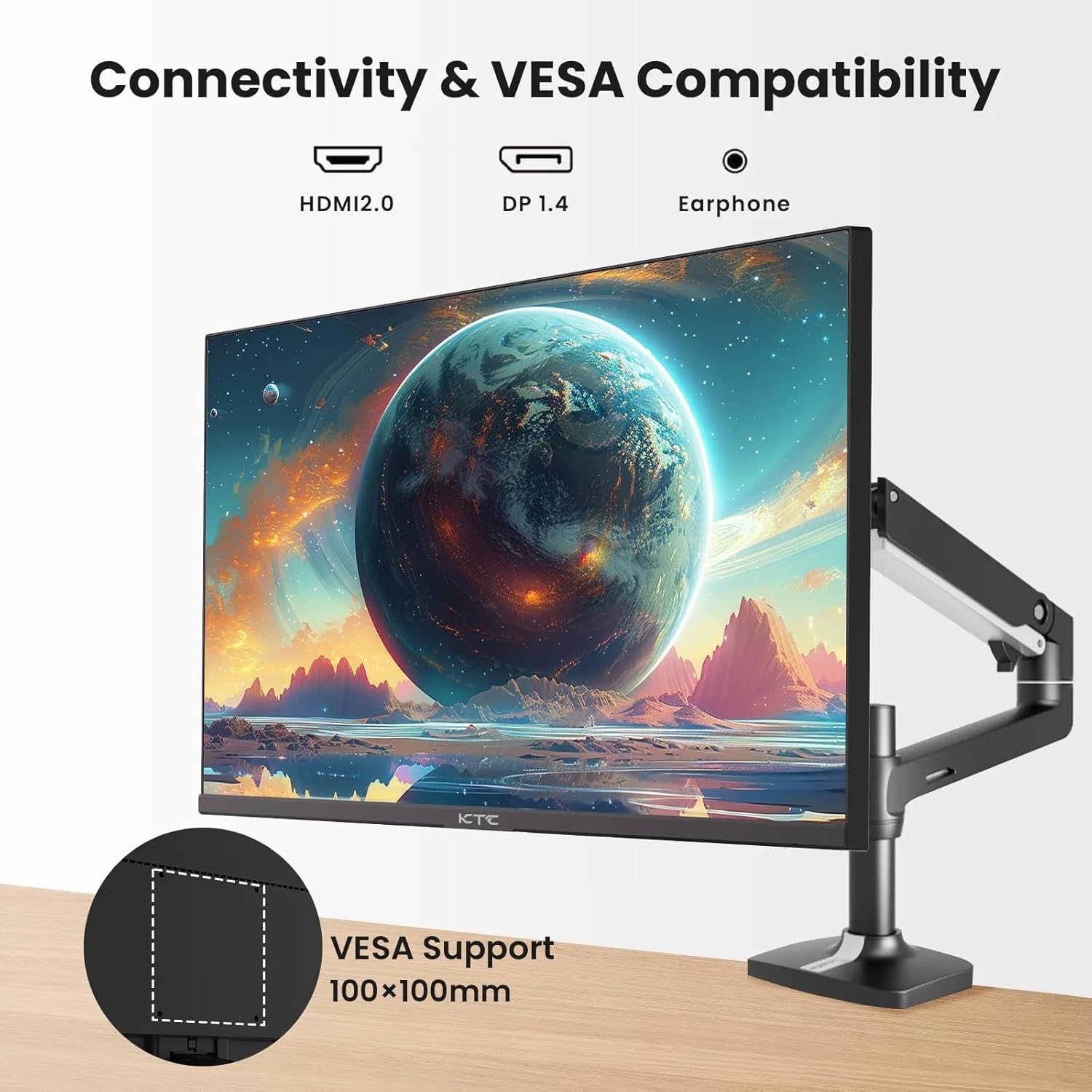
Figure 2: VESA Compatibility and Connectivity Ports
4. Cabos de conexão
Connect the necessary cables to the monitor and your computer or other devices. Ensure all connections are secure.
- Cabo de energia: Conecte o adaptador de energia à porta de entrada CC do monitor e, em seguida, ligue o cabo de alimentação a uma tomada elétrica.
- Cabo de vídeo: Connect either an HDMI cable (HDMI 2.0) or a DisplayPort cable (DP 1.4) from your computer's graphics card to the corresponding input port on the monitor.
- Saída de áudio: If desired, connect headphones or external speakers to the 3.5mm audio output jack.

Figura 3: Portas de entrada do monitor
5. Inicialização da alimentação
Press the power button on the monitor. The power indicator light will illuminate. If no image appears, ensure your computer is powered on and the correct input source is selected on the monitor.
Operacional
1. Ligar/desligar
Press the power button located on the monitor to turn it on or off. The power indicator will show the monitor's status.
2. Menu de exibição na tela (OSD)
The OSD menu allows you to adjust various monitor settings. Use the control buttons (usually located on the back or bottom of the monitor) to navigate the menu.
- Pressione um botão para ativar o menu OSD.
- Utilize os botões de navegação para percorrer as opções do menu.
- Press a selection button to enter a sub-menu or confirm a setting.
- Press an exit button to close the OSD menu.
3. Ajustando configurações
As configurações ajustáveis mais comuns incluem:
- Brilho contraste: Ajuste a luminosidade geral e a diferença entre as áreas claras e escuras.
- Configurações de cores: Modifique a temperatura da cor, o gama e os valores RGB individuais.
- Fonte de entrada: Selecione manualmente entre as entradas HDMI 1, HDMI 2 ou DisplayPort.
- Modo de imagem: Select predefined display modes (e.g., Standard, Game, Movie).
4. Taxa de atualização
The KTC H27T27 supports a 100Hz refresh rate, providing smoother motion compared to standard 60Hz displays. Ensure your graphics card and operating system are configured to output at 100Hz for the best experience.

Figure 4: 100Hz Refresh Rate Benefit
5. FreeSync Technology
This monitor is compatible with AMD FreeSync technology, which synchronizes the monitor's refresh rate with your graphics card's frame rate. This helps eliminate screen tearing and stuttering for a smoother gaming and video experience. Ensure FreeSync is enabled in both the monitor's OSD menu and your graphics card's control panel.
Figure 5: FreeSync Technology in Action
Manutenção
1. Limpeza da tela
- Desligue o monitor e desconecte o cabo de alimentação.
- Limpe suavemente a tela com um pano macio e sem fiapos.
- Para manchas persistentes, aplique levementeampLimpe o pano com água ou um produto de limpeza específico para telas (não borrife diretamente na tela).
- Avoid using abrasive cleaners, alcohol, or ammonia-based solutions, as these can damage the screen surface.
2. Cuidados Gerais
- Mantenha o monitor longe da luz solar direta, calor excessivo e umidade.
- Garanta ventilação adequada ao redor do monitor para evitar superaquecimento.
- Evite colocar objetos pesados sobre o monitor ou seus cabos.
Solução de problemas
Se você encontrar problemas com seu monitor, consulte os problemas e soluções comuns a seguir:
- Sem energia:
- Ensure the power cable is securely connected to both the monitor and the power outlet.
- Verifique se a tomada elétrica está funcionando. - Sem Sinal:
- Check that the video cable (HDMI or DisplayPort) is securely connected to both the monitor and your computer.
- Ensure your computer is powered on and not in sleep mode.
- Select the correct input source via the monitor's OSD menu. - Imagem tremeluzente ou distorcida:
- Check the video cable for damage or loose connections.
- Adjust the refresh rate settings on your computer.
- Disable or enable FreeSync in the OSD menu and graphics card settings to test. - Cores incorretas:
- Reset color settings to factory defaults in the OSD menu.
- Adjust color temperature or individual RGB values.
Se o problema persistir após tentar essas soluções, entre em contato com o suporte ao cliente.
Especificações
| Recurso | Especificação |
|---|---|
| Marca | KTC |
| Número do modelo | H27T27 |
| Tamanho da tela | 27 polegadas |
| Resolução | 2560x1440 (WQHD) |
| Taxa de atualização | 100 Hz |
| Tipo de exibição | IPS |
| Tempo de resposta | 7 milissegundos |
| Sincronização adaptável | Sincronização livre |
| Conectividade | 2x HDMI 2.0, 1x DisplayPort 1.4, 1x 3.5mm Audio Out |
| Proporção da tela | 1.78:1 |
| Superfície da tela | Fosco |
| Dimensões do item (P x L x A) | 1.85"P x 24.25"L x 14.33"A |
| Peso do item | 4 quilos |
Garantia e Suporte
Informações de garantia
This KTC monitor is covered by a manufacturer's warranty. Please refer to the warranty card included in your product packaging for specific terms, conditions, and duration of coverage. Keep your purchase receipt as proof of purchase for warranty claims.
Suporte ao cliente
For technical assistance, warranty service, or any product-related inquiries, please contact KTC customer support. Contact details can typically be found on the official KTC webno site ou no cartão de garantia.
When contacting support, please have your monitor's model number (H27T27) and serial number ready.