
NEWORK FreeChat 101
User Manual: Bluetooth Conference Speakerphone
Model: NEWORK FreeChat 101
Introdução
Thank you for choosing the NEWORK FreeChat 101 Bluetooth Conference Speakerphone. This device is designed to provide clear, high-quality audio for your conference calls, online meetings, and personal communication. With its 360° voice pickup, noise reduction technology, and versatile connectivity options, the FreeChat 101 ensures seamless and efficient communication in various environments. Please read this manual carefully to understand the product's features and ensure optimal performance.
Conteúdo da embalagem
Por favor, verifique se todos os itens estão incluídos em seu pacote:
- NEWORK FreeChat 101 Speakerphone x 1
- Bolsa portátil x 1
- Cabo USB-C x 1
- Manual do usuário x 1
Produto acimaview
The NEWORK FreeChat 101 features an intuitive design with easily accessible controls and advanced audio technology.

Figure 1: NEWORK FreeChat 101 Speakerphone - Top View
This image displays the top surface of the speakerphone, highlighting the call answer/end button, volume down, microphone mute, volume up, Bluetooth pairing, and power buttons. The device has a dark gray fabric grille and a silver-colored rim.

Figure 2: 360° Voice Pickup Feature
This graphic emphasizes the speakerphone's ability to pick up voices from all directions within a 5-meter range, ensuring clear audio for all participants in a conference call.
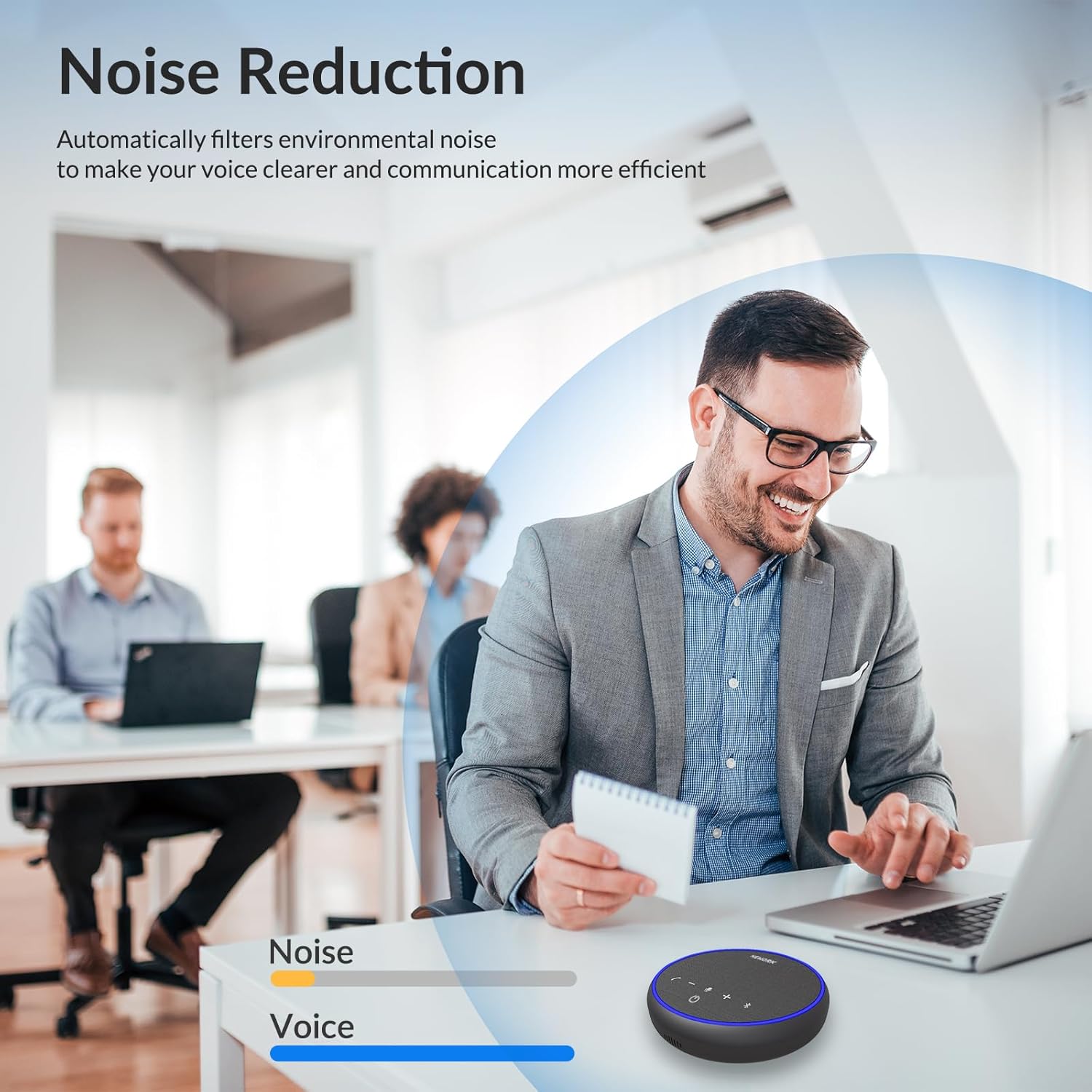
Figure 3: Noise Reduction Technology
The image illustrates how the speakerphone's advanced noise-cancelling microphones filter out background sounds, making voices clearer during calls, even in noisy settings.

Figura 4: Vida útil prolongada da bateria
This graphic highlights the speakerphone's 12-hour continuous talk time, supported by its 2600mAh rechargeable battery, and a 3-hour charging time.
Configurar
1. Charging the Speakerphone
Before first use, fully charge the speakerphone using the provided USB-C cable. Connect the USB-C end to the speakerphone's charging port and the other end to a USB power adapter (not included) or a computer's USB port. The indicator light will show charging status.
2. Conectando-se a um dispositivo
The FreeChat 101 offers two primary connection methods: USB-C and Bluetooth.

Figure 5: Connection Options
This image visually represents the flexibility of connecting the speakerphone either directly via a USB-C cable to a laptop or wirelessly via Bluetooth to a smartphone or other compatible device.
USB-C Connection (Plug & Play)
- Connect the provided USB-C cable to the USB-C port on the speakerphone.
- Plug the other end of the USB-C cable into an available USB-C port on your computer (desktop or laptop).
- The speakerphone will be automatically recognized by your operating system (Windows, macOS, Linux) and ready for use without needing additional drivers.
Conexão Bluetooth
- Ensure the speakerphone is powered on.
- Pressione e segure o Botão Bluetooth (Ícone Bluetooth) on the speakerphone until the indicator light flashes blue, indicating it's in pairing mode.
- On your device (smartphone, tablet, computer), go to Bluetooth settings and search for new devices.
- Select "NEWORK FreeChat 101" from the list of available devices.
- Após a conexão, a luz indicadora ficará azul fixa.
Instruções de operação
Ligar/Desligar
- Para ligar, pressione e segure o Botão de energia (ícone de poder) por 2 segundos.
- Para desligar, pressione e segure o Botão de energia (ícone de poder) por 2 segundos.
Gestão de Chamadas
- Atender/encerrar chamada: Pressione o Botão de chamada (ícone de telefone) uma vez.
- Rejeitar chamada: Pressione e segure o Botão de chamada (ícone de telefone) por 2 segundos.
Controle de volume
- Aumentar o volume: Pressione o Botão Volume + (ícone de mais).
- Volume baixo: Pressione o Botão de volume (ícone de menos).
Microfone sem som / com som
- Pressione o Botão do microfone (ícone de microfone) once to mute or unmute the microphone. The indicator light will change to reflect the mute status.
Compatibilidade Universal
The NEWORK FreeChat 101 is compatible with a wide range of operating systems and video conferencing applications, ensuring broad usability for your communication needs.
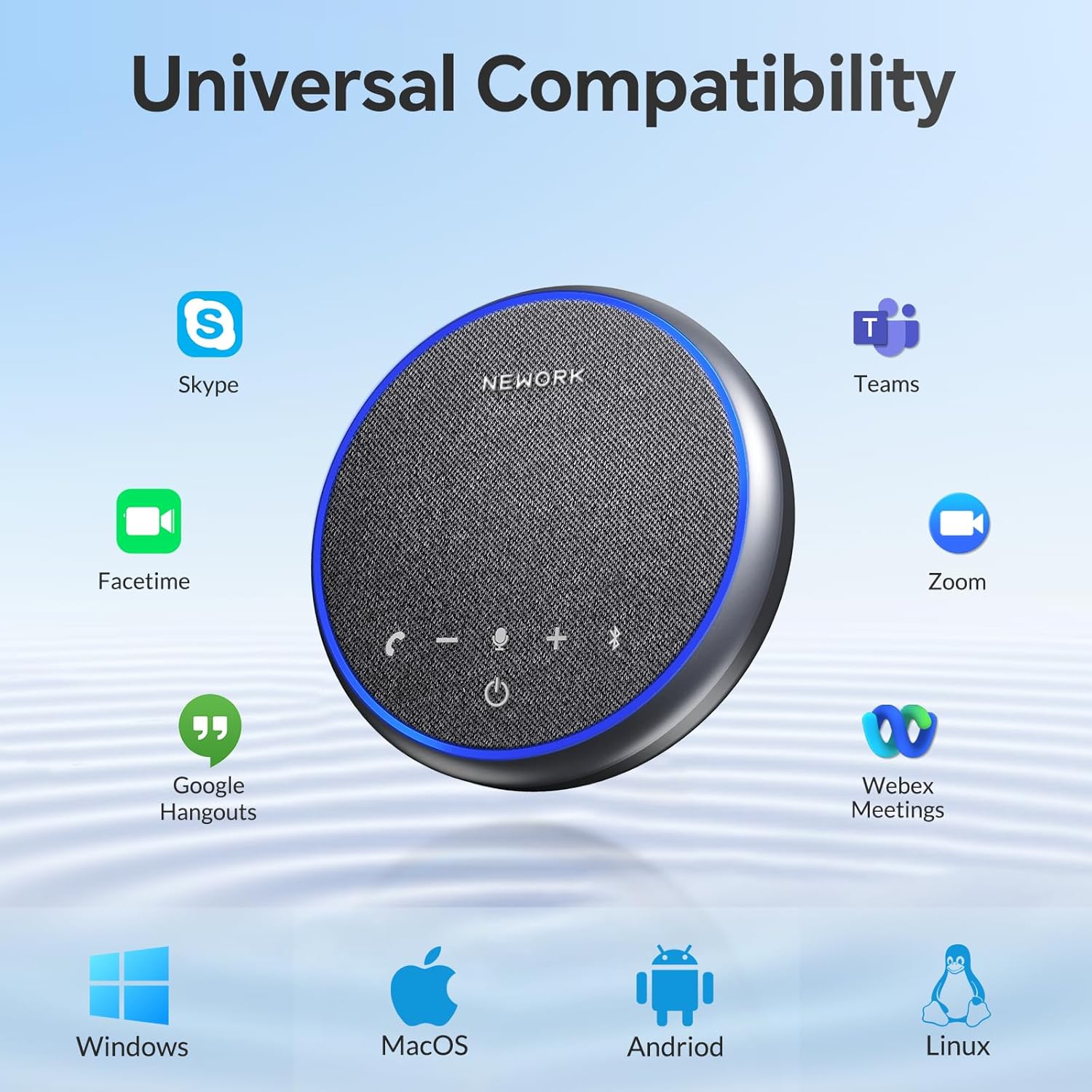
Figura 6: Ampla compatibilidade
This image displays the speakerphone's compatibility with Windows, macOS, Android, and Linux operating systems, as well as popular applications like Skype, Facetime, Google Hangouts, Zoom, Teams, and Webex Meetings.
Manutenção
- Limpeza: Use um pano macio e seco para limpar a superfície do viva-voz. Não use produtos de limpeza líquidos ou aerossóis.
- Armazenar: When not in use for extended periods, store the speakerphone in its portable bag in a cool, dry place away from direct sunlight and extreme temperatures.
- Cuidados com a bateria: Para prolongar a vida útil da bateria, evite descarregá-la completamente com frequência. Carregue o dispositivo regularmente, mesmo quando não estiver em uso.
- Evite água: The device is not waterproof. Keep it away from water and other liquids.
Solução de problemas
| Problema | Solução |
|---|---|
| O dispositivo não liga. | Ensure the battery is charged. Connect the speakerphone to a power source using the USB-C cable and try again. |
| No sound from the speakerphone. | Check the volume level on both the speakerphone and your connected device. Ensure the speakerphone is selected as the audio output device in your computer's or smartphone's sound settings. |
| Microphone is not picking up sound. | Ensure the microphone is not muted (check the microphone mute button and indicator light). Verify that the speakerphone is selected as the input device in your application's audio settings. |
| Problemas de conexão Bluetooth. | Ensure the speakerphone is in pairing mode (flashing blue light). Turn off and on Bluetooth on your device. Forget the device in your Bluetooth settings and re-pair. Ensure the speakerphone is within the 10-meter Bluetooth range. |
| Echo or poor sound quality. | Reduce the volume if it's too high. Ensure the speakerphone is placed on a stable surface and not too close to walls or reflective surfaces. The noise reduction feature should minimize background noise. |
Especificações
| Recurso | Detalhe |
|---|---|
| Marca | REDE DE TRABALHO |
| Nome do modelo | FreeChat 101 |
| Material | Plástico |
| Tipo de alto-falante | Multimídia |
| Potência máxima de saída do alto-falante | 3 Watts |
| Modo de saída de áudio | Estéreo |
| Número de microfones | 3 |
| Tecnologia de Conectividade | Bluetooth, USB |
| Tecnologia de comunicação sem fio | Bluetooth |
| Alcance Bluetooth | 10 metros |
| Duração da bateria | 12 horas |
| Tempo de carregamento | 3 horas |
| Tipo de Bateria | 1 polímero de lítio (incluído) |
| Peso do item | 300 gramas (10.6 onças) |
| Dimensões do produto | 5.12 x 5.12 x 1.38 polegadas |
| Cor | Cinza |
| Tipo de controlador | Botão |
| Método de controle | Voz |
| Usos recomendados | For Computers, For Music Players, For Smartphones or Tablets |
| Dispositivos compatíveis | Computador de mesa, laptop, smartphone, tablet |
| Uso interno/externo | Interior, Exterior |
| É à prova d'água | Falso |
| Tipo de garantia | Limitado |
Portabilidade
The NEWORK FreeChat 101 is designed for maximum portability, making it an ideal companion for business trips, remote work, or any situation requiring high-quality audio on the go. Its compact and lightweight design allows it to fit easily into bags and backpacks.

Figura 7: Design portátil
This image highlights the speakerphone's lightweight and compact form factor, showing how easily it can be carried in a bag for convenience during travel or daily commutes.
Garantia e Suporte
The NEWORK FreeChat 101 comes with a limited warranty. For detailed warranty information, please refer to the warranty card included in your package or visit the official NEWORK website. If you encounter any issues or have questions regarding your speakerphone, please contact NEWORK customer support for assistance.
Para obter mais assistência, visite o NEWORK Store on Amazon.
Ask a question about this manual
Ask about setup, troubleshooting, compatibility, parts, safety, or missing instructions. Manuals+ will review the question and use this page’s manual context to help answer it.