
1. Introdução
Thank you for choosing the HGFRTEE 12.3 Inch Portable Monitor. This device is designed to enhance your productivity and entertainment experience with its high-resolution display and versatile connectivity. This manual provides essential information for setting up, operating, and maintaining your monitor.

Image: The HGFRTEE 12.3 Inch Portable Monitor, showcasinSeu design elegante e tela vibrante.
2. Conteúdo da embalagem
Verifique cuidadosamente o conteúdo da embalagem. Se algum item estiver faltando ou danificado, entre em contato com o suporte ao cliente.
- Monitor portátil HGFRTEE de 12.3 polegadas
- USB-C to USB-C Cable (Full-function)
- Mini HDMI para cabo HDMI
- Cabo de alimentação USB-A para USB-C
- Adaptador de energia (se incluído)
- Manual do usuário
3. Recursos do Produto
- 12.3 Inch FHD IPS Display: Enjoy crisp visuals with a 1920 x 1200 resolution and wide viewângulos de inclinação.
- Design ultraportátil: Lightweight (0.35kg) and slim (1.2cm) for easy transport.
- Conectividade versátil: Features dual USB-C ports and one Mini HDMI port for broad compatibility.
- Alto-falantes embutidos: Integrated audio for convenience.
- Tecnologia de Cuidados com os Olhos: Low blue light and flicker-free features reduce eye strain.
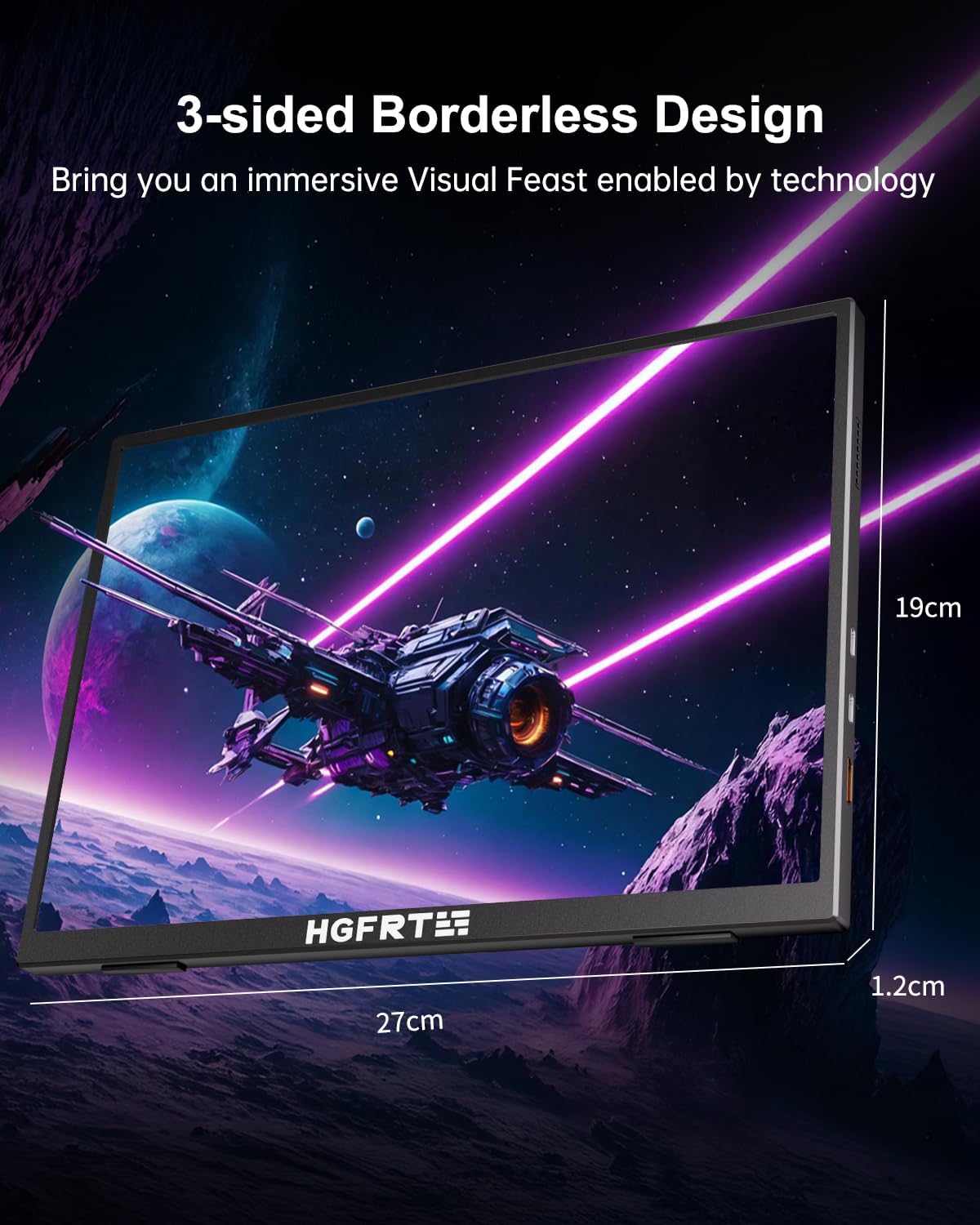
Image: The monitor's 3-sided borderless design, highlighting its dimensions (27cm width, 19cm height, 1.2cm thickness).

Image: Illustration of the monitor's ultra-portable nature, showing its 1.2cm thickness and 0.35kg weight.
4. Configuração e conectividade
4.1 Conexão com dispositivos
The HGFRTEE portable monitor offers flexible connectivity options for various devices.
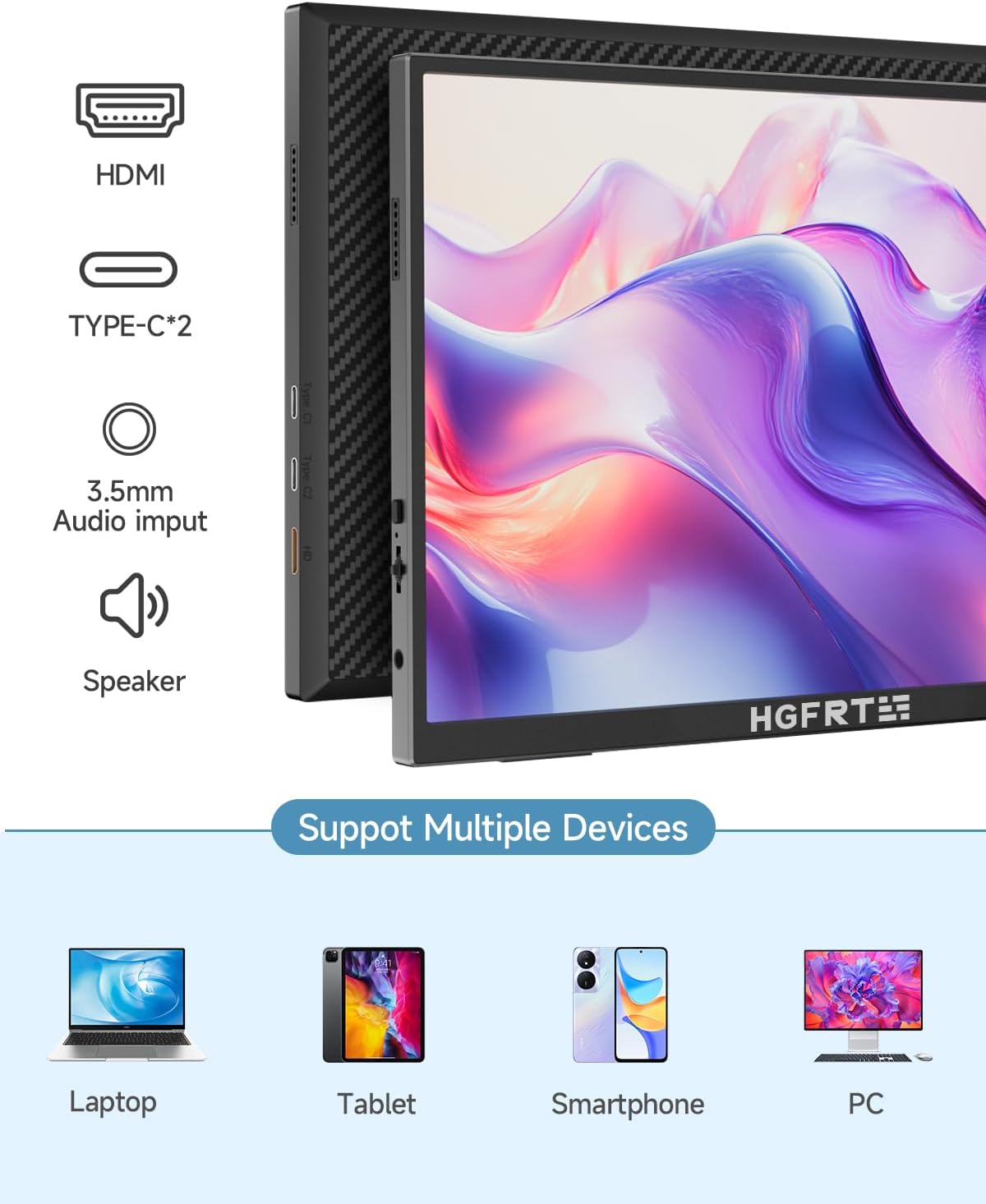
Image: The monitor supports multiple devices including laptops, tablets, smartphones, and PCs.
USB-C Connection (Full-function)
For devices with a full-function USB-C port (supporting both power and video output), a single USB-C to USB-C cable can provide both power and display signal.
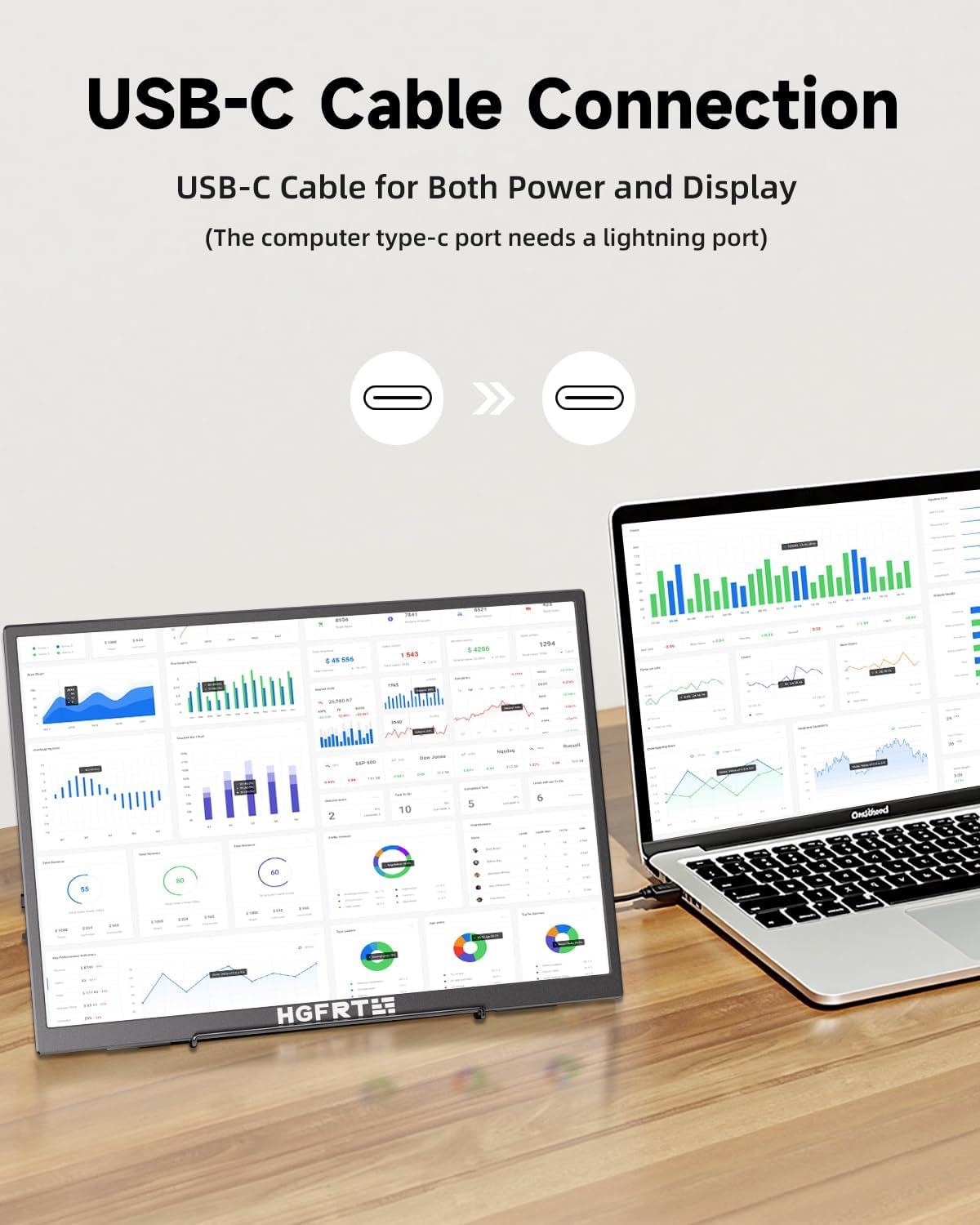
Image: A laptop connected to the portable monitor using a single USB-C cable for both power and display signal.
Conexão HDMI
For devices with an HDMI output, use the Mini HDMI to HDMI cable for video signal. Power must be supplied separately via a USB-C to USB-A power cable connected to a power adapter or a device's USB-A port.

Image: Connection diagrams showing how to connect the monitor to a laptop using different cable combinations (Mini HD to HD, USB-A to C, Type-C to Type-C).
5. Instruções de operação
5.1 Ligar/Desligar
Press and hold the power button (usually located on the side or back) for 3 seconds to turn the monitor on or off. A short press typically activates the On-Screen Display (OSD) menu.
5.2 Navegação no menu OSD
Use the control buttons (joystick or individual buttons) on the monitor to navigate the OSD menu. Common settings include:
- Brilho contraste: Adjust display luminance and color difference.
- Volume: Control the output level of the built-in speakers.
- Fonte de entrada: Manually select between USB-C and HDMI inputs.
- Configurações de cores: Adjust color temperature, hue, and saturation.
- Proporção da tela: Switch between 16:9, 4:3, or auto.
6. Recursos para cuidados com os olhos
The HGFRTEE monitor incorporates features designed to reduce eye strain during prolonged use.
- Modo de luz azul baixa: Reduces the emission of harmful blue light, which can contribute to eye fatigue and sleep disruption. This mode can be activated through the OSD menu.
- Tecnologia sem cintilação: Elimina a cintilação da tela em todos os níveis de brilho, proporcionando uma experiência mais confortável. viewexperiência.

Image: A visual comparison demonstrating the reduction of blue light emission in the monitor's anti-blue light display mode compared to an ordinary display.
7. Especificações
| Recurso | Especificação |
|---|---|
| Marca | HGFRTEE |
| Tamanho da tela | 12.3 polegadas |
| Resolução | FHD 1920 x 1200p |
| Proporção da tela | 16:9 |
| Relação de contraste da imagem | 1500:1 |
| Conectividade | 2x USB-C, 1x Mini HDMI, 1x 3.5mm Audio Input |
| Alto-falantes embutidos | Sim |
8. Solução De Problemas
8.1 Sem sinal / Tela preta
- Ensure all cables (USB-C, HDMI) are securely connected to both the monitor and the source device.
- Verifique se o dispositivo de origem está ligado e emitindo um sinal.
- Check if the monitor is receiving power. If using HDMI, ensure a separate USB-C power cable is connected.
- Try selecting the correct input source manually via the OSD menu.
- Faça o teste com um cabo ou dispositivo de origem diferente, se possível.
8.2 Sem som
- Aumente o volume do monitor através do menu OSD.
- Check the audio output settings on your source device to ensure sound is directed to the monitor.
- If using HDMI, ensure the source device is sending audio over HDMI.
- Test with headphones connected to the monitor's 3.5mm audio jack.
8.3 Display Flickering
- Ensure the power supply is stable and sufficient.
- Experimente com um cabo diferente.
- Ajuste as configurações de taxa de atualização no seu dispositivo de origem.
9. Manutenção
- Limpeza: Use um pano macio e sem fiapos para limpar a tela. Para manchas persistentes, esfregue levemente.ampLimpe o pano com água ou uma solução de limpeza de telas. Evite produtos químicos agressivos.
- Armazenar: When not in use, store the monitor in a cool, dry place, preferably in its original packaging or a protective sleeve to prevent dust and scratches.
- Manuseio: Evite deixar o monitor cair ou submetê-lo a impactos fortes. Não coloque objetos pesados sobre ele.
10. Garantia e Suporte
The HGFRTEE 12.3 Inch Portable Monitor comes with a standard manufacturer's warranty. Please refer to the warranty card included in your package for specific terms and conditions.
For technical support, troubleshooting assistance, or warranty claims, please contact HGFRTEE customer service through the retailer where you purchased the product or visit the official HGFRTEE website para informações de contato.