

Image: The COLORROOM K10 Android 14 Tablet, showcasing its design and included protective case.
Introdução
This manual provides essential instructions for setting up, operating, maintaining, and troubleshooting your COLORROOM K10 Android 14 Tablet. Please read this guide thoroughly to ensure proper use and to maximize your tablet's performance and longevity. The K10 features an 11-inch IPS display, an octa-core processor, 12GB RAM, 128GB internal storage expandable up to 1TB, an 8000mAh battery with 18W PD fast charging, dual-band WiFi6, Bluetooth 5.0, GPS, and FM Radio.
O que está na caixa
Ao abrir a caixa, verifique se todos os itens listados abaixo estão presentes:
- COLORROOM Android 14 Tablet
- Cabo USB
- Adaptador de energia
- Shock-proof Case
Configurar
1. Carregando o tablet
Before first use, fully charge the tablet. Connect the provided USB cable to the tablet's charging port and the power adapter, then plug the adapter into a wall outlet. The tablet supports 18W PD fast charging. A full charge typically takes several hours.
2. Ligar / desligar
- Para ligar: Press and hold the Power button until the COLORROOM logo appears.
- Para desligar: Pressione e mantenha pressionado o botão Liga/Desliga e, em seguida, selecione "Desligar" nas opções.
- Reiniciar: Pressione e mantenha pressionado o botão Liga/Desliga e, em seguida, selecione "Reiniciar" nas opções.
3. Assistente de configuração inicial
Follow the on-screen instructions to complete the initial setup, which includes selecting your language, connecting to a Wi-Fi network, and signing in with your Google account.
4. Conectando-se ao Wi-Fi
- Vá para Configurações > Rede e internet > Wi-fi.
- Ativar/desativar Wi-Fi On.
- Selecione a rede desejada na lista.
- Digite a senha, se solicitado, e toque em Conectar. The tablet supports dual-band WiFi (2.4/5GHz) for stable connections.
5. Expansão do armazenamento
The tablet supports up to 1TB expandable storage via a microSD card (not included). Locate the microSD card slot, insert the card gently until it clicks into place, and follow any on-screen prompts to format it if necessary.
6. Instalação da capa protetora
Carefully align the tablet with the provided shock-proof case and gently press it into place, ensuring all ports and buttons are accessible and the tablet is securely fitted.
Instruções de operação
1. Navegação Básica
- Tocar: Toque em um ícone para abrir um aplicativo ou selecionar um item.
- Deslize: Arraste o dedo pela tela para rolar ou navegar entre as telas.
- Pitada: Use dois dedos para ampliar ou reduzir as imagens e web páginas.
- Botão Home: Retorna à tela inicial.
- Botão Voltar: Retorna à tela anterior.
- Botão de aplicativos recentes: Displays recently opened applications.
2. Multitarefa
The tablet's octa-core processor and 12GB RAM allow for efficient multitasking. You can run multiple applications simultaneously. Use the recent apps button to switch between open applications or use split-screen mode for two apps side-by-side.
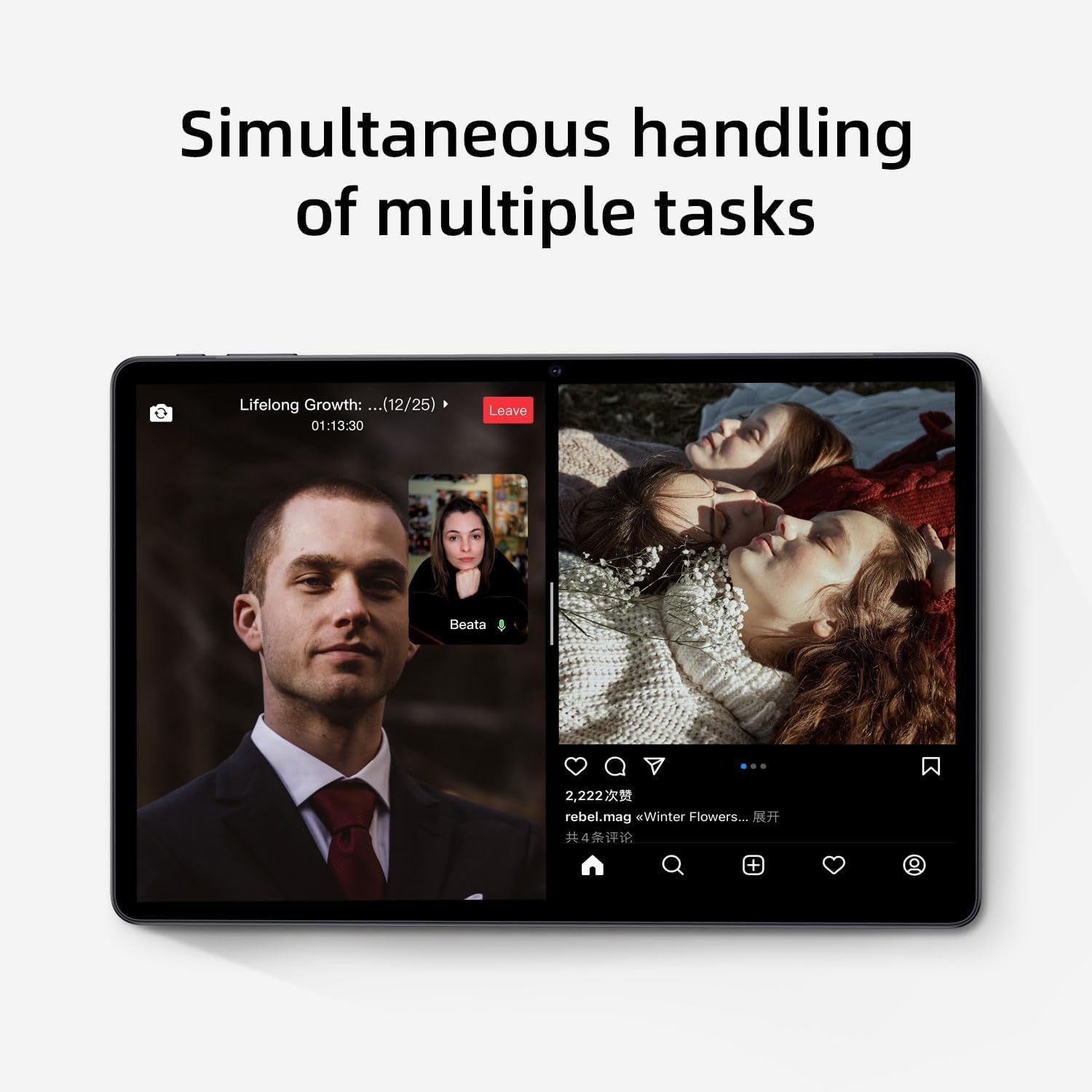
Image: The tablet screen showing two applications running simultaneously in split-screen mode, illustrating its multitasking feature.
3. Reprodução de mídia
The 11-inch IPS display with 1920x1200 resolution provides clear and vibrant visuals for streaming videos, viewing photos, and playing games. Use pre-installed media players or download your preferred apps from the Google Play Store.
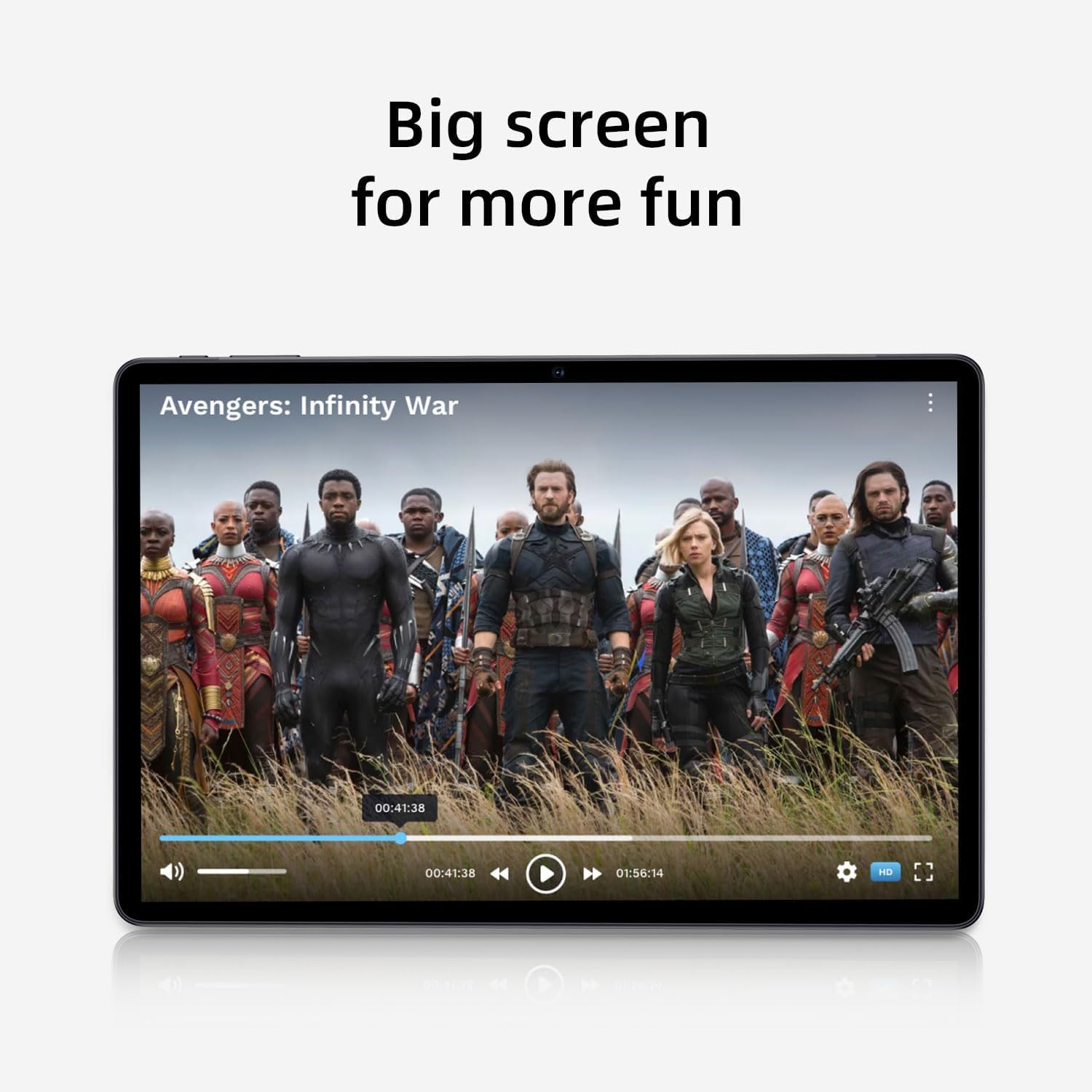
Image: The tablet screen showing a video playing, highlighting the display quality for entertainment.
4. Usando o GPS
The tablet includes built-in GPS functionality. To use navigation apps, ensure location services are enabled in Configurações > Localização. Download a navigation app from the Google Play Store for turn-by-turn directions.
5. Using FM Radio
To use the FM Radio, connect wired headphones (not included) to the tablet's audio jack. The headphones act as an antenna. Open the pre-installed FM Radio app and scan for available stations.
6. Conectividade Bluetooth
To pair Bluetooth devices (e.g., headphones, speakers):
- Vá para Configurações > Dispositivos conectados > Preferências de conexão > Bluetooth.
- Alternar Bluetooth On.
- Certifique-se de que seu dispositivo Bluetooth esteja no modo de emparelhamento.
- Selecione seu dispositivo na lista de dispositivos disponíveis e siga as instruções na tela para concluir o emparelhamento.
7. Uso da câmera
Open the Camera app from the home screen or app drawer. Tap the shutter button to take photos or switch to video mode to record videos. Adjust settings like flash, timer, and camera mode within the app interface.
Manutenção
1. Limpeza do tablet
Use um pano macio e sem fiapos para limpar a tela e a estrutura do tablet. Para manchas persistentes, esfregue levemente com um pano.ampLimpe o pano com água ou uma solução de limpeza de telas. Evite produtos químicos agressivos ou materiais abrasivos.
2. Cuidados com a bateria
- Evite temperaturas extremas, pois elas podem reduzir a vida útil da bateria.
- Não deixe a bateria descarregar completamente com frequência.
- Utilize o carregador fornecido para um carregamento ideal.
- The 8000mAh battery provides extended usage; however, proper care ensures long-term performance.

Image: A visual representation of the tablet's 8000mAh battery capacity, emphasizing its long-lasting power.
3. Atualizações de software
Regularly check for system updates to ensure your tablet has the latest features and security patches. Go to Configurações > Sistema > Atualização do sistema.
4. Gerenciamento de armazenamento
Reavaliar periodicamenteview seus aplicativos instalados e fileDesinstale aplicativos não utilizados e exclua arquivos desnecessários. files to free up the 128GB internal storage. Utilize the 1TB expandable storage for large media files.
Solução de problemas
Tablet Not Powering On
- Ensure the tablet is sufficiently charged. Connect it to the power adapter and wait a few minutes before attempting to power on.
- Pressione e mantenha pressionado o botão Liga/Desliga por pelo menos 10 a 15 segundos para forçar a reinicialização.
Problemas de conexão Wi-Fi
- Reinicie o roteador Wi-Fi e o tablet.
- Esqueça a rede nas configurações de Wi-Fi e reconecte-se.
- Certifique-se de estar dentro do alcance do sinal Wi-Fi.
Desempenho lento
- Feche os aplicativos não utilizados que estiverem sendo executados em segundo plano.
- Limpe os dados em cache dos aplicativos usados com frequência.
- Verifique e instale todas as atualizações de sistema disponíveis.
- Consider performing a factory reset as a last resort (back up your data first). Go to Configurações > Sistema > Redefinir opções > Apagar todos os dados (redefinição de fábrica).
Tela sensível ao toque não responde
- Reinicie o tablet.
- Certifique-se de que a tela esteja limpa e livre de detritos ou umidade.
Especificações

Image: The tablet shown with its physical dimensions, including screen size and overall device measurements.
| Nome do modelo | K10 |
| Sistema operacional | Androide 14 |
| Processador | Octa-core (Unisoc) |
| BATER | 12 GB |
| Armazenamento interno | 128 GB |
| Armazenamento expansível | Até 1 TB (microSD) |
| Tamanho da tela | 11 polegadas |
| Resolução da tela | IPS 1920x1200 |
| Capacidade da bateria | 8000mAh |
| Carregando | 18W PD Fast Charge |
| Wi-fi | Dual-band (2.4/5GHz) 802.11ac |
| Bluetooth | Bluetooth 5.0 |
| GPS | Sim |
| Rádio FM | Sim |
| Peso do item | 2.33 libras |
| Dimensões do produto | 10.1 x 3.5 x 0.35 polegadas |
Informações de garantia
This COLORROOM K10 Tablet is covered by a standard manufacturer's warranty. The specific terms and duration of the warranty may vary by region. Please retain your proof of purchase for warranty claims. For detailed warranty information, including coverage and how to make a claim, please refer to the warranty card included with your product or visit the official COLORROOM website.
Apoiar
For further assistance, technical support, or to inquire about service, please visit the COLORROOM official support webou entre em contato com o departamento de atendimento ao cliente. As informações de contato geralmente podem ser encontradas no site do fabricante. weblocal ou nos materiais de embalagem.