1. Introdução
Thank you for choosing the Inefala Android 15 Car Radio. This device is designed to enhance your driving experience with advanced features such as Wireless Carplay, Android Auto, GPS navigation, Bluetooth connectivity, and a 9-inch touchscreen display. This manual provides essential information for proper installation, operation, and maintenance of your new car radio. Please read it thoroughly before use.
2. Informações de segurança
- Always ensure the vehicle is parked safely before operating the car radio's advanced features.
- Do not attempt to install or repair the unit if you are not qualified. Improper installation can lead to damage or injury.
- Consult a professional for electrical wiring if you are unsure.
- Keep the volume at a safe level to remain aware of road conditions and traffic.
- Evite expor o aparelho a temperaturas extremas, luz solar direta por períodos prolongados ou umidade excessiva.
3. Conteúdo da embalagem
Por favor, marque a caixa para os seguintes itens:
- Inefala Android 15 Car Radio for Suzuki SX4 / Fiat Sedici
- Cabo de energia
- Cabo RCA
- Antena GPS
- Reverse Camera Input Cable
- AHD Emergency Camera
- Microfone externo
- 2 x cabos USB
- Adaptador de cabo USB
- Suporte de montagem
- Ferramenta de instalação

Imagem: Detalhada view of the wiring harness and included accessories in the package.
4. Configuração e instalação
4.1. General Installation Overview
The Inefala Android 15 Car Radio is designed for direct fitment in Suzuki SX4 (2006-2013) and Fiat Sedici (2005-2014) models. Professional installation is recommended. Ensure the vehicle's power is disconnected before starting installation.
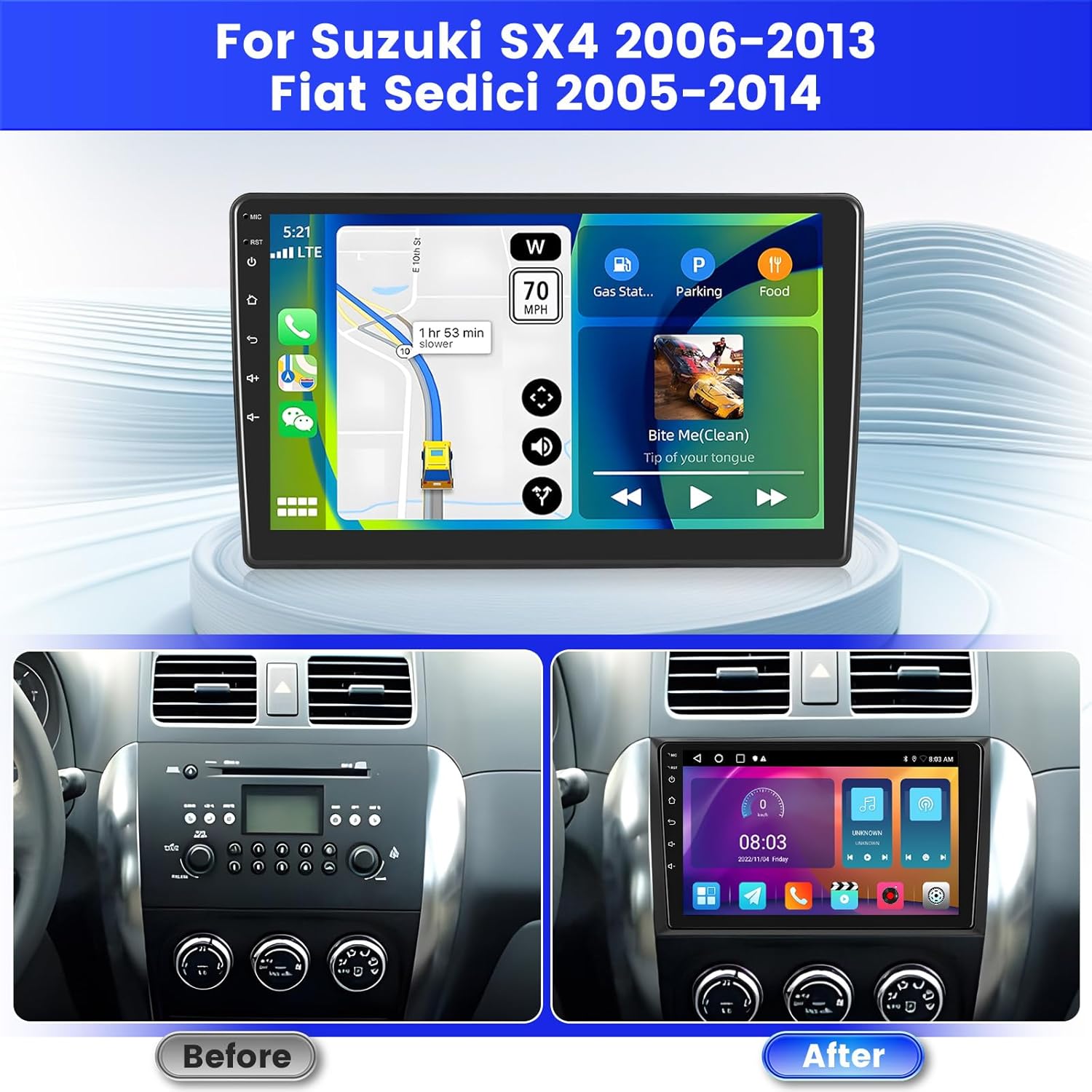
Image: Comparison of the vehicle dashboard before and after the installation of the Inefala car radio.
4.2. Diagrama de Fiação
Connect the power cable, RCA cables, GPS antenna, and USB cables to their respective ports on the car radio. Refer to the detailed wiring diagram for correct connections.
Image: Close-up of the car radio's rear ports and corresponding cable connections, including power, RCA, USB, and antenna inputs.
4.3. Backup Camera Connection
The unit supports an AHD backup camera. Connect the red cable of the reverse input cable to the positive terminal of the car's reverse light cable. Connect the black cable to the negative terminal of the car's reverse light cable. The other two red extension cables (if present) do not need to be connected.
Nota importante:
The reverse input cable must be plugged in even if the reverse camera is not being used. Otherwise, it may affect Bluetooth and Wi-Fi signal reception.

Image: Visual guide for connecting the AHD backup camera, illustrating the wiring to the car's reverse lights and the radio unit.
4.4. Controle do Volante (SWC)
To enable steering wheel controls, follow these steps:
- Sem decodificador CANBUS: Connect the plugs or the steering wheel control wires (Key1/Key2) in the power cable to the corresponding port or wire of your original car. Then, go to "SWC manual match" in the radio settings to activate the button function.
- Com decodificador CANBUS: Connect the CANBUS before powering on the radio. Then, follow this path: Car Settings > Factory (000000) > CarType Setting to make SWC work properly. First, select the brand of the CANBUS decoder, then select the matching model and year according to the actual situation.

Image: Diagram illustrating the connection points for steering wheel controls and a screenshot of the on-screen SWC configuration interface.
5. Instruções de operação
5.1. Ligar/Desligar e Navegação Básica
Press the power button to turn the unit on or off. The 9-inch touchscreen allows for intuitive navigation through menus and applications. Swipe, tap, and pinch gestures are supported.
5.2. Android System and Applications
The car radio runs on Android 15 with 2GB RAM and 64GB internal storage. This allows for smooth operation and the ability to download various applications from the Google Play Store (requires Wi-Fi connection).
5.3. CarPlay sem fio e Android Auto
Connect your smartphone wirelessly via Bluetooth to access Apple CarPlay or Android Auto. This feature allows you to use navigation, make calls, send messages, and listen to music directly from your phone's interface displayed on the car radio screen.

Image: Display of the car radio screen showing various applications accessible through Wireless Carplay and Android Auto, including navigation, music, and communication apps.
5.4. Link alternativo
Project your smartphone screen onto the car radio display via Wi-Fi or USB cable using the Mirror Link function. This allows you to view your phone's content directly on the larger screen.

Image: Visual representation of the Carplay, Android Auto, and Mirror Link functionalities, showing how each projects phone content to the car radio screen.
5.5. Navegação GPS
The unit supports both online and offline GPS navigation. Connect to Wi-Fi to download maps or use real-time traffic information. The included GPS antenna ensures accurate positioning.

Image: The car radio screen displaying a navigation map with route information, alongside an illustration of Wi-Fi connectivity.
5.6. Rádio FM/RDS
Tune into your favorite radio stations using the built-in FM/RDS tuner. RDS (Radio Data System) provides additional information such as station name and program type.
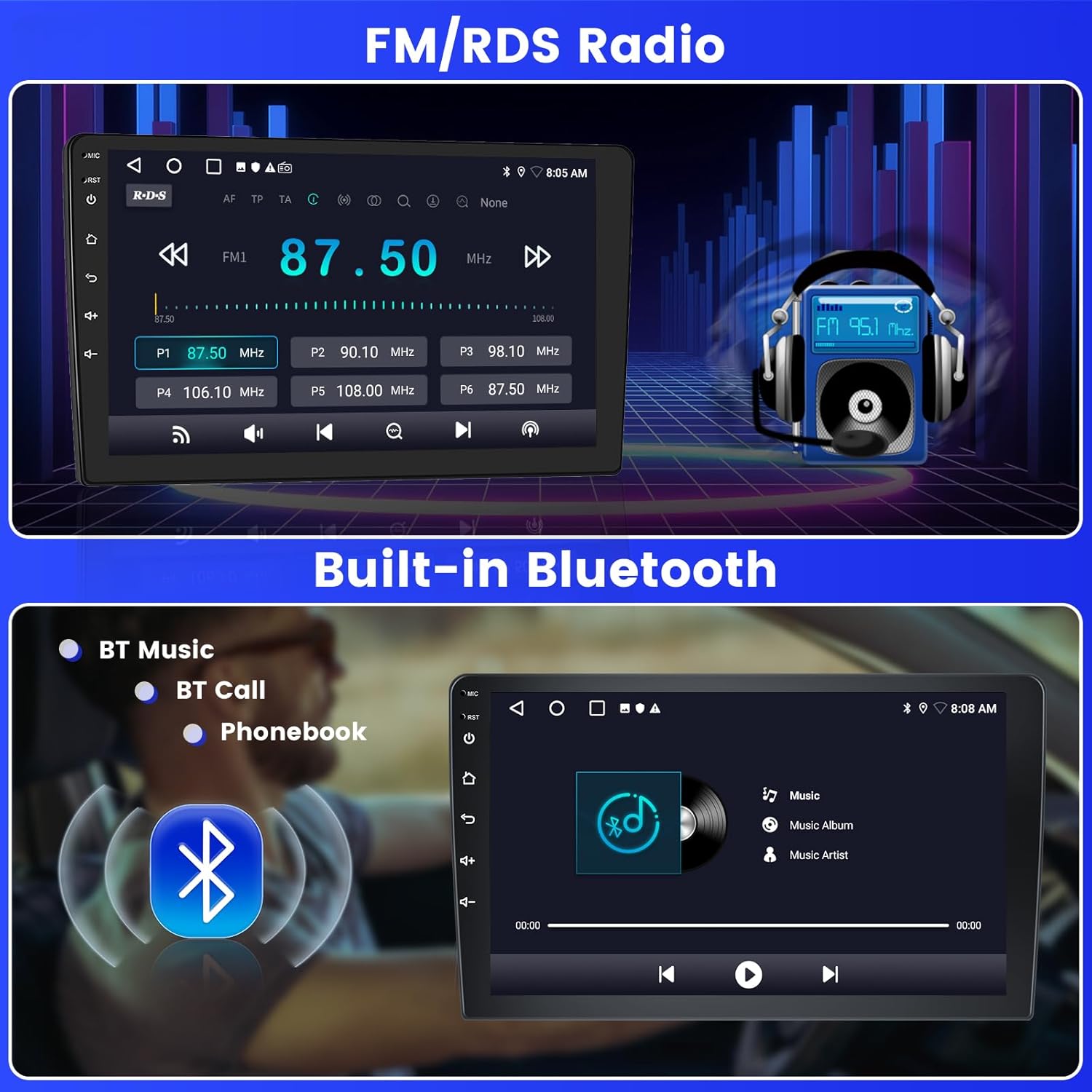
Image: The car radio screen displaying the FM radio interface with frequency selection and an illustration of Bluetooth music streaming.
5.7. Conectividade Bluetooth
Connect your phone via Bluetooth for hands-free calling, music streaming, and file transfer. Access your phonebook directly from the car radio display.
5.8. Conexão wifi
Connect the car radio to a Wi-Fi hotspot (e.g., from your smartphone) to access online features, download apps, stream videos, and update maps.
5.9. Função de tela dividida
The split-screen feature allows you to run and view two applications simultaneously on the 9-inch display, such as navigation and music playback.

Image: The car radio screen demonstrating the Digital Sound Processor (DSP) settings, the split-screen functionality with two apps running, and a selection of 26 user interface themes.
5.10. Sound Settings (EQ & DSP)
Utilize the built-in EQ (Equalizer) and DSP (Digital Sound Processor) to customize your audio experience. Adjust sound output, balance, and various sound effects to match your preferences.
5.11. UI Themes
The car radio offers 26 different user interface themes. You can change the theme to personalize the look and feel of your display.
5.12. Backup Camera Display
When the vehicle is in reverse gear, the screen will automatically display the high-definition image from the AHD backup camera, providing a clear view for safer parking and maneuvering.
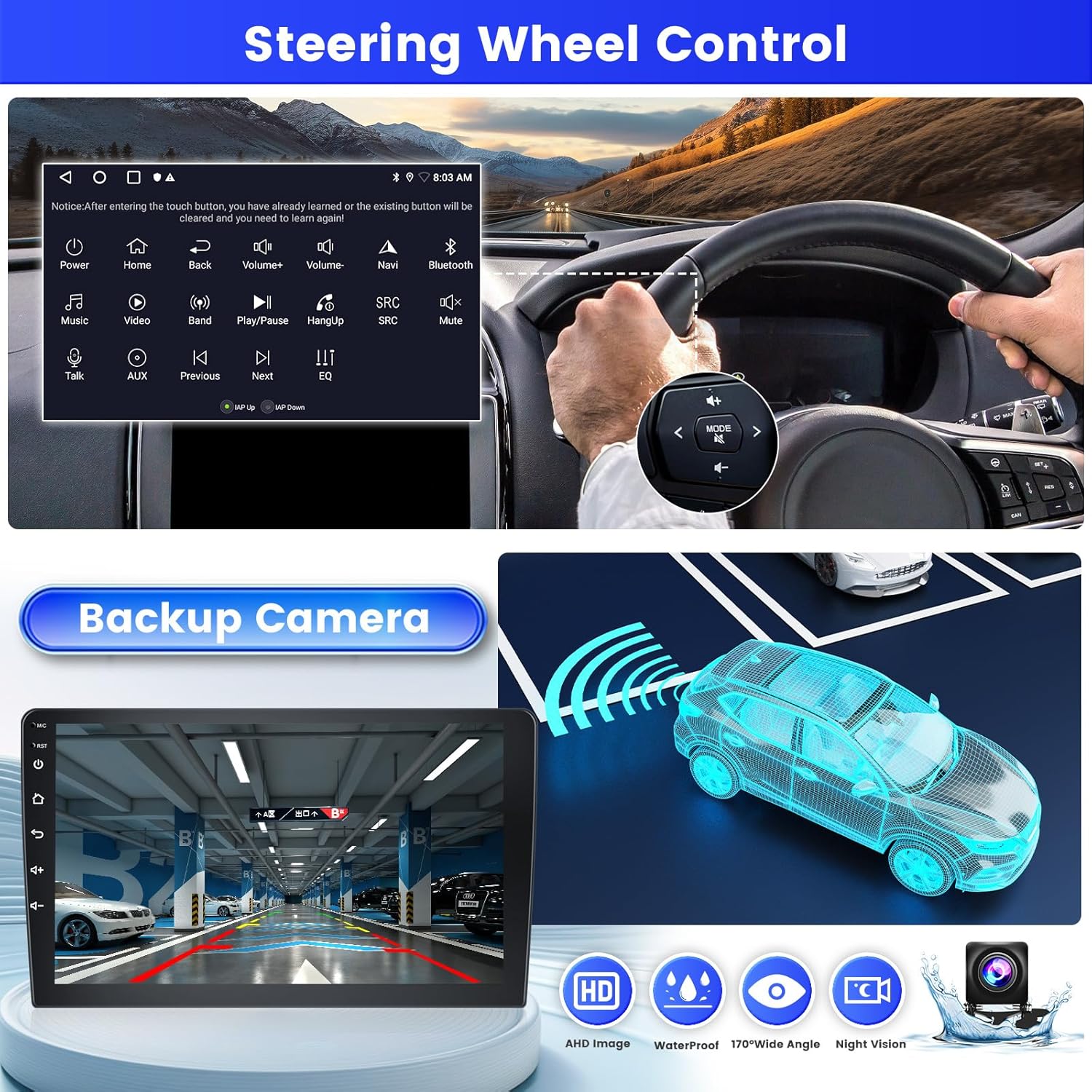
Image: The car radio screen displaying the view from the backup camera, along with an illustration of steering wheel controls.
6. Manutenção
- Limpando a tela: Use um pano macio e sem fiapos para limpar delicadamente a tela sensível ao toque. Não use produtos de limpeza abrasivos ou solventes.
- Limpeza geral: Keep the unit free from dust and debris. Use a dry cloth for cleaning the exterior.
- Atualizações de software: Verifique periodicamente se há atualizações de software via Wi-Fi para garantir o desempenho ideal e o acesso a novos recursos.
7. Solução De Problemas
| Problema | Possível causa | Solução |
|---|---|---|
| A unidade não liga. | Conexão elétrica solta, fusível queimado. | Verifique os cabos de alimentação e os fusíveis do veículo. Certifique-se de que a fiação esteja correta. |
| Nenhum som. | Volume muito baixo, fonte de áudio incorreta, fios das caixas de som soltos. | Aumente o volume. Selecione a fonte de áudio correta. Verifique as conexões das caixas de som. |
| Sinal de GPS perdido ou impreciso. | Antena GPS obstruída ou conectada incorretamente. | Ensure GPS antenna is mounted in a clear location and securely connected. |
| Bluetooth/Wi-Fi issues. | Reverse input cable not connected (even if camera not used). | Ensure the reverse input cable is plugged into the unit. |
| Os comandos do volante não estão funcionando. | Incorrect wiring or software configuration. | Verify SWC wiring. Follow configuration steps in Section 4.4. |
8. Especificações
| Recurso | Detalhe |
|---|---|
| Nome do modelo | 2ba21f87-18ff-4355-ad45-79b956fcb744 |
| Sistema operacional | Androide 15 |
| RAM + ROM | 2 GB de RAM + 64 GB de ROM |
| Tamanho da tela | 9 polegadas |
| Tipo de tela | Tela sensível ao toque |
| Conectividade | Bluetooth, USB, Wi-Fi |
| Características especiais | Wireless Carplay, Android Auto, Mirror Link, FM RDS Radio, EQ, DSP, GPS, 26 UI Themes, SWC (Steering Wheel Control), Double USB Input |
| Veículos Compatíveis | Suzuki SX4 (2006-2013), Fiat Sedici (2005-2014) |
| Modo de saída de áudio | Estéreo |
| Método de controle | Tocar |
| Peso do produto | 1.29 kg |
| País de origem | China |
9. Informações de garantia
Este produto vem com um Garantia de 24 meses. Inefala provides lifetime online assistance for inquiries and aims to respond within 24 hours.
10. Suporte ao cliente
If you encounter any difficulties during installation or use, or have any questions regarding your Inefala car radio, please contact our customer support team.
You can reach us through the Amazon platform by clicking on the seller name "Inefala" and then selecting "Ask a question". Alternatively, you may contact our customer service team via email at inefalaservices@163.com.
We strive to respond to all inquiries within 24 hours, regardless of holidays.

Image: Guide showing how to locate the "Ask a question" option on Amazon to contact Inefala customer support.