Introdução
This manual provides detailed instructions for the setup, operation, and maintenance of your Generic Delux T11 One-Handed Mechanical Keyboard. Designed for left-handed users, this compact keyboard features customizable shortcut keys to enhance your workflow.
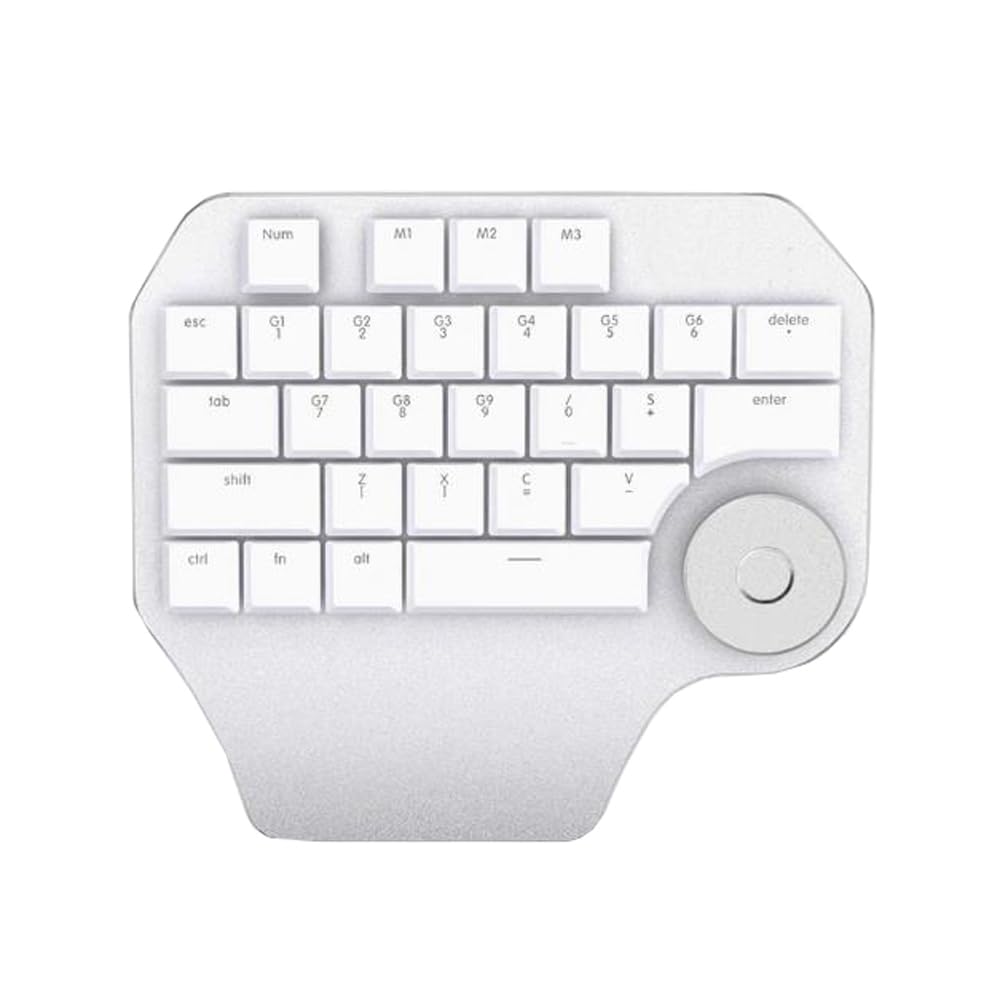
Image: The Delux T11 One-Handed Mechanical Keyboard. This image displays the compact design and key layout of the device, highlighting its ergonomic form factor for single-hand use.
Configurar
1. Desembalagem
Carefully remove the keyboard from its packaging. Ensure all components, including the keyboard and any included cables, are present and undamaged.
2. Opções de conectividade
Your Delux T11 keyboard supports two primary connectivity methods: USB-C (com fio) e Bluetooth (sem fio).
2.1. Conexão com fio (USB-C)
- Localize a porta USB-C no teclado.
- Conecte uma extremidade do cabo USB-C fornecido ao teclado.
- Connect the other end of the USB-C cable to an available USB port on your computer or laptop.
- O teclado deve ser reconhecido automaticamente pelo seu sistema operacional. Normalmente, não são necessários drivers adicionais para o funcionamento básico.
2.2. Conexão Bluetooth (sem fio)
- Ensure your computer or laptop has Bluetooth enabled.
- Put the keyboard into Bluetooth pairing mode. (Refer to the specific instructions on the keyboard itself or a small included guide for the exact key combination, as this information is not provided. Typically, this involves holding a function key + a Bluetooth key.)
- On your computer, navigate to Configurações de Bluetooth.
- Procurar new devices. The keyboard should appear as "Delux T11" or a similar identifier.
- Select the keyboard and follow any on-screen prompts to complete the pairing process.
Instruções de operação
Uso Básico
The Delux T11 is a compact, left-handed mechanical keyboard designed for efficiency. Its QWERTY layout provides familiar key placement for common functions.
Custom Shortcut Keys
A key feature of this keyboard is its customizable shortcut keys. These keys are pre-programmed for common design or editing functions, but can often be remapped using dedicated software (if available from the manufacturer) or operating system settings. Consult the manufacturer's website for any specific software tools.
- Identify Programmable Keys: Look for keys with special markings or those designated as "custom" or "macro" keys.
- Configuração de software: If manufacturer software is available, install it and follow its instructions to assign new functions or macros to the programmable keys.
- Operating System Shortcuts: For basic remapping, your operating system's keyboard settings may allow some customization.
Manutenção
Limpeza
- Desligar: Desconecte o teclado do computador antes de limpá-lo.
- Remoção de poeira: Use uma lata de ar comprimido para remover poeira e detritos de entre as teclas.
- Limpeza de superfícies: Gently wipe the keycaps and keyboard surface with a soft, lint-free cloth lightly dampLimpe com água ou uma solução de limpeza suave e não abrasiva. Evite umidade excessiva.
- Evite produtos químicos agressivos: Do not use strong solvents, alcohol, or abrasive cleaners, as these can damage the keyboard's finish or keycap legends.
Armazenar
When not in use, store the keyboard in a clean, dry environment away from direct sunlight and extreme temperatures. Protect it from dust and spills.
Solução de problemas
- Teclado não responde (com fio):
- Certifique-se de que o cabo USB-C esteja firmemente conectado tanto ao teclado quanto ao computador.
- Tente conectar o teclado a uma porta USB diferente do seu computador.
- Teste o teclado em outro computador para descartar um problema específico do sistema.
- Teclado não responde (Bluetooth):
- Ensure Bluetooth is enabled on your computer and the keyboard is in pairing mode.
- Remove the keyboard from your computer's Bluetooth device list and attempt to re-pair it.
- Check the keyboard's battery level if it's a wireless-only model (though this model is listed as "Wired" for power source, Bluetooth implies a battery for wireless use).
- Teclas com funcionamento incorreto:
- Clean the keyboard to remove any debris that might be obstructing the key switches.
- If specific keys are not working, it might indicate a hardware issue.
- Custom Shortcuts Not Working:
- Verify that any necessary software for customization is installed and running.
- Check the software settings to ensure the shortcuts are correctly configured.
- Ensure there are no conflicts with other software or operating system shortcuts.
Especificações
| Dimensões do produto | 3.94 x 7.87 x 11.81 polegadas |
| Peso do item | 2.2 libras |
| Fabricante | Genérico |
| Número do modelo do item | Laptop Parts-24-1-22-18 |
| Marca | Genérico |
| Dispositivos compatíveis | Computador portátil |
| Tecnologia de Conectividade | Bluetooth, USB-C |
| Descrição do teclado | Compact, Left-Handed, Mechanical, Customizable |
| Fonte de energia | Com fio |
| Tipo de interruptor | Mecânico |
| Layout do teclado | QWERTY |
| Orientação das mãos | Esquerda |
Informações de garantia
Este produto vem com um Garantia de 90 dias A garantia é válida a partir da data da compra. Esta garantia cobre defeitos de fabricação em condições normais de uso. Não cobre danos causados por uso indevido, acidentes, modificações não autorizadas ou desgaste normal. Guarde o comprovante de compra para eventuais solicitações de garantia.
Apoiar
For further assistance, technical support, or warranty inquiries, please refer to the contact information provided with your purchase or visit the manufacturer's official website. When contacting support, please have your product model number (Laptop Parts-24-1-22-18) and proof of purchase readily available.
Note: As this is a generic product, specific support channels may vary.


