
1. Introdução
This manual provides essential information for the safe and efficient operation of your Next YE-65GFSG8-QLED 65-inch UHD 4K Google QLED TV. Please read this manual thoroughly before using the television and retain it for future reference. Your new television combines QLED display technology with the Google TV operating system, offering a high-quality viewing experience and smart features.
2. Informações importantes de segurança
Always follow these basic safety precautions when operating your television:
- Fonte de energia: Certifique-se de que a TV esteja conectada a uma fonte de alimentação com a voltagem especificada.tage gama.
- Ventilação: Não obstrua as aberturas de ventilação. Deixe espaço suficiente ao redor da TV para uma circulação de ar adequada.
- Água e Umidade: Não exponha a TV à chuva ou umidade. Não coloque objetos contendo líquidos, como vasos, sobre a TV.
- Limpeza: Desligue a TV da tomada antes de limpar. Use um pano macio e seco. Não use produtos de limpeza líquidos ou em aerossol.
- Colocação: Coloque a TV em uma superfície estável e nivelada. Evite colocá-la sob luz solar direta ou perto de fontes de calor.
- Raio: Durante tempestades com raios ou quando não for usar a TV por longos períodos, desligue-a da tomada e desconecte a antena.
- Manutenção: Não tente consertar este produto sozinho. Encaminhe todos os serviços de manutenção para pessoal de serviço qualificado.
3. Conteúdo da embalagem
Verify that all items are present in your TV package:
- Next YE-65GFSG8-QLED 65-inch UHD 4K Google QLED TV
- Controle remoto
- Cabo de energia
- Suporte para TV (2 peças) e parafusos.
- Manual do usuário (este documento)
- Guia de início rápido
4. Configuração
4.1 Instalação Física
You can install your TV on a stand or mount it on a wall. Ensure the TV is placed on a stable surface or securely mounted.

Imagem: TV Dimensions. This image illustrates the physical dimensions of the 65-inch television, including its width, height, and diagonal screen size of 164 cm (65 inches).
Instalação do suporte:
- Coloque a TV cuidadosamente com a tela virada para baixo sobre uma superfície macia e plana para evitar danos à tela.
- Attach the two stand pieces to the designated slots on the bottom of the TV.
- Fixe os suportes com os parafusos fornecidos.
- Com cuidado, levante a TV e coloque-a na posição vertical sobre uma superfície estável.
Montagem na parede:
For wall mounting, use a VESA-compatible wall mount kit (sold separately) that matches the TV's VESA pattern. Follow the instructions provided with your wall mount kit. It is recommended to have professional assistance for wall mounting.
4.2 Conectando Periféricos
Connect your external devices to the appropriate ports on the back of your TV.
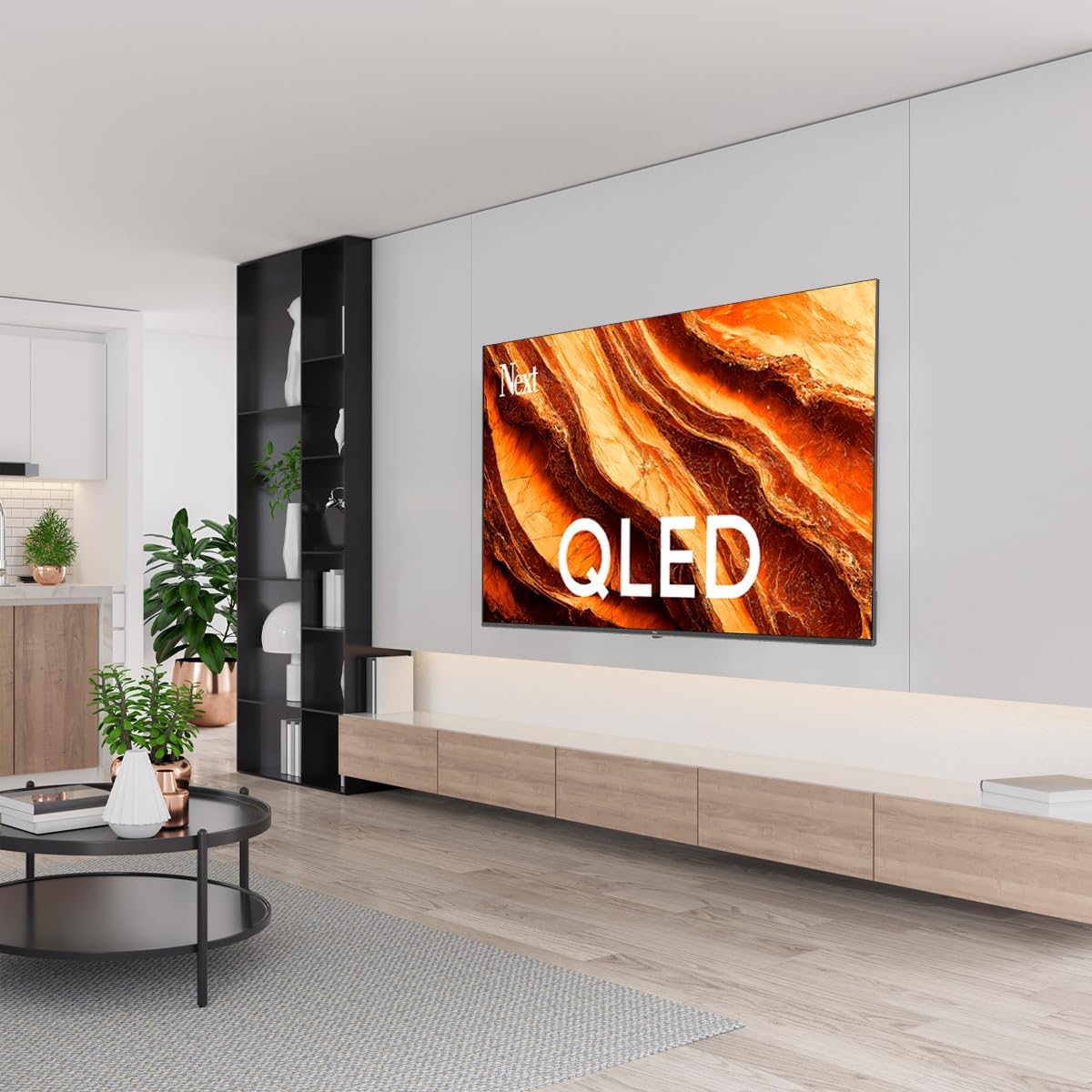
Imagem: Rear Panel Connections. This image displays the various input and output ports located on the back of the television, including HDMI, USB, DVB-S, DVB-T, CI Module, Mini AV-IN, Optical Out, and Ethernet.
- HDMI (ARCO): Connect Blu-ray players, game consoles, or other HDMI devices. HDMI 1 supports Audio Return Channel (ARC).
- USB (2x): Conecte dispositivos de armazenamento USB para reprodução de mídia.
- DVB-S / DVB-T: Connect satellite (DVB-S) or terrestrial (DVB-T) antenna cables.
- CI Module: Insert a Common Interface (CI) module for encrypted digital channels.
- Mini AV-IN: Connect older devices using an AV adapter cable.
- Saída ótica: Connect to an external audio system for digital audio output.
- Ethernet: Conecte um cabo Ethernet para obter uma conexão de internet com fio.
- Poder: Conecte o cabo de alimentação à TV e, em seguida, a uma tomada de parede.
4.3 Inicialização e Configuração Inicial
- After connecting all cables, plug the power cord into an electrical outlet.
- Pressione o botão liga/desliga no controle remoto ou na TV.
- The TV will guide you through the initial setup process, which includes:
- Seleção de idioma
- Conexão com Wi-Fi ou Ethernet
- Signing in with your Google Account (required for Google TV features)
- Aceitação dos termos e condições
- Channel scanning (for DVB-S/T)
- Siga as instruções na tela para concluir a configuração.
5. Operando sua TV
5.1 Funções de controle remoto
The remote control allows you to navigate the TV's features. Familiarize yourself with its buttons:
- Poder: Liga ou desliga a TV.
- Assistente do Google: Ativa comandos de voz.
- Teclado de navegação (Cima/Baixo/Esquerda/Direita/OK): Navega pelos menus e seleciona as opções.
- Voltar: Retorna à tela anterior.
- Lar: Acessa a tela inicial do Google TV.
- Volume +/-: Ajusta o nível de volume.
- Canal +/-: Muda de canal na TV.
- Entrada: Seleciona as fontes de entrada (HDMI, AV, etc.).
- Botões do aplicativo: Direct access to popular streaming applications.
5.2 Navigating Google TV Interface
Google TV organizes your entertainment with a personalized home screen. Content from your apps is brought together and organized for easy discovery.

Imagem: Google TV Interface. This image shows the main Google TV home screen with various streaming app icons and content recommendations, demonstrating the user interface.
- Tela inicial: Displays personalized recommendations, installed apps, and quick access to content.
- Aba "Para Você": Provides tailored content suggestions based on your viewhábitos.
- Tablatura ao vivo: Accesses live TV channels from integrated services.
- Aba Aplicativos: Shows all installed applications. You can download more from the Google Play Store.
- Aba Biblioteca: Accesses your purchased or rented content from Google Play.
5.3 Configurações de imagem e som
Para ajustar as configurações de imagem e som:
- Pressione o Configurações button (usually a gear icon) on your remote.
- Navegar para Exibição e som.
- Configurações de imagem: Adjust brightness, contrast, color, sharpness, and select picture modes (e.g., Standard, Vivid, Movie, Game). Your QLED TV offers enhanced color saturation.
- Configurações de som: Adjust bass, treble, balance, and select sound modes (e.g., Standard, Music, Movie, Speech).

Imagem: QLED Color Saturation. This image visually demonstrates the high color saturation achieved with QLED technology, showing a vibrant and rich color display.

Imagem: HDR (High Dynamic Range). This image illustrates the visual impact of HDR, showcasing improved contrast and color detail in a scene when HDR is enabled versus when it is off.
5.4 Configurações de rede
To connect your TV to the internet:
- Pressione o Configurações botão no seu controle remoto.
- Navegar para Rede e Internet.
- Selecione Wi-fi to connect to a wireless network or ensure Ethernet is connected for a wired connection.
- For Wi-Fi, select your network from the list and enter the password.
6. Manutenção
6.1 Limpando a TV
- Desligue sempre a TV da tomada antes de limpá-la.
- Use um pano macio, seco e sem fiapos para limpar delicadamente a tela e a carcaça da TV.
- Para manchas persistentes, aplique levementeampen the cloth with water or a specialized screen cleaner (ensure it's safe for TV screens). Never spray cleaner directly onto the screen.
- Evite usar produtos de limpeza abrasivos, ceras ou solventes.
6.2 Atualizações de Software
Your TV may receive software updates to improve performance and add new features. It is recommended to keep your TV's software updated.
- Certifique-se de que sua TV esteja conectada à internet.
- Pressione o Configurações botão no seu controle remoto.
- Navegar para Sistema > Sobre > Atualização do sistema.
- Selecione Verificar atualizações.
- Siga as instruções na tela para baixar e instalar as atualizações disponíveis.
7. Solução De Problemas
Se você tiver problemas com sua TV, consulte os problemas e soluções comuns a seguir:
| Problema | Possível causa/solução |
|---|---|
| Sem energia | Check if the power cord is securely plugged into the TV and the wall outlet. Ensure the outlet is working. |
| Sem imagem, mas com som. | Verifique a fonte de entrada. Certifique-se de que o dispositivo conectado esteja ligado e funcionando corretamente. |
| Sem som, mas com imagem. | Check the volume level and mute status. Verify audio cable connections for external devices. Check TV sound settings. |
| Controle remoto não funciona | Substitua as pilhas. Certifique-se de que não haja obstruções entre o controle remoto e o sensor infravermelho da TV. |
| Não é possível conectar ao Wi-Fi | Ensure your Wi-Fi router is on and within range. Re-enter the Wi-Fi password carefully. Try restarting the TV and router. |
| Os aplicativos estão lentos ou travando. | Close unused apps. Clear app cache (Settings > Apps > See all apps > [App Name] > Clear cache). Ensure a stable internet connection. |
Se o problema persistir após tentar essas soluções, entre em contato com o suporte ao cliente.
8. Especificações
Technical specifications for the Next YE-65GFSG8-QLED 65-inch UHD 4K Google QLED TV:
- Marca: Próximo
- Ano do modelo: 2025
- Resolução: 4K (3840x2160)
- Tecnologia de exibição: QLED
- Tamanho da tela: 65 polegadas (165 cm)
- Proporção da tela: 16:9
- Taxa de atualização: 60 Hz
- Principais características: Design sem moldura
- Conectividade: Bluetooth, Ethernet, HDMI (ARC), USB (2x), Wi-Fi
- Dimensões do produto: 27.8 cm de profundidade x 144.6 cm de largura x 88.9 cm de altura
- Peso: 16.3 quilos
- Sistema operacional: Google TV
- Componentes incluídos: Controle remoto
- País de origem: Peru
9. Garantia e Suporte
Your Next YE-65GFSG8-QLED TV comes with a manufacturer's warranty. Please refer to the warranty card included in your package for specific terms and conditions, including the warranty period and coverage details.
For technical support, service requests, or further assistance, please contact Next customer service. Contact information can typically be found on the manufacturer's webno site ou na documentação da garantia.
- Suporte online: Visit the official Next website for FAQs, troubleshooting guides, and support contact details.
- Centros de serviço: For hardware issues, locate an authorized service center near you.