Introdução
This manual provides essential instructions for the installation, operation, maintenance, and troubleshooting of your new Generic laptop keyboard. This keyboard is designed as a replacement part for various CLEVO laptop models, specifically the NJ50AU, NJ50CU, NJ50GU, NJ50LU, NJ50MU, NJ50PU, and NJ50ZU series, featuring a German (GR) layout.
Please read this manual thoroughly before attempting any installation or use to ensure proper function and to avoid potential damage to your device.
Produto acimaview
This replacement laptop keyboard is a component designed to restore or upgrade the input functionality of compatible CLEVO laptops. It features a German (GR) key layout and is supplied without a frame, requiring the use of the original laptop frame during installation.
- Tipo de item: Laptop Replacement Part
- Compatibilidade: CLEVO NJ50AU, NJ50CU, NJ50GU, NJ50LU, NJ50MU, NJ50PU, NJ50ZU series
- Disposição: German (GR)
- Quadro: No Frame (requires original laptop frame)
Configuração e instalação
Replacing a laptop keyboard requires careful handling and basic technical knowledge. If you are not comfortable performing this procedure, it is recommended to seek assistance from a qualified technician.
- Preparação: Power off your laptop completely and disconnect it from the power adapter. Remove the battery if it is external.
- Desmontagem: Carefully follow your laptop's specific service manual or online guides to remove the existing keyboard. This typically involves removing screws from the bottom of the laptop, detaching the keyboard bezel, and then releasing the keyboard itself.
- Desconectar o teclado antigo: Desconecte cuidadosamente o(s) cabo(s) flat do teclado antigo do conector da placa-mãe. Tenha cuidado para não danificar o conector ou o cabo.
- Instalar um novo teclado: Align the new keyboard into the designated slot. Connect the ribbon cable(s) securely to the motherboard connector. Ensure the cable is fully inserted and the locking mechanism (if present) is engaged.
- Remontagem: Reattach the keyboard bezel and secure any screws that were removed during disassembly. Reinstall the battery and reconnect the power adapter.
- Teste: Power on the laptop and test all keys to ensure they are functioning correctly.
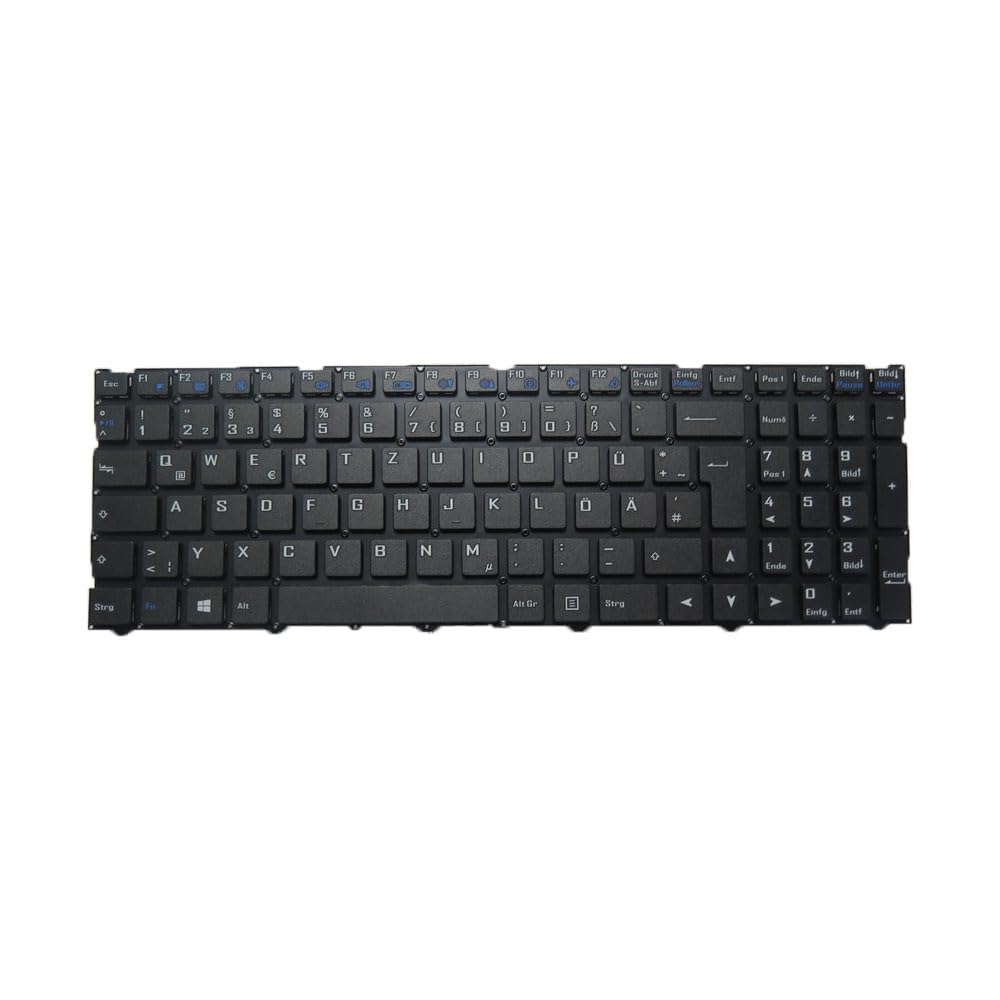
Image showing the underside of the laptop keyboard, highlighting the ribbon cable connector and mounting points. This view is crucial for proper installation and connection to the laptop's motherboard.
Instruções de operação
Once installed, the keyboard operates as a standard input device for your laptop. The German (GR) layout includes specific characters and key placements unique to the German language. Familiarize yourself with the layout for efficient typing.
- Digitação padrão: Use the keys for alphanumeric input, symbols, and functions as you would with any standard keyboard.
- Teclas de função (Fn): Many laptops utilize a 'Fn' key in combination with the F1-F12 keys for special functions such as brightness control, volume adjustment, Wi-Fi toggle, etc. Refer to your laptop's user manual for specific Fn key combinations.
- Configurações de idioma: Ensure your operating system's language settings are configured for 'German' to match the physical keyboard layout.
Manutenção
A manutenção adequada pode prolongar a vida útil do seu teclado e garantir um desempenho ideal.
- Limpeza: Regularly clean the keyboard surface with a soft, lint-free cloth. For dust and debris between keys, use compressed air. Avoid spraying liquids directly onto the keyboard.
- Derramamentos: In case of a liquid spill, immediately power off the laptop, disconnect it from power, and remove the battery. Turn the laptop upside down to drain the liquid. Do not attempt to use the laptop until it is completely dry, which may take several days. Professional inspection is recommended after a significant spill.
- Proteção: Consider using a keyboard protector to prevent dust and spills, especially in environments prone to them.
Solução de problemas
Se você tiver problemas com o teclado, tente as seguintes etapas de solução de problemas:
- Teclas não respondem:
- Ensure the keyboard ribbon cable is securely connected to the motherboard.
- Reinicie seu laptop.
- Check for any software conflicts or outdated drivers in your operating system's Device Manager.
- Incorrect Characters:
- Verify that your operating system's keyboard language setting is set to 'German'.
- Certifique-se de que nenhum recurso de acessibilidade (por exemplo, Teclas de Acesso Fácil, Teclas de Filtro) seja ativado inadvertidamente.
- Teclado não detectado:
- Power cycle your laptop (shut down, remove battery/power, hold power button for 15 seconds, then restart).
- Re-check the ribbon cable connection. A loose connection is a common cause.
- Consider updating your laptop's BIOS/UEFI firmware, if available from the manufacturer.
If problems persist after these steps, professional diagnosis may be required.
Especificações
| Recurso | Detalhe |
|---|---|
| Dimensões do produto | 16.93 x 7.09 x 2.76 polegadas |
| Peso do item | 1.76 libras |
| Fabricante | Genérico |
| ASIN | B0DZ234MS5 |
| Número do modelo do item | NJ50AU NJ50CU German GR |
| Data da primeira disponibilidade | 3 de março de 2025 |
Informações de garantia
Este produto vem com um Garantia de 90 dias from the date of purchase. This warranty covers manufacturing defects. It does not cover damage resulting from improper installation, misuse, accidents, or unauthorized modifications. Please retain your proof of purchase for warranty claims.
Apoiar
For further assistance, technical support, or warranty inquiries, please contact the seller directly through the platform where the purchase was made. It is advisable to check your registered email after payment for any specific instructions or contact details provided by the seller.