
1. Introdução
The Innex DS200 is a professional USB book scanner designed for efficient digitization of various documents, including books, magazines, and loose papers. It features a 26MP camera, A3 scanning capability, and advanced software functions to enhance scanning quality and workflow. This manual provides detailed instructions for setting up, operating, and maintaining your DS200 scanner.

Figure 1.1: Innex DS200 Scanner in operation with an open book.
2. Conteúdo da embalagem
Verifique se todos os itens listados abaixo estão incluídos em seu pacote. Caso algum item esteja faltando ou danificado, entre em contato com o suporte ao cliente.
- Innex DS200 Scanner Unit
- Bloco de digitalização
- Cabo USB
- Adaptador de energia (tipo A)
- Power Plugs (Type C, Type G)
- Botão de mão
- Pedal
- Adapter (USB-C to USB-A)
- Guia de início rápido
- Cartão de serviço
- Declaração GPSR
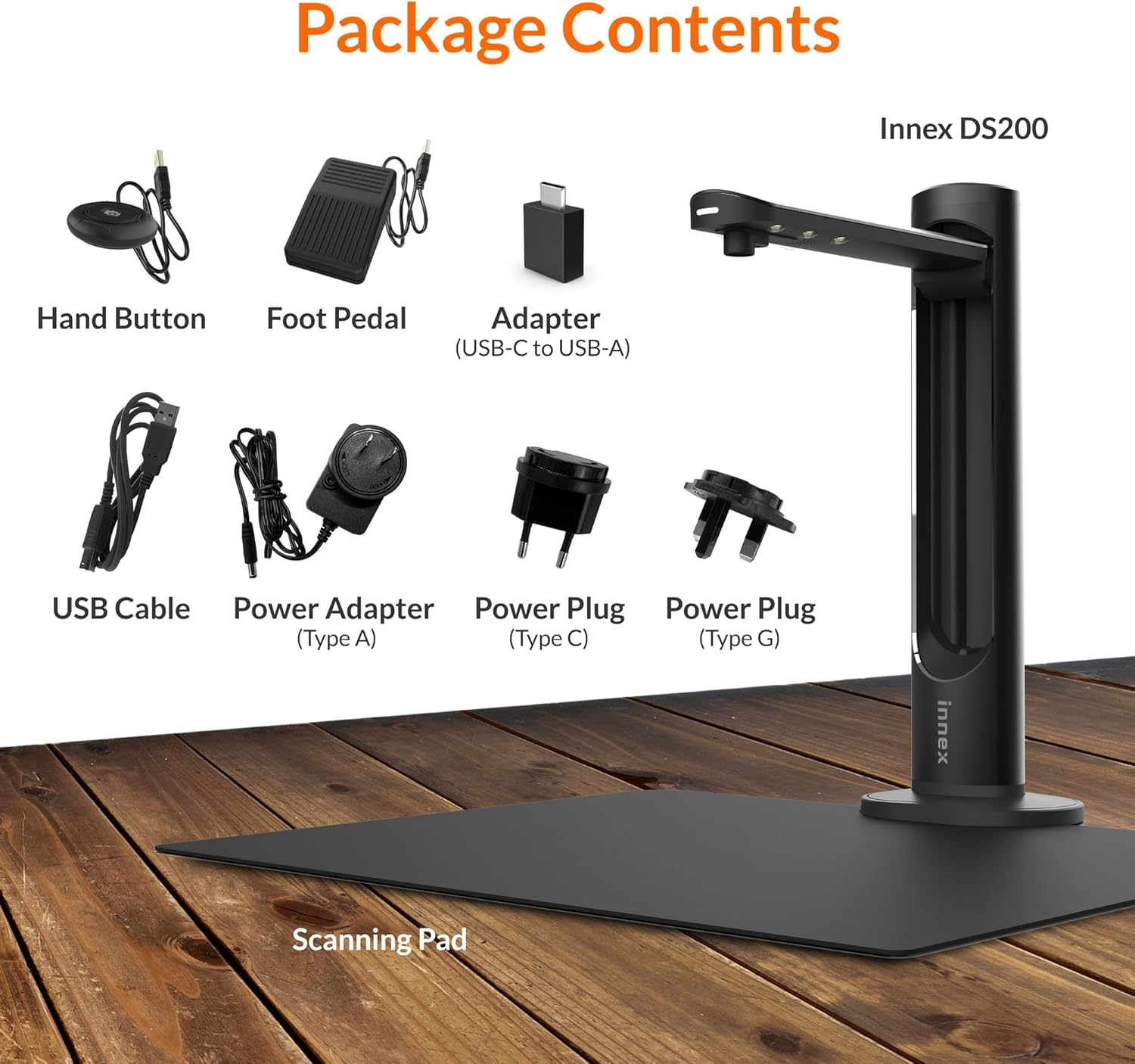
Figure 2.1: Contents of the Innex DS200 package.
3. Configuração
- Descompacte os componentes: Retire cuidadosamente todos os itens da embalagem.
- Posicione o scanner: Place the Innex DS200 scanner unit on a stable, flat surface.
- Place the Scanning Pad: Position the black scanning pad directly beneath the scanner head. Ensure it is centered and flat.
- Conecte a energia: Connect the power adapter to the scanner and plug it into an electrical outlet. Use the appropriate power plug for your region.
- Conectar ao computador: Connect the scanner to your computer using the provided USB cable. If your computer only has USB-C ports, use the included USB-C to USB-A adapter.
- Instalar software: Download and install the Innex Scan software from the official Innex website. Follow the on-screen instructions for installation. The software is compatible with Windows and macOS.
- Conecte acessórios: Plug in the hand button and foot pedal to the designated ports on the scanner unit.
4. Instruções de operação
4.1. Basic Scanning Procedure
- Launch Innex Scan Software: Open the Innex Scan application on your computer.
- Inserir documento: Place the document or book you wish to scan on the scanning pad. Ensure it is within the scanning area. The laser guide can assist with alignment.
- Ajustar configurações: In the software, select your desired scanning mode (e.g., Document, Book, Photo) and adjust settings such as color mode, resolution, and output format.
- Iniciar verificação: Trigger the scan using one of the available methods: the software capture button, the hand button, or the foot pedal.
- Review e economize: After scanning, review the image in the software. Apply any necessary corrections and save the file to your preferred location and format.

Figure 4.1: Using the laser guide for document alignment.

Figure 4.2: Multiple options for triggering a scan.
4.2. Recursos do software
The Innex Scan software includes several features to optimize your scanning experience:
- Curve Flattening: Automatically corrects the curvature of book pages for flat, readable scans.
- OCR (Reconhecimento Óptico de Caracteres): Converts scanned images into editable and searchable text in over 120 languages.
- Auto-Cropping: Automatically detects and crops the document edges.
- Page-Turn Detection: For book scanning, the software can detect when a page has been turned and automatically initiate the next scan.
- Finger Removal: Intelligently removes images of fingers holding down pages during scanning.
- Multi Scan Mode: Allows scanning multiple small items simultaneously, such as business cards or photos, and separates them into individual files.
- Visualizer Mode: Enables the scanner to function as a document camera for presentations or live demonstrations.
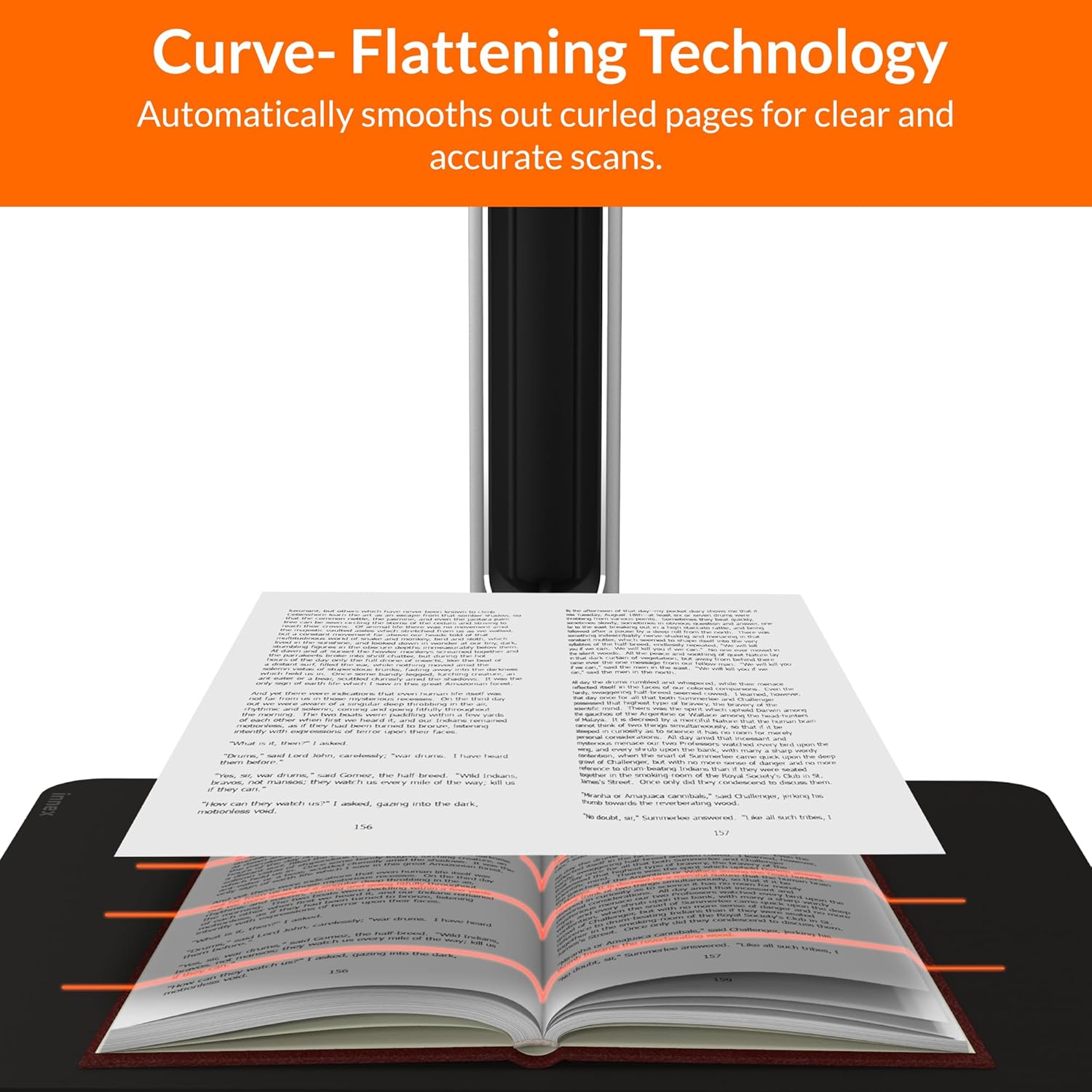
Figure 4.3: Curve Flattening Technology in use.

Figure 4.4: OCR Text Recognition and export options.

Figura 4.5: Overview of Innex Scan software features.
4.3. Export Options
The Innex DS200 supports various export formats for both image and text files:
- Imagem Files: JPEG, PNG, BMP, TIFF
- Documento Files: PDF (searchable), DOC, EXCEL, TEXT
- E-book Files: EPUB
- Áudio Files (Text-to-Speech): MP3, WAV
- Vídeo Files (Visualizer Mode): MP4, AVI, FLV, WMV

Figure 4.6: Available export formats in Innex Scan software.
5. Manutenção
- Limpeza: Regularly wipe the scanner lens and LED lamp with a soft, dry, lint-free cloth to ensure optimal scan quality. Clean the scanning pad with a damp pano se necessário.
- Atualizações de software: Periodically check the official Innex website for software updates to ensure you have the latest features and performance improvements.
- Armazenar: Quando não estiver em uso, guarde o scanner em um ambiente limpo e seco, longe da luz solar direta e de temperaturas extremas.
6. Solução De Problemas
6.1. Problemas e soluções comuns
| Emitir | Possível causa | Solução |
|---|---|---|
| Scanner não detectado | Loose USB connection, driver issue, power issue | Ensure USB cable is securely connected. Check power connection. Reinstall scanner drivers or software. Try a different USB port. |
| Poor scan quality | Dirty lens, insufficient lighting, incorrect settings, document not flat | Clean the scanner lens. Ensure adequate ambient lighting or use the built-in LED lamp. Adjust resolution and color settings in software. Ensure documents are flat on the scanning pad. |
| O software trava ou congela. | Outdated software, system incompatibility, insufficient system resources | Update Innex Scan software to the latest version. Ensure your computer meets minimum system requirements. Close other demanding applications. Restart the software and computer. |
| OCR not working correctly | Poor scan quality, incorrect language setting, complex font | Improve scan quality. Verify the correct OCR language is selected in the software. For highly stylized or handwritten text, OCR accuracy may vary. |
7. Especificações
Detailed technical specifications for the Innex DS200 scanner:

Figure 7.1: Innex DS200 Technical Specifications.
- Modelo: DS200
- Sensor de imagem: Sensor CMOS
- Resolução Máx.: 5800 x 4522 pixels (26 MP)
- Output DPI: Approx. 300 dpi (A3)
- Máx. Área de tiro: A3 (16.77" x 12.59" / 426 x 320mm)
- Profundidade de cor: 24 bits
- Lens Focus: Fixo
- Velocidade de digitalização: 1.5 sec per A3 page
- Gatilho de digitalização: Botão manual, pedal, botão de software, varredura automática
- Formatos de saída: Picture (JPG, TIFF, BMP, PNG), Document (PDF, Image, PDF Searchable), Text (DOC, EXCEL, TEXT), E-book (EPUB), Audio (MP3, WAV), Video (AVI, MPEG, FLV, WMV)
- Laser Projection: Construído em
- Fonte de luz: LED de alto brilho integrado
- Interface: USB 2.0 Type B x 1 (for PC Connection), USB 2.0 Type-A x 1 (for USB Extension)
- Poder: 5V/2A
- Requisitos mínimos do sistema: Windows 10, 11, macOS 11 or later; Intel i5 Processor or higher; 8GB RAM (Recommended 16GB or more); 20GB Available HDD Space; USB 2.0 Port
- Dimensões do produto (dobrado): 4.33"D x 5.91"L x 15.75"A (110 x 150 x 400 mm)
- Product Dimensions (In Use): 12.05"D x 5.91"L x 15.75"A (307 x 150 x 400 mm)
- Peso líquido: Aprox. 2.64 lbs (1.2 kg)
8. Garantia e Suporte
For warranty information and technical support, please refer to the service card included in your package or visit the official Innex website. You can also contact FunTech Innovation, the manufacturer, for assistance.
Fabricante: FunTech Innovation
Website: Innex Official Store on Amazon