
1. Introdução
The OREI SplitExtend Laptop Docking Station SX-2C1080-D100W is a versatile and compact solution designed to expand the connectivity and display capabilities of your laptop. This manual provides detailed instructions for setup, operation, maintenance, and troubleshooting to ensure optimal performance and user experience.

Figure 1: OREI SplitExtend Docking Station Overview
2. Recursos do Produto
- Dual HDMI Display Output: Extend or duplicate your laptop screen to up to two external displays. Supports 4K@30Hz on a single monitor or 1080p@60Hz across two screens.
- Conectividade USB 3.0: Includes two USB 3.0 Type-A ports and one USB 3.0 Type-C port for high-speed data transfer and peripheral connectivity.
- Leitores de cartão integrados: Features dedicated SD and Micro SD card slots for convenient access to memory cards.
- Fornecimento de energia de 100 W (PD): Allows for pass-through charging of your laptop while using the docking station, ensuring your device remains powered.
- Design compacto e durável: Constructed with aluminum alloy housing for enhanced durability and portability.
- Ampla compatibilidade: Supports Windows (11, 10, 7, 8.1) and macOS (Ventura 13, Monterey 12, Big Sur 11, Catalina 10.15, Mojave 10.14) operating systems. Compatible with USB-C, USB-A, Thunderbolt 3/4, and USB 4 devices.

Figura 2: Principais características do produto

Figura 3: Port Over detalhadoview
3. Especificações
| Recurso | Especificação |
|---|---|
| Modelo | SX-2C1080-D100W |
| interface de hardware | HDMI, USB 3.0 Type A, USB 3.0 Type C |
| Dispositivos compatíveis | Portátil, Monitor |
| Total de portas USB | 3 (2x USB 3.0 Type-A, 1x USB 3.0 Type-C) |
| Total de portas HDMI | 2 |
| Fornecimento de energia | 100 W |
| Dimensões (C x L x A) | 5.12" x 1.7" x 0.4" (130 mm x 43.2 mm x 10.4 mm) |
| Peso | 2.68 onças (76g) |
| Material | Alumínio e ABS |
| Cor | Preto |

Figure 4: Technical Specifications
4. Guia de configuração
Follow these steps to set up your OREI SplitExtend Docking Station:
- Conectar ao laptop: Plug the integrated USB-C cable from the docking station into an available USB-C port on your laptop. Ensure your laptop's USB-C port supports video output (DP Alt Mode).
- Conectar monitores: Use HDMI cables (not included) to connect your external monitors to the two HDMI output ports on the docking station.
- Conectar à energia (opcional): If your laptop requires charging or if you are connecting power-intensive peripherals, connect your laptop's USB-C power adapter to the dedicated USB-C PD port on the docking station. This port supports up to 100W Power Delivery.
- Conecte periféricos: Plug your USB devices (e.g., mouse, keyboard, external hard drive) into the USB 3.0 Type-A and Type-C ports on the docking station. Insert SD or Micro SD cards into their respective slots if needed.

Figure 5: Docking Station Connected to Laptop and Monitors
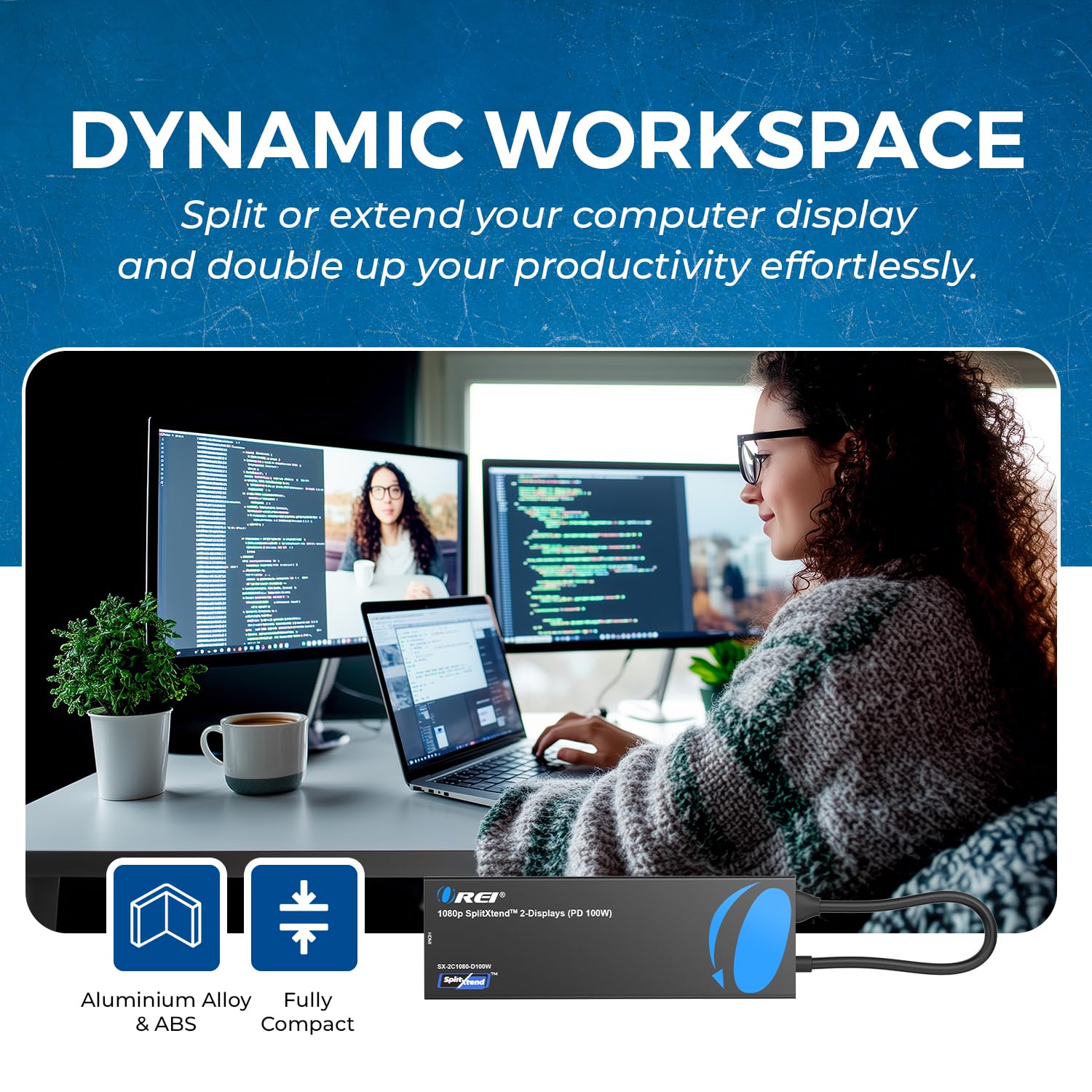
Figure 6: Close-up of Docking Station Ports
Guia de vídeo de configuração
Video 1: How to Use SplitExtend Docking Station Dual Monitor. This video provides a visual guide on connecting and setting up the docking station with your laptop and external monitors.
5. Modos de operação
The OREI SplitExtend Docking Station supports various display modes to enhance your productivity:
- Extended Display Mode (Windows MST): Allows you to extend your desktop across multiple screens, providing more screen real estate for multitasking. Each monitor can display different content.
- Mirror Display Mode (Windows/macOS SST): Duplicates your laptop's screen onto the external monitors, showing the same content on all displays. This is ideal for presentations or sharing your screen.
Note: Your laptop must support video output through USB-C (DP Alt Mode) for the adapter to function correctly.

Figure 7: Split or Extend Display Options

Figure 8: Mirror and Extend Mode Compatibility
Operating Mode Video Guide
Video 2: OREI SplitExtend Laptop Docking Station 4K Overview. This video demonstrates the various operating modes and capabilities of the docking station.
6. Compatibilidade
The OREI SplitExtend Docking Station is designed for broad compatibility:
- Sistemas operacionais: Windows 11, 10, 7, 8.1 and macOS Ventura 13, Monterey 12, Big Sur 11, Catalina 10.15, Mojave 10.14.
- Compatibilidade de notebook: Works with M1/M2 & Intel-based MacBook Air/Pro, Dell XPS, Precision, Latitude, Lenovo Yoga, Thinkbook, Ideapad, HP Spectre, X360, ENVY, and other laptops with compatible USB-C ports.

Figure 9: Broad Compatibility with Various Operating Systems and Laptops
7. Solução De Problemas
- Sem saída de vídeo:
- Ensure your laptop's USB-C port supports video output (DP Alt Mode). Not all USB-C ports have this capability.
- Check all cable connections (USB-C to laptop, HDMI to monitors). Try re-plugging them firmly.
- Verify monitor input settings are set to the correct HDMI input.
- Tente conectar apenas um monitor por vez para isolar o problema.
- Update your laptop's graphics drivers and operating system.
- Tela piscando ou instável:
- Ensure you are using high-quality HDMI cables.
- Reduce the display resolution or refresh rate in your laptop's display settings.
- Ensure adequate power supply if using power-intensive peripherals or charging your laptop through the dock.
- Dispositivos USB não reconhecidos:
- Try connecting the USB device directly to your laptop to confirm it's functional.
- Certifique-se de que a estação de acoplamento esteja devidamente conectada ao seu laptop.
- If it's a power-intensive device, ensure the docking station is connected to a 100W PD power source.
- Meu laptop não está carregando:
- Ensure your laptop's original USB-C power adapter is connected to the docking station's USB-C PD port.
- Verifique se o adaptador de energia está funcionando corretamente.
- Confirme se o seu laptop é compatível com USB-C Power Delivery.
8. Manutenção
To ensure the longevity and optimal performance of your OREI SplitExtend Docking Station, follow these maintenance tips:
- Mantenha o dispositivo limpo, passando um pano macio e seco. Evite usar produtos químicos agressivos ou materiais abrasivos.
- Guarde a estação de acoplamento em local fresco e seco, longe da luz solar direta e de temperaturas extremas.
- Avoid bending or straining the integrated USB-C cable excessively. Utilize the built-in storage slot for the cable when not in use to prevent damage.
- Não exponha o dispositivo a água ou outros líquidos.
- Handle the ports gently when connecting or disconnecting cables to prevent physical damage.
9. Garantia e Suporte
The OREI SplitExtend Laptop Docking Station SX-2C1080-D100W comes with a Garantia de 12 meses from the date of purchase. This warranty covers manufacturing defects and ensures reliable use.
For technical support, warranty claims, or any inquiries regarding your product, please contact OREI Direct customer service. Refer to the contact information provided in your product packaging or visit the official OREI website para obter assistência.
Thank you for choosing OREI products.