
ARCCTV P2
Manual do Usuário da Câmera de Segurança Externa ARCCTV 2K P2
Modelo: P2
1. Introdução
This manual provides detailed instructions for the installation, operation, and maintenance of your ARCCTV 2K Security Camera Outdoor P2. Please read this manual thoroughly before using the product to ensure correct usage and optimal performance. Keep this manual for future reference.

Imagem 1.1: Frente view of the ARCCTV 2K Security Camera Outdoor P2.
2. O que está na caixa
Verifique se todos os componentes estão presentes na embalagem:
- Corpo da câmera
- Adaptador de energia 5V1A
- Parafusos de montagem (conjunto)
- Screw Positioning Sticker
- Adesivo de advertência
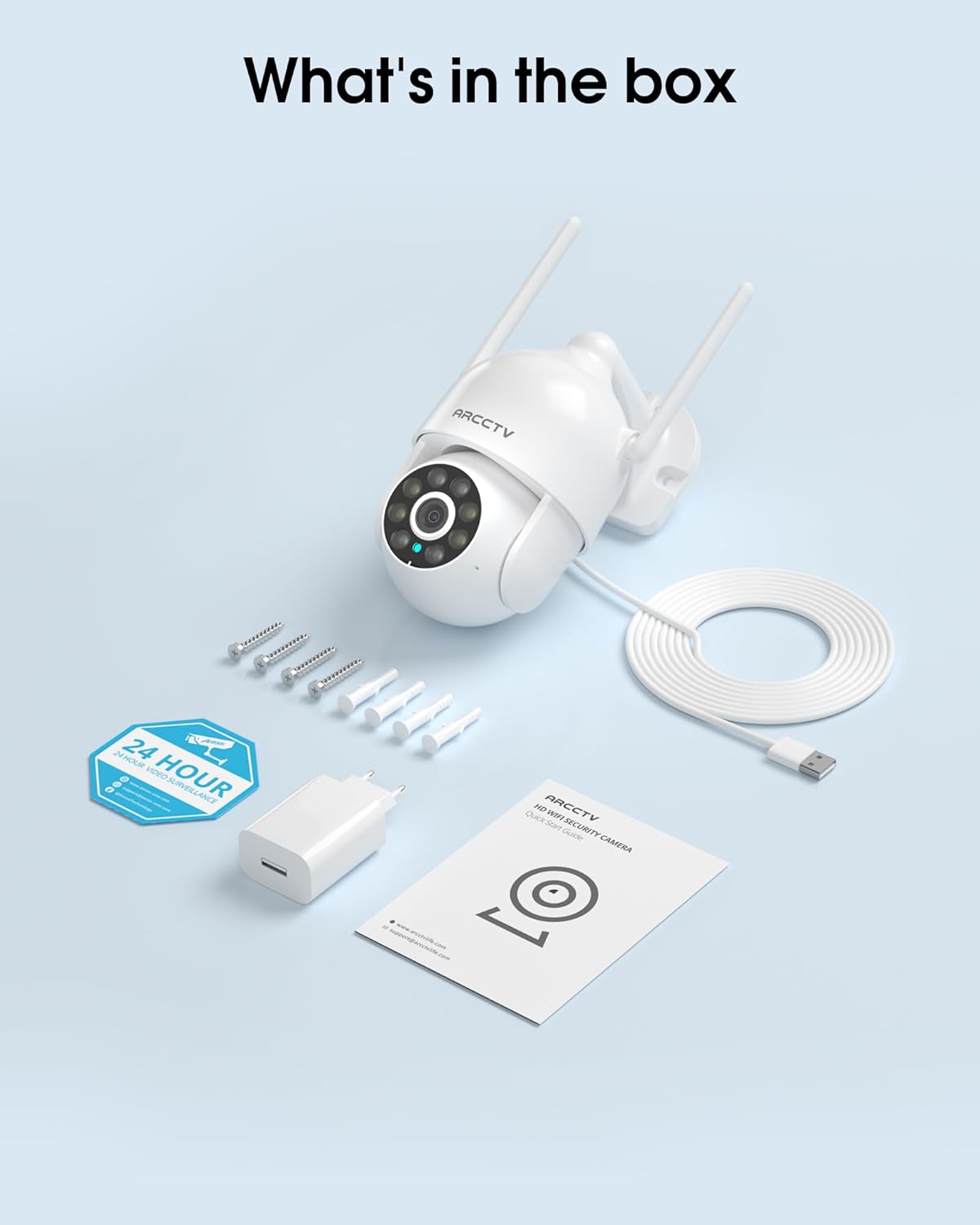
Image 2.1: All items included in the ARCCTV 2K Security Camera package.
3. Recursos do Produto
- Resolução 2K Ultra HD: Provides clear 2304x1296p video.
- Visão noturna em cores: Built-in spotlight enables vivid color monitoring in low light.
- 360° Pan-Tilt-Zoom (PTZ): Remotely control 355° horizontal and 90° vertical rotation.
- Rastreamento automático de movimento: Smart AI automatically follows and records detected movement.
- WiFi de banda dupla: Supports both 2.4G and 5G WiFi for stable connectivity.
- Áudio bidirecional: Microfone e alto-falante integrados para comunicação.
- IP66 à prova de intempéries: Durable design for outdoor use in various weather conditions (-4°F ~ 122°F).
- Armazenamento flexível: Suporta armazenamento local em cartão microSD (até 128 GB, não incluído) e armazenamento opcional na nuvem.
- Gravação 24 horas por dia, 7 dias por semana: Continuous recording capability with stable power supply.
4. Configuração
4.1 Instalação
- Escolha um local: Selecione um local ao ar livre com boa visibilidade. view of the area you wish to monitor. Ensure it is within range of your Wi-Fi network and a power outlet.
- Monte a câmera: Use the provided screw positioning sticker to mark drill holes. Drill holes, insert wall anchors, and secure the camera body to the wall using the mounting screws.
- Conecte a energia: Plug the 5V1A power adapter into the camera and then into a power outlet. The camera will power on and begin its startup sequence.
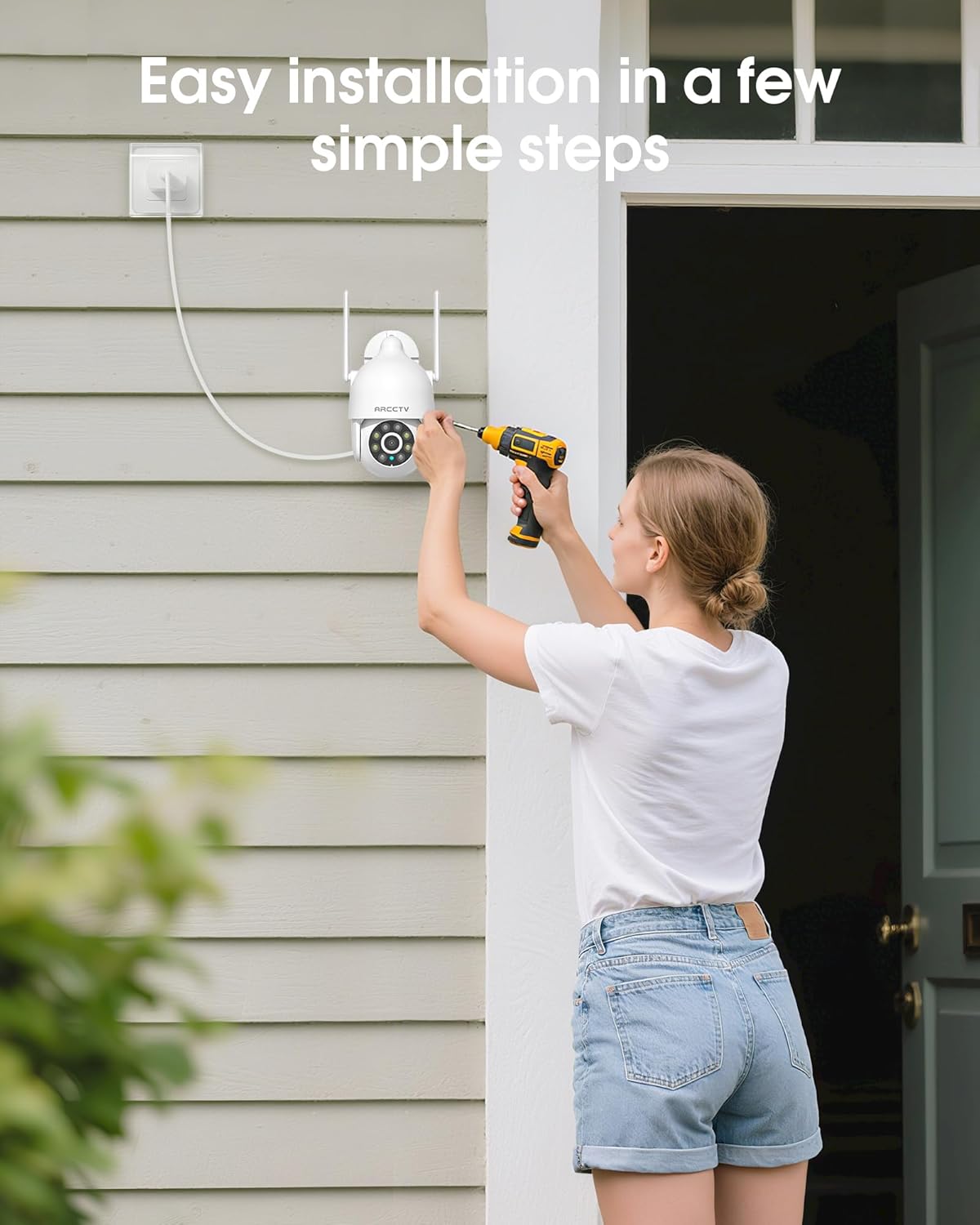
Image 4.1: Illustration of easy camera installation steps.
4.2 Download do aplicativo e criação de conta
- Download the official ARCCTV app from your smartphone's app store (iOS or Android).
- Abra o aplicativo e siga as instruções na tela para criar uma nova conta ou fazer login, caso já possua uma.
4.3 Conexão Wi-Fi
- No aplicativo, toque no ícone "Adicionar dispositivo" ou "+".
- Select your camera model and follow the prompts to connect it to your Wi-Fi network. The camera supports both 2.4GHz and 5GHz bands for stable connectivity.
- Ensure your smartphone is connected to the same Wi-Fi network during the setup process.
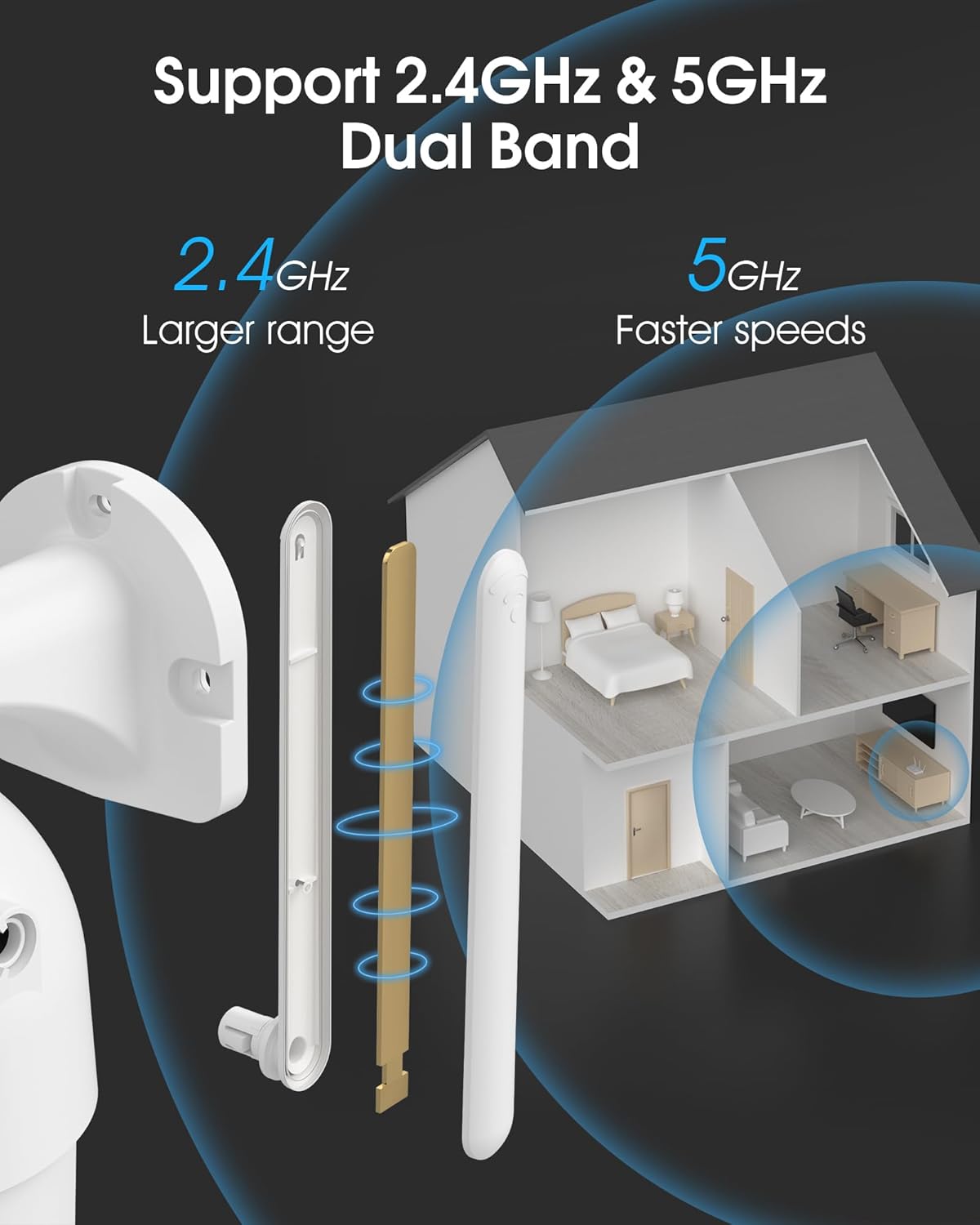
Image 4.2: The camera supports both 2.4GHz (larger range) and 5GHz (faster speeds) Wi-Fi bands.
4.4 Instalação do cartão microSD (opcional)
For local storage, install a microSD card (up to 128GB, not included) into the designated slot on the camera. Ensure the camera is powered off before inserting or removing the card.
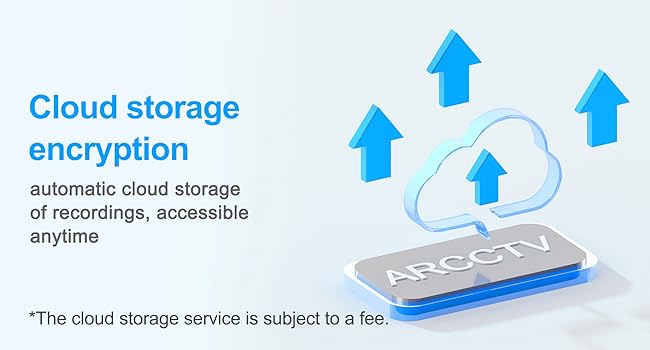
Image 4.3: Location of the microSD card slot on the camera.
5. Operando a câmera
5.1 Ao vivo View
Open the ARCCTV app and select your camera to view the live feed. You can monitor your property in real-time.
5.2 Controle Pan-Tilt-Zoom (PTZ)
Ao vivo view screen, use the directional controls to rotate the camera horizontally (Pan: 355°) and vertically (Tilt: 90°) to adjust the viewing angle. You can also set preset points for quick navigation.
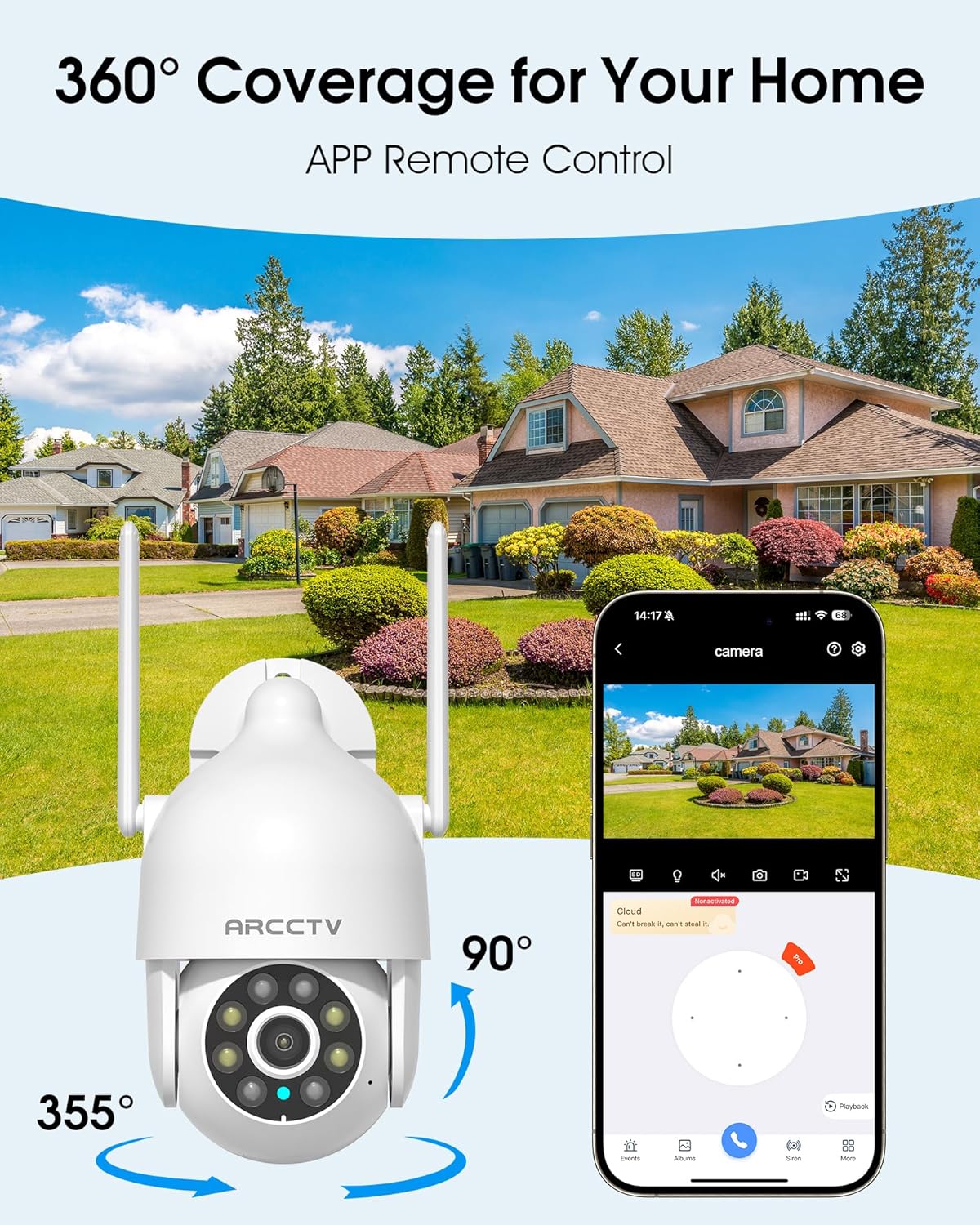
Image 5.1: The camera offers 360° coverage through remote pan and tilt controls.
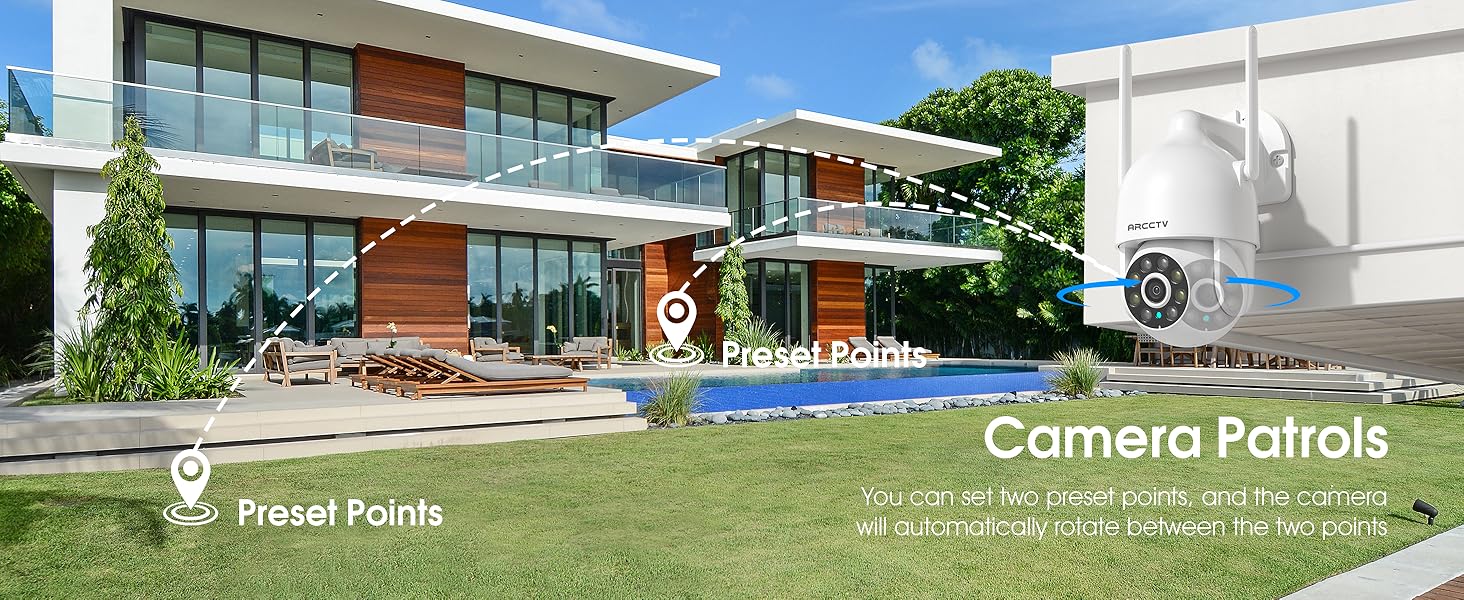
Image 5.2: Setting up camera patrol routes between preset points.
5.3 Motion Tracking and Alerts
The camera features smart AI motion tracking that automatically follows detected movement. You can customize alert zones and receive instant notifications on your smartphone when motion is detected.

Image 5.3: The camera's smart motion tracking feature in action.

Image 5.4: Instant alerts with customizable settings, including spotlight, siren, and two-way audio.
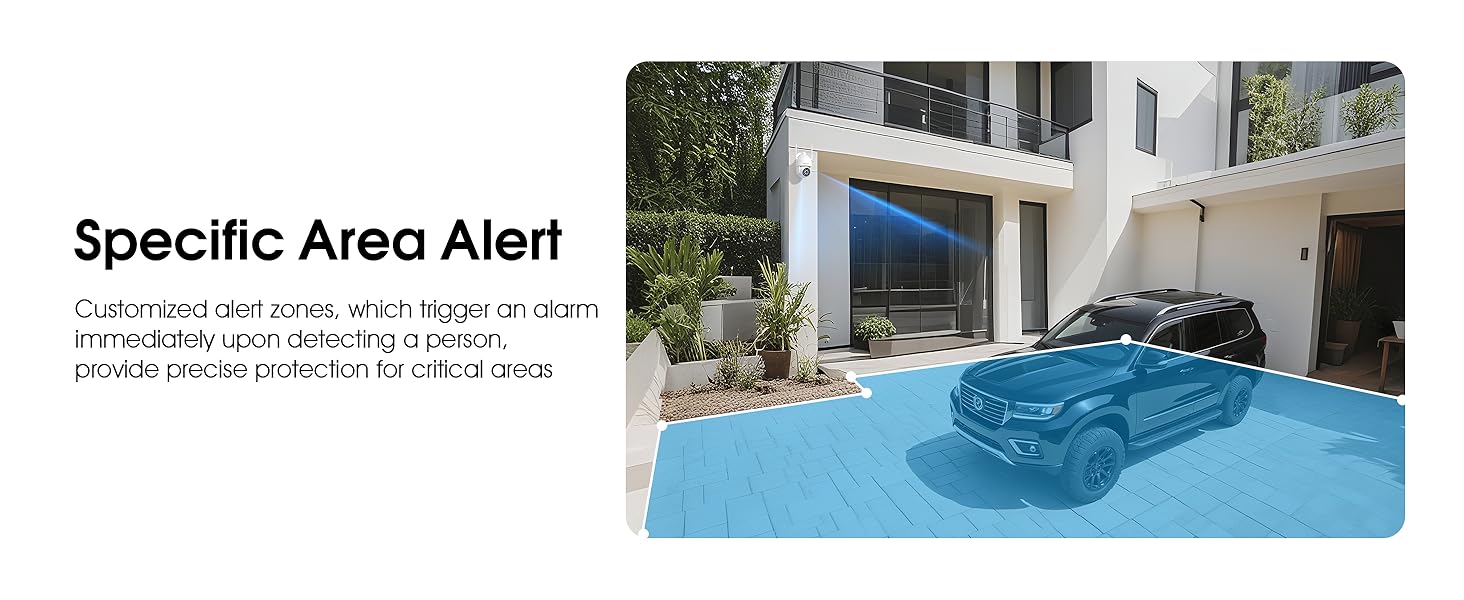
Image 5.5: Setting up specific area alerts for precise protection.
5.4 Modos de Visão Noturna
The camera offers both full-color night vision (activated by the built-in spotlight) and infrared night vision for clear monitoring in various low-light conditions.

Image 5.6: Comparison of Color Night Vision and Infrared Night Vision.
Áudio bidirecional 5.5
Use the two-way audio feature to communicate with visitors or deter unwanted guests directly through the camera's built-in microphone and speaker.
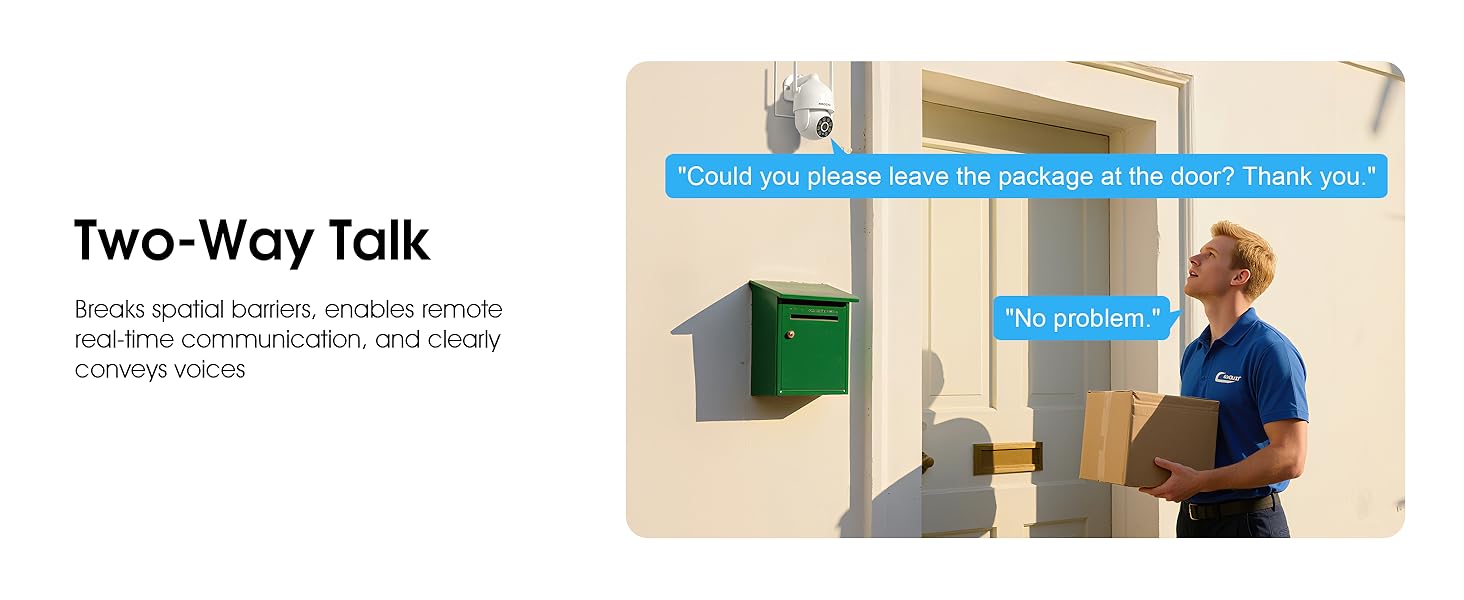
Image 5.7: Utilizing two-way talk for remote communication.
5.6 Gravação e Reprodução
A câmera suporta gravação contínua 24 horas por dia, 7 dias por semana. Footage can be saved to a local microSD card (up to 128GB) or to optional cloud storage. Access recorded videos through the app's playback function.

Image 5.8: The camera provides 24/7 recording capabilities.
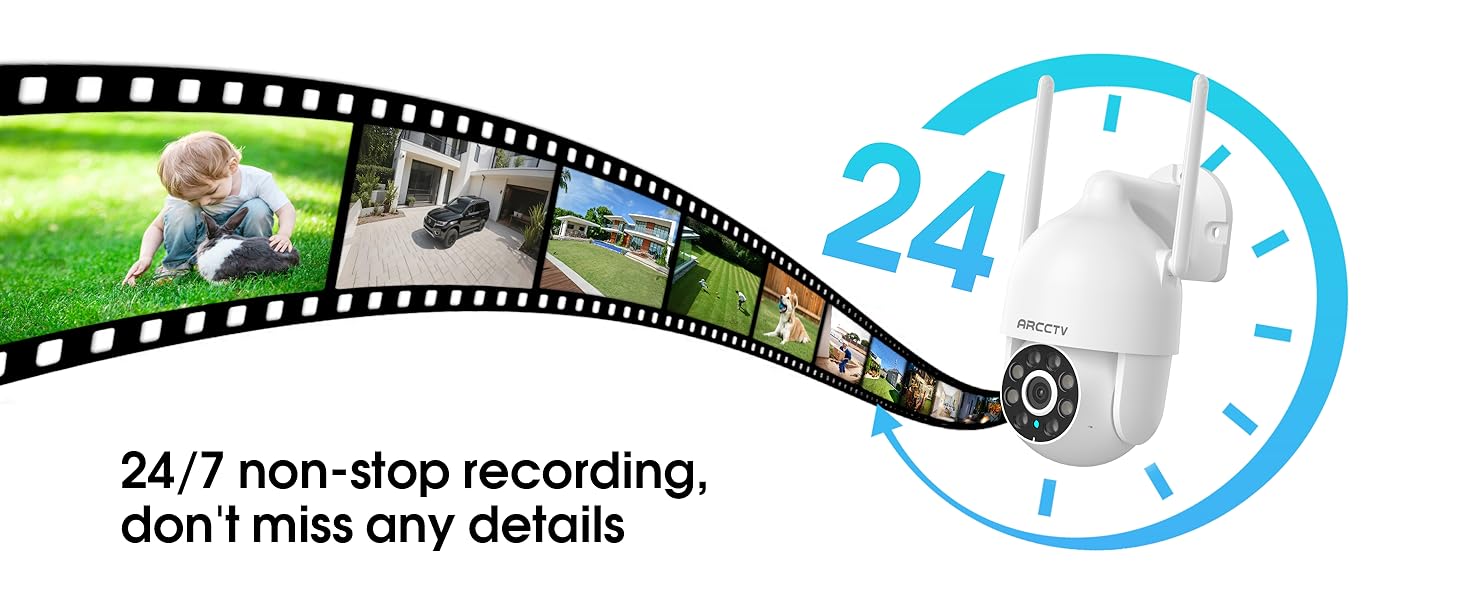
Image 5.9: Continuous 24/7 recording ensures no details are missed.
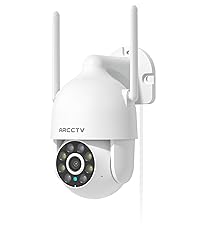
Image 5.10: Cloud storage encryption for secure and accessible recordings (subscription may apply).
5.7 Partilha Familiar
The app supports multi-member sharing, allowing family members to view the camera feed and collaborate on security monitoring.
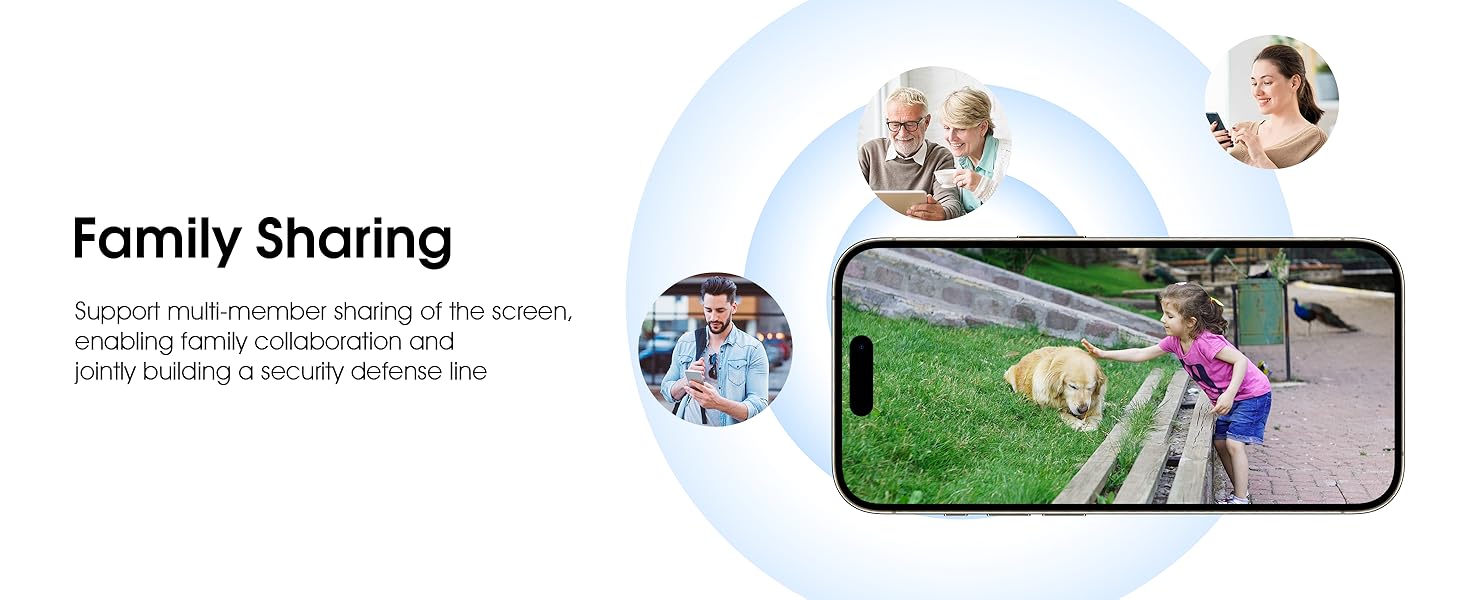
Image 5.11: The family sharing feature allows multiple users to access the camera feed.
5.8 Compatibilidade com Alexa
The camera is compatible with Alexa, allowing you to check the monitoring screen using voice commands.
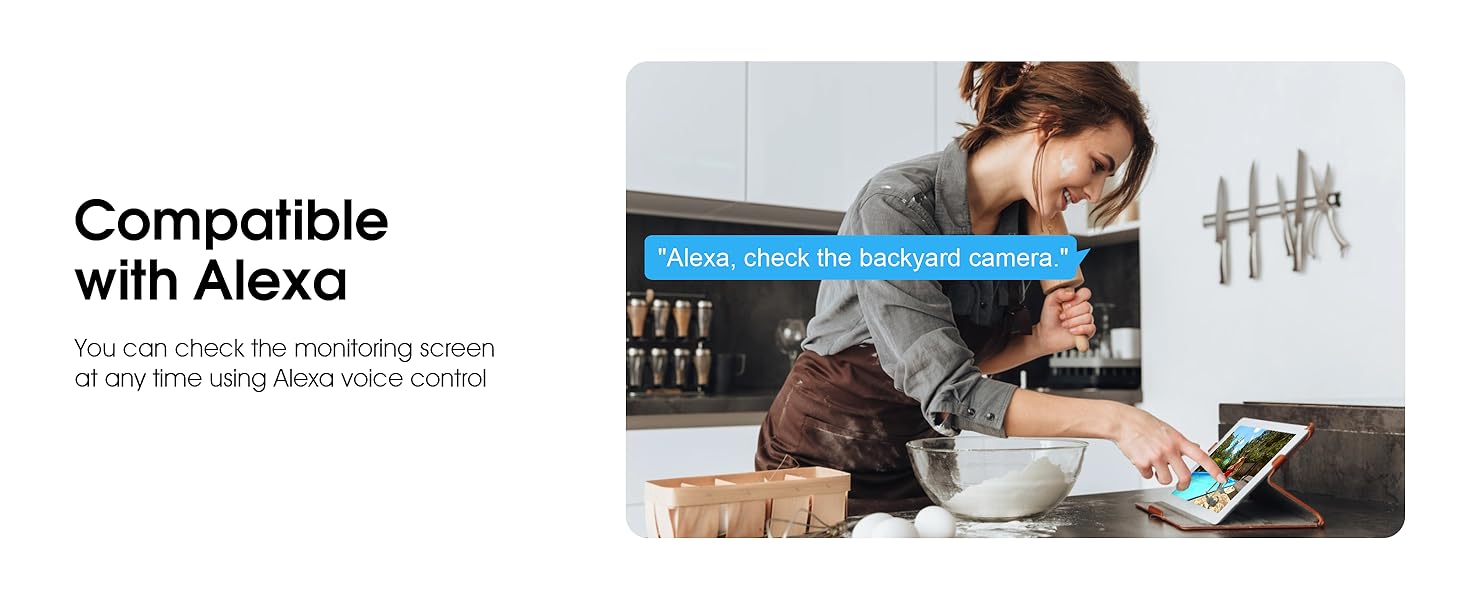
Image 5.12: Voice control via Alexa for convenient monitoring.
6. Manutenção
6.1 Limpeza da Câmera
Limpe periodicamente a lente e o corpo da câmera com um pano macio e seco.amp Use um pano para remover poeira e detritos. Não utilize produtos químicos agressivos ou abrasivos.
6.2 atualizações de firmware
Ensure your camera's firmware is up to date for optimal performance and security. Check for updates within the ARCCTV app and follow the instructions to install them.
6.3 Gerenciamento de armazenamento
If using a microSD card, regularly check its status in the app. Format the card periodically to maintain performance. For cloud storage, manage your subscription and storage space through the app.
7. Solução De Problemas
- Câmera não conecta ao Wi-Fi:
- Ensure your Wi-Fi network is 2.4GHz or 5GHz and has a strong signal at the camera's location.
- Verifique se a senha do Wi-Fi foi digitada corretamente.
- Reinicie o roteador e a câmera.
- Má qualidade de imagem:
- Limpe a lente da câmera.
- Garanta iluminação adequada para um desempenho ideal da visão noturna.
- Verifique a velocidade da sua conexão com a internet.
- A detecção de movimento não funciona:
- Verifique se a detecção de movimento está ativada nas configurações do aplicativo.
- Ajuste as configurações de sensibilidade.
- Certifique-se de que não haja obstruções no campo de visão da câmera. view.
- No Recording to MicroSD Card:
- Ensure a microSD card is properly inserted and formatted in the app.
- Check if the card is full; consider formatting or replacing it.
- Verifique as configurações de gravação no aplicativo.
8. Especificações
| Recurso | Especificação |
|---|---|
| Nome do modelo | P2 |
| Uso interno/externo | Ar livre |
| Resolução de captura de vídeo | 2K (2304x1296p) |
| Tecnologia de Conectividade | Sem fio (Wi-Fi) |
| Tecnologia de comunicação sem fio | Wi-Fi (banda dupla 2.4G/5G) |
| Viewângulo de engate | 360 graus (rotação panorâmica de 355°, inclinação de 90°) |
| Alcance de visão noturna | 50 pés |
| Nível de resistência à água | IP66 à prova d'água |
| Fonte de energia | Adaptador de energia 5V1A |
| Tamanho máximo suportado pela memória flash | 128 GB (MicroSD) |
| Capacidades de gravação audiovisual | Vídeo e Áudio |
| Recurso especial | 2-Way Audio, Motion Tracking, Full Color Night Vision |
| Dimensões do item C x L x A | 7.8 x 6.6 x 5.3 polegadas |
| Peso do item | 1.39 libras |
9. Garantia e Suporte
For warranty information and technical support, please refer to the official ARCCTV website or contact their customer service directly. Contact details are typically provided on the product packaging or within the mobile application.
Ask a question about this manual
Ask about setup, troubleshooting, compatibility, parts, safety, or missing instructions. Manuals+ will review the question and use this page’s manual context to help answer it.