
1. Introdução
Thank you for choosing the ZEUSLAP Z18W Dual Screen Portable Monitor. This device is designed to enhance your productivity and multimedia experience by providing two additional 18.5-inch displays for your compatible devices. This manual provides essential information for setting up, operating, and maintaining your monitor.
2. Produto acabadoview
2.1 Principais Características
- Dual 18.5-inch Full HD IPS Displays: Enjoy vibrant colors and wide viewing angles with 1920x1080 resolution on each screen.
- Taxa de atualização de 120Hz: Experience smooth visuals, ideal for gaming and fast-paced multimedia.
- Conectividade Tipo C: Single cable solution for power and video transmission with compatible devices.
- Gama de cores sRGB de 100%: Garante uma reprodução de cores precisa e rica.
- Brilho de 300 cd/m²: Proporciona visibilidade nítida em diversas condições de iluminação.
- Funcionalidade da tela sensível ao toque: Interaja diretamente com a tela para um controle intuitivo.
- Ampla compatibilidade: Connects to Laptops, Desktops, Gaming Consoles, and Smartphones.
2.2 Conteúdo da embalagem
Por favor, verifique se a embalagem contém os seguintes itens:
- ZEUSLAP Z18W Dual Screen Portable Monitor
- USB-C to USB-C Cable (for video and power)
- USB-A to USB-C Power Cable (for additional power if needed)
- Manual do usuário

This image shows the ZEUSLAP Z18W dual portable monitor set up next to a laptop, demonstrating its extended display capabilities for enhanced productivity.
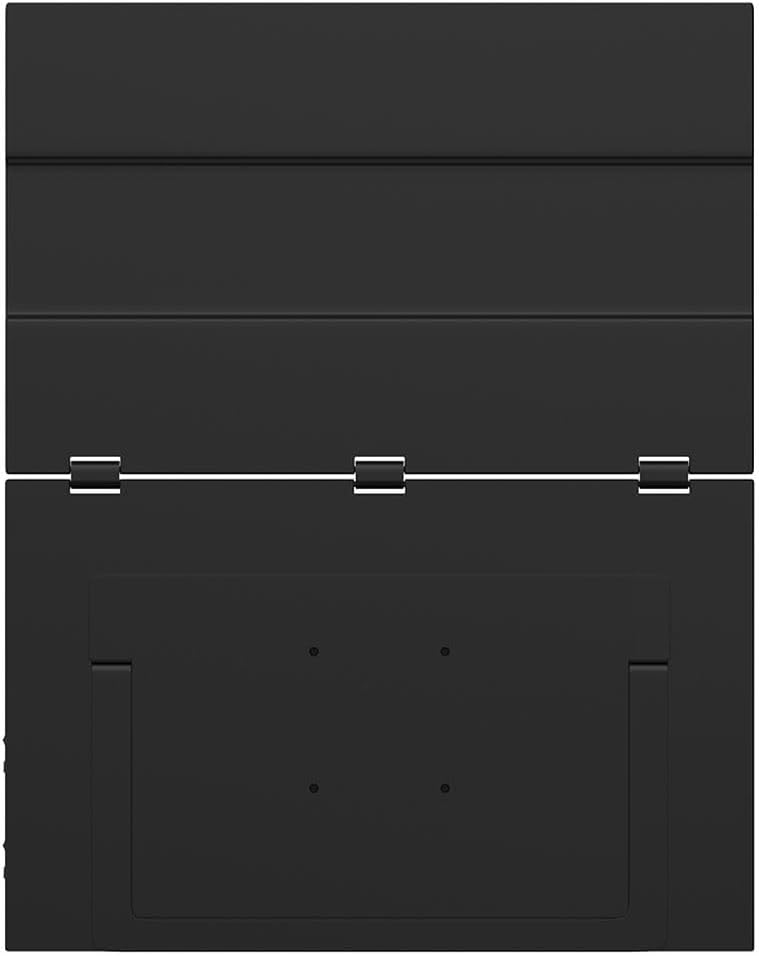
As costas view of the ZEUSLAP Z18W monitor highlights its robust hinge design and integrated stand, allowing for flexible positioning and stability.
3. Configuração
3.1 Conectando a um dispositivo
The ZEUSLAP Z18W monitor supports various connection methods. Ensure your device has the necessary ports.
- USB-C (Full-Featured): If your laptop, smartphone, or gaming console has a full-featured USB-C port (supporting DisplayPort Alternate Mode and power delivery), connect the monitor using the provided USB-C to USB-C cable. This single cable can transmit video, audio, and power to the monitor.
- USB-C (Power Only) + HDMI (Video): If your device's USB-C port does not support video output, or if you are connecting to a device with an HDMI port, you will need two cables:
- Connect an HDMI cable (not included) from your device to the monitor's HDMI input.
- Connect the provided USB-A to USB-C power cable from a USB power source (e.g., laptop USB port, wall adapter) to the monitor's USB-C power input.
3.2 Ligar/Desligar
- Ligar: Once connected to a compatible device and receiving power, the monitor should automatically power on. If not, press the Power button located on the side of the monitor.
- Desligar: Press and hold the Power button for a few seconds until the display turns off. Disconnect the cables when not in use.
4. Instruções de operação
4.1 Menu de exibição na tela (OSD)
The OSD menu allows you to adjust various display settings. The monitor typically features a joystick or a set of buttons for navigation.
- Accessing the OSD: Press the OSD button (or push the joystick) to open the menu.
- Navegação: Use the joystick or directional buttons to move through menu options.
- Seleção: Press the OSD button (or push the joystick in) to select an option.
- Saída: Navigate to the 'Exit' option or press the 'Back' button to close the OSD menu.
Common OSD settings include Brightness, Contrast, Color Temperature, Input Source, Aspect Ratio, and Volume.
4.2 Modos de exibição
Quando conectado a um computador, você pode configurar o modo de exibição através das configurações de vídeo do seu sistema operacional:
- Modo de extensão: Each monitor displays a separate desktop, allowing for more screen space and multitasking.
- Modo duplicado: All monitors display the same content, useful for presentations or sharing your screen.
4.3 Funcionalidade da tela sensível ao toque
The ZEUSLAP Z18W features a touch screen. For touch functionality to work, ensure your device supports touch input over the connected interface (typically USB-C) and that the necessary drivers are installed (usually automatically by the operating system).
- Toque único: Tap to select or open items.
- Gestos multitoque: Use gestures like pinch-to-zoom, two-finger scroll, etc., as supported by your operating system.
5. Manutenção
5.1 Limpando o Monitor
- Always power off the monitor and disconnect all cables before cleaning.
- Use um pano macio e sem fiapos levemente dampFinalize com água ou um limpador de telas não abrasivo.
- Não aplique o produto de limpeza diretamente na tela.
- Evite usar álcool, amônia ou produtos de limpeza abrasivos, pois podem danificar a superfície da tela.
5.2 Armazenamento
- Guarde o monitor em local fresco e seco, longe da luz solar direta e de temperaturas extremas.
- Use the original packaging or a protective case to prevent damage during transport or storage.
6. Solução De Problemas
| Problema | Possível causa | Solução |
|---|---|---|
| Sem imagem / Mensagem "Sem sinal" |
|
|
| Monitor powers on but no image |
|
|
| Tela sensível ao toque não responde |
|
|
| Imagem tremeluzente ou distorcida |
|
|
7. Especificações
| Recurso | Detalhe |
|---|---|
| Nome do modelo | Z18W |
| Tamanho da tela | 2 x 18.5 polegadas |
| Resolução | 1920 x 1080 (Full HD) |
| Taxa de atualização | 120Hz |
| Tipo de painel | IPS |
| Gama de cores | 100% sRGB |
| Brilho | 300 cd/m² |
| Conectividade | USB-C, USB |
| Características especiais | Dual Screen, High Refresh Rate, Type-C Connection, Touch Screen |
| Dispositivos compatíveis | Laptop, Desktop, Gaming Console, Smartphone |
8. Garantia e Suporte
The ZEUSLAP Z18W Dual Screen Portable Monitor comes with a standard manufacturer's warranty. Please refer to the warranty card included in your package for specific terms and conditions, including the warranty period and coverage details.
For technical support, troubleshooting assistance, or warranty claims, please contact the retailer where you purchased the product or visit the official ZEUSLAP webSite com informações de contato do serviço de atendimento ao cliente.