
1. Introdução
This manual provides detailed instructions for the installation, operation, and maintenance of your Girafit GRF-T350SW 3K 5MP Indoor/Outdoor Pan/Tilt/Zoom Wi-Fi Security Camera. Please read this manual thoroughly before using the product to ensure proper functionality and safety. Keep this manual for future reference.
2. Produto acabadoview
Principais características
- 3K 5MP Resolution with 4X Digital Zoom: Fornece vídeos claros e detalhadostage.
- Rotação panorâmica de 360° e inclinação de 180°: Offers comprehensive coverage of your monitoring area.
- AI Person/Pet/Vehicle Detection: Advanced artificial intelligence for accurate identification of subjects, reducing false alerts.
- Rastreamento automático de movimento: Segue automaticamente os objetos detectados dentro do campo de visão da câmera. view.
- Starlight Color Night Vision: Enhanced low-light performance for vivid color images at night.
- Áudio bidirecional: Microfone e alto-falante integrados para comunicação em tempo real.
- Auto Alert Siren: Deters intruders with an audible alarm.
- Classificação de resistência às intempéries IP65: Adequado para uso externo em diversas condições climáticas.
- Opções flexíveis de armazenamento: Supports encrypted US cloud storage and local Micro SD card storage (up to 256GB).
- 2.4GHz/5GHz Wi-Fi Connectivity: Dual-band Wi-Fi support for stable connection.
O que está na caixa
- Girafit GRF-T350SW Camera Body
- Adaptador de energia
- Parafusos e âncoras de montagem
- Modelo de Montagem
- Manual do usuário

Figure 2.1: Girafit GRF-T350SW camera showing its pan and tilt capabilities.

Figure 2.2: The Girafit GRF-T350SW camera operating reliably in both rainy and sunny conditions, highlighting its IP65 weatherproof design.
3. Configuração
3.1 Instalação Física
- Escolha um local: Select a suitable outdoor or indoor location that provides the desired viewing angle and is within range of your Wi-Fi network. Ensure the power outlet is accessible.
- Monte a câmera: Use the provided mounting template to mark drill holes. Secure the mounting bracket to the wall or ceiling using the screws and anchors. Attach the camera to the bracket.
- Conecte a energia: Plug the power adapter into the camera and then into a power outlet. The camera will power on and initiate its startup sequence.
3.2 Instalação do aplicativo e criação de conta
- Download the Girafit App: Procurar 'Girafit' in your smartphone's app store (iOS or Android) and download the official application.
- Criar uma conta: Abra o aplicativo e siga as instruções na tela para registrar uma nova conta.
3.3 Conexão de rede
- Adicionar dispositivo: In the Girafit app, tap the '+' icon to add a new device. Select your camera model.
- Siga as instruções no aplicativo: The app will guide you through connecting the camera to your 2.4GHz or 5GHz Wi-Fi network. This typically involves scanning a QR code displayed on your phone with the camera lens.
- Conclusão: Assim que estiver conectado, o indicador de status da câmera mudará e você verá a transmissão ao vivo no aplicativo.
4. Operação
4.1 Controle de Panorâmica, Inclinação e Zoom
Do show view in the Girafit app, use the on-screen controls to remotely adjust the camera's viewing angle. The camera supports 360° horizontal pan and 180° vertical tilt. You can also digitally zoom in up to 4X to view detalhes.

Figure 4.1: Visual comparison demonstrating the clarity of 3K 5MP resolution with 4X zoom compared to standard 3MP resolution.
4.2 Detecção de movimento e rastreamento automático
The camera features advanced AI detection capabilities to identify humans, pets, and vehicles. When motion is detected, the camera can automatically track the subject, zoom in, record the event, and send push notifications to your smartphone.
- Ativar detecção: Navigate to the camera settings in the app to enable AI Person/Pet/Vehicle Detection.
- Definir Zonas de Detecção: Defina áreas específicas dentro da câmera. view onde você deseja que a detecção de movimento esteja ativa.
- Activate Auto Tracking: Enable auto tracking in the settings to allow the camera to follow detected subjects.
- Auto Alert Siren: Configure the camera to trigger an audible siren upon detection to deter unwanted visitors.

Figure 4.2: Illustration of the camera's automatic tracking feature, showing a person being followed with a 4X zoom.

Figure 4.3: The camera's AI accurately detecting a human, a pet, and a vehicle in a home environment.

Figure 4.4: The camera detecting activity in a defined hexagonal area and issuing an auto voice alert.
4.3 Visão noturna
The GRF-T350SW offers multiple night vision modes for clear surveillance in low-light conditions.
- Starlight Color Night Vision: Utilizes a Starlight Sensor and f/1.6 aperture to capture more light, providing full-color video even in very dim environments.
- Modo infravermelho: Visão noturna padrão em preto e branco usando LEDs infravermelhos.
- Modo Destaque: Activates built-in spotlights to illuminate the area and capture color video when motion is detected at night.
Você pode alternar entre esses modos ou configurá-los para automático nas configurações do aplicativo.

Figure 4.5: Visual representation of the camera's Starlight Color Night Vision, Infrared Mode, and Spotlight Mode capabilities.
Áudio bidirecional 4.4
The integrated microphone and speaker allow for two-way communication. You can speak through the camera to visitors or deter intruders directly from your smartphone via the Girafit app.
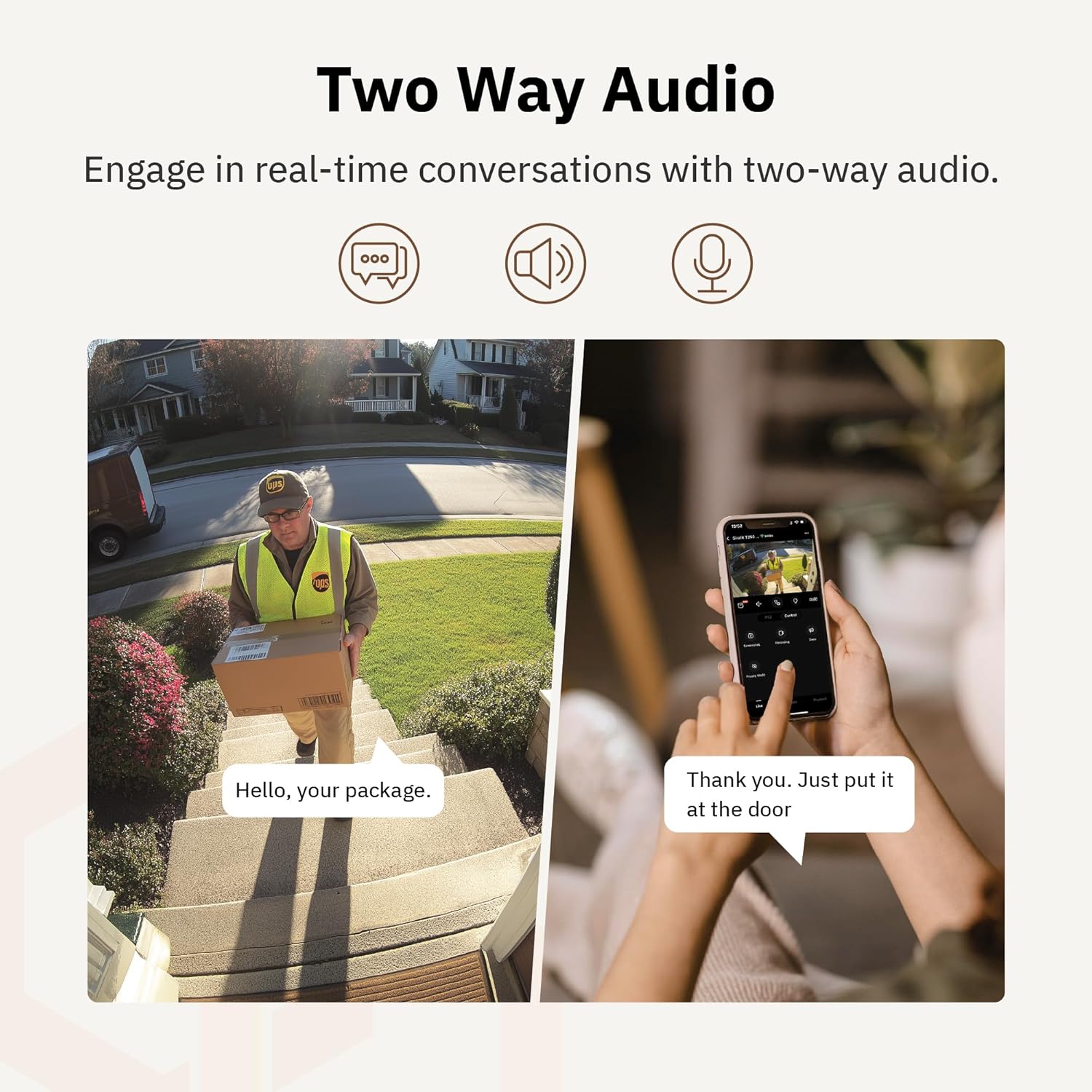
Figura 4.6: Um example of using two-way audio to communicate with a delivery person at the door.
4.5 Modo de privacidade
For enhanced privacy, the camera features a privacy mode. When activated, the camera lens physically tilts down by 180°, ensuring no live feed is captured or transmitted. This provides 100% privacy protection when needed.

Figure 4.7: The camera in privacy mode, with the lens tilted downwards to ensure no recording or live view.
4.6 Armazenamento de Vídeo
The camera supports two primary methods for video storage:
- Cartão Micro SD: Insert a Micro SD card (up to 256GB, not included) into the designated slot on the camera for local storage of recordings.
- Armazenamento em nuvem: Girafit offers encrypted cloud storage services in the US. Refer to the app for subscription options and details.
5. Manutenção
5.1 Limpeza
Para manter o desempenho ideal, limpe periodicamente a lente e o corpo da câmera. Use um pano macio e seco.amp Use um pano para remover poeira e sujeira. Evite usar produtos químicos agressivos ou materiais abrasivos que possam danificar a lente ou o acabamento.
5.2 atualizações de firmware
Girafit regularly releases firmware updates to improve camera performance, add new features, and enhance security. Check the Girafit app periodically for available updates and follow the in-app instructions to install them. Ensure the camera has a stable power supply during updates.
6. Solução De Problemas
- Câmera não conecta ao Wi-Fi:
- Ensure your Wi-Fi network is 2.4GHz or 5GHz and the password is correct.
- Aproxime a câmera do seu roteador Wi-Fi.
- Reinicie o roteador e a câmera.
- Má qualidade de vídeo:
- Verifique a velocidade da sua conexão com a internet.
- Limpe a lente da câmera.
- Certifique-se de que a câmera esteja recebendo energia suficiente.
- A detecção de movimento não funciona:
- Verifique se a detecção de movimento está ativada nas configurações do aplicativo.
- Adjust detection sensitivity and detection zones.
- Certifique-se de que não haja obstruções bloqueando a visão da câmera. view.
- Problemas de áudio bidirecional:
- Check microphone and speaker permissions for the Girafit app on your phone.
- Certifique-se de que o microfone e o alto-falante da câmera não estejam obstruídos.
For further assistance, please contact Girafit customer support.
7. Especificações
| Recurso | Descrição |
|---|---|
| Nome do modelo | GRF-T350SW |
| Resolução de captura de vídeo | 3K (5 MP) |
| Uso interno/externo | Ar livre |
| Tecnologia de Conectividade | Wi-Fi (2.4GHz/5GHz), Wired |
| Fonte de energia | Elétrico com fio |
| Tipo de montagem | Montagem na parede |
| Recurso especial | 2-Way Audio, AI Detection (Human/Pet/Vehicle), Auto Tracking, Color Night Vision, IP65 Weatherproof |
| Dispositivos compatíveis | Desktop, Laptop, Smartphone (Android/iOS) |
| Dimensões do item (C x L x A) | 2.63 x 2.63 x 4.76 polegadas |
| Peso do item | 14.7 onças |
| Opções de armazenamento | Cartão Micro SD (até 256 GB), armazenamento em nuvem |
| UPC | 764742517881 |
8. Garantia e Suporte
Girafit products are designed for reliability and performance. For warranty information, please refer to the warranty card included with your product or visit the official Girafit website. For technical support, troubleshooting assistance, or any inquiries regarding your Girafit GRF-T350SW camera, please contact Girafit customer service through the contact information provided on the official website or within the Girafit app.